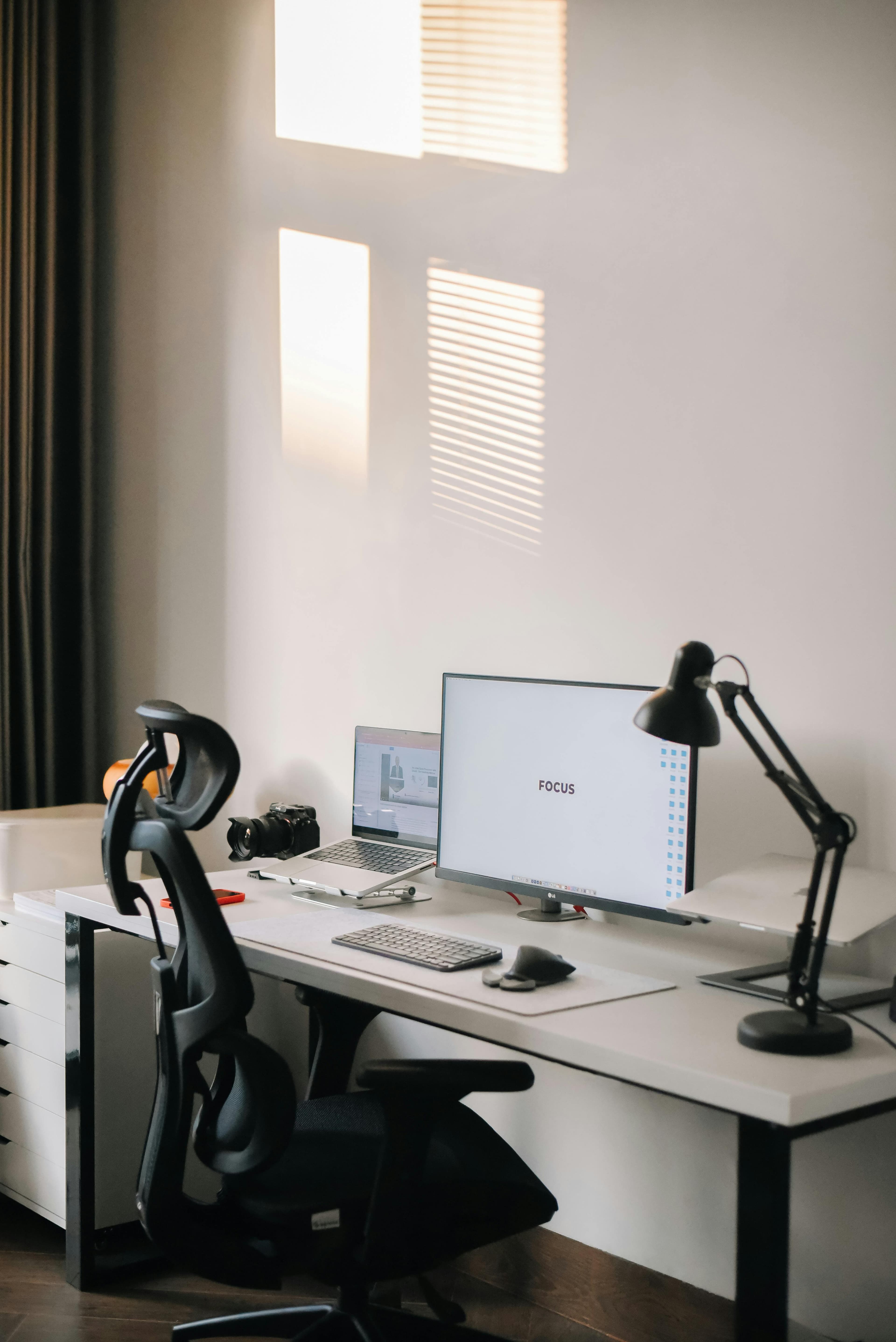
Home office ergonomics is the practice of arranging your workspace so your body stays in a neutral, low-strain position throughout the day. Done right, it eliminates the back pain, neck stiffness, and wrist aches that plague most remote workers. Done wrong — or not done at all — it quietly causes damage that compounds over years.
The scale of the problem is real. The Bureau of Labor Statistics reports that musculoskeletal disorders account for roughly 30% of all workplace injury cases requiring time away from work (Bureau of Labor Statistics, 2023). Working from home doesn't protect you from those numbers. In many cases, improvised home setups — kitchen chairs, laptop-on-lap, screens at the wrong height — make things worse.
This guide covers every adjustment worth making, in the order you should make it.
TL;DR: Most home office pain comes from three fixable problems: monitor too low, chair not supporting the lumbar spine, and keyboard/mouse forcing the wrists out of neutral. Fix those three things first. Research from the Cornell University Ergonomics Lab shows that proper ergonomic setup can reduce musculoskeletal discomfort by up to 61% (Cornell Human Factors and Ergonomics Research Group, 2022).
What Happens to Your Body Without Proper Ergonomics?
Poor home office ergonomics doesn't just cause temporary discomfort — it creates cumulative strain that builds into genuine injury. The American Chiropractic Association estimates that back pain is the single leading cause of disability worldwide, affecting up to 80% of people at some point in their lives (American Chiropractic Association, 2024). Remote workers are not immune.
Here's what poor setup actually does to you.
Back and Neck Pain
Sitting with your screen too low forces your head forward and down. For every inch your head tilts forward past neutral, the effective weight on your cervical spine nearly doubles — a phenomenon spine surgeons call "tech neck." A head that weighs 10–12 pounds at neutral can exert 60 pounds of force on the neck at a 60-degree forward tilt (Surgical Technology International, 2014).
Your lower back suffers separately. Without lumbar support, your pelvis tilts backward, flattening the natural curve of your lumbar spine. Sitting in that position for six to eight hours a day compresses spinal discs unevenly and fatigues the erector muscles that hold you upright.
Carpal Tunnel and Wrist Strain
Repetitive typing with bent wrists compresses the carpal tunnel — a narrow passageway in the wrist that houses the median nerve. Over time this causes numbness, tingling, and pain in the hand and forearm. The National Institute of Neurological Disorders and Stroke reports that carpal tunnel syndrome affects roughly 3–6% of adults in the general population, with rates higher among people who type extensively (NINDS, 2023).
Eye Strain and Headaches
Screen glare, incorrect viewing distance, and poor ambient lighting force your eyes to work harder than they should. The American Optometric Association calls this condition "digital eye strain" and reports that 50–90% of computer users experience it (American Optometric Association, 2023). Symptoms include dry eyes, blurred vision, and tension headaches that start behind the eyes and radiate to the temples.
How Should You Set Up Your Chair?
Chair setup is the foundation of home office ergonomics. Get this wrong and no amount of monitor adjustment will save your back. A 2021 study in Applied Ergonomics found that adjustable lumbar support reduced reported low back pain by 35% in office workers compared to a non-adjustable chair.
Setting the Right Seat Height
Your feet should rest flat on the floor (or a footrest), with your knees at roughly 90 degrees and your thighs parallel to the ground. At that height, your hips should sit slightly higher than your knees — this tilts the pelvis slightly forward and preserves the lumbar curve.
In practice: sit all the way back in the seat. If your feet dangle, the chair is too high. If your knees rise above your hips, it's too low. Adjust until both conditions are resolved before touching anything else.
Lumbar Support Positioning
The lumbar support on your chair should press gently into the inward curve of your lower back — roughly the beltline area, not the mid-back. If it sits too high, it pushes the thoracic spine and creates a new problem. Most quality ergonomic chairs let you adjust lumbar height independently.
The paper test
Sit naturally in your chair and try to slide a piece of paper between your lower back and the backrest. If the paper slides in more than an inch or two, your lumbar support isn't making contact. Adjust height or depth until it fills that gap.
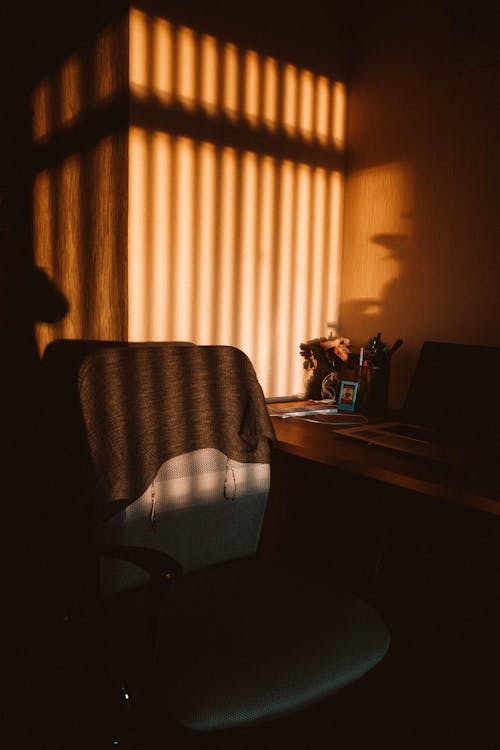
Choosing the Right Chair
Most office chairs sold under $200 lack true adjustability. For people who work eight or more hours a day, a proper ergonomic chair is the single best investment in this list.
Herman Miller
Herman Miller Aeron
The benchmark ergonomic chair. PostureFit SL supports both the sacrum and lumbar spine simultaneously. Three size options, 12-year warranty.
Steelcase
Steelcase Leap
LiveBack technology flexes with your spine as you shift positions. More forgiving fit for people who find the Aeron's seat pan too firm.
Where Should Your Monitor Be?
Monitor position determines head position, which determines neck strain. The standard ergonomic rule: the top of the monitor should be at or just below eye level, with the screen 20–28 inches from your face. At that distance, a 27-inch monitor subtends a comfortable visual angle without requiring you to move your head to read the edges.
After switching from a laptop screen to a monitor arm that placed the display exactly at eye level, the afternoon neck tightness that had become routine simply stopped. The adjustment takes five minutes. The relief is immediate.
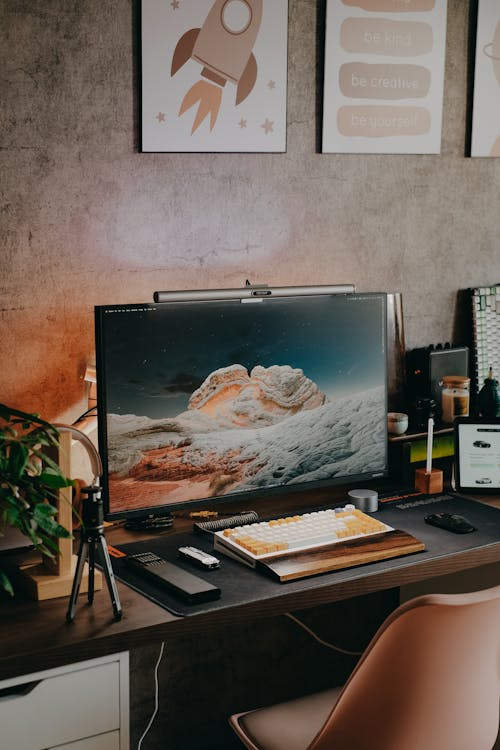
Monitor Height in Practice
If you're using a laptop, the screen is almost certainly too low. Prop it on a stand or stack of books to get the top of the screen near eye level, then plug in an external keyboard and mouse. This is non-negotiable — using a laptop flat on a desk forces the "tech neck" head position described above for every hour you work.
Monitor Distance and Screen Size
The 20–28 inch rule applies to a standard 24–27 inch monitor. Larger screens need more distance: a 32-inch display is typically most comfortable at 30–35 inches. The Dell UltraSharp 27" 4K Monitor hits the sweet spot of screen real estate and comfortable viewing distance for most home desks. Its IPS panel reduces color shifting when you're not looking at it dead center, which matters less when the monitor is correctly positioned.
Using a Monitor Arm
A monitor arm solves the height problem permanently and frees up the desk surface your monitor stand would otherwise occupy.
Cable Matters
Cable Matters Single Monitor Arm
Full range of motion — height, tilt, swivel, rotation. Clamp-mount fits desks up to 3.5 inches thick. Supports monitors up to 27 inches and 17.6 lbs.
Is Your Keyboard Position Causing Wrist Problems?
Keyboard positioning is the most overlooked part of home office ergonomics. The goal is a neutral wrist: forearms roughly parallel to the floor, wrists straight (not bent up or down), elbows close to the body at 90–110 degrees. Deviating from neutral even slightly — particularly bending the wrists upward (extension) — increases carpal tunnel pressure significantly.
Most ergonomic guides tell you to keep wrists "neutral" without defining what that looks like in practice. Here's the test: let your arms hang naturally at your sides. The slight bend at the wrist in that position is neutral. Now raise your forearms to keyboard height. If your wrists have to bend upward to reach the keys, your keyboard is too high. If they bend downward, it's too low.
Keyboard Tenting and Negative Tilt
Standard keyboards sit flat or angle upward (positive tilt), which forces wrist extension. The ergonomically correct position is either flat or slightly negatively tilted — angled away from you, not toward you. Many keyboard trays and stands allow negative tilt adjustment.
Tenting — raising the center of the keyboard so the thumbs are higher than the pinkies — reduces forearm rotation and is particularly helpful for people with early signs of wrist strain.
Keychron
Keychron K2 Wireless Keyboard
Tenkeyless layout keeps the mouse closer to the keyboard, reducing shoulder reach. Two typing angle options. Hot-swappable switches. Works wired or Bluetooth.
Mouse Positioning
Your mouse should sit at the same height as the keyboard and within easy reach — you shouldn't have to extend or rotate your shoulder to use it. A tenkeyless keyboard (without the number pad) keeps the mouse significantly closer to the body, reducing the sustained shoulder abduction that causes shoulder and upper-arm fatigue over time.
What Is the Right Desk Height?
Desk height follows from chair height, not the other way around. Once your chair is correctly set, your desk should position your forearms parallel to the floor — for most people between 28 and 30 inches. The problem: most standard desks are 29–30 inches tall, which works for people around 5'9"–5'11" but is too high for shorter users and occasionally too low for taller ones.
If your desk is too high and not adjustable, raise your chair and use a footrest to keep your feet supported. If it's too low, a monitor arm solves the screen height issue even if the desk surface itself sits low. A sit-stand desk solves the underlying problem entirely — alternating between sitting and standing every 30–45 minutes has documented benefits for reducing musculoskeletal fatigue (NIOSH, 2023).
How Does Lighting Affect Ergonomics and Eye Strain?
Lighting is technically an environmental ergonomics factor rather than a postural one, but it drives a specific and common injury: digital eye strain. The American Optometric Association reports that eye strain symptoms affect a majority of screen workers, and poor lighting is a primary contributing factor (American Optometric Association, 2023). Getting lighting right is faster and cheaper than most other ergonomic adjustments.
The Core Problem: Glare and Contrast
Two things strain eyes most: glare on the screen from overhead lights or windows behind you, and high contrast between a bright screen and a dark surrounding environment. Both force your eyes to constantly adapt, which tires the ciliary muscles that control focus.
Position your monitor perpendicular to windows rather than facing them or having them directly behind you. This eliminates the most common source of glare without buying anything.
Monitor Lighting
A monitor light bar mounts directly to the top of your screen and illuminates the desk surface below without casting light onto the screen itself. This reduces the contrast between the bright screen and the surrounding area — the core cause of eye fatigue in dim rooms.
BenQ
BenQ ScreenBar Monitor Light
Auto-dimming sensor adjusts brightness to ambient light. Asymmetric optical design lights the desk without screen glare. USB-powered from the monitor.
Screen Settings
Beyond physical lighting, adjust your monitor's brightness to roughly match the brightness of your surrounding environment — a blindingly bright screen in a dark room is a common mistake. Color temperature also matters: warmer tones (around 4,000–5,000K) in the evening reduce blue light exposure that can affect sleep quality.
What Is the 20-20-20 Rule and Does It Work?
The 20-20-20 rule is the most practical single habit in home office ergonomics. Every 20 minutes, look at something 20 feet away for at least 20 seconds. The American Academy of Ophthalmology endorses this practice specifically to reduce digital eye strain by allowing the ciliary muscles to relax from sustained near-focus (American Academy of Ophthalmology, 2024).
The science is straightforward. When you stare at a screen, your eyes maintain constant near-focus — the muscles that control lens shape never fully relax. Over hours, this sustained contraction creates the tension headaches and blurred-distance vision that are hallmarks of eye strain. The 20-20-20 rule interrupts that cycle.
Making Breaks Habitual
Knowing about the 20-20-20 rule and actually doing it are different things. The easiest implementation: set a recurring 20-minute timer on your phone or use a desktop app like Stretchly (free, cross-platform) that enforces the break with a screen overlay. Within a week it becomes automatic.
Micro-breaks matter for posture too. Every 30–45 minutes, stand up, walk to another room, and come back. Even 60 seconds of standing and moving resets spinal loading patterns and counters the compressive forces that build up during sustained sitting.
The 20-20-20 rule in practice
Set your phone's clock app to repeat a silent alarm every 20 minutes while you work. When it goes off, find something across the room or through a window and hold your gaze there for a slow count of 20. You'll notice a physical sense of your eyes relaxing. Do this for one week and eye-fatigue headaches typically diminish significantly.
Home Office Ergonomics Checklist
Use this checklist when setting up a new workspace or diagnosing an existing one. Work through it top-to-bottom — each item builds on the previous one.
Chair and Posture
- Feet rest flat on the floor or footrest — not dangling, not scrunched
- Knees are at roughly 90 degrees, hips slightly higher than knees
- Lower back makes full contact with the lumbar support (no gap)
- Backrest recline is between 100–110 degrees (slight recline, not upright)
- Armrests support forearms without raising shoulders
Monitor
- Top of monitor is at or just below eye level
- Monitor is 20–28 inches from your face (arm's length is a rough check)
- Screen is perpendicular to windows — no direct light source behind or facing you
- Monitor brightness roughly matches ambient room brightness
- Text is large enough to read without leaning forward
Keyboard and Mouse
- Forearms are roughly parallel to the floor when typing
- Wrists are straight — not bent up (extended) or sharply down
- Mouse sits at the same height as the keyboard, within easy reach
- No sustained shoulder reach to the mouse — keyboard is tenkeyless or mouse is pulled close
Environment
- Desk lamp or monitor light eliminates screen glare
- Room temperature is comfortable — cold muscles fatigue faster
- 20-20-20 reminder is set and active
- You stand and move at least once every 45 minutes
Frequently Asked Questions
What is the most important ergonomic adjustment for home office workers?
Chair setup is the foundation. The most impactful single change for most people is adjusting seat height so feet rest flat on the floor and knees reach 90 degrees, then adjusting lumbar support to fill the lower-back gap. A 2021 Applied Ergonomics study found lumbar support adjustments reduced back pain by 35% compared to non-adjustable seating.
How high should a monitor be for ergonomics?
The top edge of your monitor should sit at or just slightly below eye level when you're seated in your normal working position. This keeps your head in neutral — not tilted up or forced down. Most laptop screens and desktop monitors on fixed stands sit too low. A monitor arm or laptop stand is the fastest fix.
Can a cheap chair cause long-term back problems?
Yes. Sustained sitting on a chair that lacks lumbar support, adjustability, or appropriate seat pan depth loads the lumbar discs unevenly over time. This contributes to disc degeneration, muscle imbalances, and chronic low back pain. It's not overnight damage — it accumulates over months and years of daily use. The investment in a quality ergonomic chair is, in most cases, significantly cheaper than the physiotherapy it prevents.
Does a standing desk help with back pain?
Alternating between sitting and standing — rather than standing all day — reduces lower back discomfort for most people. The key word is alternating: standing all day creates its own fatigue and joint compression. NIOSH recommends intervals of 30–45 minutes, changing position when you notice any discomfort building (NIOSH, 2023).
How far should I sit from my monitor?
Between 20 and 28 inches for a 24–27 inch display. At that distance, you should be able to read standard body text without leaning forward or squinting. Larger monitors need proportionally more distance. If you find yourself leaning in regularly, either increase text size or move the monitor back before assuming the distance is wrong.
Fix One Thing Today
Home office ergonomics doesn't require a full setup overhaul. If you take one thing from this guide, make it this: measure the distance from the floor to your eyes while sitting normally, then adjust your monitor so the top edge sits at that height. It takes two minutes. The change in neck tension is usually noticeable within the same day.
From there, work through the checklist above. Chair height and lumbar support next. Keyboard position after that. Each adjustment compounds — the cumulative effect of a well-tuned setup is dramatically different from any single change in isolation.
Not sure which ergonomic products actually fit your body type, desk depth, and budget? Take our 2-minute setup quiz and get a personalized recommendation for chair, monitor arm, and desk height — no guesswork required.