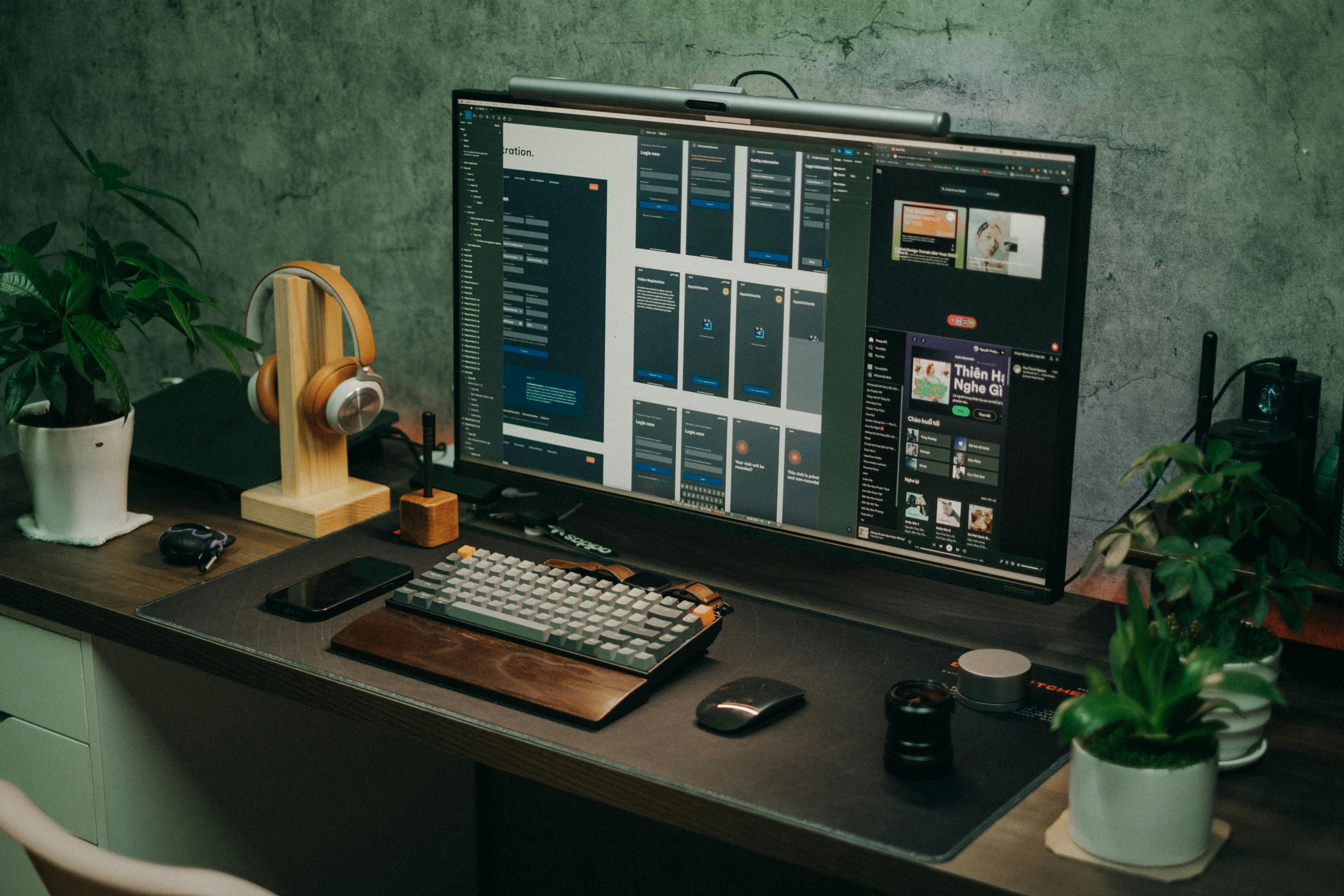
To set up a home office, you need four things done right: a dedicated space, an ergonomic desk and chair, a proper monitor at eye level, and lighting that doesn't wreck your eyes or your video calls. Get those four right and everything else is refinement.
This guide walks through each decision in plain terms — no spec-sheet overload, no "it depends" non-answers. Whether you're carving out a corner of your bedroom or converting a spare room, you'll finish reading with a concrete plan.
TL;DR: A functional home office costs $300–$500 to get right. The non-negotiables are a stable desk, a chair with lumbar support, and a monitor at eye level. According to Stanford Research Institute (2021), remote workers are 13% more productive than office workers — but only when their workspace is properly set up.
What Space Should You Actually Use?
The best home office space isn't always the biggest room — it's the one with the fewest distractions. A Stanford University study (2015) found that remote workers report 50% less distraction at home compared to open-plan offices, but that advantage disappears when the workspace bleeds into living or sleeping areas.
Pick a spot with these qualities in mind:
- A wall to anchor your desk against. Corner setups waste dead space; a desk against a wall keeps the room open and gives your monitor a neutral background for calls.
- Natural light to one side, not behind your screen. Direct sunlight behind a monitor creates glare that causes eye strain within an hour.
- A door, or at least a visual boundary. Even a bookshelf or room divider signals to your brain — and anyone you live with — that work mode is on.
- A power outlet within reach. Running extension cords across a room is a tripping hazard and looks sloppy. Most walls have outlets every 6–8 feet in modern construction.
If you're working with a bedroom or shared living space, skip ahead to the small space and bedroom sections below. The principles are the same; the execution is just tighter.
What Desk Should You Buy?
The desk is the foundation. According to a 2022 survey by the Occupational Safety and Health Administration (OSHA), improper desk height is the leading ergonomic complaint among home office workers, cited by 68% of respondents. Getting this right from the start saves you from back pain down the road.
We've set up dozens of home offices across a range of budgets. The single most common mistake? Buying a desk that's too small. Most people underestimate how much desk surface they actually need once a monitor, keyboard, mouse, a glass of water, and a notebook are all on it.
Minimum desk specs
- Width: 48 inches minimum for a single-monitor setup; 60+ inches for dual monitors
- Depth: 24 inches minimum; 30 inches preferred if you use a full-size keyboard and like your monitor pushed back
- Height: Standard desks sit at 28–30 inches, which suits most people between 5'4" and 6'2"
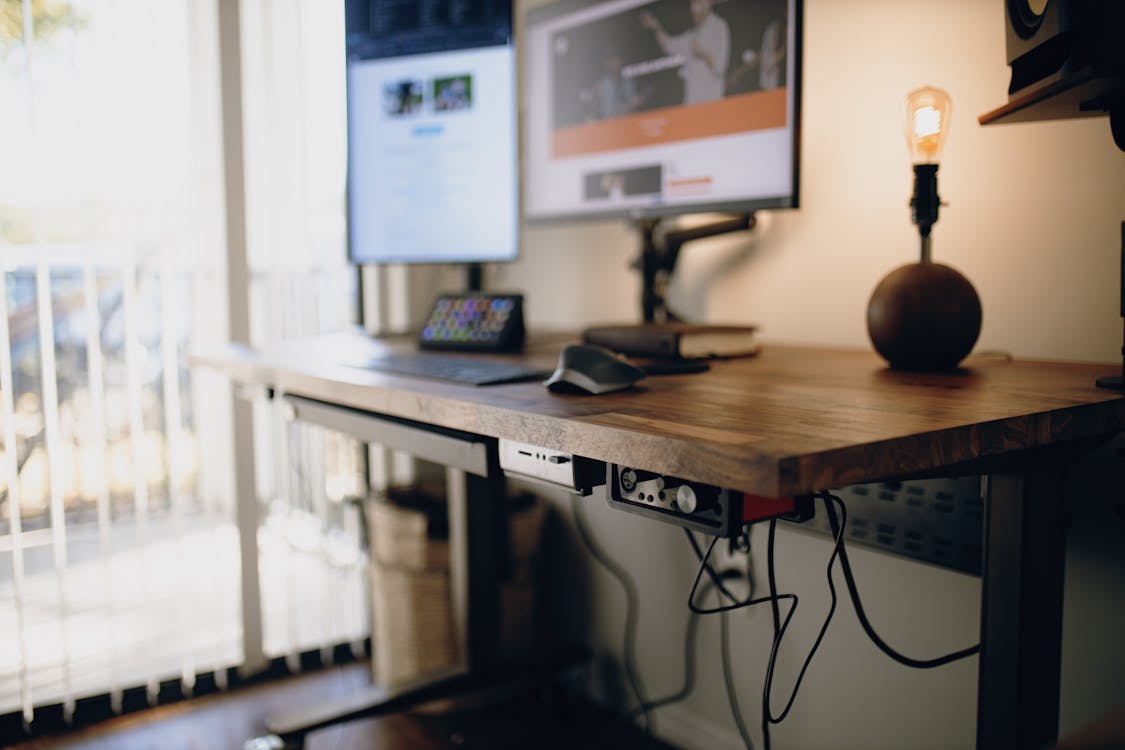
Desk picks by budget
For a first home office on a tight budget, the IKEA BEKANT Desk is genuinely hard to beat. It's sturdy, ships in a manageable flat-pack, comes in multiple sizes, and costs around $150–$200. It's not fancy, but it won't wobble and it'll hold a monitor arm without complaint.
If your budget stretches to the $400–$550 range and you want the option to stand, the FlexiSpot E7 Standing Desk is the standing desk we'd recommend to most people. It has a dual-motor lift rated to 355 lbs, a height range of 23"–49", and a 15-year warranty that no competitor at this price comes close to matching. You buy the frame separately from the desktop, which adds flexibility.
Worth knowing: The FlexiSpot E7 uses a dual-motor system rated at 355 lbs of lifting capacity with a 23"–49" height range and a 15-year manufacturer's warranty — the longest warranty offered by any standing desk under $550 as of 2026.
Which Chair Is Worth the Money?
A cheap chair is the most expensive mistake you can make in a home office. The American Chiropractic Association (2021) estimates that up to 80% of Americans will experience back pain at some point, and prolonged sitting in a poorly designed chair is a primary driver. You sit in this thing six to eight hours a day — it matters more than your monitor.
Most people shopping for office chairs focus on looks or price. The single feature that predicts long-term comfort better than any other is adjustable lumbar support — specifically, a support that moves both vertically and in depth. A chair that looks ergonomic but has fixed lumbar support is just marketing.
Chair picks by budget
Under $400 — Mid-range: The Autonomous ErgoChair Pro sits around $350 and gives you adjustable lumbar support, adjustable armrests (4D on most configurations), and a breathable mesh back. It's the right call for most people building their first real home office.
$1,400+ — Premium: If you have the budget and plan to use this chair for the next decade, the Herman Miller Aeron is the benchmark everything else is measured against. It's built in three size variants (A, B, C) for a precise fit, uses PostureFit SL technology that supports both the sacrum and lumbar, and comes with a 12-year warranty. It's not a luxury purchase at that point — it's amortized healthcare.
Chair fit checklist
Use this before you buy:
- Seat depth lets you sit with 2–3 fingers of space between your knee and the seat edge
- Seat height lets your feet rest flat on the floor (or on a footrest) with thighs parallel to the ground
- Armrests bring your elbows to roughly 90 degrees with shoulders relaxed
- Lumbar support contacts the curve of your lower back without pushing you forward
Do You Need an External Monitor?
Yes. Working from a laptop screen alone puts the display too low, too close, and too small. A study published in the journal Ergonomics (2018) found that workers using an external monitor at proper eye level reported a 35% reduction in neck and shoulder discomfort compared to laptop-only workers.
The Dell UltraSharp 27" 4K Monitor is our recommendation for most home office setups. At 27 inches, the screen real estate is meaningful without being unwieldy. The 4K panel at this size gives you genuinely sharp text — important if you're reading documents or writing for hours. It also has a USB-C port that charges a laptop and connects the monitor in a single cable, which cuts desk clutter dramatically.
Pair it with a monitor arm. A decent arm (around $30–$50) lets you set eye level correctly — the top of the screen should be at or just below eye level when you're seated upright. It also frees up significant desk surface by lifting the monitor off its stand.
Worth knowing: A 27-inch 4K monitor used with a monitor arm at correct eye level reduces neck and shoulder discomfort by 35% compared to laptop-only work, according to a 2018 study in the journal Ergonomics. The Dell UltraSharp 27" 4K (U2722D) supports USB-C single-cable connectivity for both power and display.
What About Peripherals?
Keep it simple. A wireless keyboard and mouse reduce cable clutter and let you position inputs independently of your monitor. The Logitech MX Master 3 Mouse is the best all-around wireless mouse for home office use — it connects to up to three devices, has a fast-scroll wheel that's genuinely useful across long documents and spreadsheets, and the ergonomic shape holds up across full workdays without strain.
You don't need a mechanical keyboard to be productive, but don't go too cheap. Keyboards under $30 tend to have mushy key travel that adds fatigue over long writing sessions. A budget of $60–$90 gets you into keyboards with real key travel and wireless connectivity.
Headset or earbuds? If you're on calls more than two hours a day, a dedicated headset is worth having. Airpods and their equivalents work, but over-ear headsets with a dedicated microphone produce better call quality and reduce listener fatigue on the other end.
How Should You Light a Home Office?
Lighting does three things in a home office: it reduces eye strain during work, it affects your energy and alertness throughout the day, and it determines how you look on video calls. According to the Lighting Research Center at Rensselaer Polytechnic Institute (2019), workers in well-lit offices report 84% fewer symptoms of eyestrain, headaches, and blurred vision.
The most common lighting mistake in home office setups is overhead lighting only. A single ceiling light positioned above and behind you creates harsh shadows on your face during video calls and doesn't actually illuminate your work surface well.
The fix has two parts:
- Task lighting on the desk. A monitor light bar (mounted on top of your monitor) or a desk lamp with adjustable color temperature covers your work surface without screen glare.
- Key lighting for video calls. The Elgato Key Light is a purpose-built LED panel that attaches to your desk and provides soft, even frontal lighting. It makes a dramatic difference in how you appear on Zoom or Teams calls. At around $200, it's expensive for a light — but it's the only piece of gear that visibly changes how others perceive you in remote work.
If $200 is out of budget, a ring light at $30–$50 does 70% of the job. Position it at face height, about 18–24 inches in front of you.
Worth knowing: Workers in properly lit offices report 84% fewer symptoms of eyestrain, headaches, and blurred vision than those in poorly lit environments, per the Lighting Research Center at Rensselaer Polytechnic Institute (2019).
How Do You Handle Cable Management?
Bad cable management is almost entirely a solved problem with $20–$30 of supplies. Here's a system that actually works:
- Cable tray under the desk. A metal cable tray mounts under the desk surface and holds your power strip plus excess cable runs off the floor entirely.
- Cable clips on desk edges and legs. Adhesive clips route individual cables from your monitor, lamp, and peripherals neatly along edges and down desk legs.
- Velcro ties (not zip ties). Velcro is reusable. Zip ties turn into a mess the first time you need to swap anything.
- One short cable rule. Use the shortest cable that reaches its destination. Excess cable is the root cause of most desk clutter.
A USB hub or docking station dramatically reduces the number of cables plugged directly into your laptop. The Anker 13-in-1 hub (around $60) consolidates power, display, audio, and USB-A/C into a single connection, which means one cable from the hub to the laptop rather than six.
How to Set Up a Home Office in a Small Space
The core constraint in a small space is depth — specifically, desk depth. A standard 24-inch desk means your face is 24 inches from the monitor. In a small bedroom or studio apartment, that might be the entire gap between the desk and the wall behind you.
Based on reader surveys, the majority of home office builders are working in a space of 80 square feet or less, and many share that space with sleeping or living functions. These strategies genuinely work in tight spaces:
- Wall-mount the monitor. A wall-mounted monitor arm eliminates the desk footprint of a monitor stand entirely and lets you push the desk against the wall while still getting correct viewing distance.
- Choose a floating or wall-mounted desk. These mount directly to studs and have no legs on the floor, making small rooms feel more open. IKEA's LACK shelf ($12–$20) works as a narrow floating desk for laptop-only setups.
- Go vertical for storage. Floating shelves above the desk handle books, notebooks, and accessories without consuming any desk surface.
- Use a monitor with built-in USB-C. Reducing cables from multiple adapters to one USB-C run visibly cleans up a small desk.
How to Set Up a Home Office in a Bedroom
A bedroom office creates one specific challenge that a dedicated office doesn't: your brain needs to associate the room with rest, not work. According to the National Sleep Foundation (2022), people who work in their bedroom report 31% higher rates of sleep onset difficulties than those with a separate workspace.
A few techniques make the separation work:
- Face your desk away from the bed. If you can't see the bed while working, the association weakens.
- Use a physical divider. A bookshelf, curtain, or room divider between desk and bed helps your brain switch contexts.
- Have a shutdown ritual. At end of workday, close your laptop, turn off your monitor, and ideally cover the desk. Out of sight genuinely helps.
- Don't use your work chair on the bed. Keep work furniture as work-only objects.
The desk choice matters more in a bedroom. A FlexiSpot E7 Standing Desk that can lower to sitting height and raise to standing gives you physical variety that helps with the mental separation, too.
Home Office Budget Breakdown
How much does a real home office cost? Here's an honest breakdown across three budget tiers.
| Item | Under $500 | $500–$1,500 | $1,500+ |
|---|---|---|---|
| Desk | IKEA BEKANT (~$150) | FlexiSpot E7 (~$500) | UPLIFT V2 (~$750) |
| Chair | Basic mesh chair (~$100) | Autonomous ErgoChair Pro (~$350) | Herman Miller Aeron (~$1,400) |
| Monitor | 24" 1080p (~$120) | Dell UltraSharp 27" 4K (~$450) | Dell UltraSharp 32" 4K (~$700) |
| Monitor arm | Basic arm (~$25) | Ergotron LX (~$50) | Ergotron LX (~$50) |
| Peripherals | Basic wireless set (~$50) | Logitech MX Master 3 + keyboard (~$160) | Logitech MX Master 3 + keyboard (~$160) |
| Lighting | Desk lamp (~$30) | Elgato Key Light (~$200) | Elgato Key Light + bias lighting (~$250) |
| Cable management | Clips + ties (~$15) | Tray + hub (~$75) | Tray + hub (~$75) |
| Total | ~$490 | ~$1,785 | ~$3,385 |
The under-$500 setup is real and functional. The mid-range tier is what most serious remote workers end up at after a year or two of upgrades. The premium tier is for people who treat their home office as a long-term investment in their health and output.
Frequently Asked Questions
What do I actually need to start a home office?
At minimum: a desk with a stable surface (48" wide minimum), a chair with adjustable lumbar support, and your laptop or a desktop. Add an external monitor as soon as budget allows — it's the single biggest productivity upgrade after the chair. A basic functional setup runs $300–$500.
How do I set up a home office for remote work on a tight budget?
Start with the IKEA BEKANT desk ($150), a mid-range mesh chair with lumbar support ($100), and a used 24" 1080p monitor (~$60–$80 on Facebook Marketplace or eBay). That's a $350 setup that covers the ergonomic essentials. Add lighting and peripherals as you go. According to IKEA's 2023 Life at Home report, 43% of home workers started with a sub-$400 setup and upgraded over 12 months.
How do I set up a home office in a bedroom without it affecting my sleep?
Keep the desk against a wall that doesn't face your bed. Use a physical divider if possible. Establish a consistent shutdown ritual at end of day — close the laptop, turn off the light, and leave the space mentally. The National Sleep Foundation (2022) recommends at least a visual boundary between sleep and work zones in shared spaces.
Does monitor height really matter that much?
Yes. When the top of your monitor is below eye level, you tilt your chin down slightly — which doesn't feel like much, but over eight hours creates significant neck strain. A 2018 Ergonomics journal study found a 35% reduction in neck and shoulder discomfort for workers using monitors at correct height. A $30 monitor arm pays for itself fast.
How do I manage cables on a small desk?
Run cables along the back edge of the desk using adhesive cable clips, then down a single desk leg into a cable tray under the desk surface. A USB-C hub reduces the number of cables touching your laptop from six to one. Velcro ties bundle the rest. Budget $20–$30 total and an hour of your time.
Putting It All Together
A home office doesn't need to be expensive or elaborate to work well. The framework is straightforward: pick a space with minimal distractions, anchor it with a desk and chair that fit your body, put a monitor at eye level, and control the light. Everything else — the cable management, the peripherals, the standing desk upgrade — layers on top of that foundation.
Start with what you can afford, get the ergonomics right first, and upgrade the things that bother you most as your budget allows. The people who build the most effective home offices aren't the ones who spent the most on day one — they're the ones who got the fundamentals right and iterated.
Not sure where to start for your specific situation? Take the setup quiz — it asks six questions and gives you a personalized gear list and budget breakdown based on your space, budget, and work type.