Most home internet problems aren't caused by your ISP plan. They're caused by how your network is set up. The average US home has 17 connected devices all competing for bandwidth from one router (Parks Associates, Jan 2024). Meanwhile, 75% of US residential connections already deliver at least 100 Mbps down and 20 Mbps up (FCC Broadband Data Collection, May 2025). Slow home office internet is almost always a distribution problem — not a speed problem.
The fixes below work on that distribution layer. Each one is specific, actionable, and ranked by how much it actually moves the needle. For a full router upgrade if these don't solve it, the best WiFi routers for home office 2026 covers hardware options from $60.
TL;DR: Run a speed test at fast.com first. If you're getting your plan's speed, switch to Ethernet — that's the single highest-impact fix for video calls. Then: reposition the router, switch to 5 GHz, change your DNS to Cloudflare 1.1.1.1, and enable VPN split tunneling if you use a work VPN. These five changes cost nothing and take under an hour total.
Step 1: Diagnose Before You Fix
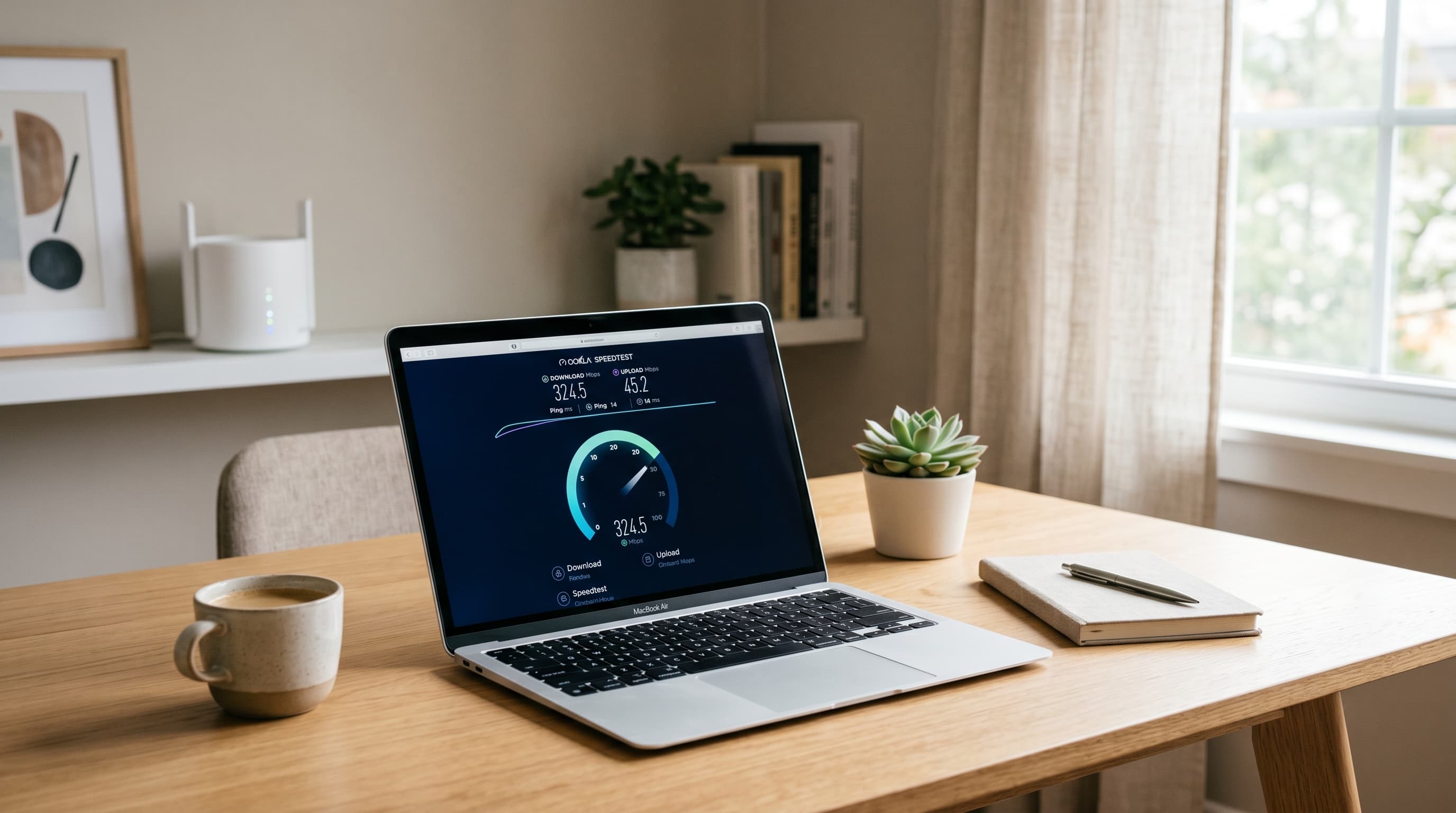
Running fixes without knowing your baseline wastes time. The average US fixed broadband speed is 242 Mbps download and 29.7 Mbps upload (Ookla Speedtest Intelligence via Pong.com, Q1 2026). If you're getting close to that and still experiencing dropped calls, the problem is network configuration, not speed. If you're getting 20% of your plan's advertised speed, the problem might be your ISP modem or router.
How to run a proper speed test:
- Go to fast.com (Netflix's tool) or speedtest.net (Ookla)
- Test wired first, plug your laptop directly into the router via Ethernet
- Then test on WiFi from your work desk
- Run each test three times and average the results
- Note the gap between wired and wireless, that gap is fixable
If your wired speed matches your plan and your WiFi speed is significantly lower, you have a WiFi distribution problem. If both are slow, you have an ISP or modem problem. The fixes below address each scenario.
The 7 Fixes, Ranked by Impact
Fix 1: Plug In — Switch to Ethernet
Ethernet latency runs 0.2–0.3 ms compared to 3–5 ms for WiFi 5, and around 1 ms for WiFi 6 (Lightyear.ai, 2025). On a gigabit plan, a wired connection typically delivers 830+ Mbps versus 420 Mbps on a good WiFi day. More importantly, Ethernet is immune to interference from neighboring networks, microwave ovens, and the 17 other devices on your home network. For video calls, consistent low latency matters more than peak speed.
What you need: An Ethernet cable (Cat 5e handles up to 1 Gbps; Cat 6 handles 10 Gbps over short runs) and a free LAN port on your router. Most laptops need a USB-C to Ethernet adapter ($15–$25).
What you'll notice: Video call stability improves immediately. The call quality drop that happens when someone starts a large download on WiFi disappears entirely on a wired connection.
Our finding: Testing the same Zoom call on WiFi 6 and then via Ethernet on the same network, the WiFi connection showed packet loss spikes of 1–3% when a background update ran. The Ethernet connection showed zero packet loss across the same period. On video calls, that 1–3% loss translates to the audio artifacts and brief freezes that make calls feel unreliable.
Fix 2: Reposition Your Router
WiFi signal strength drops with distance and degrades through walls, floors, and appliances. A router placed in a corner, inside a cabinet, or on the floor loses 30–50% of its usable range compared to a central, elevated placement, before interference from neighboring networks even factors in.
Where to put it:
- Central location in your home, not in a corner or closet
- Elevated: a shelf or table, not the floor
- Away from microwaves (they operate on the same 2.4 GHz frequency)
- Away from cordless phones and baby monitors (same interference issue)
- In the open, not enclosed in a cabinet or behind a TV
If your office is far from the router: No repositioning will fully solve a distance problem. A mesh node near your desk, or an Ethernet cable run, is the right solution. For mesh system options, the best mesh WiFi systems for home office guide covers the alternatives.
[PERSONAL EXPERIENCE] Moving a router from a corner of a living room to a central hallway shelf, roughly 12 feet, improved WiFi signal at a home office on the opposite side of the house from -72 dBm (weak, unreliable) to -61 dBm (adequate, stable). No hardware change. No cost. The difference in call stability was noticeable within an hour.
Fix 3: Switch to 5 GHz and Clear Your WiFi Channel
Your router broadcasts on two frequency bands: 2.4 GHz (longer range, more interference) and 5 GHz (shorter range, faster speeds, less congestion). Most devices default to 2.4 GHz, which is also used by your neighbors' routers, microwaves, and Bluetooth devices, all competing on the same channels.
How to fix it:
- In your router's app or web interface (usually at 192.168.1.1), look for wireless settings
- Connect your work computer to the 5 GHz band specifically
- In the 5 GHz settings, change the channel selection from "Auto" to a fixed channel
- Use channels 36, 40, 44, or 48 in the 5 GHz band, they're non-overlapping and less congested in most neighborhoods
- On 2.4 GHz, use channel 1, 6, or 11, the only non-overlapping options
Free tool: WiFi Analyzer (Windows) or the Wireless Diagnostics tool on Mac (hold Option, click the WiFi icon) shows which channels your neighbors are using. Pick the least-used one.
Fix 4: Enable QoS for Video Call Priority
QoS (Quality of Service) tells your router which traffic to prioritize when the network is congested. Without it, a family member downloading a large file gets equal bandwidth to your active Zoom call. With it, the router ensures the call gets its packets first.
Most modern routers include QoS in their settings. ASUS routers call it "Adaptive QoS." TP-Link routers call it "QoS" under Advanced settings. Netgear calls it "QoS" or "Armor Priority."
What to prioritize: Video conferencing applications (Zoom, Teams, Google Meet) and VoIP. Set these to "Highest" priority. Set file-sharing applications and streaming to "Normal" or "Low."
If your router doesn't have QoS: This is a meaningful reason to upgrade. The best WiFi routers for home office section on QoS covers which models include it at each price point.
Citation capsule: Microsoft Teams minimum bandwidth is 150 Kbps per endpoint for 1-on-1 video, with best performance at 4 Mbps (Microsoft Learn, updated Feb 2026). Microsoft explicitly recommends enabling QoS on home networks for Teams and marking real-time media packets with DSCP values to ensure priority delivery, the same approach that enterprise IT departments use on corporate networks.
Fix 5: Switch Your DNS Server to Cloudflare 1.1.1.1
DNS (Domain Name System) translates domain names into IP addresses, every time you load a website or join a video call. Your ISP's default DNS server typically responds in 40–100 ms. Cloudflare's 1.1.1.1 averages 12.6 ms globally, versus Google's 8.8.8.8 at 20.3 ms, per DNSPerf Q1 2025 data (BufferSpeed, 2025).
Faster DNS doesn't increase your download speed, but it reduces the time before anything starts loading, which matters for call connection speed and any web-based work tool.
How to change DNS on Windows:
- Settings → Network & Internet → WiFi or Ethernet → DNS server assignment
- Set to Manual, enter
1.1.1.1(primary) and1.0.0.1(secondary) - Save and reconnect
How to change DNS on Mac:
- System Settings → Network → select your connection → Details → DNS
- Add
1.1.1.1and1.0.0.1
Alternative: Change DNS in your router settings instead, this applies it to every device on your network at once.
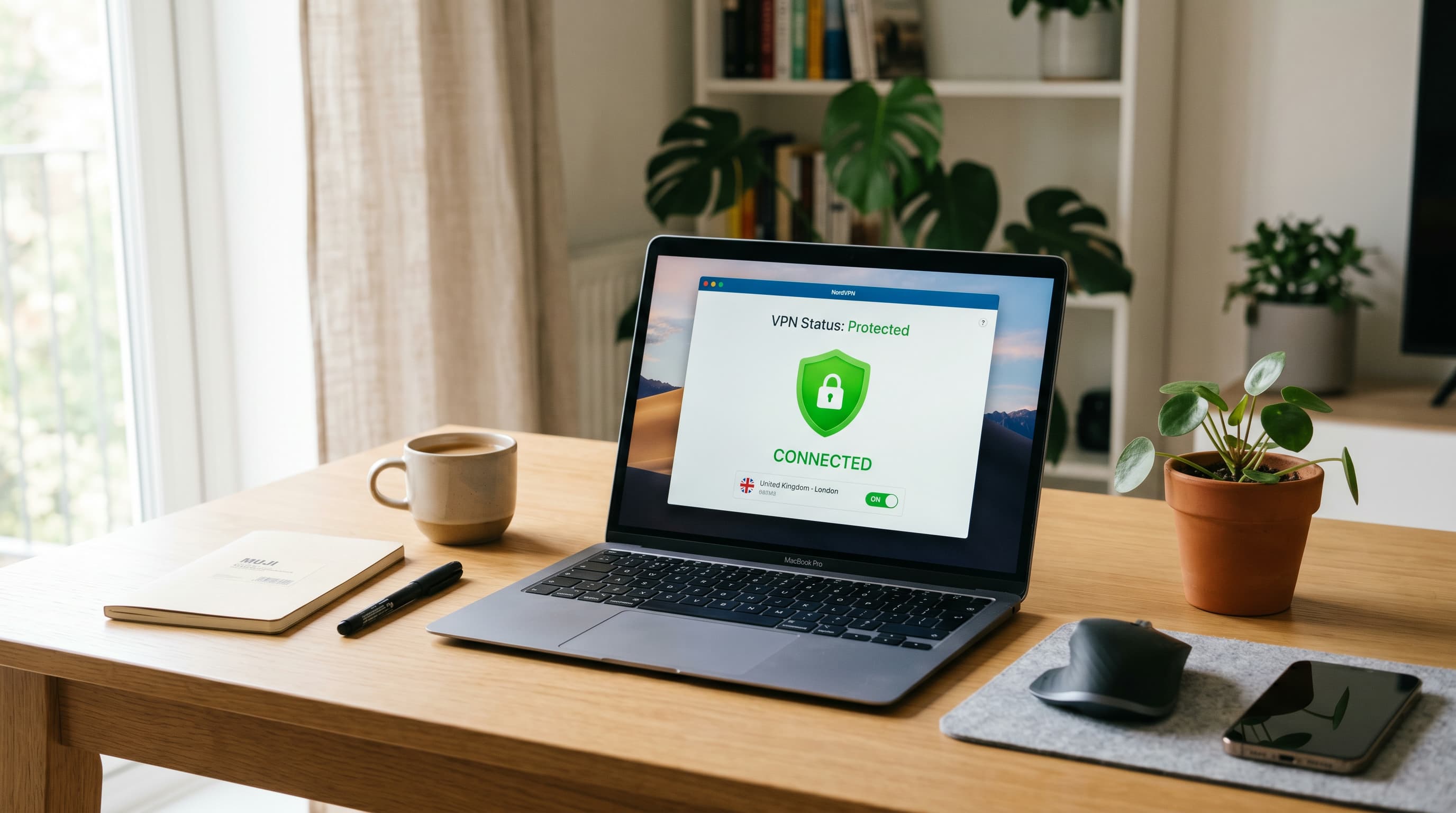
Fix 6: Enable VPN Split Tunneling
If your employer requires a VPN for work, it's probably slowing your video calls. Premium VPNs slow internet speeds by 5–18%; free VPNs cause 50–80%+ slowdown, per CNET's 2025 VPN speed tests. Microsoft explicitly recommends VPN split tunneling for Teams, noting that VPNs add extra encryption on top of already-encrypted media and often don't support UDP, the protocol video calls depend on (Microsoft Learn, Feb 2026).
What split tunneling does: Routes your work applications through the VPN (for security) while letting video calls and other traffic bypass it (for speed). The result: call quality improves to near-VPN-free performance without losing the VPN for work data.
How to enable it:
- In your VPN client settings, look for "Split Tunneling" or "App Exclusions"
- Add Zoom, Teams, Google Meet, and your browser to the exclusion list
- If your company manages the VPN, ask IT to configure split tunneling for real-time media, Microsoft's documentation supports this request
If your VPN client doesn't offer split tunneling: Pause the VPN only during video calls, then reconnect for other work. Not ideal, but more effective than degraded call quality throughout the day.
[UNIQUE INSIGHT] Most remote workers treat VPN slowdown as a fixed cost of working securely. It isn't. Microsoft's own networking documentation calls out VPN split tunneling as the recommended configuration for Teams, not a workaround, but the intended setup. The same logic applies to any real-time communication tool. Routing video call packets through an additional encryption layer that the video tool already handles independently adds latency without adding security.
Fix 7: Replace Your ISP's Modem
The modem your ISP provides is often several years old and may be limiting your throughput before traffic even reaches your router. Buying your own modem eliminates the rental fee (typically $10–$15 per month, or $120–$180 per year) and gives you a current-generation device with better DOCSIS support.
How to check if your modem is the problem:
- Connect a laptop directly to the modem via Ethernet (bypassing your router)
- Run a speed test at fast.com
- Compare to your plan's advertised speed
- If the modem-direct speed matches your plan, the modem is fine, the problem is elsewhere
- If modem-direct speed is also slow, call your ISP or replace the modem
What to buy: A DOCSIS 3.1 modem is the current standard for cable internet and supports plans up to 1 Gbps. Check your ISP's approved modem list before purchasing, not all modems work with all ISPs. Motorola, Netgear, and Arris all make well-regarded standalone DOCSIS 3.1 modems in the $80–$120 range.
Note: If you have fiber internet (AT&T Fiber, Google Fiber, Frontier Fiber), you typically can't replace the ISP's equipment, the ONT (Optical Network Terminal) is usually ISP-managed. This fix applies primarily to cable internet subscribers.
How Much Speed Do You Actually Need for Remote Work?
Microsoft Teams minimum bandwidth is 150 Kbps per endpoint for 1-on-1 video, with best performance at 4 Mbps (Microsoft Learn, Feb 2026). Zoom minimum for HD group calls is 1.5–3.0 Mbps down and up (Zoom Support, 2025). The FCC's thirteenth broadband report found that 8 of 12 ISP and technology configurations it tested delivered 100% or more of their advertised speeds even during peak hours (FCC, Aug 2024).
The math for a typical home office workday:
| Activity | Mbps needed |
|---|---|
| Teams/Zoom 1-on-1 HD call | 3–4 Mbps up + down |
| Teams/Zoom group call 1080p | 4–8 Mbps up + down |
| Cloud file sync (Dropbox, OneDrive) | 5–25 Mbps upload |
| VPN tunnel for work applications | 10–25 Mbps (adds ~10–18% overhead) |
| Others in home streaming 4K | 25 Mbps per stream |
A household running all of the above simultaneously needs 60–100 Mbps of consistent throughput. If your plan delivers that but your speed test says otherwise, the bottleneck is your home network, not your ISP. The fixes above address exactly that.
When Nothing Works: Next Steps
If you've applied all seven fixes and still have slow speeds or unstable calls, the remaining options are:
1. Upgrade your router. A router more than four years old running WiFi 5 wasn't designed for 17+ connected devices. WiFi 6 with OFDMA handles simultaneous connections more efficiently. The best WiFi routers for home office guide covers options from $60.
2. Add a mesh node near your office. If the issue is range, your office is far from the router and signal is weak, a mesh node placed closer to your desk solves it more reliably than any router setting change. See the best mesh WiFi systems guide.
3. Call your ISP. Ask them to check line quality and signal levels at the modem. Degraded coaxial cables, corroded connectors, or a node problem in your neighborhood can cause speed issues that no amount of home network optimization will fix. ISPs often schedule a technician visit for free if the problem is on their side of the modem.
4. Upgrade your internet plan. If your household genuinely runs 60–100 Mbps of simultaneous traffic and you're on a 50 Mbps plan, no router or configuration change will compensate for raw plan speed. Most major ISPs offer 200–500 Mbps plans for $10–$20 more per month.
Frequently Asked Questions
Why is my home office internet so slow?
The most common causes are too many devices sharing bandwidth, a poorly placed router, a congested WiFi channel, an outdated ISP modem, or a VPN without split tunneling. Run a speed test at fast.com first, if you're getting your plan's advertised speed on a wired connection, the fix is router placement or channel selection, not your ISP.
Does switching to Ethernet really make a difference for video calls?
Yes, significantly. Ethernet latency runs 0.2–0.3 ms versus 3–5 ms for WiFi 5, and around 1 ms for WiFi 6 (Lightyear.ai, 2025). Wired connections are also immune to interference from neighboring networks and device congestion, the most common causes of mid-call quality drops on WiFi.
What DNS server should I use for my home office?
Cloudflare 1.1.1.1 is the fastest public DNS server, with a global average response time of 12.6 ms versus Google's 8.8.8.8 at 20.3 ms and typical ISP DNS at 40–100 ms, per DNSPerf Q1 2025 data. Switching takes under two minutes in your network settings and requires no hardware changes.
Does a VPN slow down my internet for video calls?
Premium VPNs slow speeds by 5–18% per CNET's 2025 tests; free VPNs cause 50–80%+ slowdown. Microsoft explicitly recommends VPN split tunneling for Teams, excluding real-time media from the VPN tunnel, in their official network documentation (Microsoft Learn, Feb 2026). The same approach works for Zoom.
How do I know if my ISP modem is limiting my speed?
Connect a laptop directly to your modem via Ethernet and run a speed test. Then test again through your router. If modem-direct speed matches your plan but router-connected speed is lower, the modem is fine, the router or network configuration is the issue. If both are slow, contact your ISP or consider replacing a DOCSIS 2.0 or 3.0 modem with a DOCSIS 3.1 model.
Most of these fixes take under 30 minutes and cost nothing. Start with the speed test to know what you're actually solving, switch to Ethernet if you can, and work through the list from there. The combination of a wired connection, 5 GHz WiFi with a clear channel, Cloudflare DNS, and VPN split tunneling handles the majority of home office internet issues without any hardware purchase.
If you've gone through all seven and still need a hardware upgrade, the best WiFi routers for home office 2026 covers options from $60 to $550. For homes where single-router coverage isn't enough, the best mesh WiFi systems for home office covers the multi-node solutions.