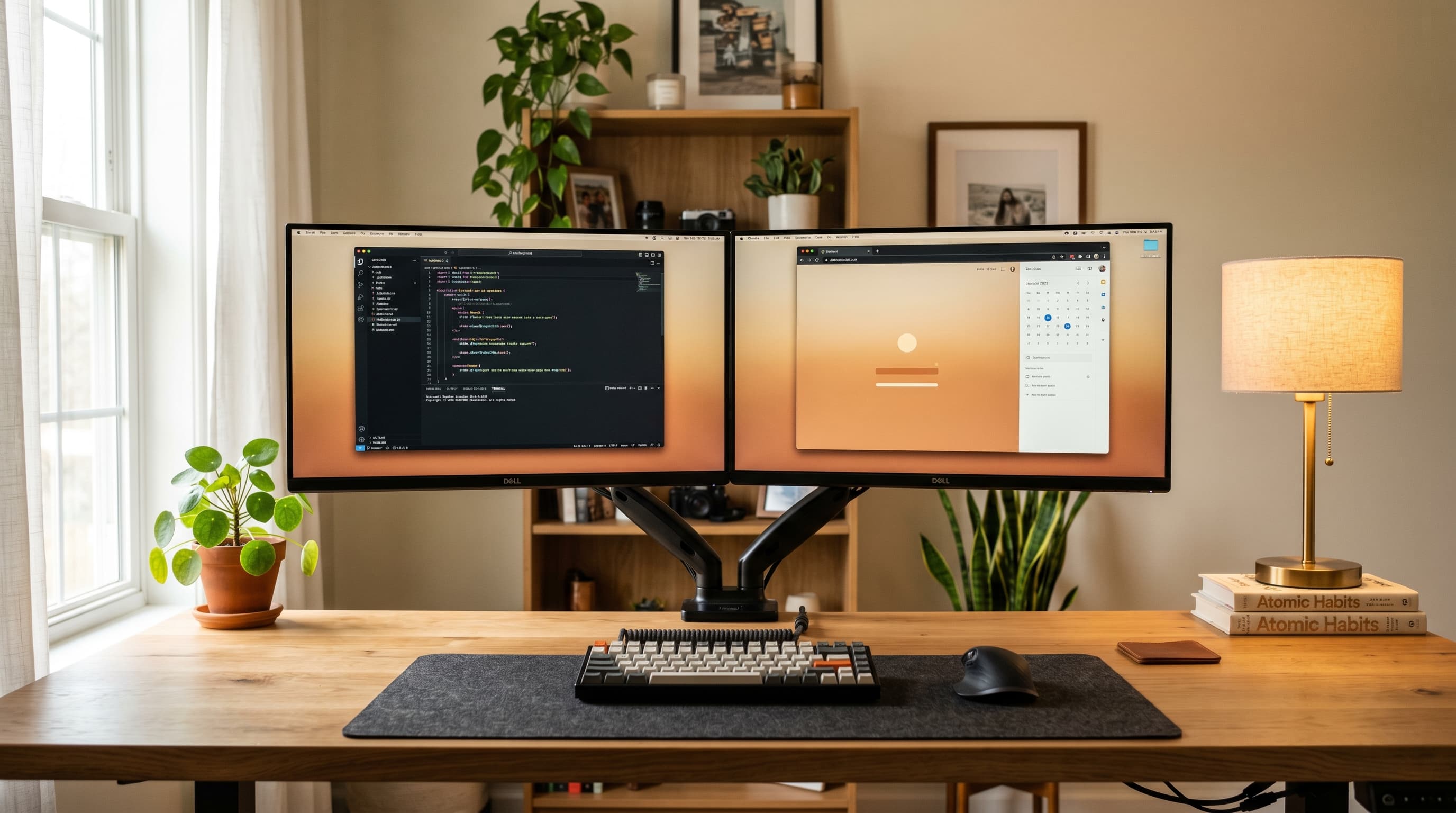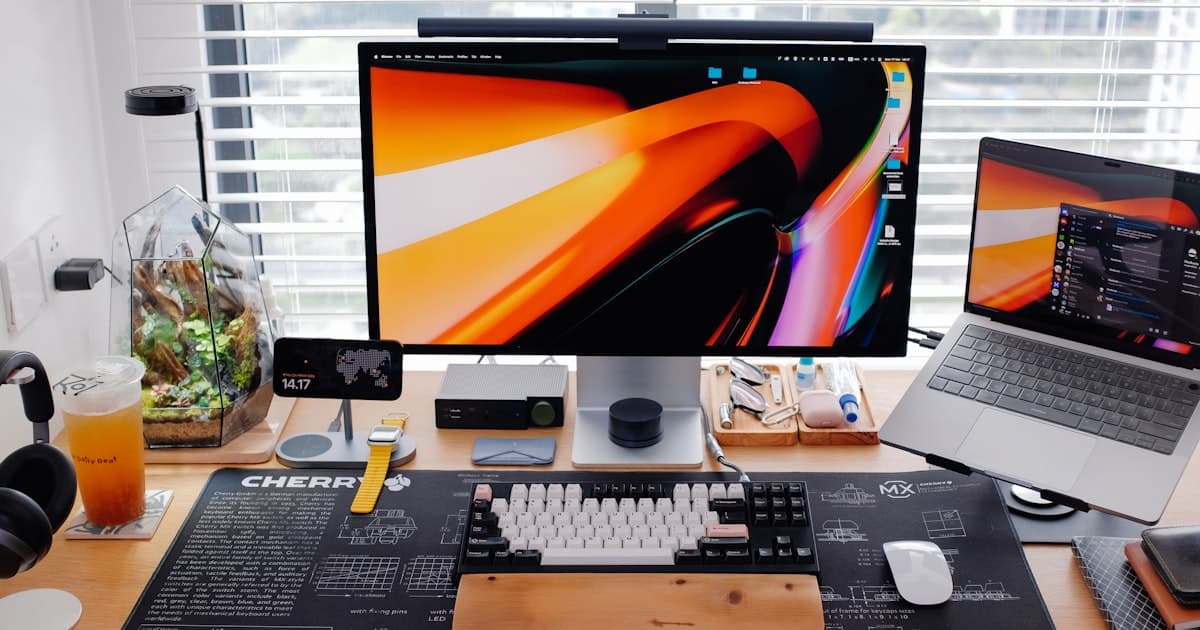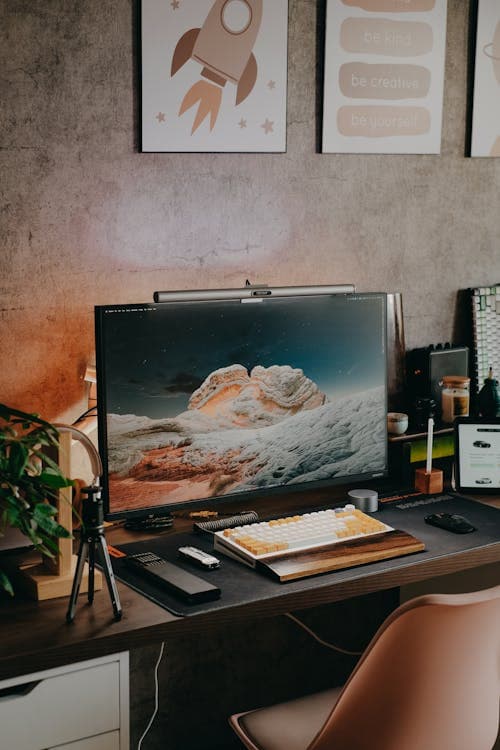
Over 63% of homeworkers rely solely on a laptop screen, and a 2024 ScienceDirect systematic review found this carries roughly 3x higher neck and upper back pain risk compared to a proper external monitor setup (ScienceDirect, 2024). OSHA specifies a monitor viewing distance of 20-40 inches with the screen center 15-20 degrees below eye level — a position that's impossible to achieve consistently with a laptop on a flat desk.
The right monitor is the most used piece of equipment in your home office, and the one most people underinvest in. A sharp, properly sized display reduces eye strain, expands your working space and, if it has USB-C, eliminates most cable clutter from the desk. Here are the best monitors for home office work in 2026 across every budget.
TL;DR: For most remote workers with a laptop, the Dell UltraSharp U2722D is the right monitor: 4K, 90W USB-C charging and a built-in KVM switch in one cable. Budget buyers should consider the LG 27UL850 instead. The Samsung Odyssey G5 is the best dual-use pick for work and gaming. The BenQ EW2480 is the best 24-inch budget option.
What Makes a Great Home Office Monitor
Work monitors have different priorities than gaming or media displays. Resolution and panel type matter for eye fatigue during 8-hour sessions. USB-C Power Delivery matters for laptop users who want one-cable simplicity. Ergonomic adjustability matters because OSHA's 20-40 inch viewing distance and 15-20 degree below-eye-level position can't be hit without height and tilt flexibility.
The specs that actually matter for a work display differ from gaming or media monitors:
- Resolution: 4K (3840×2160) is worth it at 27 inches. Text sharpness alone reduces eye fatigue over long sessions
- USB-C with Power Delivery: One cable for video + charging is a genuine quality-of-life upgrade for laptop users
- Panel type: IPS for color accuracy and wide viewing angles; avoid VA panels for primary work use
- Brightness: 350+ nits for comfortable use in daylight without closing blinds
- Ergonomics: Height, tilt, swivel, and pivot adjustment matter more than most buyers realize
Our top picks
1. Dell UltraSharp U2722D — Best Overall
The Dell U2722D is the monitor we recommend to most home office workers. Factory calibration out of the box (ΔE < 2), 90W USB-C that charges a modern MacBook or Dell XPS from a single cable, and a built-in KVM switch that lets one keyboard and mouse control two computers. It does its job without drama.
Pros
- Factory-calibrated 4K IPS — accurate colors without any setup
- 90W USB-C handles video + charging in a single cable connection
- Built-in KVM switch shares peripherals between two computers
- 4-port USB hub turns the monitor into a desk connectivity hub
- 3-year warranty with Premium Panel Guarantee (dead pixel coverage)
Cons
- 60Hz only, not suitable for gaming or fast-motion work
- HDR400 certification is effectively cosmetic
- Stand swivel range is limited
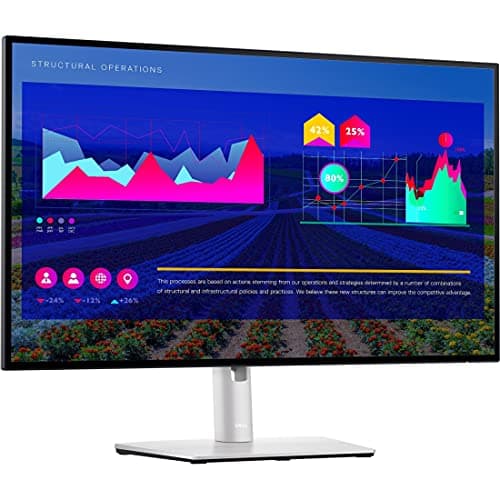
Dell
Dell UltraSharp U2722D 27-inch
90W USB-C one-cable connection, built-in KVM switch, factory-calibrated IPS panel. The monitor most home office workers need.
2. LG 27UL850 — Best Value USB-C
The LG 27UL850 offers most of what makes the Dell compelling (4K IPS, USB-C connectivity, Nano IPS panel technology) at $130 less. The trade-offs are 60W instead of 90W USB-C charging and no KVM switch. For users with lower-wattage laptops or those who don't need dual-computer switching, it's the smarter value buy.
Pros
- Nano IPS panel delivers wider color gamut than standard IPS
- USB-C at 60W covers most laptops (check your wattage first)
- AMD FreeSync support, rare on a productivity monitor, useful if you game occasionally
- Competitive pricing at ~$450
Cons
- 60W USB-C won't fully charge high-performance laptops under load
- No KVM switch, one monitor, one computer at a time
- LG stand build quality is noticeably less solid than Dell's
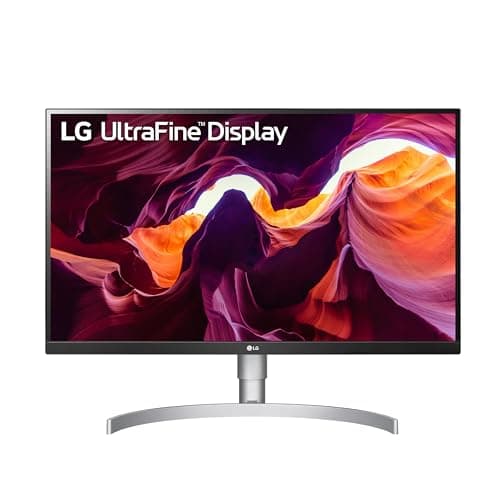
LG
LG 27UL850-W 4K Monitor
Nano IPS 4K panel with 60W USB-C at $130 less than the Dell. Right pick if you don't need KVM or 90W charging.
3. Samsung Odyssey G5 — Best Dual-Use (Work + Gaming)
If your home office setup doubles as a gaming station, the Samsung Odyssey G5 bridges both worlds better than any other monitor on this list. The 27-inch 1440p curved VA panel at 165Hz delivers smooth gaming performance, while the 2K resolution is sharp enough for productivity work. Color accuracy isn't at the level of IPS panels, but the refresh rate advantage makes it the right call for anyone who plays games after work hours.
Pros
- 165Hz refresh rate is a significant gaming advantage over 60Hz work monitors
- 1440p resolution is a solid middle ground between 1080p and 4K
- 1000R curved panel reduces eye movement across the screen width
- Affordable at ~$300 for a 27-inch 1440p display
Cons
- VA panel has inferior color accuracy compared to IPS, noticeable for design work
- No USB-C connectivity, HDMI and DisplayPort only
- Limited ergonomic adjustment (tilt only, no height adjustment on base model)
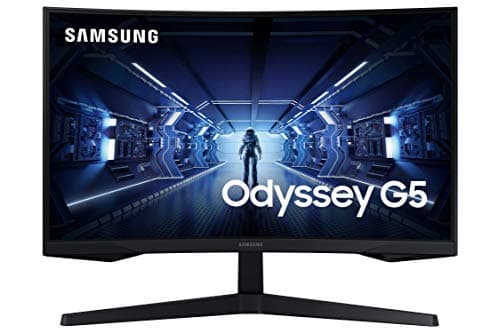
Samsung
Samsung Odyssey G5 27-inch
1440p curved VA panel at 165Hz, the best monitor that bridges home office productivity and gaming without compromise.
4. BenQ EW2480 — Best Budget
At ~$220, the BenQ EW2480 is the best 24-inch budget monitor for home office workers who don't need 4K. BenQ's Eye-Care technology (low blue light, flicker-free panel) is genuinely well-implemented and makes a real difference in eye comfort over long sessions. It won't impress with color accuracy or connectivity, but it's a reliable, comfortable screen for document work, video calls, and general computing.
Pros
- Eye-Care suite (low blue light + flicker-free) meaningfully reduces eye strain
- USB-C input available, no power delivery, but convenient for connection
- HDR10 support that's more effective than most monitors in this range
- Clean, minimal bezel design for a budget monitor
Cons
- 1080p resolution shows its limits at 24 inches under close inspection
- USB-C input provides no power delivery to connected devices
- Limited adjustment, tilt only, no height or pivot

BenQ
BenQ EW2480 24-inch
Eye-Care suite (low blue light + flicker-free) that genuinely reduces strain over long sessions. The best budget monitor for document work and video calls.
How to choose the right monitor for your home office
Resolution vs. screen size guide
Resolution and screen size interact. A 4K panel looks stunning at 27 inches but is overkill at 24 inches, while 1080p starts to look soft above 24 inches.
| Screen Size | Recommended Resolution |
|---|---|
| 24 inches | 1080p (acceptable) or 1440p (better) |
| 27 inches | 1440p minimum; 4K preferred |
| 32 inches | 4K strongly recommended |
| Ultrawide 34–38 inches | 3440×1440 or 3840×1600 |
Do you need USB-C?
If you use a laptop as your main computer, USB-C with Power Delivery is one of the most practical upgrades you can make. Instead of a dock, a dedicated charger, and display cables, you connect one cable and get everything. The catch: check your laptop's USB-C wattage requirement. 65W covers most ultrabooks, but high-performance laptops (M3 Pro MacBook, Dell XPS 15) need 90W+.
Single monitor vs. dual monitors
A single large, high-resolution monitor outperforms two smaller monitors for most productivity workflows. The exception is multi-tasking work where you need two full applications visible simultaneously (coding with documentation, video editing with timeline + preview). For video calls, email, and document work, one 27-inch 4K monitor is the cleaner setup. If you need a second screen for travel or occasional use without committing to a permanent dual-monitor setup, our best portable monitor for home office 2026 covers lightweight options that pair well with any laptop. If a single ultrawide display appeals more than two separate monitors, our best ultrawide monitor for home office guide covers 34–38 inch options from LG, Dell, and Samsung.
Panel types explained
| Panel Type | Best For | Avoid If |
|---|---|---|
| IPS | Color accuracy, wide viewing angles, general work | Gaming (limited refresh rate options) |
| VA | Deep blacks, contrast, gaming | Color-critical work, off-angle viewing |
| OLED | Best contrast, fastest response | Budget-sensitive; burn-in risk for static content |
| TN | Budget gaming | Almost any productivity use case |
Monitor Price and Resolution Comparison
Citation capsule: Over 63% of homeworkers rely solely on a laptop screen. A 2024 ScienceDirect systematic review found that laptop-only setups carry roughly 3x higher neck and upper back pain risk and 2.7x higher lower back pain risk compared to using a proper external monitor at eye level (ScienceDirect, 2024). OSHA specifies the monitor center should be 15-20 degrees below horizontal eye level and 20-40 inches from the face (OSHA Computer Workstations).
Frequently Asked Questions
Is 4K worth it for a home office monitor?
At 27 inches and above, yes. Text clarity at 4K is noticeably sharper than 1440p and substantially sharper than 1080p. For reading documents and writing all day, this reduces eye fatigue. The catch is that Windows scaling needs to be set to 150% for comfortable use on most systems.
How far should I sit from my monitor?
Roughly an arm's length (20–30 inches) is the standard recommendation. At 27 inches screen size, you should be close enough to read text comfortably without leaning forward. If you find yourself leaning in, either increase font sizes, adjust scaling, or move the monitor closer.
Does monitor height matter?
Significantly. The top of your monitor should be at or just below eye level so your neck is in a neutral position. Most monitor stands don't go high enough. A monitor arm is the clean solution to proper positioning. See our best monitor arms guide for picks across every price tier.
Is a curved monitor good for work?
Curved monitors reduce the distance variance between the center and edges of the screen, which can reduce eye movement and perceived distortion on large panels. For a single monitor setup at 27 inches, the curve is subtle and mostly a preference call. It becomes more meaningful at 32+ inches or ultrawide formats.