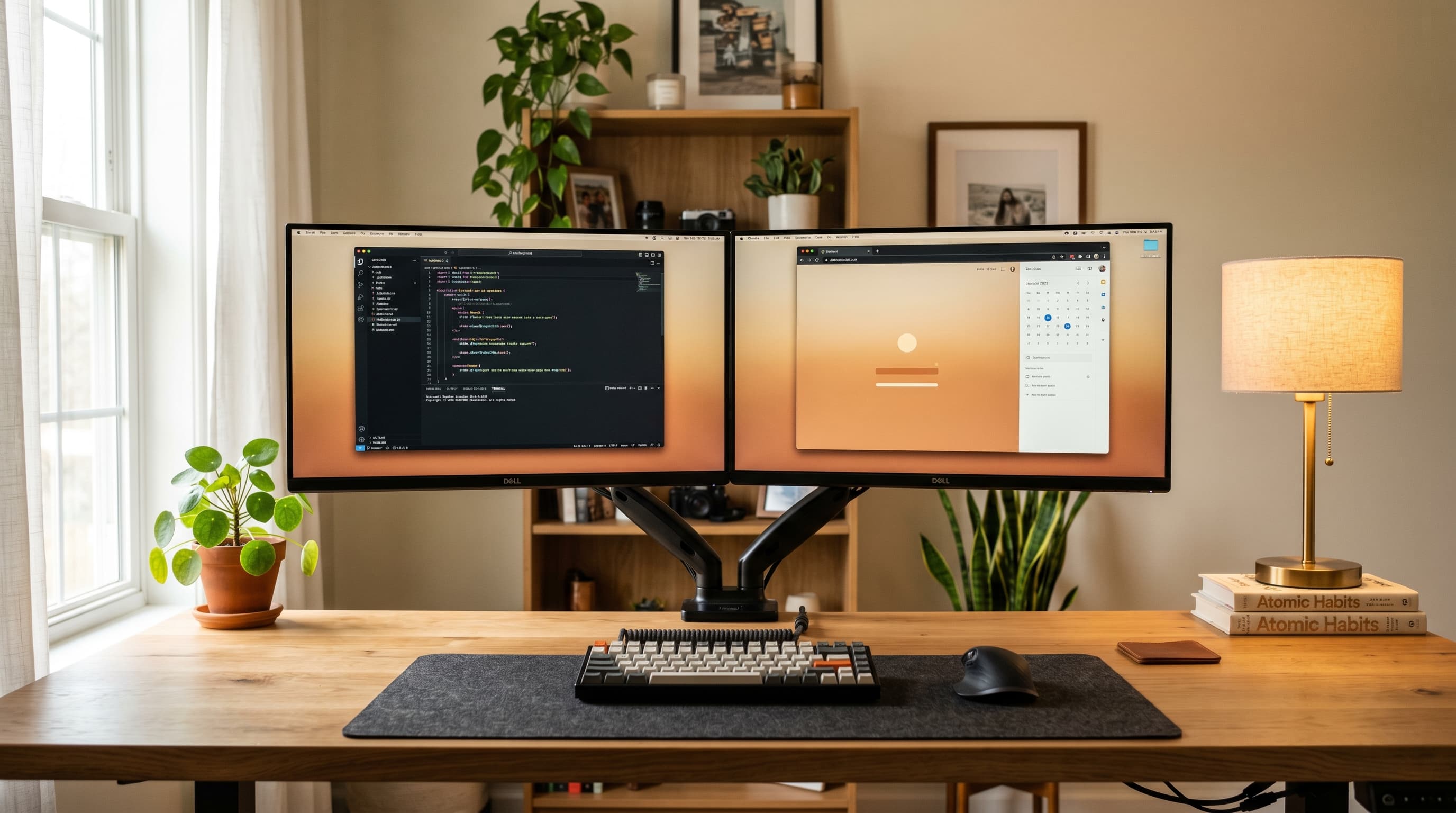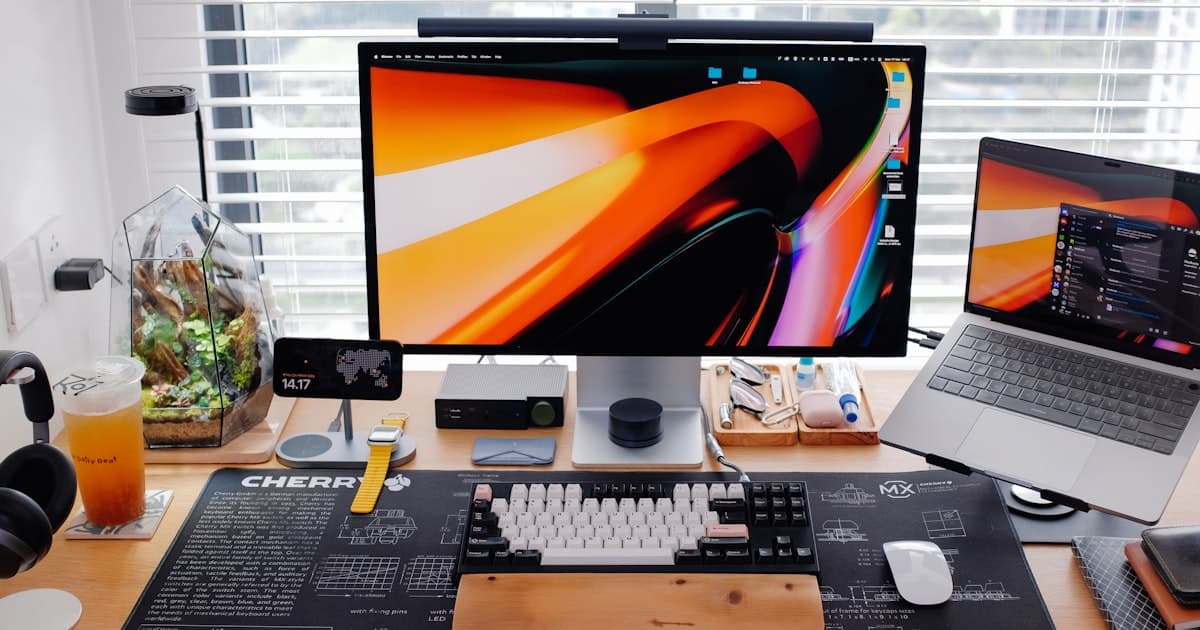
Adding a second screen lifts productivity — research consistently shows dual-display setups reduce task-switching friction and expand usable workspace. But if you're splitting time between a home office, a co-working space, or a café, a desktop monitor doesn't come with you. That's where portable monitors fill a real gap. They weigh under a kilogram, run off a single USB-C cable on most laptops, and pack flat in a bag. This guide covers the five best portable monitors for home office use in 2026, who each one is actually for, and what to check before you buy.
If you want a full-size monitor for a fixed desk, the best home office monitors for 2026 guide covers that separately.
TL;DR: Around 45% of knowledge workers now split time across home, café, and co-working locations (industry estimate). The ASUS ZenScreen MB16AC is the best overall portable monitor for most people — bus-powered over USB-C, 800g, 1080p IPS, no power brick needed.
What Makes a Good Portable Monitor for Home Office?
Roughly 45% of knowledge workers now split their time between a home office and at least one other location, according to industry workforce mobility estimates. That shift made portable monitors a serious product category, not a niche accessory. But not every portable monitor holds up when you actually use it daily.
Here's what separates a good one from a frustrating one.
Panel Type and Color Quality
IPS panels are the baseline you should accept. They deliver accurate colors and wide viewing angles, 178° is standard. TN panels are cheaper but wash out badly at an angle, which matters when you're propping a screen beside a laptop at a café table with imperfect positioning.
OLED panels, like the ViewSonic VP16-OLED, go further. They offer essentially infinite contrast and color coverage that reaches 100% DCI-P3. That's meaningful for photo editing or color-critical creative work. For writing, spreadsheets, and browser tabs, an IPS panel is perfectly fine.
Resolution: 1080p vs 4K
At 15.6 inches, 1080p gives you 141 pixels per inch. That's sharp enough for text-heavy work at a normal viewing distance. 4K at the same screen size hits 282 PPI, noticeably sharper if you're scrutinizing fine detail, but most people won't see the difference during ordinary office tasks.
The 4K vs 1440p monitor comparison covers the pixel-density math in more depth if you want to dig into that decision.
USB-C Bus Power vs. External Power
Bus-powered means the monitor draws its power entirely from your laptop's USB-C port, no wall outlet, no second cable. That's the feature that makes a portable monitor genuinely portable. Most 1080p IPS portable monitors draw under 10W and handle this fine.
4K panels and high-brightness panels sometimes need more. Some require dual USB-C connections or a separate power cable. Worth checking before you buy.
Weight
Portable monitors range from about 700g to just over 1kg. The difference sounds small. After a week of commuting with one, it isn't.
The USB-C Compatibility Caveat
This one catches buyers off guard. DisplayPort Alt Mode over USB-C is what carries the video signal. Not every USB-C port supports it, some only handle charging or data transfer. We'll cover how to check this in detail further down.
The 5 Best Portable Monitors for Home Office in 2026
1. ASUS ZenScreen MB16AC — Best Overall
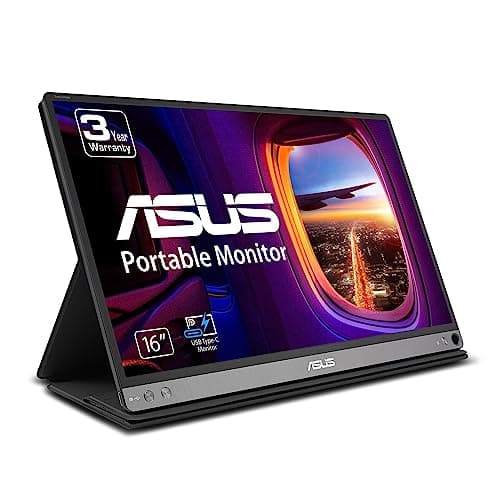
The ASUS ZenScreen MB16AC has been a reliable workhorse in the portable monitor category for good reason. It's a 15.6-inch 1080p IPS panel, USB-C bus-powered (no wall adapter needed), and weighs 800g, light enough to forget about in a bag. The 800:1 contrast ratio and 72% NTSC color coverage aren't headline numbers, but they're accurate and consistent for everyday work.
Bus-powered convenience is the feature that actually changes daily behavior, not having to hunt for an outlet or pack a power brick genuinely reduces friction when working from a café or a co-working drop-in.
It connects over a single USB-C cable, which handles both power and video. Setup takes about five seconds. The built-in stand is serviceable, though pairing it with a laptop stand puts both screens at a better ergonomic height.
ASUS product specs: 15.6" IPS, 1920×1080, USB-C bus-powered, 800:1 contrast, 72% NTSC, ~800g.
ASUS
ASUS ZenScreen MB16AC
Pros
- Bus-powered over USB-C, no power brick
- 800g, genuinely easy to carry daily
- Consistent IPS color for office work
- Simple one-cable setup
Cons
- 72% NTSC, not suitable for color-critical creative work
- 800:1 contrast is decent, not impressive
- Stand is functional but basic
2. Lepow Z1 Gamut — Best Budget Pick
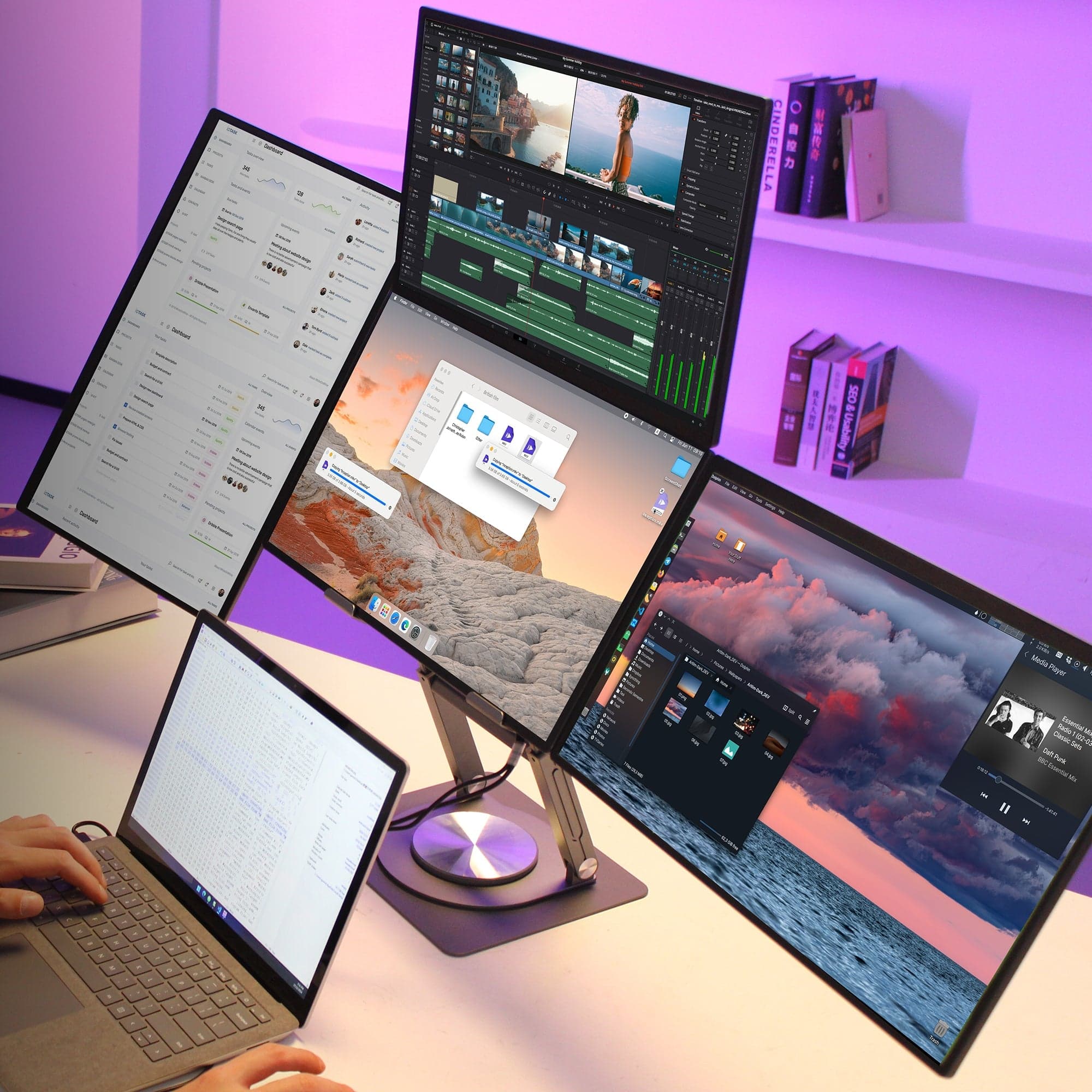
At around $120, the Lepow Z1 Gamut is the entry point that doesn't feel like a compromise. It's a 15.6-inch 1080p IPS panel with 178° viewing angles, 300 nits brightness, and the lightest weight of the group at 700g. It takes both USB-C and mini-HDMI inputs, which makes it useful even on older laptops that lack USB-C Alt Mode support.
300 nits is enough for a shaded home office or a café with ambient light control, but it can wash out in direct sunlight or a very bright space. For the price, it's hard to fault. If you want to get the most from a secondary screen arrangement, the dual monitor setup guide walks through the configuration.
Lepow
Lepow Z1 Gamut
Pros
- Lightest pick at 700g
- USB-C and mini-HDMI inputs, broad compatibility
- ~$120, lowest price of the group
- 178° IPS viewing angles
Cons
- 300 nits can struggle in bright environments
- Budget build quality, feel and stand reflect the price
- Color coverage not specified for creative work
3. ViewSonic VP16-OLED — Best Display Quality
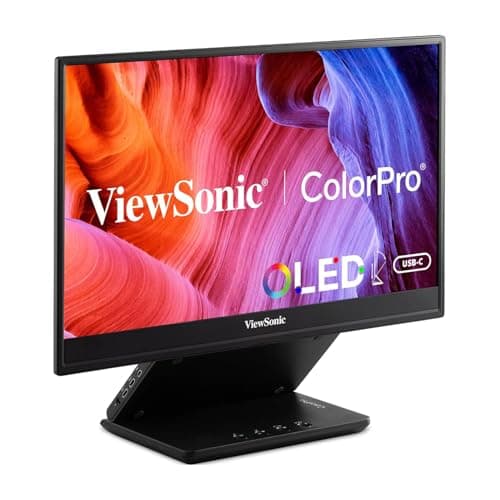
The ViewSonic VP16-OLED is the monitor for anyone doing color-critical work away from their main setup. It's a 15.6-inch OLED panel, 1080p, with 100% DCI-P3 color coverage and a 100,000:1 contrast ratio, according to ViewSonic product specifications. The difference between this and an IPS panel is immediately visible, blacks are actually black, and colors are saturated without appearing oversaturated.
The ViewSonic VP16-OLED delivers 100% DCI-P3 color coverage and a 100,000:1 contrast ratio in a 15.6-inch portable form factor (ViewSonic product specs). That level of color fidelity was previously confined to professional-grade desktop monitors, making it a meaningful option for on-the-go creative work where accuracy matters.
At around $300, it's the priciest pick here. It connects via USB-C and weighs approximately 870g. If your work involves photo editing, design review, or video color checks, the OLED panel pays for itself in accuracy. For context on how resolution factors in at this size, see the 4K vs 1440p comparison, this is 1080p OLED, where color quality compensates for the resolution trade-off in most creative workflows.
ViewSonic
ViewSonic VP16-OLED
Pros
- 100% DCI-P3, accurate color for creative work
- 100,000:1 OLED contrast ratio
- USB-C powered
- Best display quality of any pick here
Cons
- ~$300, significantly more expensive than alternatives
- 1080p only, not 4K despite the premium price
- OLED burn-in risk with static UI elements over time
4. Logitech MX Portable Monitor — Best for Travel
Logitech built the MX Portable Monitor specifically around travel use, and that focus shows in the details. The integrated cover doubles as a stand, no separate stand required, no loose parts to lose. It has USB-C connectivity, 1080p IPS, and auto-brightness that adjusts to ambient light. At around $200, it's a premium travel companion.
It's the heaviest pick at approximately 1kg, which matters if you're already carrying a laptop, charger, and bag. But the integrated design means fewer pieces to manage on transit. For a travel-oriented setup, pairing this with a docking station at home means one cable drop when you're back at your desk.
Logitech
Logitech MX Portable Monitor
Pros
- Integrated cover/stand, fewer loose parts for travel
- Auto-brightness adjusts to environment
- Polished build quality, feels premium
- Designed end-to-end for mobility use case
Cons
- Heaviest pick at ~1kg
- ~$200, mid-range price with limited specs
- 1080p IPS, nothing exceptional on the display side
5. UPERFECT 4K 15.6" — Best for 4K Work
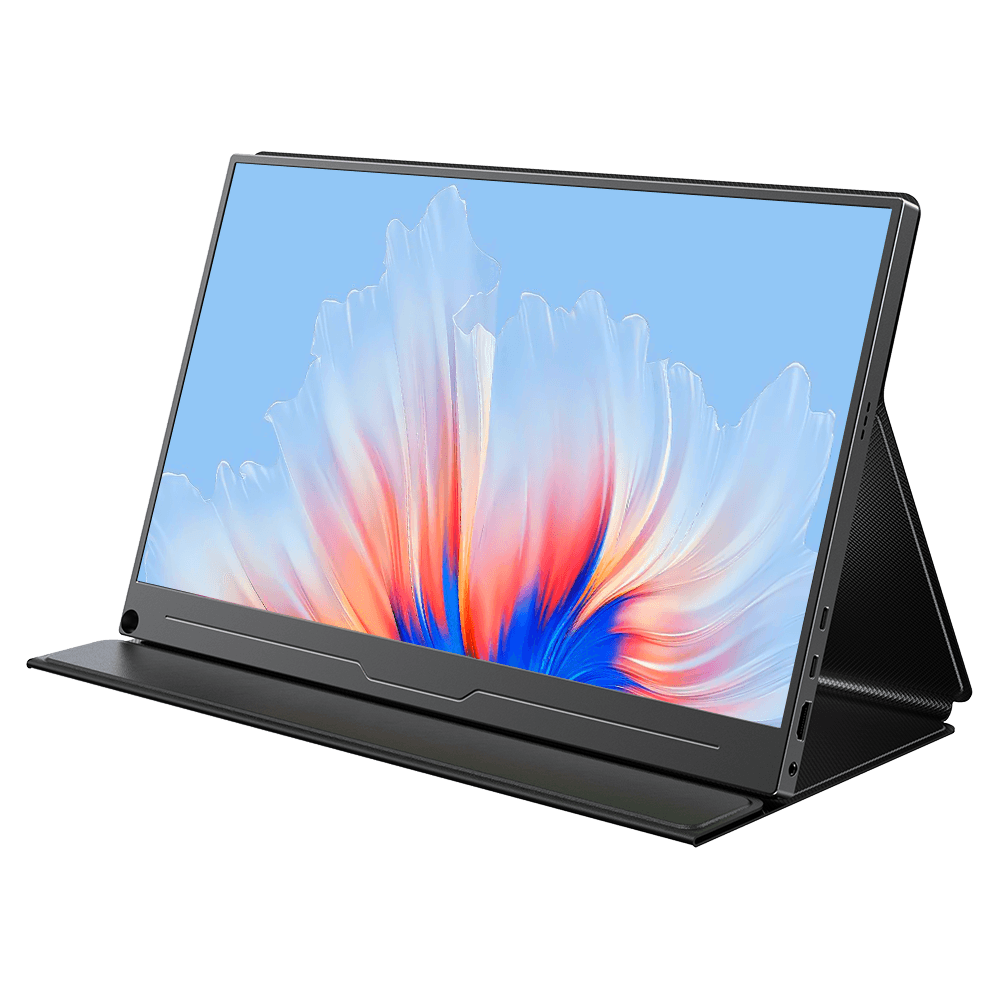
The UPERFECT 4K is the only pick here offering 3840×2160 resolution in a portable form factor. At roughly $180, it undercuts what you'd expect to pay for 4K at this size. It's USB-C powered, weighs around 880g, and hits 300 nits, which is where the trade-off lives. Desktop 4K panels typically deliver 400+ nits; outdoors or in a bright café, 300 nits can feel constrained.
For photo editing fine detail, vector design, or developers who want to see more code at full resolution, the pixel density is real. 282 PPI at 15.6 inches is genuinely sharp. If you're pairing this with a powerful laptop, check your USB-C port's power delivery spec, high-resolution panels can draw closer to the 10W bus-power limit.
For anyone building a home office around a USB-C hub, the best USB hubs for home office 2026 covers what to pair with a demanding portable monitor.
UPERFECT
UPERFECT 4K 15.6"
Pros
- True 4K 3840×2160, highest resolution pick
- ~$180, competitive for 4K portable
- USB-C bus-powered
- 282 PPI, noticeably sharp for detailed work
Cons
- 300 nits brightness, lower than desktop 4K panels at 400+ nits
- May require dual USB-C or external power at high brightness
- 4K on a 15.6" panel is overkill for most productivity tasks
Do You Actually Need 4K on a Portable Monitor?
Honest answer: most people don't. At 15.6 inches and a typical arm's-length viewing distance of 50–60cm, the difference between 1080p (141 PPI) and 4K (282 PPI) isn't obvious during standard office work. Text is sharp at 1080p IPS on a 15-inch screen. You'd need to move noticeably closer, or compare panels side by side, to reliably see the difference.
Where 4K earns its place is in work that demands fine detail at close range: photo retouching, vector design, reviewing print-resolution assets. If that describes your workflow, the UPERFECT 4K makes sense.
For everyone else, writing, coding, spreadsheets, video calls, 1080p IPS at 15.6 inches isn't a visual bottleneck. Spending more on OLED color accuracy (ViewSonic VP16-OLED) is a better trade-off than chasing 4K resolution most users won't perceive on a 15-inch screen.
The 4K vs 1440p comparison guide covers the full resolution trade-off matrix in detail.
USB-C Compatibility — What to Check Before You Buy
This is the most common buyer mistake in the portable monitor category. Not every USB-C port carries video. DisplayPort Alt Mode is what routes a video signal over USB-C, and it has to be supported at the hardware level on your laptop's port. A port that only handles charging (USB Power Delivery) or data transfer won't display anything on a bus-powered monitor, no matter what cable you use.
Here's how to check. On Windows, look up your laptop model on the manufacturer's support page and find the USB-C port specifications, look for "DisplayPort Alt Mode" or "DP Alt Mode." On Mac, Apple's USB-C port specs page lists which ports support video output explicitly. Thunderbolt 3 and Thunderbolt 4 ports always support DisplayPort Alt Mode. Regular USB-C ports may not.
DisplayPort Alt Mode over USB-C is required for bus-powered portable monitors to carry a video signal. Thunderbolt 3 and Thunderbolt 4 ports always support it. Standard USB-C ports that handle only charging or data transfer cannot pass a video signal, regardless of cable quality, making port compatibility the first thing to verify before purchasing any bus-powered portable display.
Bus power draw is the second thing to check. Most 1080p IPS portable monitors draw under 10W, comfortably within what a USB-C port provides. 4K panels and high-brightness panels can push closer to that ceiling. Check the monitor's spec sheet for maximum power draw before assuming a single USB-C connection will suffice.
If you're running a setup with a hub or dock, make sure the dock passes DisplayPort Alt Mode through its downstream ports. Many USB hubs don't. The best docking stations for home office 2026 covers which docks actually support video passthrough reliably.
Frequently Asked Questions
What is the best portable monitor for a home office in 2026?
The ASUS ZenScreen MB16AC is the best overall. It's bus-powered over a single USB-C cable, weighs 800g, and delivers consistent 1080p IPS quality for everyday office work. No wall outlet required. It works across Windows and Mac laptops that support DisplayPort Alt Mode on their USB-C port.
Will a portable monitor work with my laptop?
It depends on your laptop's USB-C port. You need DisplayPort Alt Mode support for bus-powered video output. Thunderbolt 3 and Thunderbolt 4 ports always support it. Standard USB-C ports may not. Check your laptop manufacturer's spec sheet for the specific port's supported features before purchasing.
Is a portable monitor good enough for full-time home office use?
Yes, for most people. A 15.6-inch 1080p IPS portable monitor is a practical second display for writing, coding, video calls, and productivity tasks. If you never leave your desk, a full-size desktop monitor gives you more screen area. But if you split time across locations, a portable monitor earns its keep.
How do I stop my portable monitor from being too dim?
300 nits is typical for portable monitors, fine for a home office or café with normal lighting. In bright environments, position yourself so ambient light isn't hitting the screen directly. Avoid placing the monitor facing a window. The Logitech MX Portable's auto-brightness feature helps manage this automatically.
The Bottom Line
Portable monitors have become a practical tool for anyone who works across more than one location. The five picks here cover the range of what's worth buying in 2026:
- Best overall: ASUS ZenScreen MB16AC, bus-powered, light, reliable
- Best budget: Lepow Z1 Gamut, $120, dual-input, lightest weight
- Best display quality: ViewSonic VP16-OLED, 100% DCI-P3, OLED contrast
- Best for travel: Logitech MX Portable, integrated stand, auto-brightness
- Best for 4K work: UPERFECT 4K, 3840×2160 in a portable form factor
Before buying, confirm your laptop's USB-C port supports DisplayPort Alt Mode. That single check prevents the most common purchase mistake in this category.
If you're building out a full home office display setup, the best home office monitors for 2026 covers full-size options. The dual monitor setup guide walks through how to configure a laptop-plus-portable-monitor arrangement for maximum usable workspace.