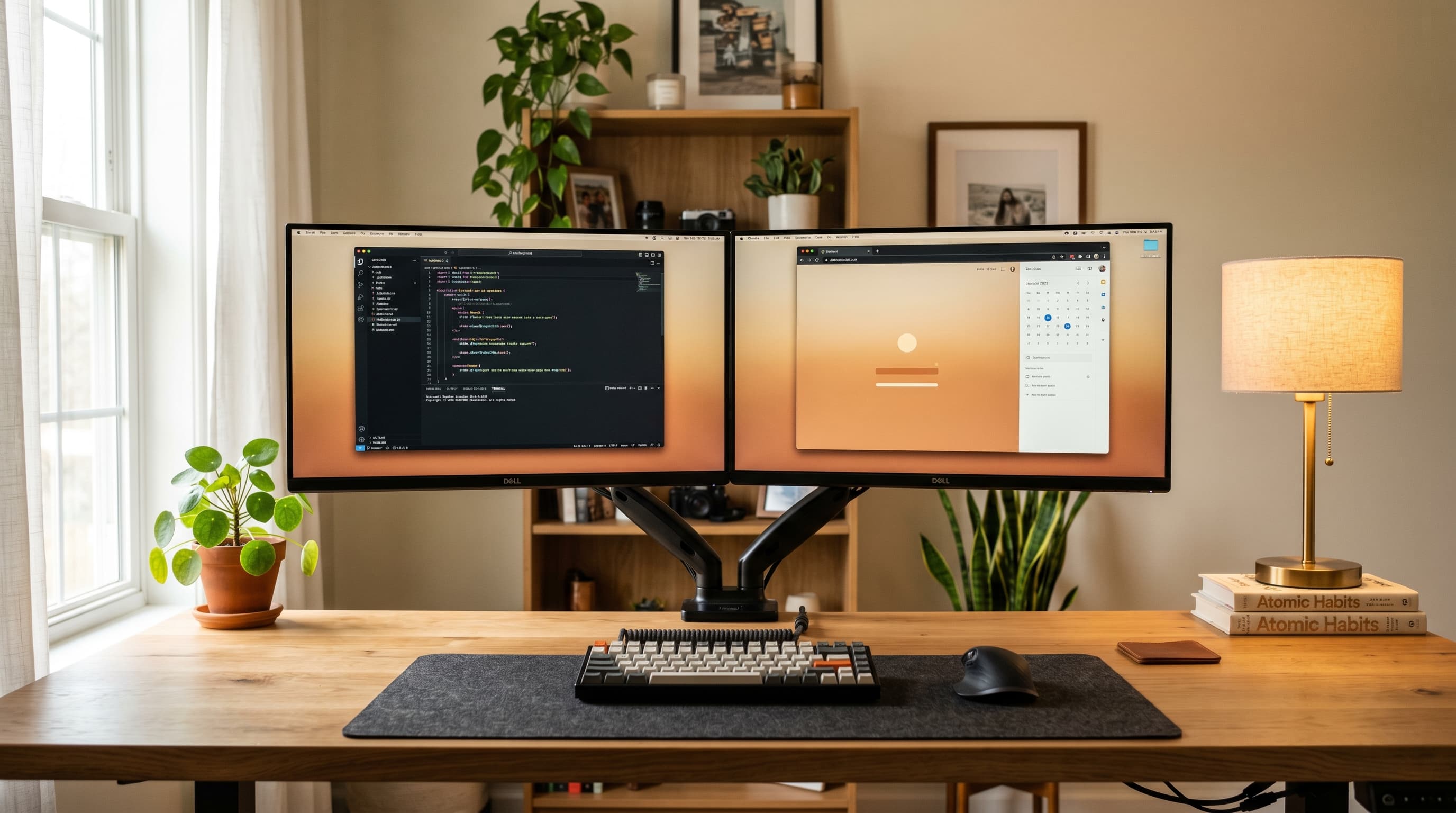
A standard 27-inch monitor shows one application at a comfortable size. An ultrawide shows two — at the same time, without a gap down the middle. Research has consistently found that expanding screen real estate reduces task-switching friction: a Wichita State University study commissioned by Dell found dual-monitor users were 18% more efficient and switched windows 15% less often than single-monitor users (Wichita State SURL, 2015). A 34-inch ultrawide replicates that layout in one panel, one cable, one display.
The ultrawide monitor market reflects this shift. The global segment was valued at roughly $3.25 billion in 2024 and is projected to reach $7.15 billion by 2033, a compound annual growth rate of around 9.5% (Verified Market Reports, 2025). These are directional figures, but the trend is clear.
This guide covers the five best ultrawide monitors for home office work in 2026 — plus the ergonomics data, desk depth math, and window management software that competing articles skip entirely.
If you want standard 16:9 monitors instead, the best home office monitors for 2026 guide covers those separately.
TL;DR: A 34-inch ultrawide gives you roughly the same screen real estate as two 24-inch 1080p monitors, without the bezel gap. A Wichita State / Dell study (2015) found dual-display users were 18% more efficient at task-switching. Our top overall pick is the Dell UltraSharp U3423WE for its built-in KVM switch; the LG 34WP85C-B is the best value at ~$430.
Ultrawide vs. Dual Monitors: Which Actually Works Better for Home Office?
A Wichita State University / Dell study (2015) found dual-monitor users were 18% more efficient, switched windows 15% less, and 91% reported higher satisfaction versus single-monitor setups (Wichita State SURL, 2015). A 34-inch ultrawide replicates that advantage in a single panel, with some meaningful trade-offs worth knowing before you buy.
Screen Real Estate: The Math
A 34-inch ultrawide at 3440×1440 gives you 4,953,600 pixels arranged in a 21:9 ratio. Two 24-inch 1920×1080 monitors give you 4,147,200 pixels total, but physical bezels eat 1–2 inches of space in the center.
The ultrawide wins on usable space. You get more pixels, no dead zone in the middle, and a continuous canvas for side-by-side applications.
Where Ultrawide Wins
One cable run instead of two. No center bezel interrupting a wide document or spreadsheet. A single display settings panel in your OS. Naturally, the ultrawide setup is also tidier, one arm, one cable, one surface footprint.
Forrester Research, commissioned by Dell, found that traders who upgraded to dual 34-inch WQHD monitors saw a 12% productivity gain over their previous four-monitor setup, roughly 100 hours per person per year (Forrester/Dell TEI, 2018). That result came from larger screens replacing more, smaller ones. An ultrawide is the single-screen version of that upgrade.
See our dual monitor setup guide if you're comparing the two approaches side by side.
Where Dual Monitors Still Win
Dual monitors let you run two entirely different sources, a laptop on one screen and a desktop on another, or two separate aspect ratios for different tasks. A video editor who needs a 16:9 timeline preview can't replicate that in an ultrawide split. Developers who want one full-height terminal beside a full browser also tend to prefer two discrete panels.
If your work involves two separate computers, the Dell U3423WE's built-in KVM switch gives you a hybrid solution, one ultrawide that switches between two machines.
Quick Comparison: Best Ultrawide Monitors for Home Office 2026
| Monitor | Size | Resolution | Panel | Refresh | USB-C | Price |
|---|---|---|---|---|---|---|
| Dell UltraSharp U3423WE | 34" | 3440×1440 | IPS Black | 60Hz | 90W TB4 | ~$650 |
| LG 34WP85C-B | 34" | 3440×1440 | IPS | 60Hz | 96W | ~$430 |
| Alienware AW3423DWF | 34" | 3440×1440 | QD-OLED | 165Hz | No | ~$650 |
| Samsung ViewFinity S65UA | 34" | 3440×1440 | IPS | 100Hz | 90W | ~$380 |
| LG 29WP500-B | 29" | 2560×1080 | IPS | 75Hz | No | ~$180 |
The 5 Best Ultrawide Monitors for Home Office in 2026
1. Dell UltraSharp U3423WE — Best Overall
The Dell U3423WE earns the top spot because of one feature most competing articles don't even mention: its built-in KVM switch. If you have a work laptop and a personal machine on the same desk, this monitor lets a single keyboard and mouse control both computers, switching between them with a button press. That's a docking station function built into the display itself.
The panel is Dell's IPS Black technology, which delivers roughly three times the contrast ratio of standard IPS, 2000:1 versus the typical 700:1. Text looks noticeably more defined, and dark application themes (VS Code, Figma dark mode) stop looking washed out. Thunderbolt 4 passthrough carries 40 Gbps bandwidth alongside 90W laptop charging, so one cable handles video, power, and data simultaneously.
Pros
- Built-in KVM switch controls two computers from one keyboard and mouse
- IPS Black panel: 2000:1 contrast, ~3× better than standard IPS
- Thunderbolt 4 passthrough at 90W charges demanding laptops fully
- 4-port USB hub (2× USB-A, 2× USB-C) turns the monitor into a desk hub
- 3-year Advanced Exchange warranty with Premium Panel Guarantee
Cons
- 60Hz only, not suitable for gaming or high-refresh workflows
- No OLED contrast, IPS Black is better than standard IPS, not OLED-level
- $650 price is hard to justify if you don't need the KVM switch
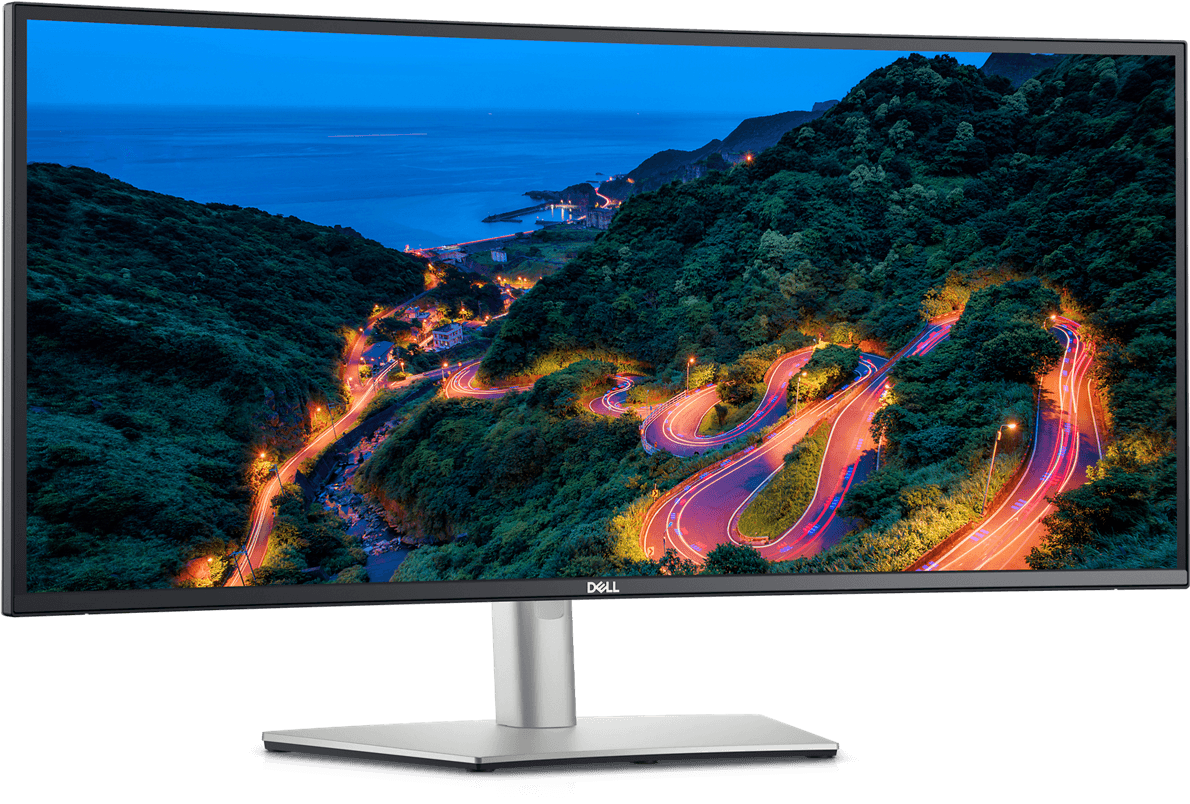
Dell
UltraSharp U3423WE
2. LG 34WP85C-B — Best Value Ultrawide
The LG 34WP85C-B charges laptops at 96W over USB-C, higher than most monitors on this list, including the Dell. That wattage covers the MacBook Pro 14-inch, Dell XPS 15, and most Windows ultrabooks at full speed under load, not just idle. Most buyers will never need a separate power brick with this monitor on their desk.
The 1900R curve is subtle enough to not distort straight lines while reducing the perceived distance difference between the screen's center and edges. HDR10 support is present, though like most IPS HDR implementations it's better described as "HDR-compatible" than transformative. At ~$430, this is the strongest combination of price and feature set in the 34-inch ultrawide category.
Pros
- 96W USB-C charging, highest on this list, covers demanding laptops
- 1900R curve reduces eye travel across the 34-inch width
- 3440×1440 WQHD resolution at 109 PPI, sharp for text and documents
- HDR10 support adds some dynamic range benefit in compatible content
- Strong value at ~$430 for a 34-inch WQHD IPS panel
Cons
- No KVM switch, one computer at a time
- 60Hz refresh rate, same ceiling as the Dell at a lower price
- LG stand build quality is noticeably lighter than Dell's
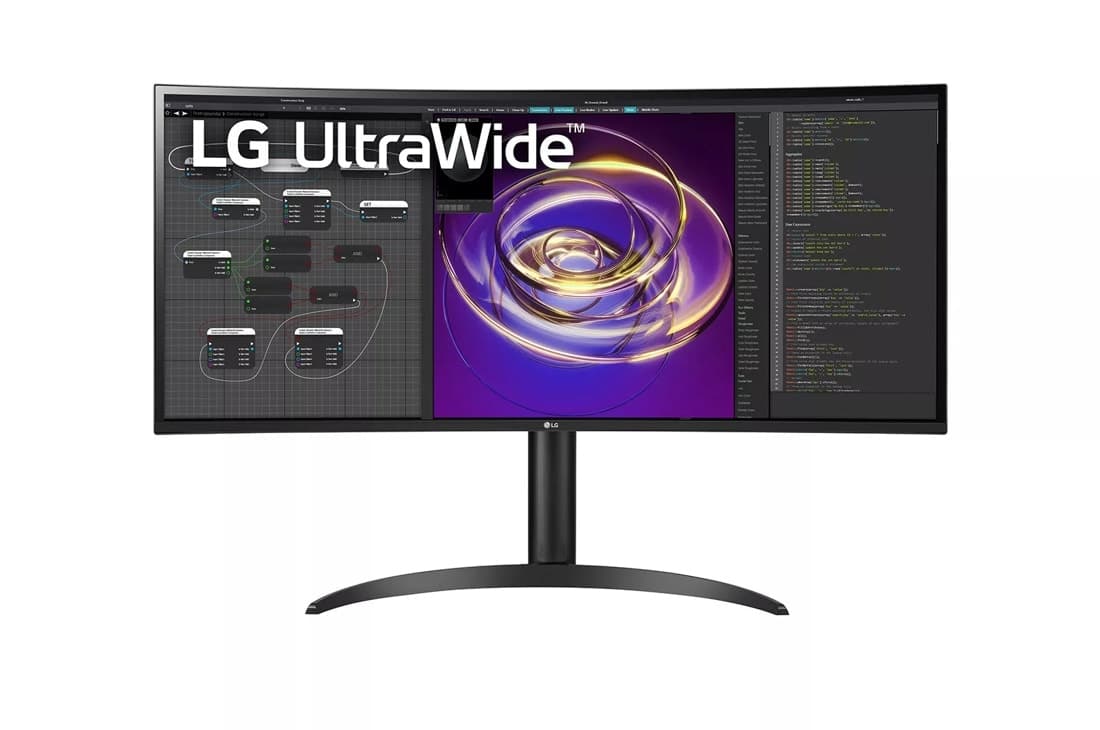
LG
34WP85C-B Ultrawide Monitor
3. Alienware AW3423DWF — Best OLED Ultrawide
The AW3423DWF uses a QD-OLED panel, each pixel produces its own light and can switch fully off, delivering true infinite contrast. There's no blooming around bright text on a dark background, no gray fog in shadow areas, and no compromise between brightness and black levels. On a productivity monitor, this makes dark-mode applications genuinely look better, not just different.
At 165Hz, it's the only pick on this list designed for people whose home office doubles as a gaming station after hours. The 0.1ms response time is overkill for productivity work but irrelevant cost-wise, you pay for the OLED panel, the refresh rate comes with it. A Harvard Medical School / Samsung study found significantly more participants reported eye strain symptoms on flat monitors than on curved displays across 22 tested vision symptoms (Samsung/HMS research, 2020); the AW3423DWF's 1800R curve addresses that directly.
Pros
- QD-OLED panel: infinite contrast, no blooming, true blacks
- 165Hz / 0.1ms, the pick for anyone who games after work hours
- 1800R curve reduces eye strain on a 34-inch curved panel
- Exceptional color volume, QD layer widens the color gamut significantly
- Best visual experience at this price point, work or play
Cons
- OLED burn-in risk, needs pixel shift enabled and varied usage patterns
- No USB-C Power Delivery, requires separate laptop charger
- $650 with no docking station features; you're paying for the panel
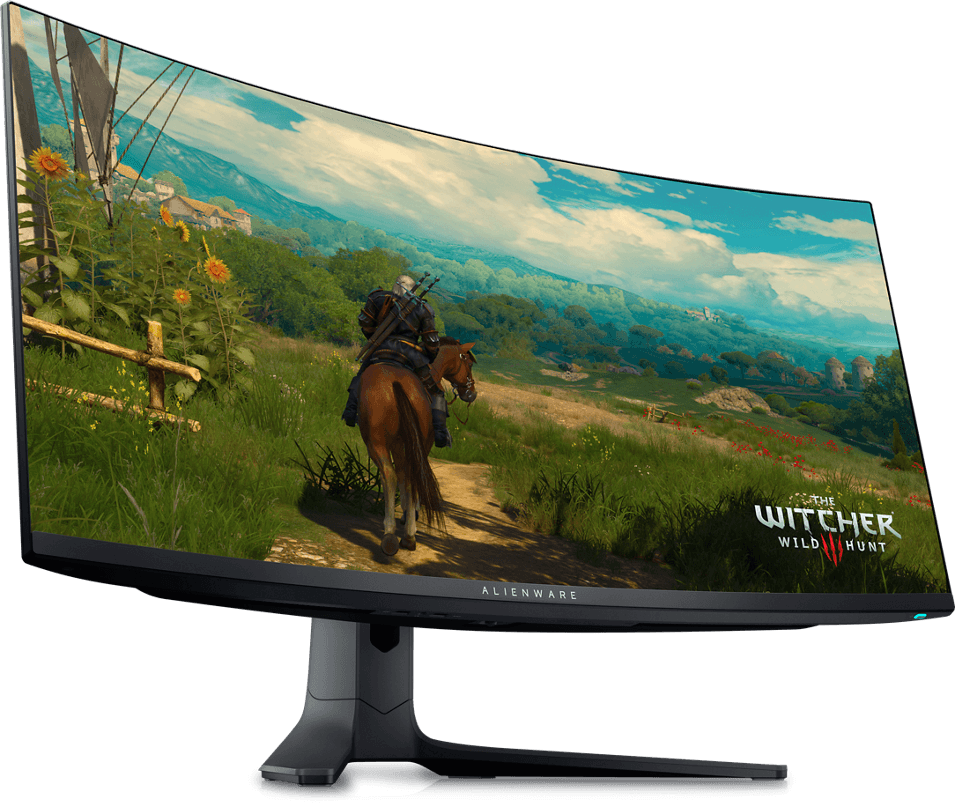
Alienware
AW3423DWF QD-OLED Monitor
4. Samsung ViewFinity S65UA — Best Mid-Range
The Samsung S65UA sits at a price point that doesn't require a business expense justification. At ~$380, it delivers 3440×1440 IPS, 90W USB-C charging, 100Hz refresh, a step above the 60Hz ceiling on the Dell and LG picks, and 99% sRGB color accuracy, which is sufficient for design review, photo editing, and any color-adjacent work that doesn't demand DCI-P3 coverage.
The 100Hz refresh rate is a real differentiator at this price. Scrolling through long documents and code files feels meaningfully smoother than 60Hz without the premium of the Alienware's gaming-tier spec. If you want one cable, decent color, and a budget that doesn't hurt, this is the pick.
For a deeper look at whether 4K or 1440p resolution is the right call for your workflow, the 4K vs. 1440p monitor comparison covers the pixel density math in full.
Pros
- 100Hz refresh, smoother than 60Hz for scrolling and daily productivity
- 90W USB-C charging covers most laptops on one cable
- 99% sRGB color accuracy, adequate for design and photo review
- ~$380 is the lowest price for a fully-featured 34-inch WQHD panel
- Samsung's build quality and stand ergonomics are solid at this tier
Cons
- No KVM switch, single computer setup
- Standard IPS contrast (700:1), not IPS Black
- 100Hz tops out lower than the Alienware's 165Hz for gaming use
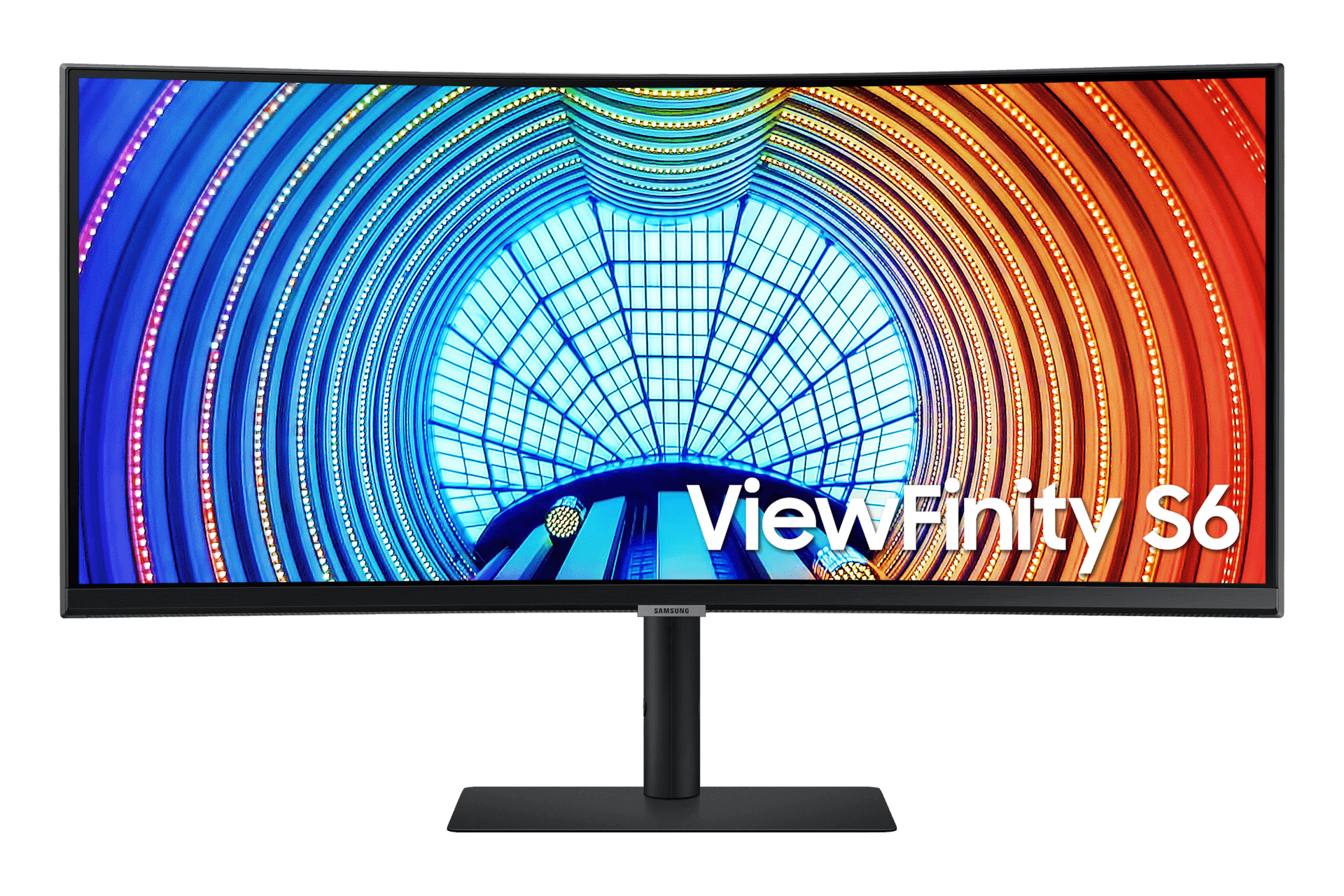
Samsung
ViewFinity S65UA
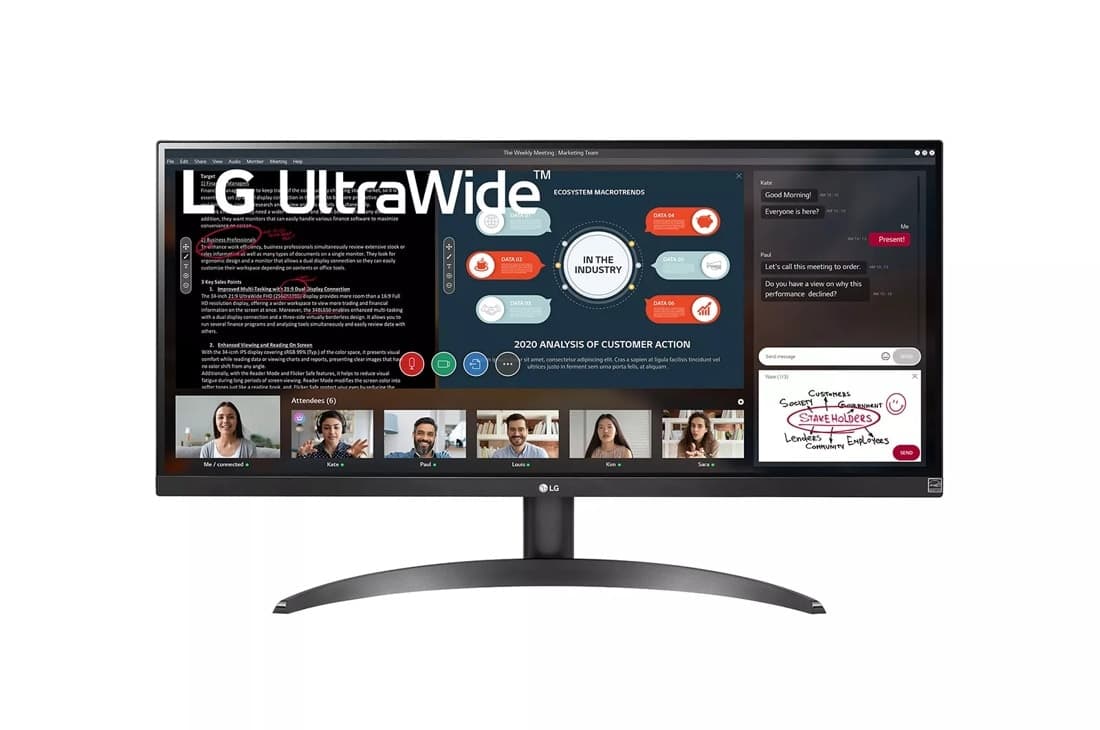
5. LG 29WP500-B — Best Entry-Level Ultrawide
The LG 29WP500-B is the lowest-cost way to test whether the ultrawide workflow actually suits how you work. At ~$180, it's a 29-inch 2560×1080 IPS panel, a genuine ultrawide at an entry price that doesn't require committing to a 34-inch investment upfront.
The trade-off worth naming clearly: 2560×1080 at 29 inches gives you 96 pixels per inch, versus 109 PPI on a 34-inch WQHD panel. The lower pixel density is perceptible when reading small text or working in dense spreadsheets. This monitor is a proof-of-concept purchase, not a forever screen. If you run it for a month and find the wide layout changes how you work, step up to one of the 34-inch picks with confidence.
Pros
- ~$180, by far the lowest cost entry into the ultrawide format
- 29-inch IPS panel is accurate and comfortable for document work
- 75Hz with AMD FreeSync adds light gaming capability
- Compact footprint, fits desks too narrow for a 34-inch panel
Cons
- 2560×1080 resolution is noticeably softer than WQHD at 34 inches
- No USB-C connectivity, HDMI and DisplayPort only
- Smaller 29-inch size reduces the side-by-side window benefit
LG
29WP500-B Ultrawide Monitor
How Much Desk Do You Actually Need for a 34-Inch Ultrawide?
A 2024 peer-reviewed study in Applied Ergonomics (Gallagher et al., Vol. 118) found that worksurface depth becomes a direct physical constraint as display width increases, participants preferred 34-inch displays over 40-inch formats partly because the larger size forced uncomfortably close viewing distances on standard desks (Applied Ergonomics, 2024). The study also measured head twist range of motion increasing with display width, with 34 inches sitting at the ergonomic threshold before rotation becomes a strain factor.
Here's the math most listings skip. The standard recommended viewing distance for a monitor is 20–30 inches, ergonomics guidelines put the sweet spot at around 30 inches for a 34-inch display. A 34-inch ultrawide monitor stand typically adds 8–10 inches of depth from the wall to the front of the screen. That means you need roughly 28–32 inches of usable desk depth to sit at the correct viewing distance.
Most standard desks are 24 inches deep. That's a 4–8 inch shortfall.
The Fix: A Monitor Arm
A monitor arm clamps to the desk edge and extends the display rearward, reclaiming those inches without requiring a deeper desk. You push the screen back 4–6 inches from where the stand sits, bring the bottom of the display over the desk surface, and free up the physical desk footprint the stand would occupy.
Our best monitor arms for 2026 guide covers the arms rated for ultrawide panels specifically, not all arms are rated for the 14–16 lb weight of a 34-inch display.
| Monitor Type | Panel Width | Min. Desk Depth Needed | Most Common Desk Depth |
|---|---|---|---|
| 24" 16:9 | ~21 inches | ~22 inches | 24 inches ✓ |
| 27" 16:9 | ~24 inches | ~24 inches | 24 inches (tight) |
| 34" Ultrawide | ~32 inches | 28–32 inches | 24 inches ✗ |
| 38" Ultrawide | ~35 inches | 32–36 inches | 24 inches ✗ |
Citation capsule: A 2024 peer-reviewed study in Applied Ergonomics (Gallagher et al., Vol. 118, PubMed) found that worksurface depth becomes a binding ergonomic constraint at 34-inch and wider displays. At a standard 30-inch recommended viewing distance, a 34-inch ultrawide requires 28–32 inches of desk depth, a shortfall on the majority of 24-inch-deep standard desks (Applied Ergonomics, 2024).
Window Management: The Software That Makes Ultrawide Monitors Actually Work
Most ultrawide monitor reviews end at the hardware. That's the wrong place to stop. A 34-inch display with no window management strategy is just a very wide browser window. The right software turns it into a structured, two- or three-column workspace, and it's free on both platforms.
Windows: PowerToys FancyZones
Microsoft's PowerToys suite includes FancyZones, a window snapping tool that lets you define custom grid layouts on your screen. You draw zones, thirds, custom columns, asymmetric layouts, and then drag any window into a zone while holding Shift. The window fills that zone exactly.
For a 34-inch ultrawide, a common layout is a wide center zone (50% width) flanked by two narrower side zones (25% each). Run your main application center, reference material left, messaging right. PowerToys is free from the Microsoft Store or GitHub.
macOS: Rectangle (Free) or Magnet ($1.99)
macOS's native window snapping only handles halves and full-screen. It doesn't divide a 34-inch ultrawide into thirds. Rectangle fills that gap with keyboard shortcuts for thirds, quarters, and custom zones, and it's completely free. Magnet costs $1.99 on the App Store and adds a menu bar interface if you prefer clicking to shortcuts.
The practical test: after setting up FancyZones or Rectangle, try a workflow where you'd normally alt-tab constantly. Most users find they stop switching windows entirely, the content is just always visible.
Built-In OS Snapping
Windows 11's Snap Layouts (Win + Z) now supports up to four layout zones and has some awareness of ultrawide ratios. It's a reasonable starting point before installing PowerToys. macOS Stage Manager (macOS Ventura and later) offers grouped window sets but behaves differently from manual zone layouts, worth trying, but less predictable for dense productivity work.
Citation capsule: The Wichita State University Software Usability Research Laboratory (SURL) found that dual-monitor users switched windows 15% less often and reported 91% higher satisfaction versus single-monitor setups (Wichita State SURL, 2015). Window management software on an ultrawide replicates that workflow in a single panel, the productivity gain is real, but the software setup is not optional.
Productivity Research: Monitor Configuration vs. Reported Efficiency
Frequently Asked Questions
Is an ultrawide monitor better than dual monitors for home office work?
For most remote workers, yes. A 34-inch 3440×1440 ultrawide gives you roughly the same screen real estate as two 24-inch 1080p monitors side by side, without the bezel gap in the middle. You also run one cable instead of two, and window snapping tools make the layout just as flexible as two separate screens.
What desk depth do I need for a 34-inch ultrawide monitor?
At the recommended 30-inch viewing distance, a 34-inch ultrawide requires 28–32 inches of usable desk depth. Most standard desks are only 24 inches deep, which puts the screen too close. A monitor arm solves this by pushing the display back 4–6 inches past where the stand would sit. See our best monitor arms for 2026 for arms rated to handle ultrawide panel weights.
Do ultrawide monitors work with MacBooks?
Yes. Every pick on this list connects via USB-C or Thunderbolt and works natively with macOS. Window management on Mac benefits from apps like Rectangle (free) or Magnet ($1.99) to snap windows into thirds and quarters, macOS's built-in snapping doesn't cover ultrawide layouts well.
What resolution should I get on a 34-inch ultrawide?
3440×1440 (WQHD ultrawide) is the correct resolution for a 34-inch panel. It delivers 109 pixels per inch, sharp enough for text-heavy work. The older 2560×1080 resolution, found on budget 29-inch panels like the LG 29WP500, gives 96 PPI and looks noticeably softer on large displays. The 4K vs. 1440p comparison covers pixel density decisions in more depth.
Is 60Hz enough for a home office ultrawide monitor?
For productivity work, documents, spreadsheets, video calls, browser research, 60Hz is completely adequate. If your home office doubles as a gaming setup, look at the Alienware AW3423DWF, which runs at 165Hz on a QD-OLED panel.
The Bottom Line
The best ultrawide monitor for most home office workers is the Dell UltraSharp U3423WE, the IPS Black panel, Thunderbolt 4, 90W charging, and KVM switch combine into a package that replaces both a docking station and a dual-monitor setup. The LG 34WP85C-B is the value pick if the KVM isn't a priority. The Alienware AW3423DWF is the right call if your home office becomes a gaming station after 6pm.
Before you buy: measure your desk depth. If it's under 28 inches, budget for a monitor arm alongside the display. And before you plug anything in, install FancyZones on Windows or Rectangle on macOS, the hardware alone won't change how you work. The software is what makes the wide canvas a structured workspace.
If you're working with a tighter budget across your full setup, the home office setup under $500 guide shows how to prioritize across the full desk.
We ran a 34-inch ultrawide alongside a dual 27-inch setup for two months. The ultrawide won on cable hygiene and morning setup time. The dual monitors won when we needed one screen in portrait mode for reading long documents. The KVM switch on the Dell tipped the balance, one keyboard for two computers changes the rhythm of a split work/personal setup more than any screen real estate gain.