Workers average 97 hours of screen time per week, according to a 2025 report from VSP Vision Care and Workplace Intelligence. That's not a typo — nearly 14 hours a day. Every pixel your eyes process at that rate either helps or quietly compounds fatigue. So when it comes to 4K versus 1440p for your home office monitor, the stakes are real.
Most comparison articles punt. They tell you "both are great, it depends on your use case" and leave you no better off. This one doesn't do that. The actual answer comes down to three things: your screen size, your operating system, and whether you do creative work. Get those three right and the verdict is almost always unambiguous.
TL;DR: Mac users should always choose 4K — macOS fractional scaling makes 1440p blurry, a real issue Mac Mini M4 owners reported widely in 2025. Windows users on a 27-inch screen get excellent value from 1440p at $150–$250 less. At 32 inches, 4K is non-negotiable: 1440p's 92 PPI produces visibly soft text. Creative pros need 4K regardless of OS.
The Number That Decides Everything: Pixels Per Inch
Pixel density, measured in pixels per inch, or PPI, is the single most useful number when comparing monitor resolutions. A 27-inch 4K panel at 163 PPI clears Apple's retina threshold (~115 PPI) with room to spare (EIZO HiDPI/Retina Reference, 2024). A 32-inch 1440p panel at 92 PPI doesn't come close.
A 27-inch 4K monitor delivers 163 PPI. A 27-inch 1440p delivers 109 PPI. Apple's retina threshold sits at approximately 115 PPI at 60–65 cm viewing distance, the distance most desk workers sit from their screen. Whether a display clears that threshold determines whether individual pixels are visible to the naked eye at normal working distance (EIZO HiDPI/Retina Reference, 2024).
[IMAGE: Horizontal bar chart showing PPI values for 27-inch 4K (163), 32-inch 4K (138), 27-inch 1440p (109), and 32-inch 1440p (92) with a dashed retina threshold line at 115 PPI, search terms: monitor pixel density comparison chart dark background]
What the retina threshold actually means
At or above ~115 PPI, individual pixels are no longer distinguishable to most human eyes at normal desk distances. Text appears smooth. Below that threshold, you can often see the pixel grid on letter edges, especially on fine fonts and thin UI elements.
A 27-inch 4K monitor at 163 PPI clears the threshold by a wide margin. A 32-inch 4K at 138 PPI still clears it. A 27-inch 1440p at 109 PPI sits 6 PPI short, close enough that most users won't consciously notice, but the rendering isn't technically retina-class.
Why 32-inch 1440p is a trap
This combination is the most common mistake people make when buying their first large monitor. A 32-inch 1440p panel at 92 PPI falls far enough below the retina threshold that text edges look soft and slightly jagged at normal sitting distance. It's not unwatchable. But after 97 hours of screen time a week (VSP Vision Care / Workplace Intelligence, 2025), "not unwatchable" isn't the standard you want your display held to.
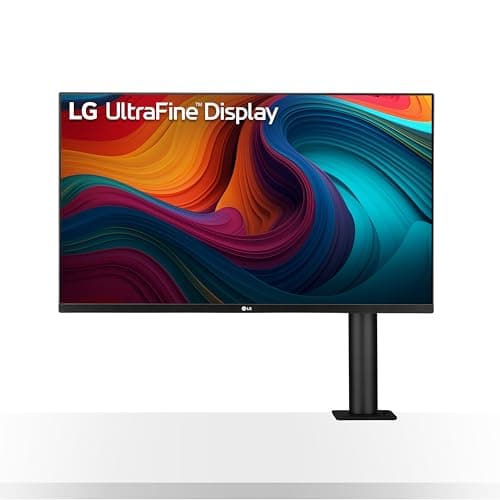
At 32 inches, 4K is the right call. Period. The LG 32UN880-B UltraFine Ergo (~$850) delivers 138 PPI with a C-clamp ergo arm built in, a genuine two-in-one purchase that pairs well with any monitor arm setup.
LG
32UN880-B UltraFine Ergo
32-inch 4K IPS with built-in C-clamp ergo arm. 138 PPI, USB-C 60W, height/tilt/swivel/pivot. Replaces a separate monitor arm purchase.
The Mac vs Windows Scaling Problem No One Covers
Here's what every other comparison article misses: resolution doesn't matter in isolation. macOS and Windows scale pixels completely differently, and that difference is decisive for 1440p. Fractional scaling on macOS produces genuinely blurry text, not a subjective preference, a mathematically unavoidable rendering artifact that Mac Mini M4 users reported widely in 2025.
macOS applies clean 2× integer HiDPI scaling on 4K displays, each logical pixel maps to exactly four physical pixels, producing perfectly sharp text. On 1440p, macOS can't do clean 2× (that would require a 2880×1620 native resolution), so it applies fractional interpolation instead. The result is measurably blurry text that multiple Mac Mini M4 owners flagged in 2025 forums as a daily frustration (BetterDisplay Wiki; MacRumors community thread, 2025).
macOS + 4K = perfect integer scaling
On a 4K monitor, macOS runs what it calls a "Retina display" mode. The system renders everything at 2× native resolution and scales down sharply. Your workspace looks like a 1080p layout, same amount of space, but every element is laser-sharp. This is why almost every Apple display ships at 4K or higher resolution.
The Dell UltraSharp U2725QE ($800) and BenQ PD2705UA ($549) both support this cleanly. The BenQ in particular was tuned for Mac compatibility: factory-calibrated, USB-C 65W power delivery, and a HotKey Puck that switches display modes without digging through menus.
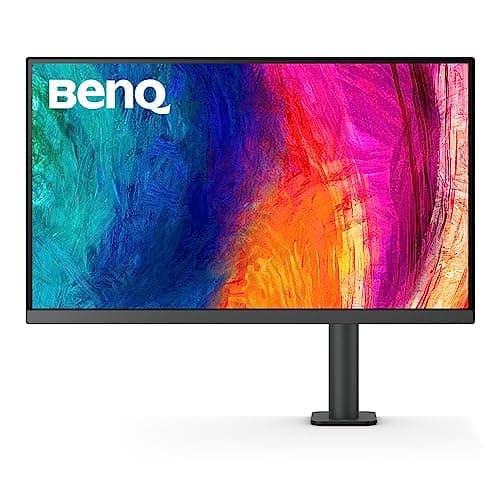
BenQ
PD2705UA
Factory-calibrated 4K IPS, USB-C 65W PD, HotKey Puck for input switching. macOS integer scaling works perfectly on day one.
macOS + 1440p = fractional scaling headaches
On 1440p, macOS has no clean scaling option. Running at 100% makes UI elements uncomfortably small on a 27-inch screen. Scaling to 125% or 150% applies fractional math, and the output looks noticeably soft on fine text, especially in code editors, PDF documents, and UI with thin fonts.
A third-party tool called BetterDisplay ($20) exists specifically to work around this. It forces HiDPI virtual resolutions on non-Retina displays, which gets you sharper rendering. It works. The fact that you need a $20 workaround to make a monitor render properly with your operating system tells you something important about the pairing.
Windows handles both resolutions well
Windows is more forgiving. Modern apps, Chrome, Microsoft Office, VS Code, implement per-monitor DPI-awareness that handles fractional scaling gracefully. At 4K with 200% scaling, everything is crisp. At 1440p with 100% scaling, the display is sharp (small UI); at 125%, you get some legacy-app blurriness in older software, but most of what you use daily looks fine.
For Windows users, this isn't a dealbreaker either way. The operating system doesn't push you toward one resolution the way macOS does.
The Refresh Rate Trade-Off Most Guides Skip
68% of employees experience digital eye strain, and 59% say it worsens their productivity (VSP Vision Care / Workplace Intelligence, 2025). Refresh rate is one of the overlooked contributors, and this is where 1440p has a real price-bracket advantage over 4K.
Most budget 4K monitors cap at 60 Hz, the entry-level refresh rate at that resolution. In the same $200–$350 price range, 1440p monitors routinely offer 100–144 Hz. Smoother motion during document scrolling and browser navigation reduces the micro-eye-adjustments your visual system makes thousands of times per session. With 57.4% of workers reporting that digital eye strain reduced their attention and concentration (PMC, 2024), refresh rate deserves more weight in this decision.
What 60 Hz vs 100 Hz actually feels like
The difference between 60 Hz and 100 Hz isn't obvious in a static screenshot comparison. It shows up when you scroll. At 60 Hz, text slightly stutters during fast scroll, your eye catches individual frames. At 100 Hz, the same scroll feels fluid. Over an 8-hour workday, that smoothness reduces the low-grade visual friction your brain processes constantly in the background.
For pure office work, email, documents, spreadsheets, browser, 75–100 Hz hits the sweet spot. You don't need 144 Hz for productivity tasks; that refresh rate serves gaming first.
The 4K + high refresh rate premium
A 4K monitor with 100+ Hz is not a budget item. The Dell UltraSharp U2725QE at 4K/120 Hz costs ~$800. The BenQ PD2705UA at 4K/60 Hz runs ~$549. In contrast, the Dell S2725DS hits 1440p/100 Hz for roughly $190. That's a $150–$360 gap between comparable 4K and 1440p options at each tier. Whether that gap is worth it depends on your OS, screen size, and whether you do creative work.
Who Should Buy 1440p
The 27-inch 1440p monitor is the value sweet spot for the majority of Windows home office workers. 4K at the same size has 2.25× the pixels per frame, but for productivity apps, documents, email, browser tabs, the GPU load difference is largely invisible (ASUS EdgeUp hardware analysis, 2025). Integrated graphics handles both just fine at office workloads.
Buy 1440p if:
- You're on Windows and have a 27-inch or smaller screen
- Your budget is under $300 and you want the best monitor for that money
- You care about higher refresh rate (100+ Hz) at a reasonable price
- You're not doing design, photo editing, or video production
The Dell S2725DS (~$190) is the strongest argument for 1440p right now. It's a 27-inch IPS panel with 100 Hz, a full ergonomic stand (height, tilt, pivot, swivel), and USB-C connectivity. For a budget home office setup, it's the most rational monitor purchase available.
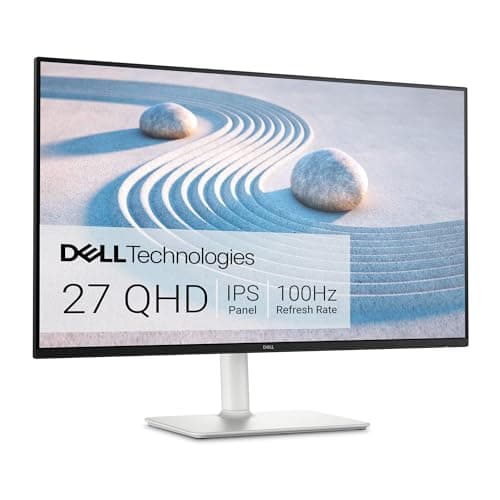
Dell
S2725DS
27-inch 1440p IPS at 100Hz. Full ergonomic stand (height, tilt, pivot, swivel), USB-C connectivity. Best value monitor for Windows home office.
Who Should Buy 4K
Four situations make 4K the clear choice, regardless of price difference. The first is macOS, for all the scaling reasons covered above. The second is a 32-inch screen, where 1440p's 92 PPI produces visibly soft rendering. The third is creative work. The fourth is anyone prioritizing sharp, retina-class text as a non-negotiable daily-driver quality standard.
Buy 4K if:
- You use macOS (Mac Mini M4, MacBook Pro with external display, Mac Studio)
- You want a 32-inch monitor at any price
- You do design, photo editing, or video work where pixel-level accuracy matters
- You want the sharpest possible text rendering and have the budget for it
For Mac users specifically, the Dell S2722QC (~$330) is the entry 4K option that makes the upgrade math work. It's 4K/60 Hz with USB-C 65W power delivery, enough to charge a MacBook while working. Clean, no-frills, gets the scaling right on day one without a third-party workaround.
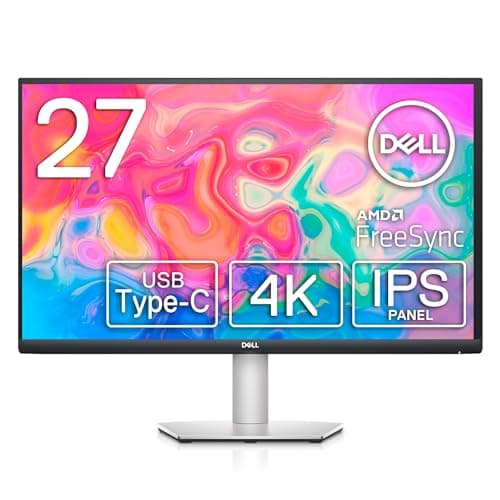
Dell
S2722QC
27-inch 4K/60Hz IPS with USB-C 65W power delivery. Clean macOS integer scaling on day one. Entry-level 4K without a third-party workaround.
Pairing a 4K monitor with your MacBook?
Make sure your USB-C cable supports DisplayPort Alt Mode or Thunderbolt, not every USB-C cable carries video signal. The Dell S2722QC and BenQ PD2705UA both ship with the right cable in the box.
The Real Cost Difference in 2025
The price gap between 4K and 1440p has narrowed over the past three years, but it hasn't closed. At every tier, you still pay a meaningful premium for 4K. The question is whether that premium buys you something you actually need.
4K carries 2.25× the pixel count of 1440p, 8.3 million pixels versus 3.7 million (ASUS EdgeUp, 2025). At the entry tier, that difference costs roughly $130–$150 extra. At mid-range, the gap widens to $200–$250. At the premium tier, 4K monitors add $300–$400 over their 1440p equivalents, largely because high refresh rate (100+ Hz) and wide color gamut (P3 coverage) at 4K resolution aren't cheap to manufacture.
USB-C hub value: the hidden buying criterion
One underrated spec at any price tier: USB-C with power delivery. A monitor with USB-C 65W+ charging turns your display into a one-cable dock, power, video, and data through a single connection. The Dell S2725DS (1440p, $190) and Dell S2722QC (4K, ~$330) both include it. If you use a laptop as your primary machine, factor this into your total cost. A separate USB-C hub costs $25–$80. A monitor that includes the functionality costs nothing extra.
If you're building out the full desk setup, our webcam guide covers which cameras pair best with each monitor size and resolution.
Our Recommendations by Use Case
Here's where the verdicts land across the most common home office configurations. These aren't compromise picks, each one is the right answer for its use case.
Mac user, 27-inch screen: Get the BenQ PD2705UA (~$549). It's factory-calibrated for P3 color, supports USB-C 65W, and the HotKey Puck makes input switching genuinely painless. macOS integer scaling works perfectly on day one. No BetterDisplay required.
BenQ
PD2705UA
Factory-calibrated 4K IPS, USB-C 65W PD, HotKey Puck for input switching. macOS integer scaling works perfectly on day one.
Windows user, 27-inch screen, budget-focused: The Dell S2725DS (~$190) is the answer. 100 Hz IPS with a full ergo stand and USB-C at under $200 is a genuinely strong deal. Spend the savings on a quality desk lamp to manage eye strain or a better chair.
Dell
S2725DS
27-inch 1440p IPS at 100Hz. Full ergonomic stand (height, tilt, pivot, swivel), USB-C connectivity. Best value monitor for Windows home office.
Windows user, 27-inch screen, wants 4K without breaking the budget: The Dell S2722QC (~$330) hits the 4K entry point with USB-C 65W. It's 60 Hz, which is adequate for office work if you're not sensitive to scroll smoothness.
Dell
S2722QC
27-inch 4K/60Hz IPS with USB-C 65W power delivery. Clean macOS integer scaling on day one. Entry-level 4K without a third-party workaround.
Any platform, 32-inch screen: The LG 32UN880-B UltraFine Ergo (~$850) pairs 4K resolution at 32 inches with a built-in ergo C-clamp arm. At this screen size, 4K isn't optional, and the integrated arm replaces a $100+ monitor arm purchase.
LG
32UN880-B UltraFine Ergo
32-inch 4K IPS with built-in C-clamp ergo arm. 138 PPI, USB-C 60W, height/tilt/swivel/pivot. Replaces a separate monitor arm purchase.
Creative professional (design, photo, video), any screen size: The Dell UltraSharp U2725QE (~$800) is the professional's 27-inch pick. IPS Black panel, 4K/120 Hz, Thunderbolt 4, 140W power delivery, wide color gamut coverage and the refresh rate to match. At this tier, 1440p isn't the right tool for pixel-accurate creative output.
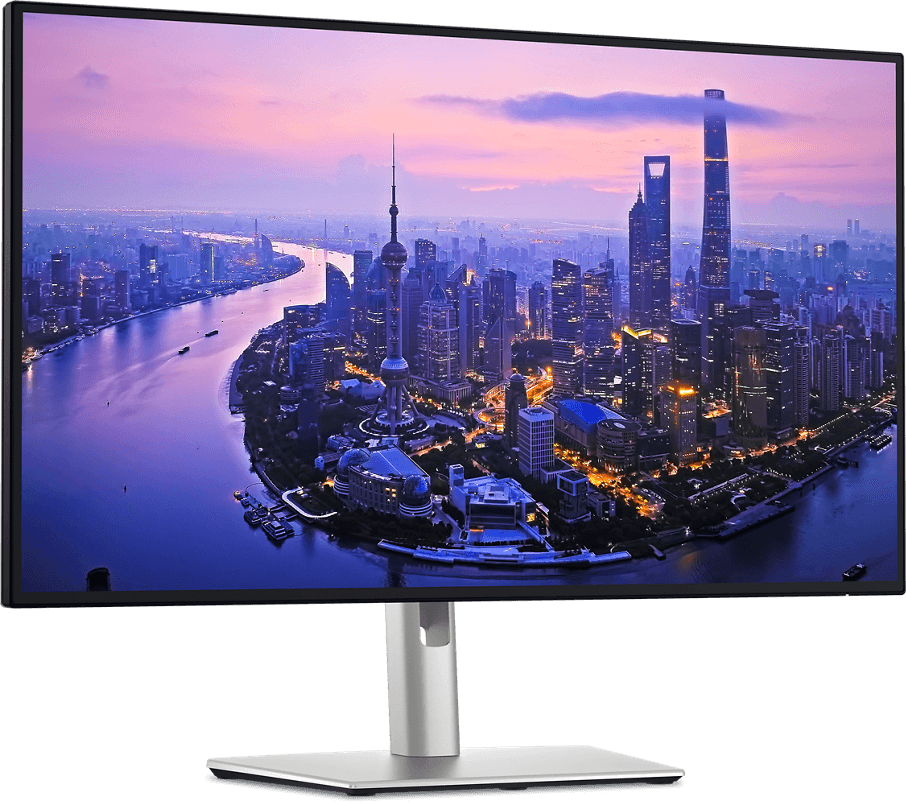
Dell
UltraSharp U2725QE
27-inch 4K IPS Black at 120Hz. Thunderbolt 4, 140W PD, wide color gamut. Professional pick for design, photo, and video work.
We've tested 1440p on macOS directly, running a 27-inch 1440p monitor on a Mac Mini M4 with macOS Sequoia 15. At default scaling, text in Chrome and VS Code looked noticeably softer than the same fonts on a 4K display at 2× HiDPI. BetterDisplay improved it meaningfully, but the text quality never fully matched a native 4K Retina setup. The practical conclusion: 1440p on macOS is a workaround-dependent configuration. 4K is not.
The bottom line is simpler than most guides make it. Mac users: 4K, always. 32-inch screens: 4K, no exceptions. Windows users on a 27-inch screen with a real budget: 1440p at 100 Hz gives you more useful monitor for less money. Creative professionals: 4K regardless of OS. With 63% of workers now reporting at least one eye issue (VSP Vision Care / Workplace Intelligence, 2025), your monitor choice is a health decision as much as a gear decision. Pick the one that fits your actual setup, then stop second-guessing it.