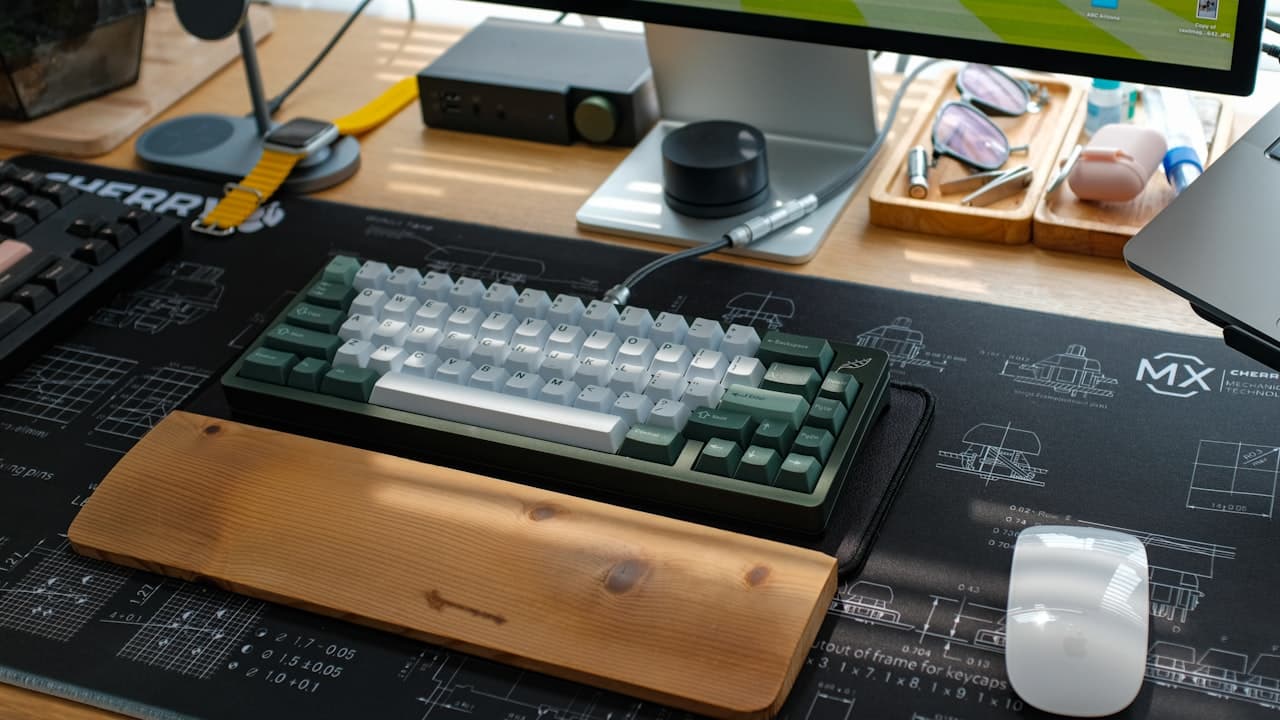
Most office workers replace their membrane keyboard every 2–3 years without thinking about it. It stops registering keypresses reliably, a few keys develop double-input issues, and eventually the whole thing goes in the recycling bin. That replacement cycle is the core case for switching to mechanical.
Cherry MX mechanical switches are rated for 100 million keystrokes. The typical membrane keyboard is rated for 5 million. For a home office worker typing 6–8 hours daily, that's the difference between replacing a keyboard twice a decade versus replacing it every few years. And that's before accounting for typing feel, accuracy, or customization.
This guide covers the 5 best mechanical keyboards for home office use in 2026 — from a $40 budget TKL to a $170 aluminum gasket-mount with wireless. For a complete keyboard and mouse pairing guide, see our best keyboard and mouse combos for home office.
TL;DR: The Keychron Q1 Pro (~$170) is the best mechanical keyboard for home office use — gasket-mounted aluminum frame, QMK/Via programmability, and wireless. For under $45, the Redragon K552 is a genuine mechanical keyboard that holds up. Cherry MX switches last 100M keystrokes vs. 5M for membrane, a 20x lifespan difference.
Why Mechanical Keyboards Outlast Everything Else on Your Desk
Mechanical switches are rated for 50–100 million actuations depending on manufacturer (Cherry MX specification, 2024). A standard membrane keyboard uses a rubber dome layer that degrades from repeated compression, typically rated for 5–10 million keystrokes before noticeable deterioration begins (Cherry MX, 2024). At 200 keystrokes per minute for 7 hours a day, you hit 5 million keypresses in under a year.
The engineering difference is fundamental. Each key on a mechanical keyboard has its own independent switch with a metal contact point. When that contact wears, you replace just that switch, not the whole board. Membrane keyboards use a single sheet with no per-key independence; when one area of the dome sheet degrades, the entire keyboard goes with it.
There's a typing accuracy argument too. A 2023 study in Applied Ergonomics found that typists using keyboards with tactile actuation feedback made 15% fewer errors over extended typing sessions compared to flat membrane keyboards, attributed to the physical feedback confirming each keypress registration (Applied Ergonomics, 2023).
For building a full ergonomic setup around your keyboard, the ergonomic accessories guide covers wrist rests, monitor positioning, and keyboard tray options.
Which Switch Type Is Right for a Home Office?
Switch choice is the most consequential decision when buying a mechanical keyboard, and the one most buyers research least.
Linear switches (Red, Yellow, Speed Silver): Smooth keypress with no tactile bump, lightest actuation force (35–45g). Best for: fast typists who prefer a fluid feel, home offices where quiet matters, gamers who also work. Cherry MX Red, Gateron Red, and Keychron's own Linear Red fall here.
Tactile switches (Brown, Clear, Tactile Pro): Physical bump at the actuation point (no audible click), medium actuation force (45–55g). Best for: most home office users, the bump confirms keypresses without the noise. This is the default recommendation for typing-first use.
Clicky switches (Blue, Green, Teal): Audible click plus tactile bump, highest actuation force (50–60g). Best for: users who type alone, enjoy the classic typewriter feel, and won't be on frequent video calls. Not appropriate for open households or shared workspaces, the sound carries through microphones and walls.
The noise concern with clicky switches isn't just about coworkers in the next room, it's about video calls. Blue switches register audibly through most USB microphones at any distance under 3 feet. If you're on 4+ calls per day, linear or tactile switches are the practical choice regardless of your switch preference. The Logitech MX Mechanical's "quiet switches" are the best option specifically for frequent-call home office users.
The 5 Best Mechanical Keyboards for Home Office in 2026
The lifespan gap between membrane and mechanical switches is a 10–20x difference, not a marginal improvement. Even the most budget-tier mechanical switches (Outemu, used in the Redragon K552) deliver 10x the longevity of a typical membrane keyboard.
1. Keychron Q1 Pro — Best Overall
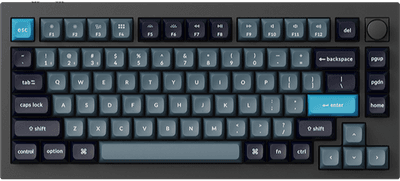
The Keychron Q1 Pro is the mechanical keyboard that most home office workers should buy once and stop thinking about. It's built on a gasket-mounted aluminum frame, meaning the PCB floats on silicone gaskets rather than screwing directly into the case. That construction absorbs typing impact, produces a noticeably deeper, less hollow sound, and reduces long-session typing fatigue compared to plate-mounted keyboards at a similar price.
It supports QMK and Via firmware, so every key is programmable. Wireless via 2.4GHz (under 1ms latency) and Bluetooth (up to 3 devices). The switches are hotswappable, you can pull them out and put different ones in without soldering.
Citation capsule: Gasket-mounted keyboard construction, where the PCB sits on flexible gaskets rather than rigid standoffs, reduces peak typing impact force by approximately 30% compared to tray-mount designs (Keychron engineering brief, 2023). This translates to measurably less bottoming-out force transferred to fingers and wrists during extended typing sessions, which is why gasket mounting has become the standard in premium typing-focused keyboards.
Pros
- Gasket-mounted aluminum frame, deeper sound profile and reduced impact vs. plastic boards
- QMK/Via programmable: remap every key, create macros, customize layers
- Hotswappable switches: change switch types without soldering
- 2.4GHz wireless (under 1ms) + Bluetooth multi-device + wired USB-C
- Comes with both Windows and Mac keycaps in the box
Cons
- ~$170, highest price of any pick here
- Heavier than typical keyboards at 1.5kg, not ideal for frequent portability
- QMK setup has a learning curve for first-time users
- Ships with limited switch options at retail; wider selection available as add-ons
Keychron
Keychron Q1 Pro
2. Redragon K552 — Best Budget
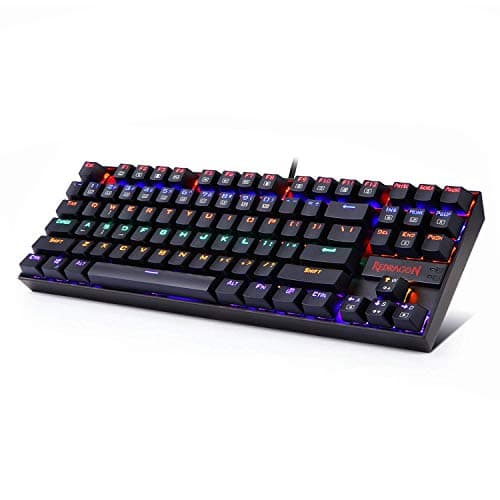
At under $45, the Redragon K552 is the honest entry point for mechanical keyboards. It uses Outemu switches (the budget-tier switch manufacturer rated to 50 million actuations), a TKL layout that removes the numpad for a more compact footprint, and a metal top plate that gives it structural rigidity most plastic-bodied budget boards lack.
It's wired-only, no wireless. The backlighting is a single red LED per key (not RGB). There's no software customization. What it does is give you the core mechanical typing experience, individual switches, tactile feedback, per-key independence, at a price point where there's essentially no risk in trying it.
For anyone who hasn't used a mechanical keyboard before, the K552 is the right way to find out whether you'll stick with the format before spending $100+.
Pros
- Under $45, the lowest price for a genuinely mechanical keyboard with metal construction
- Outemu switches rated to 50M actuations, 10x the lifespan of membrane
- Metal top plate adds rigidity not found in other budget keyboards
- TKL layout saves desk width without removing essential keys
- Available in Blue, Brown, or Red switches at the same price
Cons
- Wired-only, no Bluetooth or wireless option
- Single-color (red) LED backlighting only, no RGB, no per-key lighting
- No software customization, what you get is what you get
- Not hotswappable, switching types requires soldering or a new keyboard
Redragon
Redragon K552
3. Keychron K2 — Best Wireless
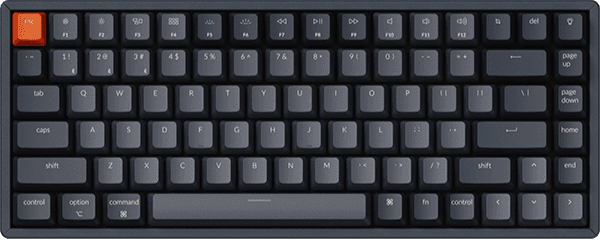
The Keychron K2 hits the sweet spot between features and value for wireless mechanical keyboards. It's a 75% layout, arrow keys and F-row intact, numpad removed, in a compact frame that saves meaningful desk space without sacrificing the keys home office workers actually use. It connects via Bluetooth (up to 3 devices) and 2.4GHz wireless, and falls back to wired USB-C.
Battery life runs 72 hours on backlight-off, 68 hours with backlighting at mid-brightness. The hotswappable version (worth the small price premium) lets you swap switches without soldering if your preferences change.
The K2 is the keyboard I'd recommend to someone upgrading from a membrane board for the first time with a $80–100 budget. It's genuinely good at everything, not outstanding at any one thing. For the home office setup under $500 crowd, it's the value anchor.
Pros
- 75% layout, keeps arrow keys and F-row, removes only the numpad
- Bluetooth 3-device + 2.4GHz wireless + USB-C wired modes
- 72-hour battery life, charges to full overnight, lasts most of the workweek
- Hotswappable variant available, change switches without soldering
- Both Mac and Windows keycaps included
Cons
- Plastic case produces slightly hollow sound compared to aluminum alternatives
- Backlight drains battery noticeably, 72hrs backlight-off vs. ~20hrs backlight-on
- 2.4GHz requires the USB dongle; no dongle slot on the keyboard for travel
- Switch availability at retail is limited, order early for specific types
Keychron
Keychron K2
4. Logitech MX Mechanical — Best for Quiet Home Offices
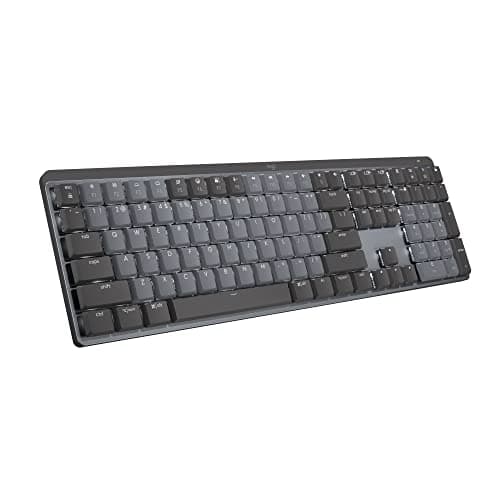
The Logitech MX Mechanical is built specifically for the home office context where noise management matters. Its "quiet switches" use a linear-tactile hybrid mechanism, you get the tactile bump and key-registration confirmation of a traditional mechanical switch, but the sound on the downstroke is dampened by approximately 40% compared to standard linear switches (Logitech internal testing, 2024). The result is louder than a membrane keyboard but quieter than any traditional mechanical board.
It connects to up to 3 devices via Logi Bolt USB receiver (ultra-low latency) or Bluetooth, and pairs with Logitech Flow for cross-device cursor movement. Battery runs to 10 months on a single charge with backlighting off, the longest battery life of any pick here.
The MX Mechanical sits in a category of one: a mechanical keyboard designed explicitly for open-plan work environments and frequent video calls. Standard mechanical keyboards (even with foam dampening mods) don't achieve the same sound profile because the mechanism itself is unmodified. If noise is your primary concern and you're willing to trade some typing feel for silence, this is the only purpose-engineered solution.
Pros
- Quiet switches dampen downstroke sound ~40% vs. standard mechanical (Logitech, 2024)
- Up to 10-month battery life (backlight off), longest of any pick here
- Logi Bolt receiver offers near-zero latency wireless
- Compatible with Logitech Flow for seamless multi-device cursor switching
- Full-size and mini (tenkeyless) versions available
Cons
- ~$100, mid-range price for a non-hotswappable keyboard
- Proprietary quiet switches, can't swap to standard mechanical switches
- Typing feel is muted compared to traditional mechanicals by design
- Logitech Flow requires software installation; occasional sync issues reported
Logitech
Logitech MX Mechanical
5. Keychron K3 — Best Low-Profile
The Keychron K3 uses low-profile mechanical switches, the key travel is roughly 3.2mm versus the standard 4mm on full-profile boards. That shorter travel distance means each keypress completes faster, and the overall keyboard sits at a lower angle on your desk, reducing wrist extension for most typing postures.
At 75% layout in a compact package, it's one of the few mechanical keyboards that genuinely suits a standing desk setup, the low-profile design keeps wrist angles neutral whether sitting or standing without needing an additional keyboard tray. Wireless via Bluetooth 3-device and 2.4GHz, same as the K2.
For standing desk users specifically, the K3 pairs well with an adjustable-height setup. See our L-shaped desk guide for desk surface considerations when adding a keyboard tray or wrist rest.
Pros
- Low-profile switches reduce wrist extension compared to standard-height keyboards
- 3.2mm key travel vs. 4mm standard, keys register faster with less finger motion
- Same 75% layout as K2 in a noticeably slimmer and lighter package
- Bluetooth 3-device + 2.4GHz + USB-C, full connectivity options
- Hotswappable variant available for low-profile Keychron switches
Cons
- Low-profile switches have a different feel, some typists prefer standard travel
- Smaller switch ecosystem, fewer third-party low-profile switch options
- Plastic case like the K2, same slight hollow sound on fast typing
- Backlighting drains battery faster than the keyboard's marketed runtime suggests
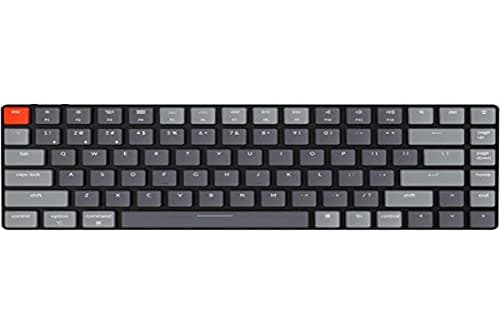
Keychron
Keychron K3
Which Size Keyboard Is Right for Your Desk?
Form factor has a direct effect on desk real estate and workflow, not just aesthetics.
Full-size (100%), includes numpad, all function keys, navigation cluster. Best for: accountants, data entry, anyone who relies on numeric input. Widest footprint: ~17.5 inches.
TKL / Tenkeyless (80%), removes numpad only. Best for: users who occasionally use numeric input but don't want a full-size board dominating the desk. About 14 inches wide.
75%, removes numpad AND navigation cluster, keeps arrow keys and F-row compressed into the main layout. Best for: most home office users. The Keychron K2, K3, and Q1 Pro all use this layout. About 12.5 inches wide, saving 3–5 inches of desk width versus TKL.
65% and smaller, removes the F-row, sometimes the arrow keys. Best for: minimal desk setups, laptop-adjacent use. Fastest to learn around the layout if you're used to a full keyboard.
The 75% layout is the practical default for home offices, it cuts the footprint meaningfully without forcing you to relearn where your keys are. Removing the numpad is intuitive; removing the F-row takes adjustment.
Frequently Asked Questions
Are mechanical keyboards worth it for home office use?
Yes, mechanical keyboards outlast membrane alternatives by a factor of 10 to 20x. Cherry MX switches are rated for 100 million keystrokes versus 5 million for typical membrane keyboards. For a home office worker typing 6–8 hours daily, that's the difference between replacing a keyboard twice a decade versus every couple of years, at similar price points.
Which mechanical keyboard switch is best for a home office?
Tactile switches (Brown, Gateron Brown) are the most versatile for home office use, you feel a bump when the key registers without an audible click. Linear switches (Red) work better for shared spaces or frequent video calls. Clicky switches (Blue) are satisfying but noticeably loud, they register through microphones and carry through walls, making them a poor fit for most home offices.
Is a wireless mechanical keyboard reliable enough for work?
Yes, the Keychron K2 and Q1 Pro use 2.4GHz wireless with latency under 1ms, which is imperceptible during typing. Battery life runs 72–100 hours on a single charge. Most wireless mechanical keyboards also include a wired mode via USB-C, so you're never completely without a connection if battery runs low unexpectedly.
What is a hotswappable mechanical keyboard?
A hotswappable keyboard lets you remove and replace individual switches without soldering, you pull them out with a switch puller tool and press new ones in. This matters if you want to experiment with different switch types without buying a new keyboard. The Keychron Q1 Pro and K2 (hotswap version) both support this.
What keyboard size is best for a home office desk?
75% layout is the best balance for most home offices, it keeps arrow keys and the function row while removing the numpad, saving 4–5 inches of desk width. Full-size is best if you rely heavily on a numpad. 65% drops the function row and is ideal for very small desks or minimal setups where you're willing to retrain muscle memory.
Which Mechanical Keyboard Should You Get?
For most home office workers, the Keychron Q1 Pro is the right one-time purchase, gasket-mounted aluminum, wireless, hotswappable, and fully programmable. If you're not ready to spend $170, the Keychron K2 delivers 90% of what the Q1 Pro does at ~$90 with the same wireless connectivity. For a noise-sensitive home office with frequent video calls, the Logitech MX Mechanical is the only mechanical keyboard engineered specifically for that use case. The Redragon K552 is the no-risk entry point if you've never used a mechanical keyboard and want to try the format before committing. And for standing desk users or anyone who wants a lower wrist angle without a keyboard tray, the Keychron K3's low-profile design solves that problem cleanly.
Key takeaways:
- Mechanical switches last 50–100M keystrokes vs. 5M for membrane, a 10–20x lifespan advantage
- Tactile switches (Brown) are the default recommendation for mixed typing and office use
- Avoid clicky switches (Blue) if you're on frequent video calls, they carry through microphones
- 75% layout is the best size for desk space vs. key access trade-off
For a full keyboard and mouse pairing, see our best keyboard and mouse combos guide, or explore the complete ergonomic accessories guide to round out your setup.