Most home office buying guides treat a keyboard and mouse as an afterthought — accessories you grab last, after the desk and chair are sorted. That's exactly backwards. Your keyboard and mouse are the only two pieces of equipment your hands touch for eight hours straight. Over time, the wrong pair causes real, documented harm.
Repetitive strain injuries are the most common work-related injury in the US, accounting for 33% of all workplace injury cases (Bureau of Labor Statistics, 2024). Carpal tunnel syndrome alone affects approximately 3–6% of the adult population (National Institutes of Health / NCBI, 2020). These aren't rare outcomes. They're the predictable result of daily contact with the wrong equipment — wrong shape, wrong size, wrong resistance.
The good news: the right keyboard and mouse are not expensive. This guide covers four keyboards and four mice across every home office budget, with the honest tradeoffs included. If you want a dedicated breakdown of just keyboard and mouse combinations, our wireless keyboard and mouse combo guide covers the best bundles at every price point.
TL;DR: The Logitech MX Keys (
$109) and Logitech MX Master 3S ($99) are the best keyboard and mouse for most home office setups, quiet, wireless, and built for all-day use. RSI injuries represent 33% of all US workplace injury cases (Bureau of Labor Statistics, 2024), making peripheral choice a health decision, not just a preference.
Quick Picks
| Product | Price | Best For |
|---|---|---|
| Logitech MX Keys | ~$109–119 | Best overall keyboard |
| Keychron K2 | ~$89–99 | Best mechanical keyboard |
| Keychron K3 | ~$79–89 | Best for laptop users |
| Logitech K380 | ~$39–49 | Best budget / multi-device |
| Logitech MX Master 3S | ~$99 | Best overall mouse |
| Logitech MX Master 3 | ~$79–89 | Runner-up / quieter budget |
| Logitech M750 | ~$39–49 | Best mid-range mouse |
| Anker Ergonomic Vertical Mouse | ~$25–35 | Best for wrist pain / RSI |
Why Does Grip Type Matter Before You Buy a Mouse?
Almost every keyboard and mouse review lists specs. Almost none tell you to identify your grip type first. That's the single most useful piece of information for choosing a mouse, and most guides skip it entirely.
There are three grip types. Palm grip means your entire hand rests on the mouse. Claw grip means your fingers arch and your palm touches lightly. Fingertip grip means only your fingertips contact the mouse, with your palm off it completely. The wrong mouse for your grip causes hand and wrist fatigue that no amount of ergonomic features can fix.
Palm grip users need a large, full-contoured mouse, something like the Logitech MX Master 3S, which fills the palm and provides a dedicated thumb rest. Claw grip users do well with medium-sized mice that have a higher profile. Fingertip grip users need small, lightweight mice and aren't well-served by the picks in this guide.
How to Identify Your Grip Type
Rest your hand naturally on your current mouse, or on a similarly-sized object. If your palm sits flat on the body, that's palm grip. If your knuckles arch and your fingers bend at the middle joint, that's claw grip. If only your fingertips touch the surface and your palm hovers, that's fingertip grip. Most home office buyers are palm or claw, both grip types are well-served by the mice in this guide.
Grip type affects mouse size, not just shape. A mouse that's too small for a palm-grip user forces the hand into an unnatural claw position all day. A mouse too large for a claw-grip user prevents the fine movement control that claw grip is designed for. Check your grip before reading the product section.
Citation capsule: Research published in the Applied Ergonomics journal found vertical mice reduce wrist pronation, the forearm rotation that compresses the ulnar nerve, by up to 57° compared to standard horizontal mice. For the estimated 3–6% of adults who already have carpal tunnel syndrome (NIH/NCBI, 2020), or those at risk from prolonged daily use, grip type and mouse orientation are clinical decisions, not just preference.
Peripheral ergonomics only goes so far without the right seat underneath you. Our ergonomic chairs under $300 guide covers the seating side of the equation.
Best Keyboards for Home Office (2026)
The right keyboard for home office use balances key feel, noise, multi-device flexibility, and compatibility with your workflow. Mechanical keyboards provide 40–60mm of key travel versus just 1–2mm on standard laptop membrane keyboards, that deeper travel allows finger muscles to share the typing load rather than relying on joint compression alone. Whether that matters to you depends on how many hours a day you spend typing.
Logitech MX Keys — Best Overall Keyboard
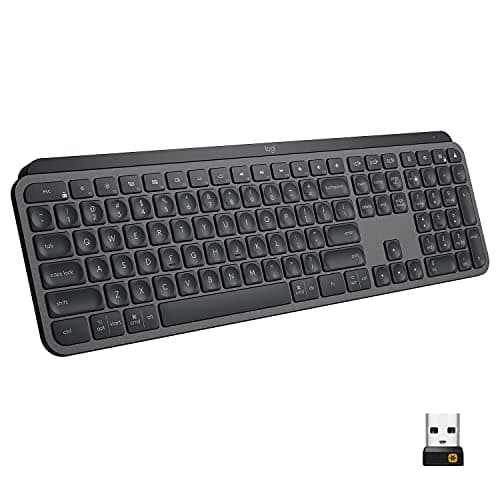
Logitech
MX Keys
Spherical key tops, multi-device pairing to 3 devices, and USB-C rechargeable, quiet low-profile keys appropriate for shared spaces and video calls.
The MX Keys earns the top spot because it removes friction from the most common home office pain points: multi-device switching, quiet operation, and battery life. It pairs to three devices simultaneously and switches between them with a dedicated button, useful for anyone who works across a laptop, desktop, and tablet. Battery life runs approximately 10 days with backlighting on and up to five months with it off.
The spherical (concave) key tops are a genuine ergonomic feature, not just cosmetic. They guide your fingertips to the center of each key, which reduces the lateral micro-adjustments that contribute to RSI over time. The low-profile keys are quieter than mechanical alternatives, appropriate for shared spaces and video calls.
Pros
- Multi-device pairing to 3 devices with one-button switching
- Quiet low-profile keys, appropriate for shared spaces and calls
- USB-C rechargeable, up to 5 months battery without backlight
- Spherical key tops reduce lateral finger strain during long typing sessions
- Logi Bolt USB receiver and Bluetooth both supported
Cons
- Membrane, not mechanical, no tactile click or bump feedback
- Right-hand numpad layout makes it wide; not ideal for compact desk setups
- Backlight shortens battery life significantly (10 days lit vs. 5 months unlit)
Key specs: Low-profile membrane keys, Logi Bolt USB receiver + Bluetooth, USB-C rechargeable, backlit, Windows and macOS compatible, ~$109–119.
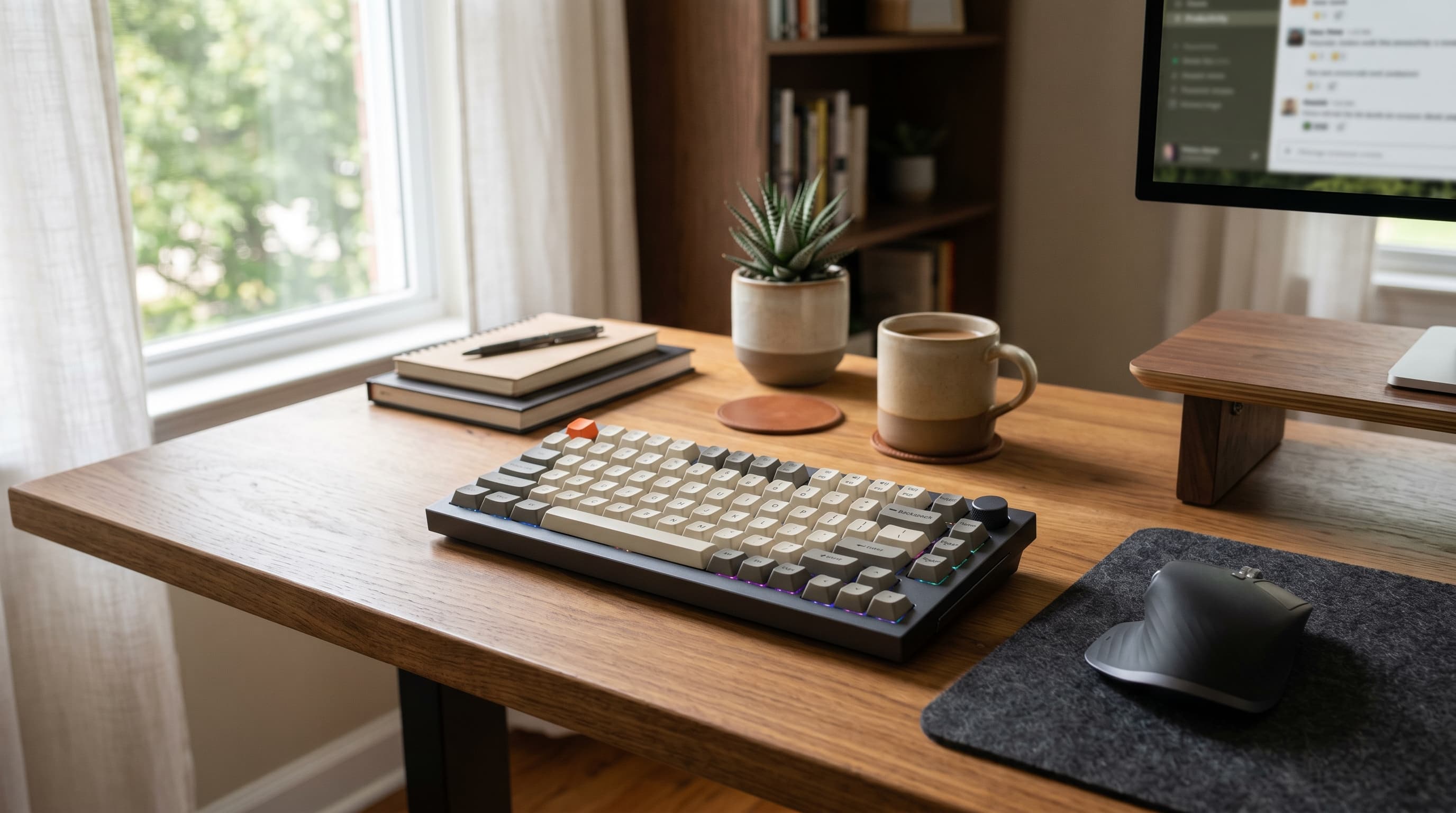
Keychron K2 — Best Mechanical Keyboard
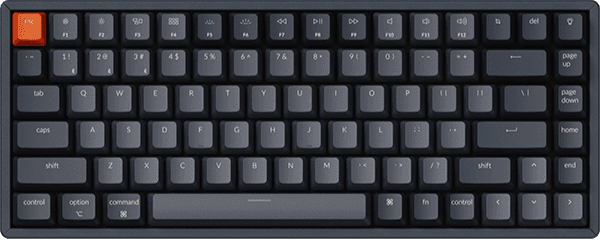
Keychron
K2
Hot-swappable mechanical switches, tenkeyless compact layout, Bluetooth 5.1 + USB-C wired, Mac and Windows toggle, best mechanical keyboard for home office at this price.
The Keychron K2 is the best mechanical keyboard for home office use at this price. It's tenkeyless (TKL), no numpad, which keeps the footprint compact and positions your mouse closer to your centerline, reducing shoulder extension. Hot-swappable switch sockets mean you can change the switch type without soldering if your preferences evolve. It ships with Brown, Red, or Blue switch options.
Bluetooth 5.1 wireless is solid. Battery life runs approximately two weeks on a charge with typical use. Mac and Windows compatibility is handled by a physical toggle switch, a practical detail for anyone who works across both operating systems.
Pros
- Hot-swappable switches, upgrade or change feel without soldering
- Compact tenkeyless layout improves mouse positioning and reduces shoulder strain
- Mac and Windows compatible with physical toggle
- Bluetooth 5.1 wireless with USB-C wired option
- Available in Brown (tactile), Red (linear), and Blue (clicky) switches
Cons
- Taller profile than low-profile keyboards, requires a wrist rest for most desk setups
- Blue switches are loud; not suitable for shared spaces or calls without a quiet switch upgrade
- White backlight standard (RGB on some models), less customization than some competitors
Key specs: Wireless Bluetooth 5.1 + USB-C wired, hot-swappable switches, tenkeyless layout, White LED backlight (RGB available), ~$89–99.
If you're pairing the K2 with a multi-monitor setup, our dual monitor setup guide covers how Bluetooth multi-device keyboards fit into that workflow. For a deeper dive into mechanical keyboard switches and the best options for home office use, our best mechanical keyboard for home office 2026 covers the full range, including noise profiles and wireless options at every budget.
Keychron K3 — Best for Laptop Users
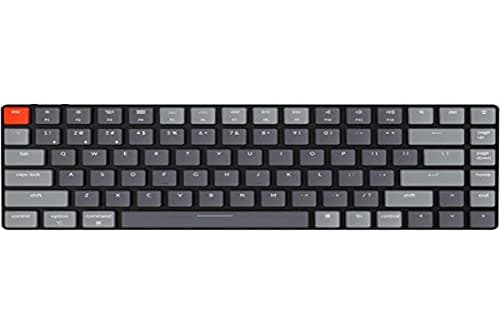
Keychron
K3
Low-profile mechanical switches at laptop-close height, eliminates the main adaptation barrier for laptop users switching to a desktop keyboard.
The K3 solves a problem that most keyboard guides don't acknowledge: laptop users switching to a desktop peripheral face a meaningful height adjustment. Standard mechanical keyboards sit 30–40mm off the desk. A laptop keyboard sits at roughly 5mm. That height difference changes wrist angle, and the change causes strain during the adaptation period.
The K3 is a low-profile mechanical keyboard, its keys sit closer to the desk surface than standard mechanical switches. The actuation feel is still mechanical (you get the tactile feedback and key travel benefits), but the profile is much closer to what a laptop user is accustomed to. The 75% layout keeps all essential keys while trimming the footprint. Hot-swappable switches are included. In testing, the height difference between the K3 and a MacBook keyboard was small enough that most users adapted within a day, compared to a week or more for standard-height mechanical keyboards.
Pros
- Low-profile mechanical switches, laptop-close height eliminates the main adaptation barrier
- 75% compact layout, fits smaller desks and keeps mouse in a natural arm position
- Hot-swappable switches, optical or Gateron options
- Bluetooth 5.1 + USB-C wired, flexible connection
Cons
- 75% layout removes the numpad and some function row shortcuts, requires adjustment if you use those keys
- Quieter than standard mechanical but still louder than the MX Keys for shared spaces
- Shorter battery life than the K2 due to smaller battery cell
Key specs: Low-profile optical or Gateron switches, 75% compact layout, hot-swappable, Bluetooth 5.1 + USB-C wired, ~$79–89.
Logitech K380 — Best Budget / Multi-Device Keyboard
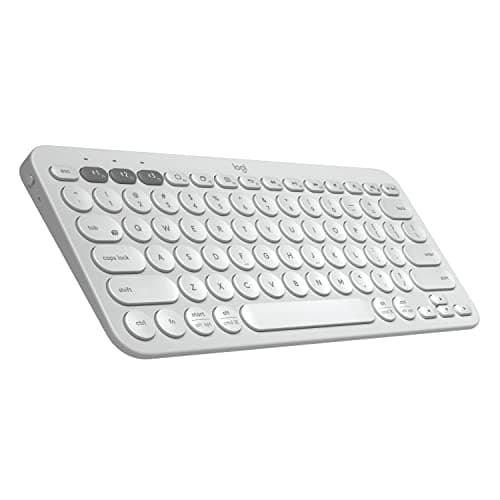
Logitech
K380
Bluetooth-only multi-device pairing to 3 devices with no USB receiver required, ~2-year AAA battery, works across Mac, Windows, Android, iOS, and Chrome OS.
The K380 is the only keyboard on this list that pairs to three devices over Bluetooth with no USB receiver required, which matters on laptops with limited USB-A ports. It works across Mac, Windows, Android, iOS, and Chrome OS. Battery life is approximately two years on two AAA batteries. At $39–49, it's the most accessible option for anyone who just needs a clean wireless typing experience without committing to mechanical.
The circular keycap design looks unusual but adapts within a few days. Key travel is shorter than the other picks here, which is typical for compact membrane keyboards.
Key specs: Bluetooth multi-device (3 devices, no USB receiver), ~2-year AAA battery, compact layout, circular keys, cross-platform, ~$39–49.
Best Mice for Home Office (2026)
The mouse you use daily either keeps your wrist in a neutral position or progressively stresses it. Standard horizontal mice force the forearm into pronation, a rotation that compresses the ulnar nerve and contributes to the RSI rates mentioned above. The right mouse for your grip type and work style is one you can use for hours without noticing your wrist.
Logitech MX Master 3S — Best Overall Mouse
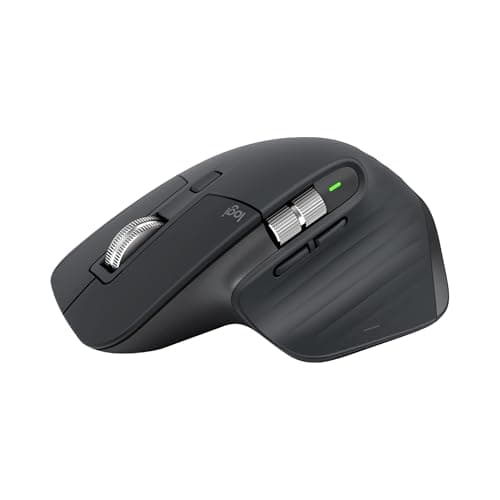
Logitech
MX Master 3S
Quiet-click mechanism, MagSpeed electromagnetic scroll wheel, and multi-device pairing to 3 devices, the best mouse for home office use in 2026.
The MX Master 3S is the best mouse for home office use in 2026. The quiet-click mechanism is noticeably quieter than the original MX Master 3 while preserving the same shape, sensor, and scroll wheel. For anyone who takes video calls at their desk, that distinction is meaningful. The MagSpeed electromagnetic scroll wheel, capable of scrolling 1,000 lines in under a second (Logitech product specification), is genuinely different from standard scroll wheels and noticeably faster for document navigation.
The shape is designed for right-hand palm and claw grip. It's large, not appropriate for small hands or fingertip grip users. The multi-device pairing allows switching between three devices with a button, and both Logi Bolt USB receiver and Bluetooth are supported.
Pros
- Quiet-click mechanism, significantly quieter than MX Master 3, suitable for call environments
- MagSpeed scroll wheel scrolls 1,000 lines in under 1 second (Logitech spec)
- Multi-device pairing to 3 devices via Logi Bolt or Bluetooth
- Ergonomic right-hand shape with dedicated thumb rest and side buttons
- 8,000 DPI sensor, USB-C charging
Cons
- Right-hand only, no left-hand version available
- Large size, not suited for small hands or fingertip grip users
- Premium price (~$99) compared to mid-range alternatives
Key specs: Quiet clicks, MagSpeed scroll wheel, 8,000 DPI, Logi Bolt + Bluetooth, USB-C charging, right-hand ergonomic, ~$99.
Logitech MX Master 3 — Runner-Up
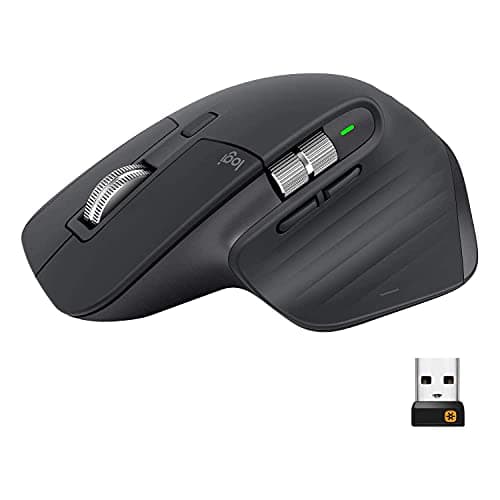
Logitech
MX Master 3
Identical shape, MagSpeed scroll wheel, and 8,000 DPI sensor as the 3S, often cheaper, the right choice when quiet clicks aren't a requirement.
The original MX Master 3 is functionally identical to the 3S, same shape, same MagSpeed scroll wheel, same 8,000 DPI sensor, same multi-device pairing. The only meaningful difference is that the button clicks are audible. If you don't work in a shared space and don't take calls at your desk, the MX Master 3 is often cheaper and delivers everything the 3S does. It's the right choice when the 3S price premium doesn't match your use case.
Pros
- Identical shape, sensor, and MagSpeed scroll wheel as MX Master 3S
- Often cheaper than 3S, same performance for users who don't need quiet clicks
- Multi-device pairing to 3 devices via Logi Bolt or Bluetooth
Cons
- Audible button clicks, not suitable for call environments or shared spaces
- No meaningful upgrade path from MX Master 3 to 3S beyond the quiet mechanism
Key specs: MagSpeed scroll wheel, 8,000 DPI, Logi Bolt + Bluetooth, USB-C charging, right-hand ergonomic, ~$79–89.
Logitech M750 — Best Mid-Range Mouse
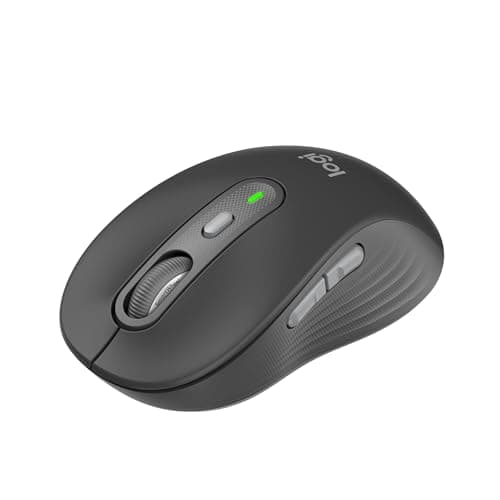
Logitech
M750
Logitech wireless reliability and SmartScroll with multi-device pairing at mid-range price, 24-month AA battery, right for claw-grip users who don't need the MX Master.
The M750 is the right choice for users who want Logitech's wireless reliability and multi-device pairing without the MX Master price. It supports two devices via Logi Bolt or Bluetooth and uses SmartScroll, a sensor that automatically switches between line-by-line and free-spin scrolling based on how fast you scroll. Battery life is approximately 24 months on a single AA battery.
It's smaller and lighter than the MX Master series, which makes it better suited to claw grip users or anyone who prefers a less substantial feel. There are no thumb buttons for shortcuts, and the sensor tops out at 4,000 DPI, both acceptable tradeoffs at this price.
Key specs: 4,000 DPI, SmartScroll, Logi Bolt + Bluetooth (2 devices), 24-month AA battery, right-hand slim ergonomic, ~$39–49.
Anker Ergonomic Vertical Mouse — Best for Wrist Pain / RSI
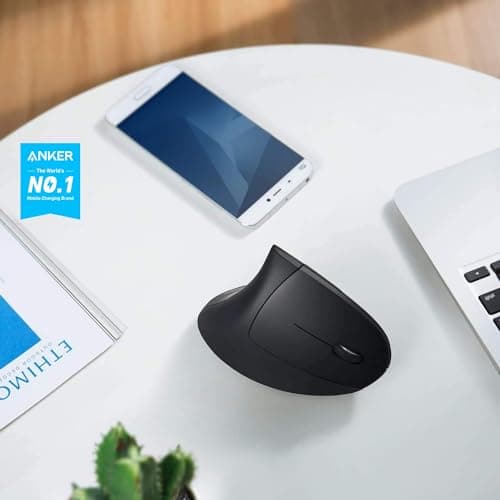
Anker
Ergonomic Vertical Mouse
Vertical handshake position eliminates wrist pronation, 2.4GHz wireless, 800/1200/1600 DPI adjustable, the lowest-cost way to test vertical mouse ergonomics.
The Anker vertical mouse keeps your forearm in a neutral "handshake" position, eliminating the wrist pronation that standard horizontal mice require. That pronation, held for hours daily, is a primary driver of ulnar nerve compression and RSI. Research in Applied Ergonomics found vertical mice reduce wrist pronation by up to 57° compared to standard horizontal designs. For anyone already experiencing wrist or forearm discomfort, this is the first change worth making.
There's a real adaptation period. Expect three to seven days before vertical mouse movement feels natural, the motion shifts from wrist-pivot to forearm-pivot, which requires re-learning a habit. That's not a reason to avoid it. It's just an honest expectation to set.
Key specs: Vertical orientation, 2.4GHz USB receiver, 800/1200/1600 DPI adjustable, right-hand only, ~$25–35. For more ergonomic mouse options, including vertical alternatives and trackballs, our best ergonomic mouse for home office guide covers the full range of wrist-friendly designs.
Does USB Receiver vs. Bluetooth Actually Matter for Work?
For most peripherals, Bluetooth and a 2.4GHz USB receiver are interchangeable. For a home office setup that includes video calls, they're not. This is a distinction almost no peripheral guide addresses directly.
Bluetooth operates on the 2.4GHz band and shares that spectrum with Wi-Fi, other Bluetooth devices, and wireless headsets. In a home office with a router, wireless headphones, a phone, and smart home devices nearby, that band gets congested. The result is occasional latency spikes, input lag that's imperceptible in casual use but noticeable on a live call when your cursor freezes for half a second.
A dedicated 2.4GHz USB receiver (Logitech Bolt or the older Unifying receiver) reserves its own channel rather than competing for shared Bluetooth bandwidth. The connection is consistently more stable in dense wireless environments. If you take video calls at your desk, the Logi Bolt receiver is the better choice.
One Receiver, Two Devices, the Logitech Bolt Pairing Tip
Logitech's Bolt and Unifying USB receivers can pair multiple devices to a single receiver, typically up to six. If you're using both the MX Keys keyboard and the MX Master 3S mouse, you can connect both to one Bolt receiver and free up a USB port. On a laptop with two or three USB-A ports, that matters. Pair additional devices in Logi Options+ software under the "Add Device" section.
Bluetooth still has a place. It's the right choice for connecting to devices without USB-A ports (iPads, some ultrabooks), or for pairing a keyboard to multiple devices without a receiver at all, the Logitech K380 and Keychron K3 both use Bluetooth exclusively. The rule of thumb: use a Bolt receiver for your primary work computer, and Bluetooth for secondary devices. For keeping receiver dongles and cables organized on your desk, our cable management guide covers the options.
Recommended Keyboard and Mouse Combos
Pairing a keyboard and mouse thoughtfully reduces the number of wireless receivers in use, simplifies multi-device switching, and makes the ergonomic case more cohesive. These three combos cover the most common home office scenarios.
Best Overall Combo: MX Keys + MX Master 3S
Logitech
MX Keys
Quiet low-profile keys, spherical key tops, multi-device pairing to 3 devices, the keyboard half of the best overall combo for home office use.
Logitech
MX Master 3S
Quiet-click mechanism and MagSpeed scroll wheel, pairs with MX Keys on a single Logi Bolt receiver, both devices on one USB port.
Both devices support Logitech's Logi Bolt receiver, you can run both from a single USB receiver. Both are quiet enough for video calls. Both support three-device multi-device pairing with matching button layouts. This is the cleanest productivity setup at the ~$200 combined price point. Pair this combo with a good camera, our best webcams for home office guide covers the video side of the call setup. If you're running this setup from a laptop, adding a laptop stand completes the ergonomic picture, screen at eye level, keyboard and mouse at desk level.
Best Mechanical Combo: Keychron K2 + Logitech M750
Keychron
K2
Tactile mechanical feedback with hot-swappable switches and Bluetooth 5.1, the mechanical half of the best mechanical combo at ~$130–140 combined.
Logitech
M750
Quiet wireless mouse with SmartScroll and 24-month battery, keeps the mouse side quiet while the K2 handles mechanical key feel.
The Keychron K2 delivers tactile mechanical feedback while the M750 keeps the mouse side quiet and wireless. The K2 uses Bluetooth and the M750 uses Logi Bolt, so you'll need one USB receiver slot. At roughly $130–140 combined, this is the best mechanical keyboard setup without reaching the MX Master price tier.
Best Budget Combo: Logitech K380 + Logitech M750
Logitech
K380
Bluetooth-only multi-device pairing to 3 devices, no USB receiver, ~2-year AAA battery, cross-platform, the budget keyboard half of this combo.
Logitech
M750
Runs on Bluetooth without its Bolt receiver, both devices run no-dongle Bluetooth on this combo, ~$80–90 combined for a fully wireless budget setup.
Both devices support multi-device Bluetooth switching, both have long battery lives, and neither requires a USB receiver, the K380 is Bluetooth-only and the M750 can run on Bluetooth without its Bolt receiver. At roughly $80–90 combined, this is the best wireless productivity combo for budget-constrained setups.
What About Wrist Rests?
A wrist rest is worth considering alongside your keyboard choice, particularly for mechanical keyboards with taller profiles. The Keychron K2's standard height creates a noticeable wrist angle without one. The MX Keys and K3 are low enough that most users don't need one.
One clarification on wrist rests that trips up a lot of buyers: a wrist rest is for resting between typing bursts, not for resting while actively typing. Keeping your wrists in contact with a wrist rest during keystrokes raises the wrist, changes the angle of approach to the keys, and can increase tendon strain rather than reduce it. Rest on it between sentences and during calls. Lift off it when you type. For the audio side of the same desk setup, our best noise-cancelling headphones guide covers what to pair with your peripherals for focused work and calls.
Your keyboard and mouse are the two peripherals your body actually touches all day. Everything else in your setup, your monitor, your chair, your desk, shapes your posture. But the keyboard and mouse determine what's happening to your hands, wrists, and forearms during every hour of every workday.
The RSI numbers are real: 33% of all US workplace injuries are repetitive strain injuries (Bureau of Labor Statistics, 2024). The right peripheral choices don't eliminate that risk, but they reduce your exposure meaningfully. Vertical mice eliminate wrist pronation. Mechanical keyboards reduce the finger force required for each keystroke. Quiet switches let you work in shared spaces without friction.
For most home office users, the MX Keys and MX Master 3S combination resolves the most common tradeoffs, quiet, wireless, multi-device, and ergonomically adequate for palm and claw grip users. If wrist pain is already present, add the Anker vertical mouse to the shortlist first.
Start with the mouse, grip type narrows the field immediately. Then choose a keyboard based on whether mechanical feedback matters to your typing style. The rest follows from there.