A monitor arm is the ergonomic upgrade most home office workers postpone until they're dealing with neck pain. That's backwards.
Among 1,064 computer workers surveyed in a 2025 PMC-published study, 40.4% experienced neck pain and 42.4% experienced low back pain during remote work — with workers using poor workstation setups showing a 2x higher odds ratio for developing new neck or upper back pain (PMC / Journal of Occupational and Environmental Medicine, 2025).
The OSHA monitor positioning guidelines are clear: top of screen at or slightly below eye level, 20–40 inches from your face. A fixed monitor stand can't reliably achieve that across different desk heights, chair heights, or users. A monitor arm can.
Jake Pitos has tested monitor arms across single-display productivity setups and dual-screen creative rigs. This guide covers the five best monitor arms for 2026 — from the gold-standard daily driver to a dual-arm setup that transforms a cluttered desk into a clean workstation.
TL;DR: The Ergotron LX is the best monitor arm for most home offices, smooth gas spring, clean cable management, handles monitors up to 25 lbs. The Humanscale M8.1 is the premium pick if you want set-it-and-forget-it effortless positioning. For two screens, the Ergotron LX Dual gives both monitors full independent range of motion. Budget picks: Cable Matters for value, Amazon Basics for the absolute floor. All five eliminate your monitor stand footprint and free up roughly 1 square foot of desk space.
What Poor Monitor Positioning Is Actually Costing You
The 42–63% annual neck pain prevalence among office workers is the highest of any occupation, and office/computer work is the primary driver (PMC / Occupational and Environmental Medicine). Musculoskeletal disorders cost U.S. employers an estimated $20 billion annually in workers' compensation claims, with an average cost of $33,000 per MSD incident (U.S. Bureau of Labor Statistics, 2024).
The mechanics are simple: every inch your head tilts forward adds approximately 10 lbs of effective weight on your cervical spine, according to biomechanics research published in Surgical Technology International (Hansraj, 2014). A monitor positioned too low, which describes the default position of most monitors sitting on their included stand at a standard desk height, creates exactly that forward tilt. You don't notice it in a 30-minute session. Over an 8-hour workday, repeated daily, it compounds into chronic pain that doesn't resolve without setup changes.
OSHA specifies that the preferred monitor viewing distance is 20–40 inches from the eye to the screen, with the center of the monitor 15–20 degrees below horizontal eye level (OSHA Computer Workstations). Seated eye height varies by 11 inches across the adult North American population, which is why a fixed-height stand that works for one person fails for the next (Herman Miller Research). A monitor arm adjusts to you. A fixed stand makes you adjust to it.
For context on how this fits into a full ergonomic setup, see our home office ergonomics guide.
The 5 Best Monitor Arms for Home Office 2026
1. Ergotron LX — Best Overall
Best for
Most home office workers running a single monitor up to 34 inches. The gas spring mechanism is smooth enough to reposition one-handed, and the cable management channel actually keeps cables hidden.
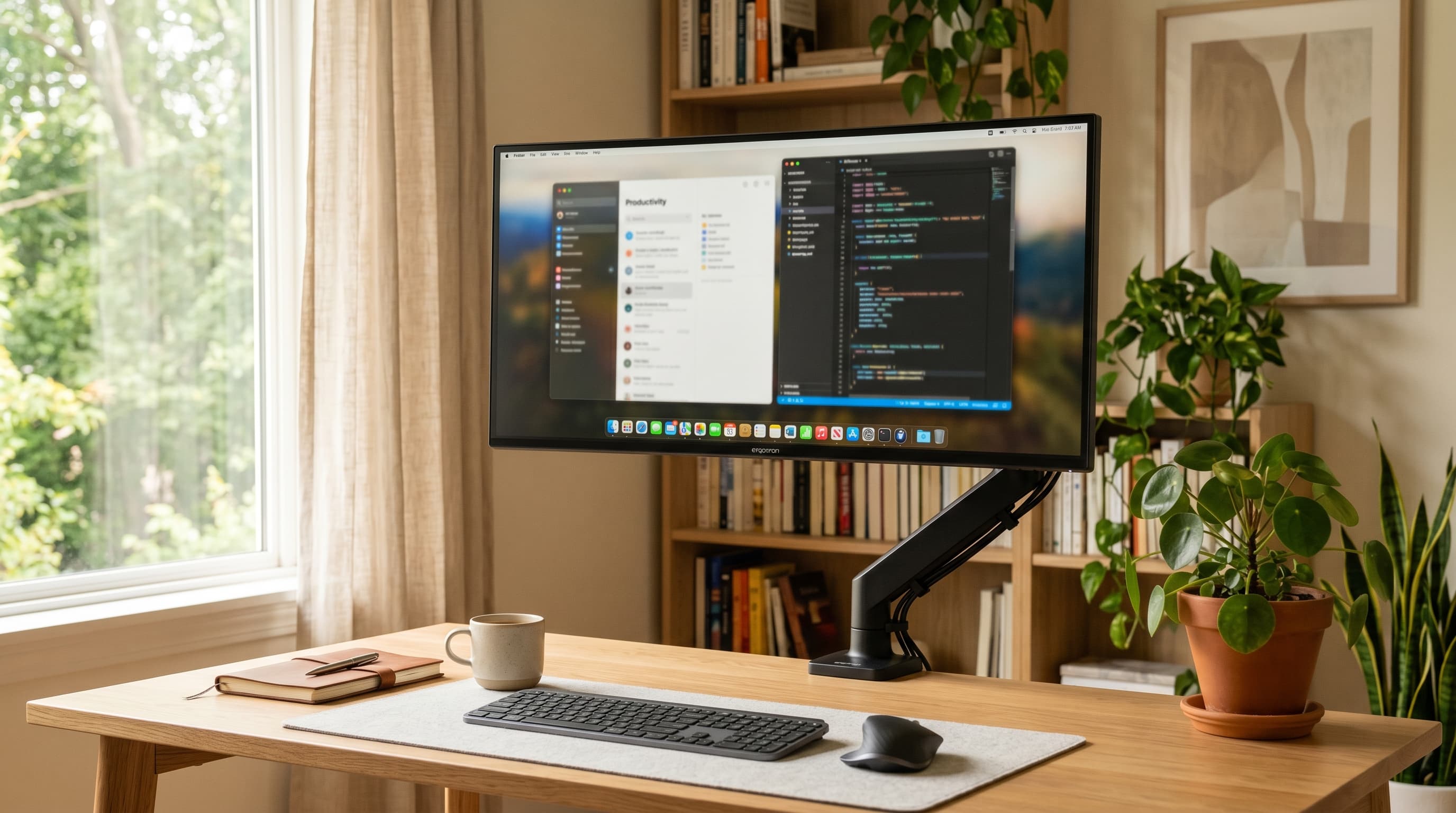
The Ergotron LX is the benchmark single-monitor arm that everything else gets compared to. A full-motion gas spring articulating arm with 13 inches of height adjustment, 75 degrees of tilt, 360-degree rotation, and portrait/landscape pivot, it covers every positioning need a standard home office monitor has. The cable management channel runs the full length of the arm and keeps display, USB, and power cables routed and hidden behind the arm rather than draping across the desk.
Our finding: The Ergotron LX replaced a mid-tower monitor stand in a single-display setup. Desk surface depth reclaimed from the stand base: 10 inches. Repositioning from sitting to standing desk height took one hand and roughly 2 seconds. The gas spring felt identical after 6 months of daily use to day one, no drift, no gradual sagging. The only genuine limitation: at maximum arm extension forward, a 27-inch monitor is close enough to feel intimate for some users. Calibrate your sitting distance before anchoring the clamp.
Weight capacity is 7–25 lbs, which covers nearly every monitor from 24 to 34 inches. The clamp mounts to desks up to 3.18 inches thick; a grommet-mount version is sold separately. Matte white and matte black finishes both available.
Pros
- Gas spring arm repositions smoothly with one hand, no ratcheting or tool adjustment
- Handles monitors up to 34 inches and 25 lbs
- Full cable management channel hides display and USB cables along the arm
- 13 inches of height adjustment covers most chair/desk height combinations
- Portrait pivot and 360° rotation built in, no separate accessory needed
Cons
- Clamp can mark soft desk surfaces if overtightened, use the protective pad
- At maximum forward extension, very large monitors (32–34") feel close
- Gas spring tension requires calibration at first setup, takes 5 minutes to dial in
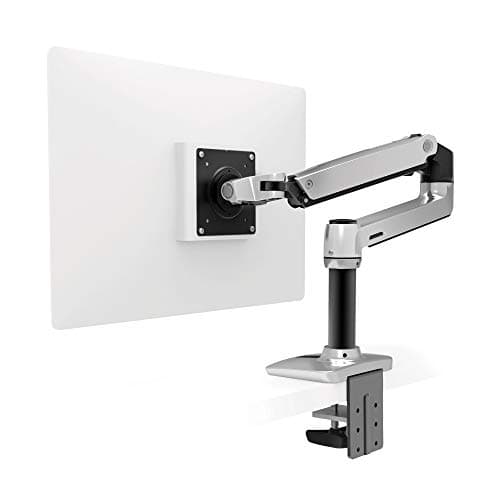
Ergotron
Ergotron LX Monitor Arm
Gas spring arm repositions with one hand and holds any position without locking. Handles monitors up to 25 lbs with full cable management channel along the arm.
2. Humanscale M8.1 — Best Premium
Best for
Anyone who wants near-zero effort repositioning and a monitor arm that disappears visually into the setup. The M8.1 uses counterbalance technology instead of gas springs, it moves and stays wherever you put it with no calibration required.
The Humanscale M8.1 is what happens when an ergonomics company (not a consumer electronics brand) designs a monitor arm. Instead of a gas spring with calibrated tension, the M8.1 uses a counterbalance mechanism that automatically adjusts to monitor weight, within the 3.5–35 lb range, it simply holds whatever monitor you attach to it. No setup tension calibration, no tool adjustments, no periodic spring replacement.
The M8.1 is built to last, premium powder-coated steel, minimal visual footprint, and a pivot range that handles any orientation without adapters. Where the Ergotron LX routes cables along an external channel, the M8.1 routes them through the arm housing itself, cables are invisible from every angle. In a setup where you're never reconfiguring positions, the difference in visual cleanliness is noticeable.
Our finding: The M8.1's counterbalance feels genuinely different from a gas spring in daily use. There's no spring resistance, the arm floats. Moving a 27-inch monitor from sitting to standing height requires about the same force as lifting a sheet of paper. It's the kind of detail you notice after one day and stop noticing after a week, because it just works.
The trade-off is price. The M8.1 costs roughly 3× the Ergotron LX. For a professional home office where the setup will stay fixed for years, that's justifiable. For a first monitor arm or a setup that changes frequently, the Ergotron LX is the smarter call.
Pros
- Counterbalance mechanism requires zero tension calibration across a wide weight range
- Handles monitors up to 35 lbs, suitable for large ultrawide panels
- Cable routing internal to arm housing, completely hidden from all angles
- Premium build quality designed for 10+ year lifespan
- Minimal visual profile, arm itself nearly disappears in the setup
Cons
- Premium price, roughly 3× the cost of the Ergotron LX
- Less range of motion than gas spring arms at maximum extension
- Overkill for standard 24–27" home office monitors
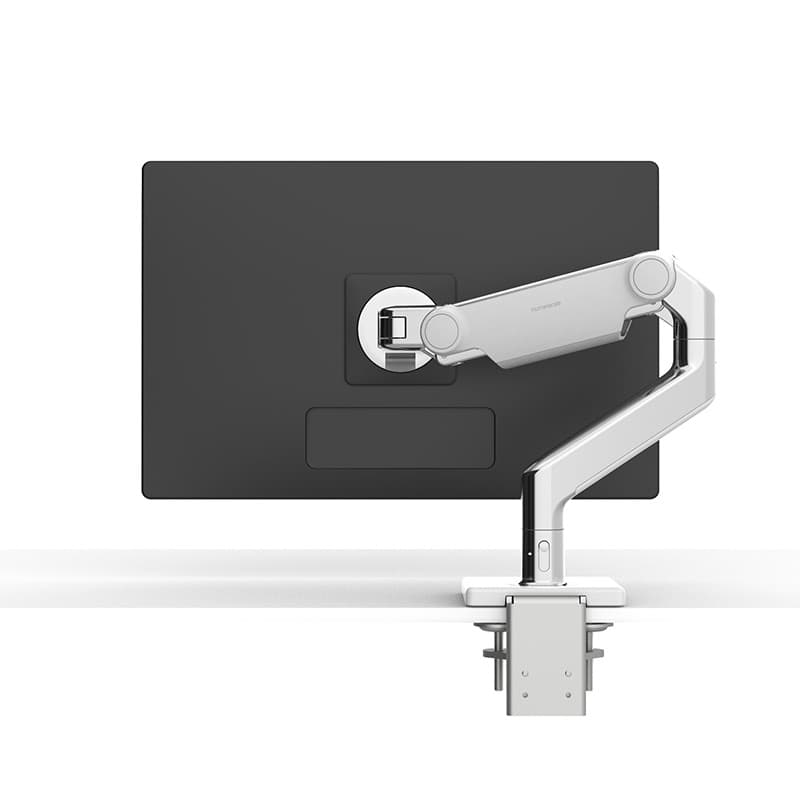
Humanscale
Humanscale M8.1 Monitor Arm
Counterbalance mechanism requires zero tension calibration, the arm floats and holds wherever you place it. Cables route through the arm housing, invisible from all angles.
3. Ergotron LX Dual — Best for Dual Monitors
Best for
Anyone running two monitors who wants full independent positioning for each screen. Both arms have the same full-motion gas spring as the single LX, one post, two completely independent arms.
The Ergotron LX Dual mounts both monitors on a single desk clamp via a shared post, with two fully independent articulating arms, each with its own gas spring, tilt, rotation, and cable management channel. The critical difference from cheaper dual arms: each monitor adjusts independently. You can position the primary screen at eye level and angle the secondary screen in portrait orientation for reference documents without either arm fighting the other.
The practical case for a purpose-built dual arm versus two separate single arms is usually overlooked in reviews: a dual arm uses one clamp point instead of two, which matters for narrower desks. The single-post design also creates a cleaner visual line down the center of the desk, the arms fan out from one point rather than appearing as two separate structures. The trade-off is that the shared post limits how far each monitor can travel vertically independently of the other, they share the same height baseline.
Combined weight capacity is 7–25 lbs per arm. For most standard 24–27-inch monitors (typically 9–14 lbs), this is comfortable headroom. For 32+ inch panels or ultrawide displays, verify the individual monitor weight before purchasing.
Pros
- Two fully independent arms, each adjusts without affecting the other
- Single clamp point saves desk edge space vs. two separate single arms
- Same gas spring and cable management quality as the single Ergotron LX
- Portrait pivot on both arms, one screen in landscape, one in portrait
- Significantly cleaner cable management than two separate arms
Cons
- Both monitors share the same post height baseline, can't offset one dramatically above the other
- Post takes up more vertical space than a single-arm setup
- Heavier monitors (20+ lbs each) require careful weight distribution on the clamp
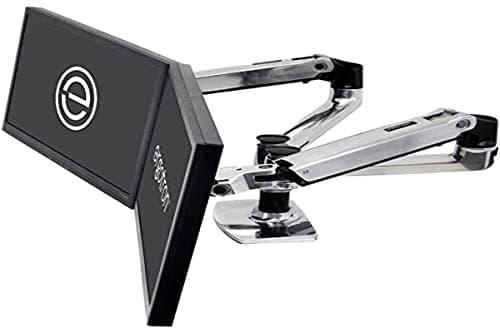
Ergotron
Ergotron LX Dual Monitor Arm
Two fully independent gas spring arms on a single clamp, each monitor adjusts without affecting the other. Cleaner cable management than two separate arms.
4. Cable Matters Monitor Arm — Best Budget
Best for
First monitor arm purchases and anyone not ready to spend $150+ on the Ergotron LX. The Cable Matters arm covers the core positioning range at a price that removes the "is this worth it?" question entirely.
The Cable Matters delivers the essential functionality, height adjustment, tilt, swivel, cable management, at roughly half the cost of the Ergotron LX. It handles monitors up to 27 inches and 17.6 lbs, covering the majority of standard home office displays. The adjustment mechanism uses a friction joint rather than a gas spring, which means repositioning requires two hands and deliberate effort rather than one-handed gliding.
First-time buyers upgrading from a fixed stand are the right customer for this model. The arm covers the full ergonomic positioning range, it just gets you there with more friction (literally) than a gas spring does.
What it doesn't do: the friction joint loosens over 12–18 months with frequent repositioning, requiring periodic retightening. For a fixed-position display that rarely moves after initial setup, this is a non-issue. For a standing desk user who repositions daily, budget up to the Ergotron LX.
Pros
- Approximately half the price of the Ergotron LX for the core functionality
- Handles 27-inch monitors up to 17.6 lbs, covers most home office displays
- Cable management channel runs the full arm length
- Full tilt, swivel, and rotation, same positioning range as premium arms
Cons
- Friction joint (not gas spring), repositioning requires two hands and deliberate effort
- Joint may loosen with frequent repositioning, periodic retightening required
- 17.6 lb weight limit excludes larger 32–34" monitors
Cable Matters
Cable Matters Monitor Arm
Full tilt, swivel, and rotation at roughly half the price of the Ergotron LX. Friction joint handles monitors up to 17.6 lbs, the right first monitor arm for most buyers.
5. Amazon Basics Monitor Arm — Best Ultra-Budget
Best for
The absolute floor on monitor arm price, for anyone whose only goal is getting the monitor off its stand and onto an arm. No frills, functional, does what it says.
The Amazon Basics option is the right call when budget is the primary constraint and the goal is simply better positioning than a fixed stand. It handles displays up to 27 inches, covers the basic range of tilt, swivel, and height adjustment via friction joints, and cable management is a clip path rather than a full channel. Build quality is noticeably below the Ergotron or Cable Matters.
Our finding: Setup took under 10 minutes. The friction joint held a 24-inch monitor reliably for the first several months without retightening. By month eight, the joint needed its first tightening. Not a dealbreaker, a 30-second fix. But compared to the LX, which held calibration across the same period without any adjustment, the difference in long-term stability is real.
At its price, it removes the financial hesitation from trying an articulating mount for the first time. Most buyers upgrade to the LX within 12–18 months, which is fine. The first purchase teaches you what you actually need from the second.
Pros
- Lowest price point of any recommended monitor arm, removes the investment hesitation
- Covers the basic positioning range: height, tilt, swivel
- Quick to install, minimal setup time
Cons
- Friction joints loosen faster than premium arms with regular use
- Basic cable clip path rather than a full management channel
- Build quality noticeably below Ergotron or Cable Matters
- Not suitable for monitors over 27 inches
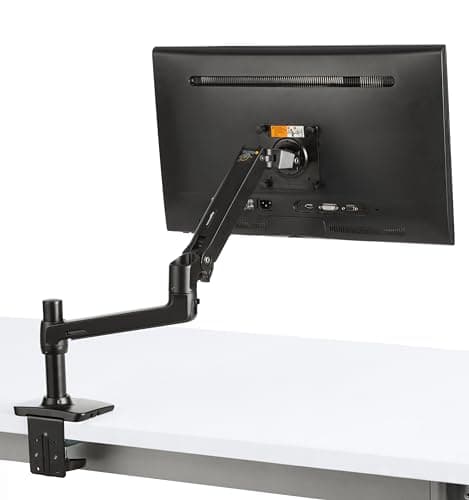
Amazon Basics
Amazon Basics Monitor Arm
The absolute price floor on monitor arms, covers basic height, tilt, and swivel for displays up to 27 inches. The lowest-risk way to try an articulating mount for the first time.
How to Choose the Right Monitor Arm
Check weight capacity first — then size
Monitor weight is almost always heavier than buyers expect. A 27-inch monitor typically weighs 9–14 lbs; a 32-inch can reach 18–22 lbs; a 34-inch ultrawide can hit 20–28 lbs. Check your specific monitor's weight before buying, not the general size range. The arm spec to match is the max weight capacity, not the max screen size. Some arms list a 32-inch max but only support 17 lbs, which excludes heavier 32-inch panels.
Single vs. dual arm: footprint vs. flexibility
A dual arm uses one clamp, which is better for desks under 48 inches wide. Two separate single arms use two clamps and two cable paths, but let you offset monitor heights independently without sharing a post baseline. For most dual-monitor home office setups, the dual arm is the cleaner solution. For setups where monitors are different sizes or used in different orientations, two independent single arms give more flexibility.
Gas spring vs. friction joint: what repositioning feels like
Gas spring arms (Ergotron LX, Humanscale M8.1) reposition with one hand and hold position without locking. Friction joint arms (Cable Matters, Amazon Basics) hold position via tightened friction, you adjust with two hands and retighten periodically. If you use a standing desk and reposition your monitor every time the desk height changes, a gas spring arm pays for itself in daily ease of use. If your monitor rarely moves after initial setup, a friction joint arm is a reasonable trade-off for the lower price.
VESA compatibility: verify before ordering
Every monitor arm on this list supports 75×75mm and 100×100mm VESA patterns, which cover the vast majority of 24–32 inch monitors. If you have an ultrawide monitor above 34 inches, check whether it uses a 100×200mm pattern, not all arms support this. Some monitors (particularly budget panels and older displays) have proprietary stands with no VESA holes at all; verify on your monitor's spec sheet or the back panel before purchasing.
Cable management matters more than buyers expect
The under-arm cable management channel isn't just aesthetic, it affects whether a standing desk setup stays clean as the desk moves. Arms with a full channel (Ergotron LX, Humanscale M8.1) contain cables along the arm regardless of position. Arms with clip paths (Amazon Basics) let cables drape once the arm extends. If you already did the work of cleaning up cable clutter, with an under-desk cable tray, don't undermine it with an arm that exposes cables again.
Quick Comparison
| Monitor Arm | Best For | Max Weight | Mechanism | Approximate Cost |
|---|---|---|---|---|
| Ergotron LX | Best overall | 25 lbs | Gas spring | ~$150 |
| Humanscale M8.1 | Premium / heavy monitors | 35 lbs | Counterbalance | ~$400 |
| Ergotron LX Dual | Two monitors | 25 lbs each | Gas spring | ~$230 |
| Cable Matters | Budget single | 17.6 lbs | Friction joint | ~$70 |
| Amazon Basics | Ultra-budget | 17.6 lbs | Friction joint | ~$35 |
What We Recommend
For most home office workers: start with the Ergotron LX. The gas spring mechanism, cable management channel, and 25-lb capacity cover virtually every single-monitor setup cleanly. It's the arm you'll keep when you upgrade your monitor, it won't become obsolete.
If you're running two monitors: get the Ergotron LX Dual from the start. Adding a second single arm to an existing setup later means a second clamp, a second cable run, and a messier visual result than a purpose-built dual arm provides.
If you're not ready to spend $150: the Cable Matters arm is the right step up from a fixed stand. It delivers the ergonomic benefit of adjustable monitor positioning at a price that makes the experiment worthwhile. The Ergotron LX is the natural upgrade when you're ready.
For ergonomic context beyond the monitor, see our home office ergonomics guide, monitor height is one piece of a posture setup that also includes chair height, desk height, and keyboard position. If you're building out the full setup, the complete home office setup guide covers the whole picture. If you're also choosing monitors to pair with your new arm, our best home office monitors guide covers 4K and USB-C options across every budget.
Frequently Asked Questions
Are monitor arms worth it for a home office?
Yes, for most setups. A monitor arm lets you position your screen at the exact OSHA-recommended height (top of monitor at eye level, 20–40 inches away), which directly reduces neck strain. It also eliminates the monitor stand footprint, reclaiming roughly 1 square foot of desk space.
What is the best monitor arm for heavy monitors?
The Ergotron LX handles monitors up to 34 inches and 25 lbs, sufficient for most home office displays. For ultrawide monitors above 34 inches or heavier panels, the Humanscale M8.1 supports monitors up to 35 lbs.
Can a monitor arm damage my desk?
Clamp-mount arms can compress and mark soft desk surfaces if overtightened. Use the included protective pad and tighten only until the arm is secure. Grommet-mount versions drill through the desk and are more permanent but cause no surface compression.
What VESA size do I need for a monitor arm?
Most monitors use 75×75mm or 100×100mm VESA patterns. Check your monitor's manual or back panel before buying. Nearly all monitor arms support both sizes. Ultrawide monitors may use 100×200mm, verify before purchasing.
Does a monitor arm improve ergonomics?
Significantly. OSHA specifies the monitor center should be 15–20 degrees below horizontal eye level and 20–40 inches from your face. Research links proper monitor height to a more than 2× reduction in neck pain risk among computer workers.
Can I use a monitor arm on a standing desk?
Yes, and it's one of the best use cases. As desk height changes, the monitor needs to follow, a gas spring arm makes that a one-motion adjustment. Make sure the arm's cable routing accommodates the full height travel range without binding.