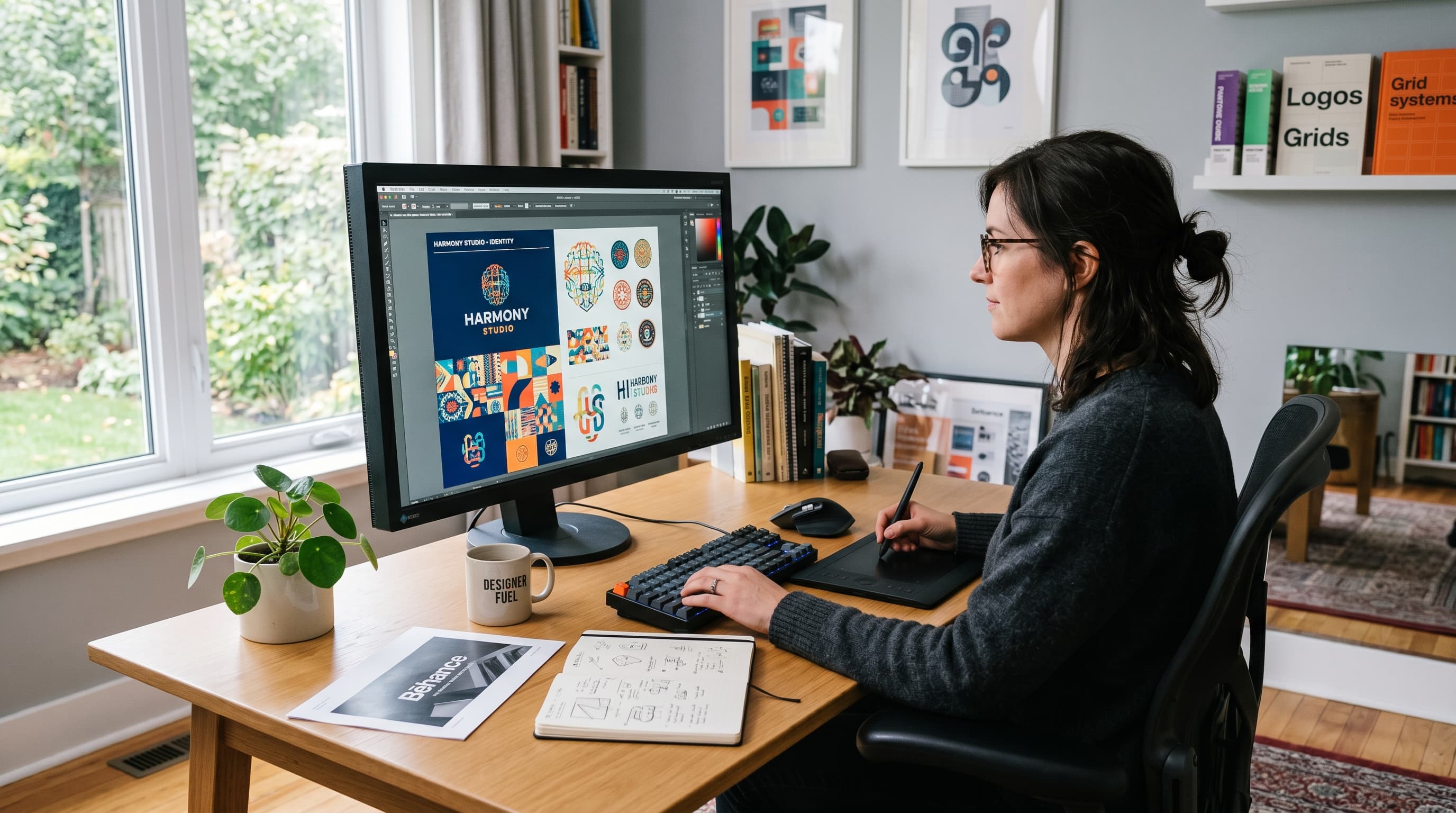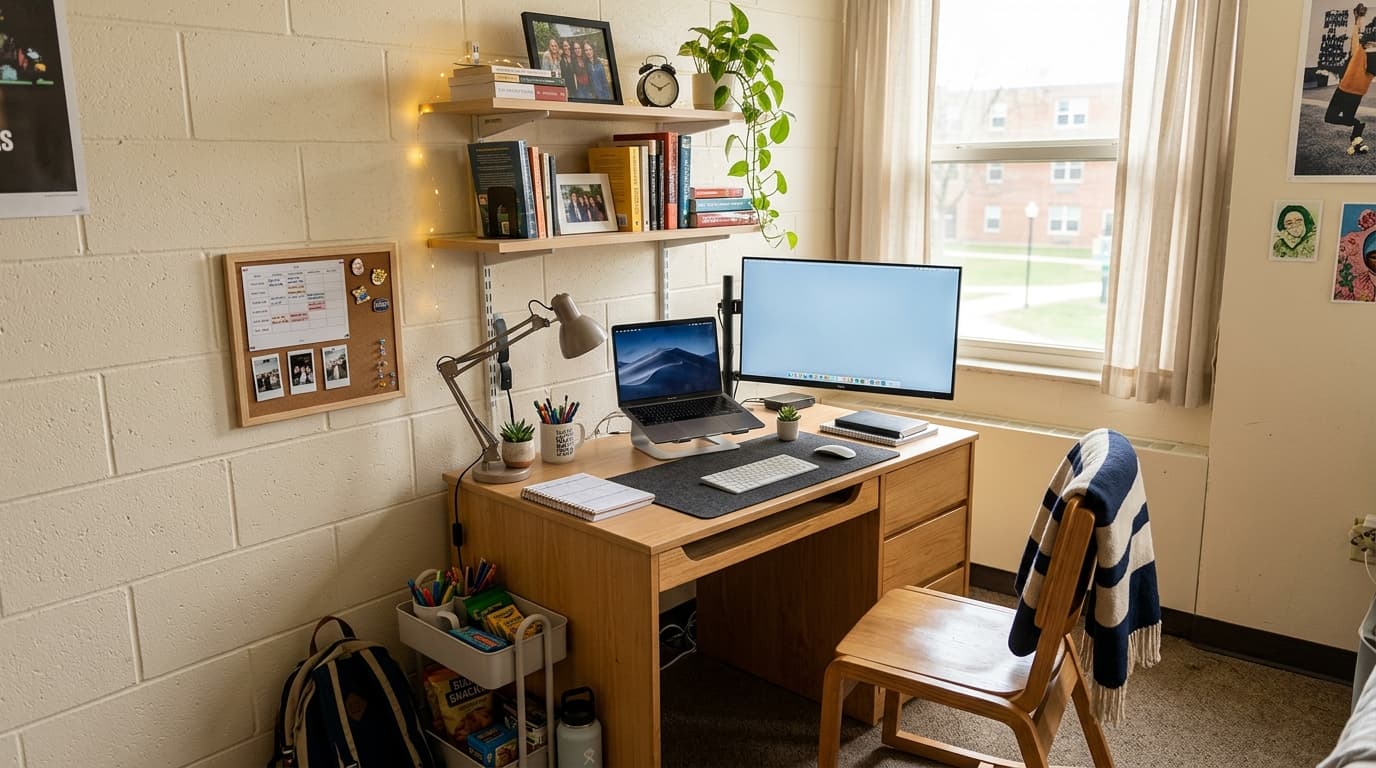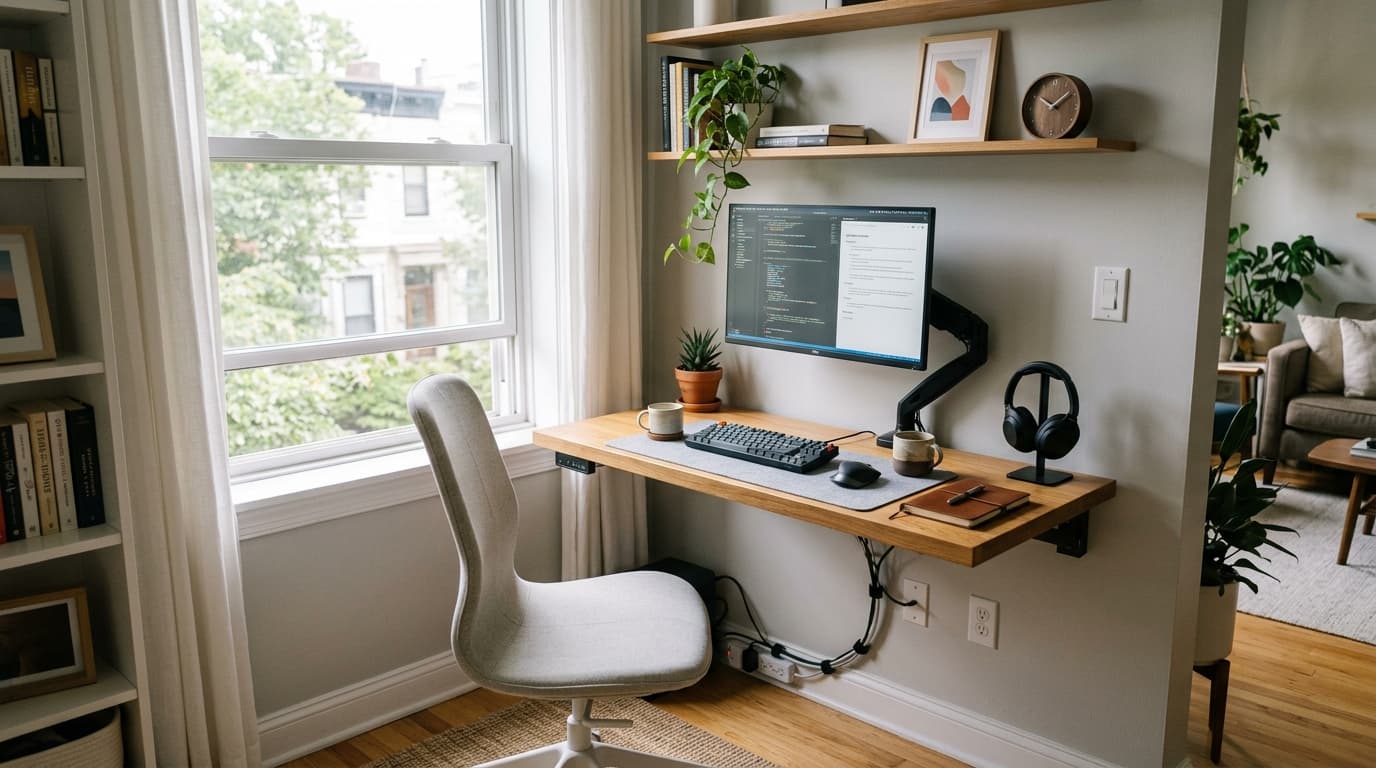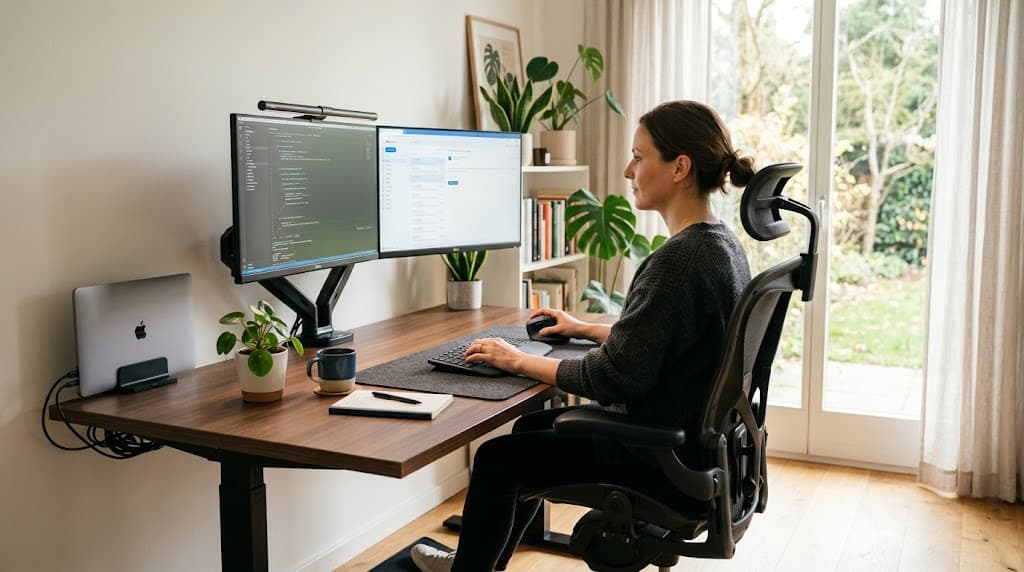

Remote work is no longer an exception. A full 27% of paid US workdays are now worked from home (Backlinko / WFH Research, Nick Bloom, 2025), and that shift has a physical cost. Research published in PMC found that 59.1% of remote workers report back pain (PMC, 2025). Most home offices were never designed for full-time use, and the body absorbs the difference.
This home office ergonomics guide covers every ergonomic variable in your setup: chair height, monitor position, keyboard and wrist health, lighting, standing desks and video call posture. It's organized by impact, so you can fix the highest-risk problems first.
TL;DR: 59% of remote workers report back pain and musculoskeletal disorders cost US businesses roughly $45 billion per year (OSHA). The fix starts with chair height, monitor position and a 10-minute setup audit. This guide covers every ergonomic variable in your home office, in order of impact.
Why Home Office Ergonomics Matters More Than Ever in 2026
Remote workers sit 6.3 hours per day at work compared to 3.0 hours for on-location workers, according to a 60,000-person survey by CBS Netherlands (August 2025). That doubling of sedentary time is the core problem. Your body wasn't built for six-plus hours of static sitting, and your home chair almost certainly wasn't built to support it.
Musculoskeletal disorders cost US businesses approximately $45 billion per year (OSHA). That figure doesn't include the indirect costs, which OSHA notes can run five times higher than direct costs. The Bureau of Labor Statistics recorded 946,290 DART (days away, restricted or transferred) cases from overexertion and repetitive motion in 2023 to 2024 alone.
The financial case is real. But the personal case is more immediate: chronic back pain, neck stiffness and wrist problems that compound over months and years if the setup stays wrong.
Citation capsule: Remote workers in a CBS Netherlands survey (n=60,000) sat 6.3 hours per day at work compared to 3.0 hours for on-site workers (CBS Netherlands, August 2025). That 110% increase in daily sedentary work time is the primary driver of elevated musculoskeletal disorder rates among remote workers.

Your Chair Is the Most Important Variable
A seat-back angle of 100 to 130 degrees combined with lumbar support reduces disc pressure and paraspinal muscle fatigue, according to a 2024 systematic review (PMC, 2024). And 59.1% of remote academic workers already report back pain (PMC, 2025). Your chair is the single biggest lever you have over both numbers.
Getting Seat Height Right
Sit with your feet flat on the floor and your knees at roughly 90 degrees. Your thighs should be parallel to the ground or angled slightly downward. If your feet dangle, that's a footrest problem as much as a chair problem.
Lumbar Support Placement
The lumbar curve of your spine sits between your lower ribs and your pelvis. Your chair's lumbar support should fill that curve, not sit below it. Most adjustable lumbar systems need to be raised several inches from their default position to land correctly.
Armrest Height
With your arms relaxed at your sides, your elbows should rest on the armrests without hunching your shoulders upward or forcing them down. Armrests set too high push shoulders toward your ears. Too low and you'll lean sideways to reach them.
Budget Tiers for Chair Upgrades
- Under $100: A lumbar pillow ($25 to $40) and seat cushion ($30 to $50) improve most chairs meaningfully.
- $150 to $300: This range covers dedicated ergonomic chairs with adjustable lumbar, mesh backs and multi-position tilt. This is the most cost-effective replacement tier.
- $300+: Premium chairs add adjustable seat depth, dynamic lumbar and longer warranties. Worth it for users sitting 8-plus hours daily.
For specific picks at every price tier, see our best ergonomic chairs under $300 guide.
Monitor Height and Position: The Most Common Setup Mistake
Computer Vision Syndrome affects 69% of adults globally, based on a 2023 meta-analysis of 103 studies covering 66,577 participants (PMC, 2023). A 2025 systematic review found the figure climbs to 74% among active computer workers (Tandfonline, 2025). Workers average 7 hours per day on screens (Vision Center, 2024). Monitor position is the fastest fix for most of those symptoms.
The Eye-Level Rule
The top edge of your monitor should sit at or just below your natural eye level when seated upright. This keeps your gaze angled slightly downward (5 to 15 degrees), which is the natural resting position for your eyes and reduces neck muscle fatigue.
Monitor Distance
Position your monitor 20 to 30 inches from your face. A quick test: extend your arm toward the screen. Your fingertips should nearly touch it. Closer than that, your eyes are working harder to focus.
Tilt Angle
Tilt the monitor face back 10 to 20 degrees. This reduces glare from overhead lighting and keeps the screen perpendicular to your line of sight as your gaze angles downward.
Dual Monitor Setups
Place your primary monitor directly in front of you. Put the secondary monitor to the side at the same height, angled inward about 30 degrees. If you use both screens equally, center them so neither requires a head turn exceeding 30 degrees.
The Laptop Problem
Using a laptop screen as your primary monitor forces a compromise: either your screen is at eye level and your wrists are bent upward, or your wrists are flat and you're looking down at your chin level. There's no correct position with a laptop alone. A laptop stand paired with an external keyboard solves this completely.
For mounting options that solve the height-and-distance problem in one step, see our best monitor arms guide.
Citation capsule: A 2023 meta-analysis of 103 studies (n=66,577) found Computer Vision Syndrome prevalence at 69.18% globally, with symptoms including eye strain, headaches and blurred vision after extended screen use (PMC, 2023). A separate 2025 systematic review found 74% of active computer workers experienced CVS symptoms (Tandfonline, 2025).
If persistent eye strain is a factor even after fixing your monitor position, see our blue light glasses guide — including what the Cochrane evidence actually says about whether they help.
Keyboard, Mouse and Wrist Health
Wrist pain affects 35% of computer workers broadly, with some cohorts reaching 67.4%, according to a 2024 PMC systematic review (PMC, 2024). Nearly 2 million US workers suffer repetitive strain injuries each year (OSHA / BLS data). Wrist problems develop slowly and announce themselves late, which makes prevention the only practical strategy.
Neutral Wrist Position
Your wrists should be flat (not bent up, not angled down) when typing. Most keyboards with a positive tilt (front edge raised) push your wrists into extension, which increases carpal tunnel pressure. Flip the feet flat or use a keyboard tray angled slightly downward.
Keyboard Tray Value
A keyboard tray drops your input devices below desk level, making it easier to keep your elbows at 90 degrees and your wrists neutral. It's especially useful if your desk is non-adjustable and set too high for your seated height.
Mouse Size and Grip
A mouse that fits your hand keeps your fingers relaxed. A mouse that's too small forces you to grip rather than rest, which loads the forearm flexors over hours. Match mouse size to hand size: measure palm length and compare to manufacturer dimensions.
Wrist Rests: When to Use Them
A wrist rest supports your palms during breaks from typing. It should not contact your wrist while you're actively typing. Resting on a wrist rest while typing increases carpal tunnel pressure. Use it as a pause prop, not a typing surface.
Vertical Mice for RSI Sufferers
A vertical mouse rotates your forearm to a handshake position, reducing pronation strain. For anyone already experiencing wrist or forearm pain, a vertical mouse is one of the most effective device-level changes available.
For device picks across every input category, see our best keyboard and mouse for home office guide and our best ergonomic mouse guide.
Lighting: The Ergonomic Variable Nobody Talks About
Proper office lighting requires 300 to 500 lux for standard tasks. Below 140 lux, visual fatigue and headaches increase measurably, according to a peer-reviewed study published in the Journal of Daylighting (SolarLits, 2024). Yet most home offices run on whatever ceiling fixture was already there, which rarely hits adequate levels for sustained screen work.
Ambient vs. Task Lighting
Ambient light fills the room. Task lighting targets your work surface. You need both. A desk lamp pointed at your keyboard and documents reduces the contrast between your screen and surroundings, which is the main driver of eye fatigue.
Glare Reduction
Position your monitor perpendicular to windows rather than facing them or sitting with a window behind you. Direct sun on a screen creates contrast your eyes constantly compensate for. Perpendicular placement keeps you near natural light without the glare penalty.
Monitor Brightness
Match your monitor brightness to the ambient light level in your room. In a dim room, a bright screen creates the same contrast problem as a window reflection. A quick test: if white text looks like it's glowing, your monitor is too bright for the ambient conditions.
Color Temperature
Use 4,000 to 4,500K (neutral white) light during daytime work hours. Warmer temperatures (below 3,000K) signal to your body that it's evening. Cooler temperatures (5,500K and above) can increase alertness short-term but cause fatigue in long sessions.
The 20-20-20 Rule
Every 20 minutes, look at something 20 feet away for 20 seconds. This resets the ciliary muscles in your eyes that hold focus during near work. Set a phone timer. It takes three days to build the habit.
For specific fixture and lamp recommendations, see our home office lighting ideas guide and our best desk lamps for home office roundup.
Standing Desks and Anti-Fatigue Mats: What the Research Actually Shows
Sit-stand desk users reduced sedentary work time by 68.7 minutes per day at 3 months, 77.7 minutes at 6 months and 62.1 minutes at 12 months, according to a 2025 systematic review published in SAGE Journals (SAGE Journals, 2025). A separate RCT (SUFHA) found musculoskeletal discomfort decreased 4.9 points and fatigue decreased 2.2 points after 6 months of sit-stand desk use (PMC, October 2024). These aren't marginal effects.
What the Research Actually Shows
Standing desks work when used correctly. The Stand Back RCT found 92% of sit-stand desk users reported less pain and 67% reported greater productivity (PMC, 2021). The key variable: alternating between sitting and standing. Standing all day creates its own set of problems (lower limb fatigue, varicose veins, foot pain).
The 20-8-2 Rule
A widely cited guideline from Cornell University's Human Factors and Ergonomics Lab recommends 20 minutes sitting, 8 minutes standing and 2 minutes of light movement per 30-minute cycle. You don't need to follow it perfectly. The point is that both extremes (all sitting, all standing) carry risk.
Anti-Fatigue Mats Are Not Optional
Standing on a hard floor for more than 20 minutes compresses the feet and lower limbs. An anti-fatigue mat reduces that compression through its compliant surface, prompting micro-movements in your legs that maintain circulation. Treat it as mandatory equipment, not an upgrade.
Correct Standing Posture
Hips directly over heels. Knees soft, not locked. Monitor still at eye level (you may need to adjust its height when switching from sitting to standing). Weight distributed evenly rather than shifted to one hip.
Converter vs. Full Desk
Converters cost $130 to $400 and sit on top of your existing desk. They work well for single-monitor setups and users testing sit-stand before committing. Full motorized desks ($400 to $1,500+) offer more surface area, less wobble at height and easier height transitions. If you plan to use sit-stand daily long-term, a full desk pays for itself in usability.
For product picks, see our best standing desks guide, our best standing desk converter guide and our best anti-fatigue mats for standing desks.

Video Calls, Camera Height and Neck Strain
Forward head posture from looking down at a laptop camera during calls adds 27 to 60 pounds of effective load on the cervical spine for every inch the head tilts forward, according to research cited by Surgical Technology International (Hansraj, 2014). Most remote workers spend hours per week in that exact position. Video call posture is an underrated ergonomic problem.
Camera at Eye Level
Your camera should sit at or just above your natural eye level. A camera below chin level forces you to look down, compressing the back of your neck for every minute of the call. Raise your laptop on a stand or position your webcam at the top of an external monitor.
The Forward Head Posture Problem
When you look down at a screen or camera, your head shifts forward relative to your spine. Each inch of forward shift roughly doubles the load on your cervical vertebrae. Ten minutes of that posture per call is manageable. Hours of it per week accumulates into real damage.
Headsets vs. Speakers
Cradling a handset between your ear and shoulder compresses the neck laterally. A study cited by Santa Clara Valley Medical Center found headsets reduced neck and shoulder pain by up to 41% compared to handset cradling. Use a headset for any call over five minutes.
Lighting for Calls
A ring light or panel light positioned at eye level in front of you improves your on-screen appearance and, more importantly, reduces the temptation to lean toward a dim screen. Leaning forward costs you good posture. Good front lighting keeps you sitting back naturally.
Background as a Stress Factor
A cluttered or distracting background increases cognitive load for both you and your participants. It's a minor ergonomic factor but it's real. A clear background reduces micro-anxiety about how you appear, which translates to more relaxed posture during calls.
For camera, lighting and audio gear recommendations, see our home office setup for video calls guide.
Citation capsule: Forward head posture during video calls places 27 to 60 pounds of additional effective load on the cervical spine per inch of forward tilt (Surgical Technology International, Hansraj 2014). Remote workers who conduct calls primarily on laptop screens without a raised camera face this load repeatedly throughout the workweek.
The Hybrid Worker's Ergonomic Survival Guide
[ORIGINAL DATA] The hybrid worker's ergonomic problem is one almost no competitor covers: your body adapts to whichever setup you use most, and then pays the price when you switch. If your home chair height differs from your office chair by even two inches, your pelvis and lumbar position change. Over weeks, that recalibration causes the kind of diffuse ache that's hard to attribute to any single cause.
The Two-Setup Consistency Problem
The goal is to make both setups match as closely as possible. Use the same seat height, monitor distance and armrest position at home and in the office. Take five minutes to adjust when you arrive. Most workers never adjust anything and absorb the difference as body tension.
A Portable Ergonomic Kit for On-the-Go Days
You don't need to carry much to maintain posture at a coffee shop or co-working space.
- A compact laptop stand (folds flat, 11 to 16 oz)
- A compact wireless keyboard and mouse
- A portable lumbar roll or small inflatable lumbar support
- Earbuds or a headset for calls
The stand and external keyboard solve the laptop-screen-versus-wrist tradeoff. The lumbar support addresses the fact that co-working chairs are almost never adjusted to your body.
Habits That Don't Depend on Equipment
The 20-20-20 rule works anywhere. So does standing up every 30 minutes, even just to shift position. A posture check every hour (shoulders back, chin level, lower back supported) costs nothing and catches drift before it compounds. These habits matter most on days when your setup is suboptimal.
Our standing desk vs. sitting desk guide covers the tradeoffs in detail if you're deciding whether to make the switch.
When Ergonomics Alone Isn't Enough
[UNIQUE INSIGHT] There's a point where pain is no longer a setup problem. If adjusting your chair, monitor and keyboard doesn't reduce symptoms within two to three weeks, the issue may have progressed beyond what equipment changes can fix.
Warning Signs That Warrant Professional Assessment
- Radiating pain down your arm, leg or into your hands or feet
- Numbness or tingling in fingers or toes during or after work
- Pain that wakes you at night
- Symptoms that persist through weekends and rest periods
- Headaches that start at the base of your skull
These patterns suggest nerve involvement or structural changes that a physiotherapist or occupational therapist should evaluate. Ergonomic fixes address posture and load. They don't reverse disc herniation, nerve impingement or tendinopathy.
What a Professional Ergonomic Assessment Involves
An occupational therapist will observe your workstation posture, measure your chair and desk height relative to your body, assess your reaching distances and document your work patterns including break frequency. They'll provide specific adjustments, not general guidelines. For workers with recurring or severe symptoms, this is worth the cost.
The Right Order of Operations
Fix your setup first. Give it three to four weeks. If symptoms don't improve or worsen, see a professional. Don't wait through months of chronic pain hoping the right chair will solve what may be a clinical issue.
Getting Started: A 10-Minute Ergonomic Audit
You can assess and improve your setup right now without buying anything.
Step 1: Check your seat height. Sit upright in your chair. Your feet should rest flat on the floor (or a footrest) with your knees at approximately 90 degrees. Your thighs should be parallel to the floor. If your feet hang or your knees are above your hips, adjust the chair height.
Step 2: Set your monitor height. Look straight ahead. The top edge of your monitor should be at or just below eye level. If it's lower, raise it using books, a box or a proper monitor stand. If you're looking up at the screen, lower it.
Step 3: Check your elbow position. Rest your hands on the desk or keyboard. Your elbows should be at roughly 90 degrees. If they're raised (shoulders hunching up) the desk is too high or the chair is too low. If they're pulled down and stretched, the desk is too low or the chair is too high.
Step 4: Check your gaze angle. Look at your screen. If your chin is tilted down, your screen is too low. You're loading your neck. If your chin is tilted up, your screen is too high. Either case causes fatigue within hours.
Step 5: Set a movement timer. Pick any interval between 20 and 30 minutes. Stand up, shift your weight, walk to another room, or simply stand behind your chair for a minute. This single habit reduces total sedentary load more than any piece of equipment you can buy.
Continue Reading
Chair and Seating:
Desk and Movement:
- Best Standing Desks 2026
- Standing Desk vs. Sitting Desk
- Best Standing Desk Converter 2026
Accessories:
- Best Anti-Fatigue Mat for Standing Desks
- Best Monitor Arms 2026
- Best Ergonomic Mouse for Home Office
- Best Keyboard and Mouse for Home Office
Setup and Lighting: