A controlled study at the University of Utah found that two monitors increase worker productivity by 42% compared to a single-display setup — and that figure held across text-heavy tasks like editing, spreadsheet work, and reference-based writing (University of Utah / Jon Peddie Research, 2008). That's not a marginal improvement. It's the difference between a capable workstation and an effective one.
The catch: most dual monitor setups are assembled wrong. Monitors positioned too low, angled incorrectly, connected through the wrong ports, or run without any cable plan — the 42% productivity gain erodes fast when your neck hurts, your second screen looks blurry, or a cable jungle covers half your desk surface. This guide walks through every step in order, from choosing monitors to configuring display settings, so the setup you build actually works the way it should.
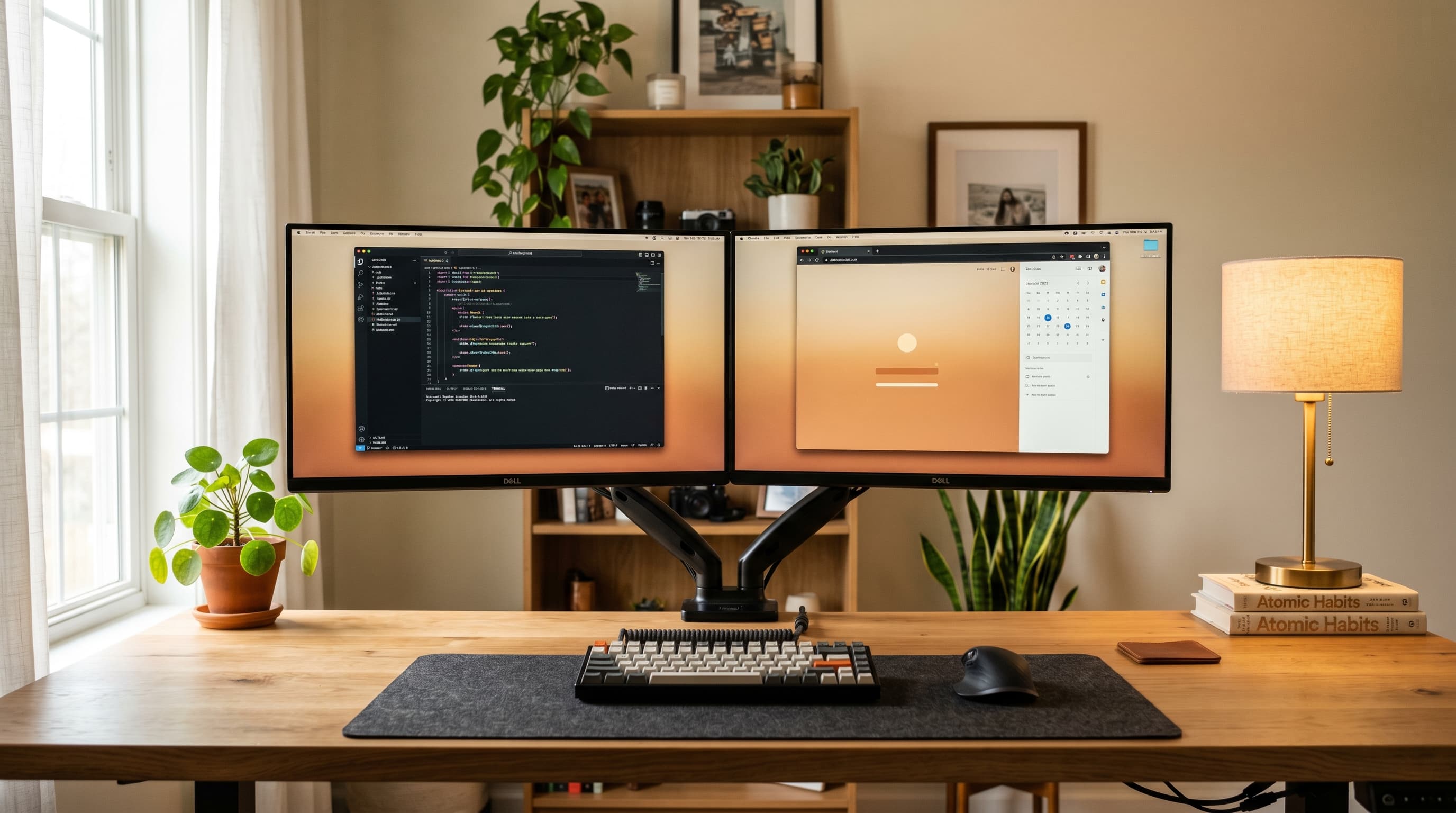
TL;DR: Two matched 27-inch 1440p monitors on a dual arm is the setup that works for most home office users. Position the primary screen centered in front of you and the secondary angled 20–30° inward. Set top-of-screen at eye level, viewing distance 20–28 inches. Run each monitor at native resolution. Route cables with a spine or tray before you think you need one. Workers with dual monitors complete tasks 16% faster on average, the setup pays for itself quickly.
What You Need Before You Start
Running through the steps below is faster when everything is on the desk before you begin. Here's the complete checklist:
- Two monitors, matched size and resolution preferred (27-inch 1440p is the current sweet spot)
- Video cables, DisplayPort or HDMI; check your GPU or laptop for available outputs
- Monitor arm, single dual arm, or two individual arms (see Step 3)
- USB-C dock or hub, laptop users only, if your machine has a single USB-C output. Our USB hub guide explains which type, passive hub, powered hub, or Thunderbolt dock, actually handles dual-monitor output
- Cable spine or under-desk tray, two monitors mean roughly 6–8 cables total; plan for them now
- A desk at least 55 inches wide, the minimum comfortable width for two 27-inch screens
One item people consistently skip: the cable plan. Two monitors add power cables, video cables, USB connections, and potentially audio runs. Without a spine or tray already in place, cable management becomes a retrofit project that's twice as annoying. Our best cable management for desks guide covers the full system.
Step 1: Choose Your Monitors — Matched or Mixed?
The simplest, most effective dual monitor configuration is two identical displays. Matched monitors share the same panel type, color profile, and pixel density, so your cursor crosses between screens without a visible size or brightness jump. The productivity case for dual displays is well-established, and the vast majority of purpose-built home office setups use matched panels for exactly this reason.
Citation capsule: A Jon Peddie Research / University of Utah collaborative study found that dual monitors increase productivity by 42% for text-heavy knowledge work tasks. The effect was consistent across editing, spreadsheet work, and reference-based research tasks, the primary driver being reduced application switching and the ability to keep reference material visible without minimizing the active document (Jon Peddie Research, 2008).
Mixed configurations, different sizes, different resolutions, work, but they introduce friction. On Windows, resolution mismatches cause inconsistent scaling at the screen boundary. On macOS, they're worse: the operating system's fractional scaling logic handles mismatched panels poorly, and non-Retina screens often look soft when forced to scale alongside a Retina display. If your budget is tight, two mid-range matched monitors outperform a flagship paired with a mismatched secondary.
Pros
- Seamless cursor movement, no size or brightness discontinuity at the screen edge
- Consistent color rendering across both displays, critical for design or photo work
- Single display profile in Windows/macOS covers both screens simultaneously
- Easier cable routing, identical ports, identical cable lengths
- Uniform appearance on the desk, visual symmetry supports focus
Cons
- Higher upfront cost if buying new vs. repurposing an existing monitor
- Less flexibility, if one monitor fails, you need a matched replacement
- Overkill for users whose secondary screen is purely for passive reference (chat, calendar)
For resolution, 1440p (2560×1440) is the current practical choice for a 27-inch home office monitor. Our full breakdown of the tradeoffs between 1440p and 4K is covered in the 4K vs 1440p monitor guide if you want the detailed spec comparison before deciding. If you're weighing a dual setup against a single ultrawide display, our best ultrawide monitor for home office guide compares the 34–38 inch options that deliver comparable horizontal real estate in a single screen.
Recommended matched pair: The Dell S2725DS is a 27-inch 1440p IPS panel with USB-C and 100Hz, well-suited as a daily-use matched pair at around $250 each.
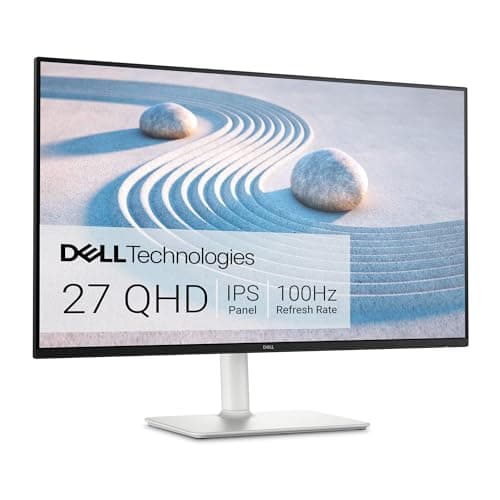
Dell
S2725DS
27-inch 1440p IPS at 100Hz with USB-C and full ergonomic stand, matched-pair choice for a dual-monitor home office setup.
Premium option: The Dell UltraSharp U2725QE adds Thunderbolt 4 and 4K resolution for laptop users who want to drive both monitors from a single cable connection.
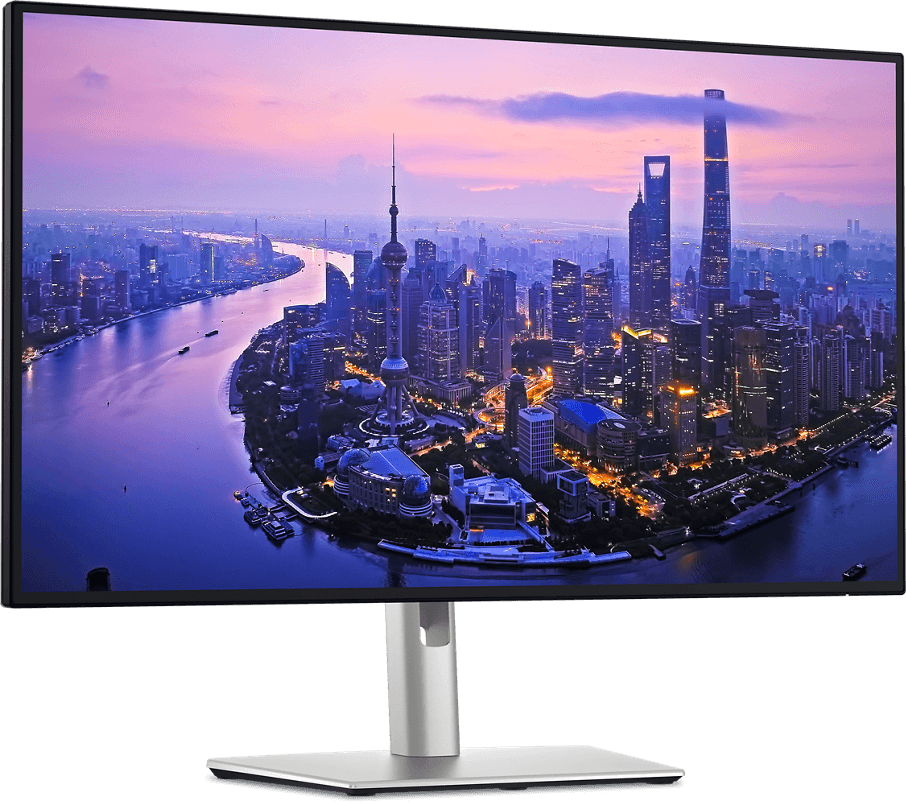
Dell
UltraSharp U2725QE
4K Thunderbolt 4, drives dual displays from a single cable connection, 140W PD for MacBook or Windows laptop charging.
Step 2: How Much Desk Space Do You Actually Need?
Two 27-inch monitors placed side by side occupy roughly 50–54 inches of linear desk width, based on the typical 24-inch display width of a 27-inch panel. Add a few inches of clearance on each side and you need a minimum of 55 inches of desk width to avoid a cramped layout. Our best budget standing desks guide covers options at 55 inches and above if you're upgrading the desk at the same time.
Desk depth matters too, but this is where monitor arms change the equation. A monitor sitting on its included stand takes up 8–10 inches of desk depth just for the base. Two stands eat 16–20 inches of your work surface before you've placed a single item. A dual arm mounts to the desk edge and holds both monitors forward, returning that depth to usable surface. It's one of the best space-to-cost improvements you can make in a compact home office.
Portrait + landscape option: If horizontal desk space is the real constraint, one landscape and one portrait-rotated monitor is a legitimate layout for certain workflows. Portrait orientation is particularly useful for long documents, code files, or vertical reading. This requires a monitor arm that supports portrait pivot, which most full-motion arms do.
Step 3: Set Up Monitor Placement — Height, Angle, and Distance
Correct monitor placement is where most dual setups fail. The numbers here aren't arbitrary, they come from OSHA's computer workstation ergonomics guidelines and Cornell University's Human Factors and Ergonomics Lab, and they address the specific load patterns that cause neck and upper back pain in computer workers.
Height
The top of each monitor should sit at or slightly below your horizontal eye level when seated. NIOSH and Cornell Ergonomics both specify this position to prevent neck extension, the forward and upward chin tilt that occurs when screens are too high (Cornell Ergonomics Lab, 2024). Every inch of upward tilt adds compressive load to the cervical spine.
A monitor arm makes this adjustment straightforward. In our setup with the Ergotron LX Dual, setting the column height to 16 inches above the desk surface brought both panels to eye level for a 5'10" seated user without any risers. Without an arm, you're in stack-of-books territory, most included stands don't go high enough for average-height users.
Viewing Distance
Place each monitor 20–28 inches from your eyes. The American Optometric Association recommends this range as the optimal distance for sustained computer work, close enough for comfortable reading, far enough to avoid accommodative strain (American Optometric Association, 2023). At 27 inches display size, this distance works out to roughly arm's length.
Angle
This is the placement detail most guides skip entirely. OSHA's ergonomics guidelines specify that neck rotation beyond 30° from your center gaze significantly increases cervical strain (OSHA Ergonomics, 2023). With two monitors side by side, your primary screen should sit directly in front of you and your secondary screen should angle inward so that looking at it requires no more than 20–30° of neck rotation from straight ahead.
In practice: if you're sitting centered in front of your desk, the primary monitor center-line should align with your nose. The secondary monitor should be to the right or left, angled inward toward you at roughly 20–30°. Don't place both monitors at equal distances from center and treat them as symmetric, that forces constant lateral neck rotation throughout the day.
The Primary/Secondary Mental Model
Effective dual monitor use isn't just two screens side by side, it's a primary screen and a secondary screen. Primary is where your active work lives: the document you're writing, the code you're editing, the design you're building. Secondary is where reference material stays visible: your email client, Slack, a browser tab, a dashboard. This distinction changes how you position the monitors. Primary centered, secondary angled. Most people set up symmetric layouts and then wonder why their necks hurt.
Step 4: Mount Your Monitors — Arms vs. Stands
Monitor arms are optional in theory and practically essential in practice. Two monitors on included stands creates a visual wall that's impossible to ergonomically optimize, stands fix monitors at a preset height, can't angle inward smoothly, and take up significant desk depth. A dual arm solves all three problems with one product.
Dual Arm vs. Two Singles
A dual arm (single pole, two articulating heads) keeps both monitors on one desk clamp, which is cleaner and requires only one mounting point. The tradeoff is that the arms share a single vertical column, which limits how far apart the two screens can spread horizontally.
Two individual arms give each monitor fully independent range of motion, better if your screens need to be widely spaced, or if you want the option to rotate one to portrait independently. The cost is roughly double the clamp real estate.
For most setups, two matched 27-inch monitors, desk width 55–72 inches, a dual arm is the right call.
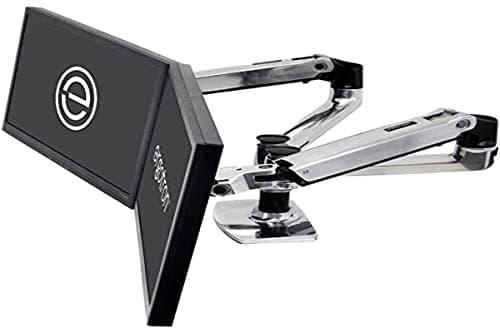
Ergotron
LX Dual Monitor Arm
Single-pole dual arm with independent gas-spring heads, one desk clamp keeps both 27-inch monitors fully height-adjustable.
If you're buying two individual arms, the Ergotron LX single is the same gas spring mechanism in a single-head version.
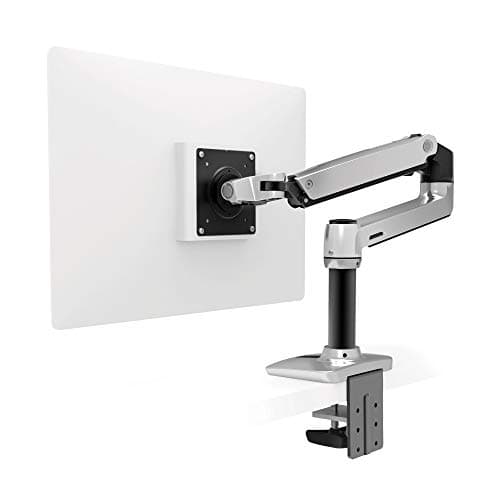
Ergotron
LX Monitor Arm
Single-head gas-spring arm, same mechanism as the dual version, ideal when screens need wide spacing or independent portrait rotation.
For a budget-conscious setup where ergonomic precision matters less than just getting both screens off the stands, the Amazon Basics single arm handles monitors up to 17.6 lbs at around $35.
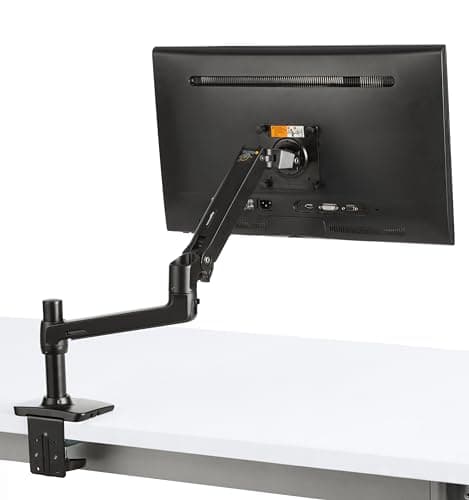
Amazon Basics
Monitor Arm
Budget single-arm for monitors up to 17.6 lbs, gets both screens elevated off their stands at minimal cost.
For the full comparison of arm options with weight ratings and reach specs, see our best monitor arms for 2026 guide.
Step 5: Cable Management — Do This Before It Becomes a Problem
Two screens produce a cable count that surprises almost every first-time dual monitor builder. Per panel: one power cable, one video run (DisplayPort or HDMI), often a USB connection for the display's built-in hub, and sometimes an audio cable. That's 6–8 cables before you've connected a keyboard, mouse, webcam, or headset.
Without a cable management plan, a dual monitor setup looks chaotic within 20 minutes of completion. More importantly, it becomes a safety issue, the U.S. Consumer Product Safety Commission estimates approximately 4,600 residential fires per year are associated with extension cords, most involving cables that are improperly routed or compressed against heat-generating adapters (CPSC).
The Three-Layer Approach
Layer 1, Arm cable routing. Run video and USB cables through the cable management channel built into your monitor arm. Both the Ergotron LX and LX Dual have full-length routing channels. This keeps display cables hidden along the arm itself.
Layer 2, Desk edge spine or tray. Power cables and any remaining runs drop from the arm to an under-desk cable spine or tray. A spine attaches to the desk edge or column; a tray mounts under the surface and holds excess slack and the power strip. This keeps everything off the floor and creates a defined cable path.
Layer 3, Velcro ties for bundling. Where wires run together along a common path, bundle them with velcro ties (not zip ties, velcro lets you add and remove connections without cutting). This prevents runs from spreading apart and keeps bundles neat over time. We've found that routing all cables before connecting peripherals, not after, saves roughly 20 minutes of untangling on the average build.
If you're on a standing desk, add a cable spine along the desk column. The frame travels 12–16 inches vertically during height adjustment, and unsupported runs bind, pull, or eventually fail at their connectors.
Step 6: Configure Display Settings
Windows 11
Open Settings → System → Display. Windows should detect both monitors automatically. If not, click "Detect." Set the arrangement: drag the monitor icons to match your physical layout, which screen is left, which is right. Set your primary display by clicking the primary monitor icon and checking "Make this my main display."
Scale: Windows defaults to 100% on most 1080p monitors and 125–150% on 1440p at 27 inches. For matched monitors at the same resolution, set both to the same scale value. Mismatched scale settings between screens cause visible cursor jumps at the boundary.
Resolution: set each monitor to its native resolution. Running a monitor at a non-native resolution applies interpolation across every pixel, which softens text.
macOS
Open System Settings → Displays. macOS shows each connected monitor and lets you drag their arrangement. Click "Use as" to set your primary display (the one where the menu bar appears).
macOS Scaling and Non-Retina Monitors
This is the issue almost no dual monitor guide covers. macOS uses fractional scaling, and non-Retina external monitors (essentially all 1080p and 1440p panels) can look noticeably soft at certain scaled resolutions. The fix: set each monitor to its native resolution, 2560×1440 for a 1440p display, 1920×1080 for a 1080p display. Under "Resolution," choose "Default for display" which runs the panel at native. Avoid selecting scaled resolutions that aren't 1:1 with the native pixel grid, the interpolation macOS applies introduces blur that makes text look less sharp than it should. If you're running a 1440p monitor on an M-series Mac, native 2560×1440 looks clean and sharp.
Refresh rate: set each monitor to its maximum supported rate. 60Hz is fine for productivity use, but if your monitors support 100Hz or higher, there's no reason not to use it, smoother cursor movement reduces perceptual fatigue over long sessions.
Laptop Users: The USB-C Constraint
Most laptops, including the MacBook Air and many Windows ultrabooks, have a single USB-C/Thunderbolt port that can only drive one external display natively. Connecting two external monitors through a basic USB-C hub won't work on these machines; the second display either won't activate or will show a mirrored image.
The solution is a Thunderbolt 4 dock or a USB-C hub that includes a dedicated display processor (MST Hub). Check your laptop's spec sheet for "Thunderbolt 4" or "DisplayPort Alt Mode with MST" support. Without one of these, you're limited to one external monitor plus the built-in screen. For a full comparison of Thunderbolt 4 and USB-C docks that handle dual-monitor output reliably, our best docking station for home office 2026 covers every price point. The Anker USB hub works well for peripheral expansion alongside a dock.
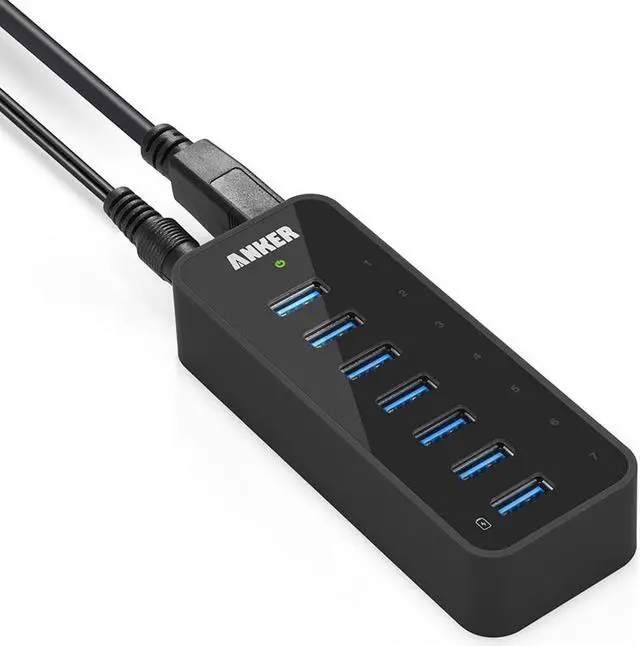
Anker
USB Hub
Peripheral expansion hub for a dual-monitor setup, pairs with a Thunderbolt dock to cover all standard peripherals.
Common Mistakes That Undermine Dual Monitor Setups
Both monitors centered symmetrically. The most frequent layout error. Two equally positioned screens force constant lateral neck rotation, OSHA specifies no more than 30° from center gaze before cervical strain increases measurably (OSHA Ergonomics, 2023). Designate a primary, keep it centered, offset the secondary.
Monitors too low on their included stands. Factory stands on most monitors position screens 2–4 inches below optimal eye level for average-height seated adults. This creates the forward-head posture, chin tilting up, neck tilting back, that generates persistent upper back and neck pain. Use a monitor arm or raise the desk.
Skipping cable management on day one. It's always faster to route cables properly during the build than to retrofit after everything is connected. Running six to eight cables freely for even a week creates habits that are hard to undo. Start with the spine and tray in place.
Running monitors at non-native resolutions. Especially common when connecting a 1440p monitor to a system calibrated for 1080p. Native resolution is always sharper. Set it correctly during initial display configuration.
Assuming any USB-C hub drives two monitors. It doesn't. Basic hubs pass a single video signal. Thunderbolt 4 docks and MST-capable hubs are required for two external displays from a laptop. Verify before buying.
Putting It All Together
The sequence matters. Get monitor selection right first, matched panels, 1440p at 27 inches for most setups. Plan the desk space before mounting anything. Set up the arm, position both monitors at eye level and 20–28 inches from your face, angle the secondary 20–30° inward. Route cables through the arm channel, down a spine, into an under-desk tray. Configure both displays at native resolution in Windows or macOS. Then establish the primary/secondary workflow: active work stays on the primary screen centered in front of you, reference and communication tools live on the secondary.
Workers with dual monitors complete tasks 16% faster on average than on a single display (Jon Peddie Research, 2008), but only when the setup is correct. A poorly positioned dual monitor setup can produce worse outcomes than a well-positioned single screen, because it introduces neck rotation and visual inconsistency without the workflow benefits. Build it right once and it works for years.
If you're setting up the full home office alongside the monitor upgrade, our home office setup under $500 guide covers how to sequence the other priorities. For seating, which is the other major ergonomic variable, the ergonomic chairs under $300 guide covers the options at the most common home office budget. If portability is a factor, a second screen you can take between rooms or travel with, our best portable monitor for home office 2026 covers the lightweight options that pair well with a laptop-based dual-screen workflow.