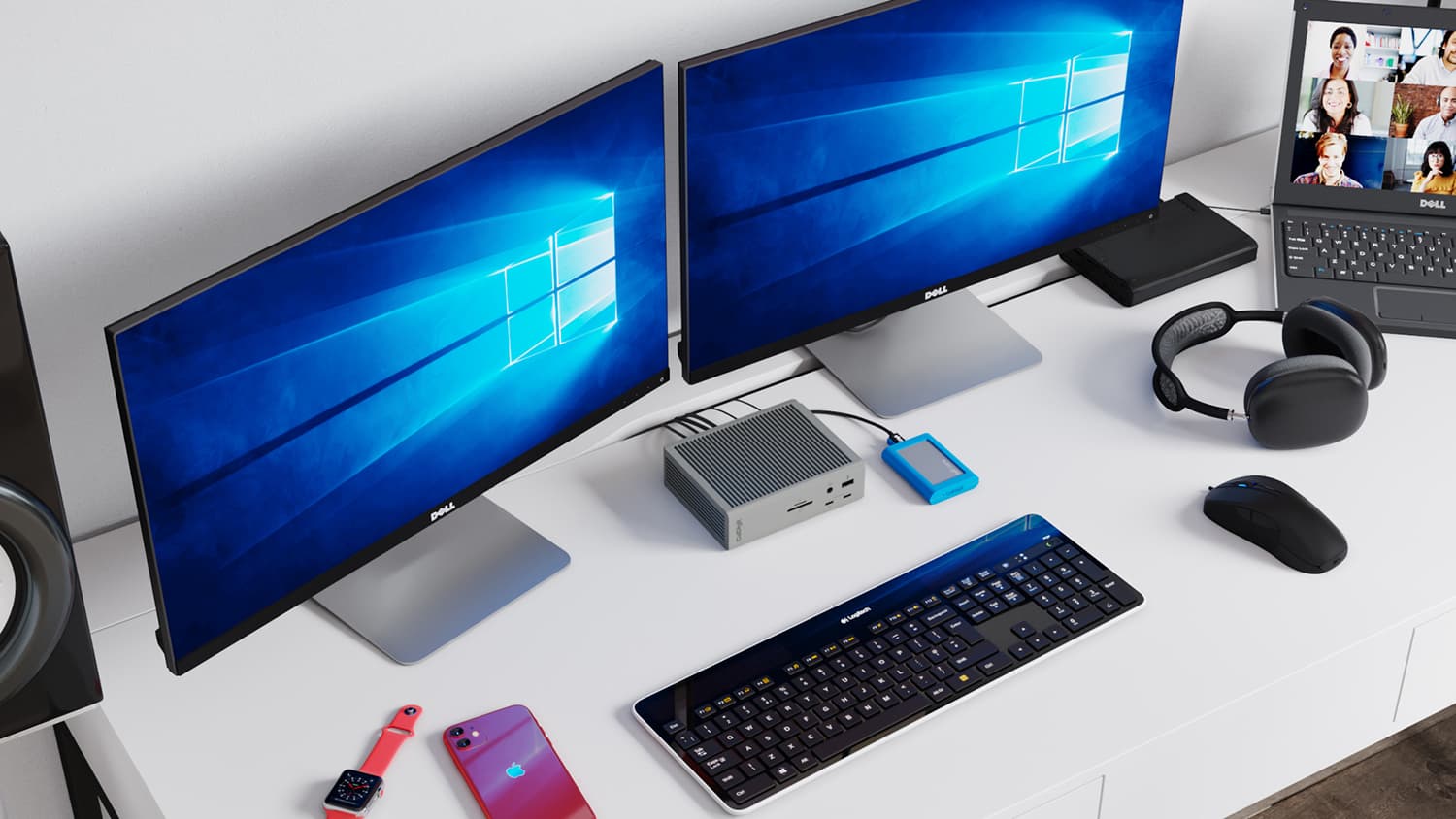
You sit down, plug in one cable, and everything wakes up. Both monitors. Your keyboard and mouse. The webcam. Ethernet. Your laptop starts charging. That's the whole pitch for a docking station — and it's a better one than most people realize until they've lived without it.
Around 68% of remote workers use a laptop as their primary machine (industry estimate), which means most home offices are one cable-tangle away from a frustrating morning. This guide covers the five best docking stations for home office use in 2026, what actually separates a great dock from a mediocre one, and how to match the right connection standard to your setup without overpaying for bandwidth you don't need.
See our best home office monitors roundup to pair one of these docks with the right display.
TL;DR: A good docking station cuts your daily setup from a cable juggle to a single plug-in — saving roughly 10 minutes of cable management per day. Thunderbolt 4 tops out at 40 Gbps (Intel, 2024) and handles the heaviest dual-monitor workloads. Our top overall pick is the CalDigit TS4 for power users; the Anker 777 wins on value.
What Should You Look for in a Docking Station?
Thunderbolt 4's 40 Gbps bandwidth (Intel, 2024) sets the ceiling for what a dock can push through a single cable. Most buyers don't need that ceiling, but understanding the tiers helps you avoid spending $300 on bandwidth your laptop can't even use, or buying a budget dock that bottlenecks a $2,000 machine.
USB-C vs Thunderbolt 4 — The Bandwidth Hierarchy
Connection standards determine how much data can flow between your laptop and your dock. Here's the practical breakdown:
The practical implication: USB-C 3.2 Gen 2 handles one 4K monitor at 60Hz fine. Two monitors start to push it. USB4 manages dual 4K more comfortably. Thunderbolt 4 handles dual 4K at 60Hz with headroom for fast external storage running simultaneously, no trade-offs.
Port Count and What You Actually Need
More ports aren't always better if the right ports aren't there. Before buying, count what you actually plug in daily: monitors (and which cable they use), USB-A peripherals, SD cards, Ethernet, headphones. A dock with 18 ports sounds impressive, but if 12 of those are USB-A and you need DisplayPort, it's the wrong 18 ports.
If you find yourself needing more USB-A slots on top of a dock, our best USB hubs for home office guide covers the best standalone options.
Laptop Charging Wattage
Most thin-and-light laptops charge fine at 60–85W through the dock. The MacBook Pro 16-inch, heavier Windows workstation laptops, and anything with a discrete GPU may need 90W or higher to maintain charge under load, not just stay alive. Always check your laptop's rated wattage before assuming a dock will keep up.
The 5 Best Docking Stations for Home Office in 2026
With Thunderbolt 4 now standard on most premium laptops and USB-C on virtually everything else, the 2026 dock market splits cleanly into tiers. The five picks below cover every realistic home office scenario, from budget single-monitor setups to triple-display creative workstations.
1. CalDigit TS4 — Best Overall (Premium Pick)
The CalDigit TS4 is the dock that power users buy and never think about again. It packs 18 ports, including 3x Thunderbolt 4, 5x USB-A, an SD card slot, 3.5mm audio, and up to 98W laptop charging, into a vertical tower that runs cool and stable even under sustained load. Nothing else at this price matches that port density without thermal throttling.
CalDigit
CalDigit TS4
The TS4's vertical orientation is underrated for desk space, it takes up the footprint of a soda can while routing every cable neatly toward the back.
Pros
- 18 ports including 3x Thunderbolt 4 for daisy-chaining
- 98W laptop charging, handles MacBook Pro 16-inch under load
- SD and microSD card slots built in
- Stable thermals; no throttling during sustained 4K transfers
- 3.5mm audio with low-latency monitoring
Cons
- Premium price puts it out of range for budget setups
- Requires a TB4 laptop to unlock full bandwidth
- Vertical form factor isn't for everyone
- Overkill if you only run one external monitor
Citation capsule: The CalDigit TS4 provides 18 ports including three Thunderbolt 4 ports, five USB-A ports, SD and microSD slots, 3.5mm audio, and up to 98W host charging through a single Thunderbolt 4 cable, making it one of the highest port-density docks in its class without requiring a separate power brick for peripherals.
2. Anker 777 — Best Value
At roughly $150, the Anker 777 delivers 13 ports, dual 4K 60Hz display output, and up to 85W laptop charging, a combination that undercuts most Thunderbolt docks by $100 or more. It's a USB-C dock, not TB4, which is fine for the majority of home office workers who aren't pushing external NVMe drives or 10GbE adapters simultaneously.
Anker
Anker 777
Pros
- Strong value, 13 ports under $150
- Dual 4K 60Hz display support
- 85W charging covers most thin-and-light laptops
- Works with any USB-C laptop, not locked to TB4 machines
- Compact form factor, minimal desk footprint
Cons
- USB-C (not TB4) limits bandwidth ceiling
- 85W may fall short for MacBook Pro 16-inch at full load
- No SD card slot
- Dual-display requires USB-C Alt Mode support on your laptop
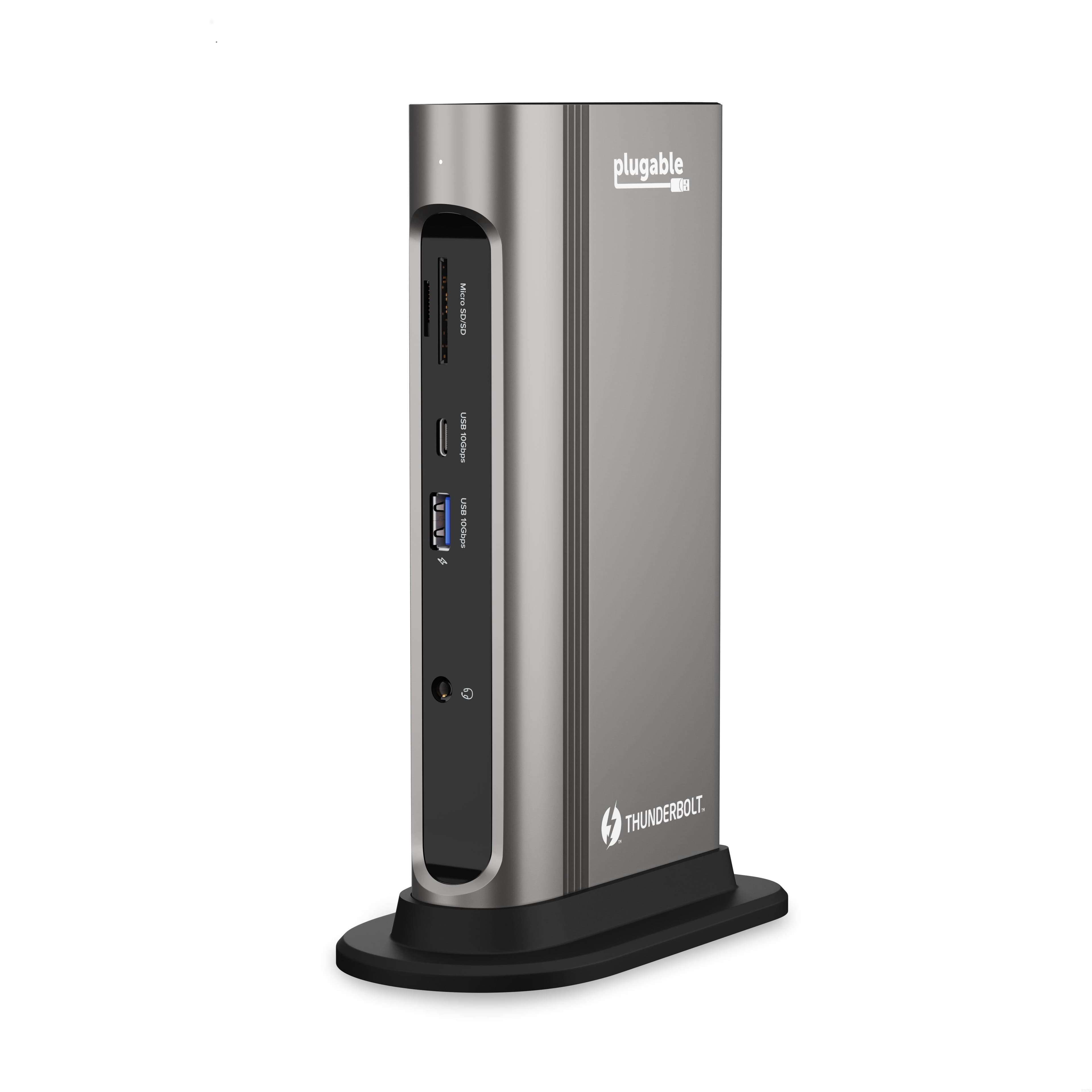
3. Plugable 14-in-1 USB-C DisplayLink — Best for Triple Monitors
Most laptops top out at two external displays natively. The Plugable 14-in-1 bypasses that limit entirely using a DisplayLink chip that compresses video over USB-C, no Thunderbolt required. Triple 4K is achievable even on laptops that typically support only one external monitor. The trade-off is mild CPU overhead from the DisplayLink driver.
Plugable
Plugable 14-in-1 USB-C DisplayLink
Pros
- Triple 4K display support via DisplayLink chip
- Works on USB-C laptops with no native multi-display support
- 14 ports including Ethernet and USB-A
- No Thunderbolt requirement, broad compatibility
- Strong choice for creative workstations needing screen real estate
Cons
- DisplayLink requires driver installation
- Slight CPU overhead from software video compression
- Not ideal for DRM-protected content on all displays
- Heavier than the Anker 777 at a similar price point
Planning a dual or triple monitor setup? Our dual monitor setup guide covers cabling, ergonomics, and display placement in detail.
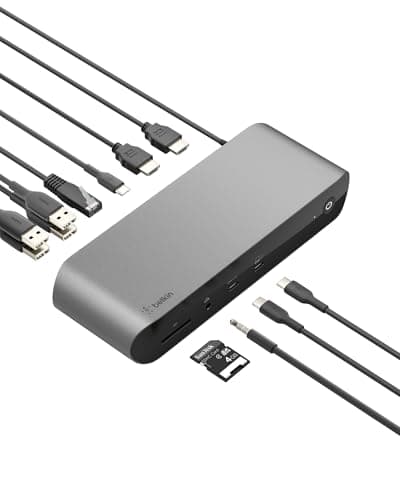
4. Belkin Thunderbolt 4 Dock — Best for Mac
The Belkin Thunderbolt 4 Dock is engineered for Apple Silicon Macs, M1 through M4, and it shows. Its 12-port layout, 90W host charging, and Apple-certified Thunderbolt 4 connection make it the lowest-friction dock for Mac users who want zero compatibility headaches. It's not the most feature-packed dock here, but it's the most reliable one on a Mac.
Belkin
Belkin Thunderbolt 4 Dock
Pros
- Apple-certified Thunderbolt 4, verified Mac compatibility
- 90W host charging handles MacBook Pro 16-inch
- Clean, minimal design matches Apple hardware aesthetic
- Dual 4K 60Hz display support
- 12 ports covers most home office peripherals
Cons
- Windows users get no added benefit over the CalDigit TS4
- Fewer total ports than the TS4 at a comparable price
- No SD card reader
- Premium pricing for a 12-port dock
Not sure which monitors to pair it with? See our 4K vs 1440p comparison to match resolution to your workflow.
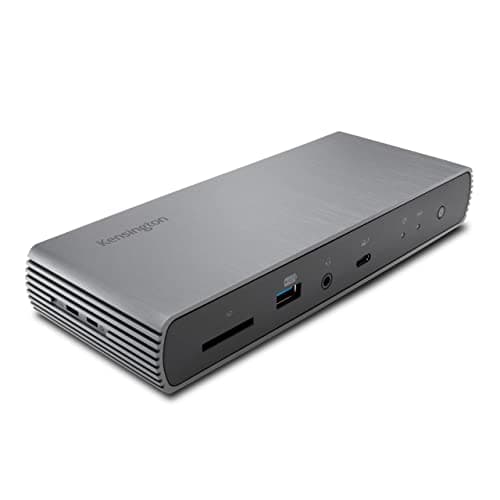
5. Kensington SD5780T — Best for Security-Conscious Setups
The Kensington SD5780T is the dock that IT departments actually approve. It's FIPS 201 compliant with a built-in smart card reader, the same credential standard used across federal agencies and regulated industries. Beyond security, it delivers dual 4K output and 90W charging, making it a full-featured dock that doesn't sacrifice productivity for compliance.
Kensington
Kensington SD5780T
Pros
- FIPS 201 compliant smart card reader, enterprise-ready
- Dual 4K display output at 60Hz
- 90W laptop charging
- Thunderbolt 4 certified
- Kensington Lock slot for physical security
Cons
- Overkill for home office users without compliance requirements
- Heavier and larger than consumer-focused alternatives
- Smart card reader adds cost without value for most users
- Driver setup for smart card can be finicky on Windows
Thunderbolt 4 vs USB-C Docks — Which Do You Actually Need?
Thunderbolt 4 bandwidth tops out at 40 Gbps (Intel, 2024), four times the throughput of USB-C 3.2 Gen 2's 10 Gbps ceiling. That gap sounds decisive. In practice, whether it matters depends almost entirely on what you're plugging in and how your laptop's hardware is wired.
Here's the honest answer: if your laptop only has USB-C (not Thunderbolt), you physically can't get TB4 performance even from a TB4 dock. The dock falls back to USB-C speeds. Check your laptop's spec sheet before spending an extra $150 on Thunderbolt certification.
For most home office workers, two monitors, a keyboard and mouse, Ethernet, and a webcam, USB-C 3.2 handles that load without issue. Where Thunderbolt 4 genuinely earns its premium: external SSDs you're actively reading and writing to while simultaneously running dual 4K, or any workflow where latency on storage access matters.
Pair your dock with a good set of monitor arms to get your displays at the right height and angle, the dock connects everything, but the arms determine how comfortable it feels.
The practical rule: If your laptop has a Thunderbolt port and you're running dual 4K plus an external SSD, get a TB4 dock. If you're on USB-C running one or two monitors with standard peripherals, save the money.
How Many Monitors Can a Dock Support?
Most Thunderbolt 4 docks support dual external 4K displays at 60Hz natively, that's the standard across the CalDigit TS4, Belkin TB4 Dock, and Kensington SD5780T. Moving beyond two monitors requires either a DisplayLink dock or a laptop with specific hardware support for three simultaneous outputs.
DisplayLink is what makes triple-monitor setups possible for most users. The Plugable 14-in-1 uses this approach: a chip on the dock handles video encoding, so the laptop treats each additional display as a USB peripheral rather than a native GPU output. CPU overhead is real but modest, typically 2–5% on modern chips, and won't impact typical office tasks.
Citation capsule: DisplayLink docks enable triple 4K display output on laptops that natively support only one external monitor by routing video through USB as compressed data. The Plugable 14-in-1 uses this method, allowing three independent 4K displays without Thunderbolt, making triple-monitor home offices accessible on USB-C-only laptops (Plugable product documentation).
For display buying guidance, our best home office monitors roundup covers every price tier.
If you're running two monitors and your dock supports them natively, DisplayLink adds unnecessary complexity. If three screens are genuinely part of your workflow, the Plugable 14-in-1 is the most practical path that doesn't require a new laptop.
Frequently Asked Questions
What's the difference between a Thunderbolt 4 dock and a USB-C dock?
Thunderbolt 4 runs at 40 Gbps, four times the speed of USB-C 3.2 Gen 2's 10 Gbps. That bandwidth gap matters if you're running dual 4K displays while transferring files from an external SSD. For standard peripherals and a single monitor, USB-C is more than adequate and costs significantly less.
Can a docking station support three monitors?
Most docks top out at two external displays. Triple-monitor support requires either a DisplayLink dock (like the Plugable 14-in-1) or a laptop whose hardware specifically supports three simultaneous outputs. DisplayLink achieves this by treating additional displays as USB devices rather than native GPU outputs, at the cost of a driver install and slight CPU overhead.
How much wattage do I need for laptop charging through a dock?
Thin-and-light laptops typically charge fine at 60–85W. High-performance machines, MacBook Pro 16-inch, laptops with discrete GPUs, need 90W or more to maintain charge under sustained load. The Belkin TB4 Dock and Kensington SD5780T both deliver 90W.
Are docking stations worth it for a home office?
Yes, consistently. Around 68% of remote workers use a laptop as their primary machine (industry estimate). A dock replaces 5–8 individual cable connections with one plug-in, saving roughly 10 minutes of cable management per day, and meaningfully reducing wear on your laptop's ports over time.
The Bottom Line
One cable. That's the whole value proposition, and it delivers more than it sounds like on paper. The right dock eliminates the morning friction of plugging in monitors, keyboard, mouse, Ethernet, and charger individually. It protects your laptop's ports. And it makes moving between your desk and anywhere else genuinely effortless.
Here's how the five picks stack up:
- CalDigit TS4, the best dock, full stop, if budget isn't the constraint. 18 ports, 98W charging, and Thunderbolt 4 for the heaviest workloads.
- Anker 777, the smart buy for most home offices. 13 ports, dual 4K, 85W charging, under $150.
- Plugable 14-in-1, the only realistic path to triple 4K on a USB-C laptop.
- Belkin TB4 Dock, buy this if you're on Apple Silicon and want zero compatibility friction.
- Kensington SD5780T, the enterprise pick for anyone with compliance or security requirements.
Pair your dock with a solid laptop stand to get your screen to eye level, and complete the setup with the right keyboard and mouse for all-day comfort.