If your laptop has two USB-C ports and your desk has a keyboard, mouse, webcam, and external drive all demanding a connection, you already know the problem. Modern laptops shed USB-A ports years ago. Most peripherals haven't caught up.
USB-A still dominates the peripheral market — Statista (2024) data shows USB-A connectors account for over 60% of peripheral cables shipped globally, even as USB-C adoption accelerates. The result is a predictable mismatch: slim, port-scarce laptops and a desk full of USB-A devices. A USB hub bridges that gap without requiring you to replace every peripheral you own.
This guide covers six hubs ranked by use case — from a $10 compact pick to a $280 Thunderbolt 4 dock. Whether you're a MacBook user who needs charging passthrough or a photographer who shoots tethered, there's a specific hub for your situation. If your laptop needs go beyond port expansion into charging passthrough and multi-monitor support, our best docking stations guide covers the full dock category.
TL;DR: The Anker 10-Port USB Hub ($35–50) is the best overall pick for most home offices, it mixes USB-A and USB-C ports and handles bus-powered peripherals reliably. For MacBook users who need charging passthrough, the Anker 655 USB-C Hub handles 85W PD. Over 60% of peripheral cables shipped globally are still USB-A (Statista, 2024), making a good hub a long-term desk investment.
Why Does Your Home Office Need a USB Hub?
USB-A peripherals still account for over 60% of peripheral cables shipped globally (Statista, 2024), yet nearly every laptop released since 2020 ships with USB-C ports only. Apple's MacBook Air and MacBook Pro ship with two to four Thunderbolt/USB-C ports and zero USB-A ports. Many Windows ultrabooks follow the same pattern.
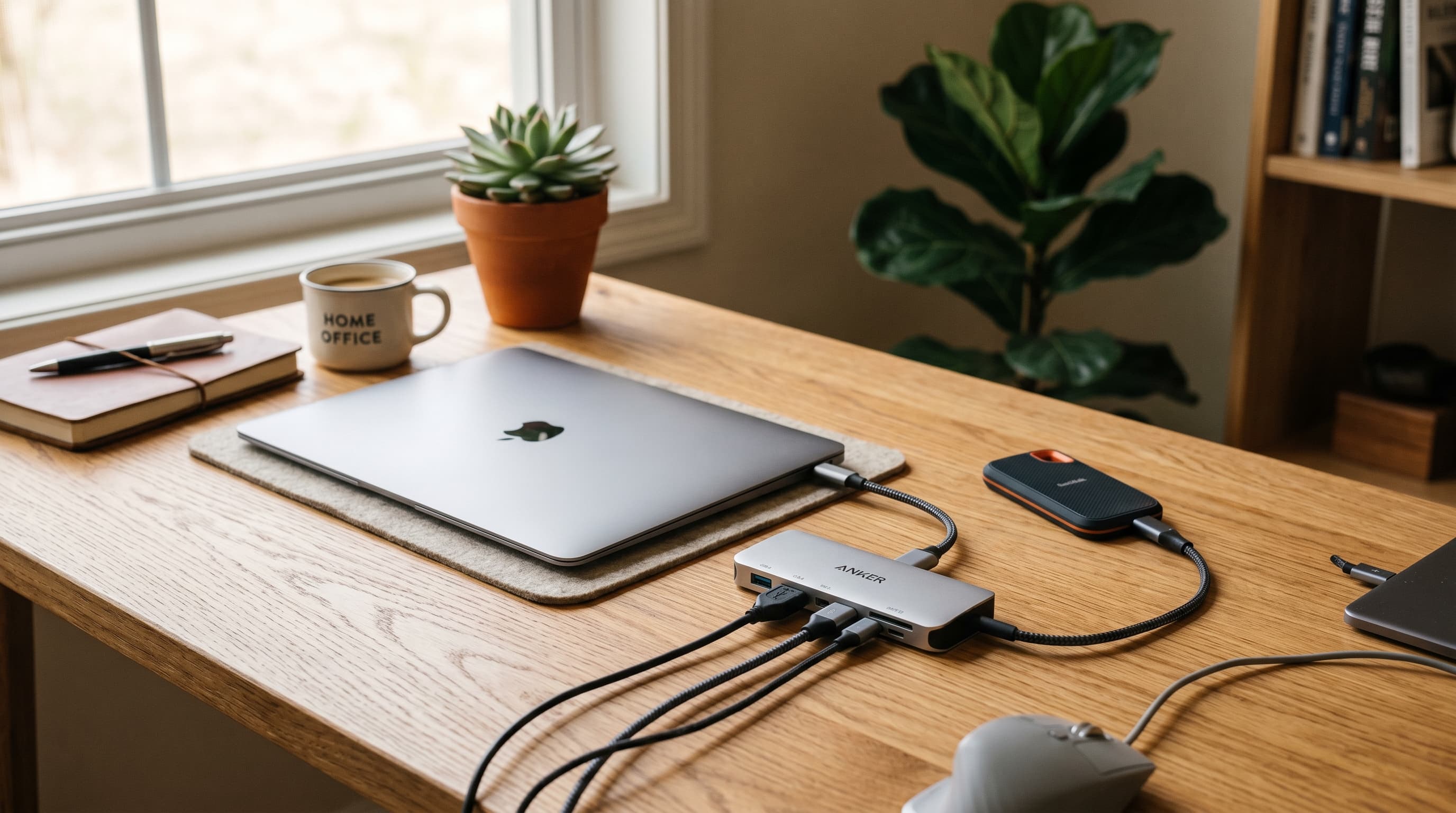
The math doesn't work for a real desk setup. A standard home office workstation connects a keyboard, mouse, webcam, external drive, and phone charger simultaneously. That's five devices competing for two ports. A hub doesn't require you to upgrade every peripheral, it lets your existing USB-A gear connect to a USB-C laptop without friction.
There's a subtler reason hubs matter that most guides skip: cable management. A hub consolidates multiple device cables into a single run from hub to laptop. Instead of three separate cables routed across your desk to three separate ports, you have one. That single upstream cable is easier to manage and reduces the visual clutter that makes small desks feel chaotic. Our cable management guide covers how to build on that foundation.
Citation capsule: USB-A connectors still represent over 60% of peripheral cables shipped globally as of 2024 (Statista, 2024), while the majority of laptops released since 2020 include only USB-C ports. This mismatch, legacy peripheral infrastructure meeting port-scarce modern hardware, is the primary driver of USB hub demand in home office setups.
USB Hub vs. Docking Station: What's the Difference?
A USB hub expands your port count. A docking station does that and more, adding display outputs (HDMI or DisplayPort), Gigabit Ethernet, and higher-wattage charging through a single cable. According to IDC peripheral market analysis (2024), docking station sales grew 18% year-over-year as remote work setups matured, while basic hub sales remained steady. The price gap reflects the capability gap: hubs run $10–80, docks run $100–300+.
Hubs are right for you if: you connect USB peripherals (keyboard, mouse, drives, webcam) and your laptop already handles display output through its own ports. Most single-monitor setups don't need a dock.
Docks are right for you if: you want one cable to connect everything, including your monitor(s), Ethernet, and charging, in a single plug/unplug motion. If you're running a dual monitor setup from a single USB-C cable, you need a Thunderbolt dock, not a hub.
The CalDigit TS4 covered later in this guide sits at the boundary, it's technically a Thunderbolt 4 dock, not a hub, but it's included because many users comparing "premium hubs" end up here and should understand what they're paying for.
Quick Decision Rule
If you only need more USB-A and USB-C ports, buy a hub. If you need to connect a monitor through the device, need Ethernet, or want one-cable docking, buy a Thunderbolt dock. Don't pay $250 for a dock if a $35 hub solves your actual problem.
The 6 Best USB Hubs for Home Office in 2026
Quick Comparison
| Pick | Best For | Ports | PD Charging | Price |
|---|---|---|---|---|
| Anker 10-Port USB Hub | Best overall | 7× USB-A + 3× USB-C | No (self-powered) | $35–50 |
| Sabrent 4-Port USB 3.0 | Best compact / budget | 4× USB-A | No | $10–15 |
| Anker 655 USB-C Hub | Best for MacBook | 2× USB-A + 2× USB-C + HDMI + SD | 85W PD | $40–55 |
| CalDigit TS4 | Best Thunderbolt dock | 18 ports total | 98W PD | $250–300 |
| Anker 7-in-1 USB-C Hub | Best mid-range versatile | 2× USB-A + USB-C + HDMI + SD + microSD + PD | 100W PD | $25–35 |
| Sabrent USB-C Hub with SD | Best for photographers | 3× USB-A + USB-C + SD + microSD | 60W PD | $20–30 |
1. Anker 10-Port USB Hub — Best Overall
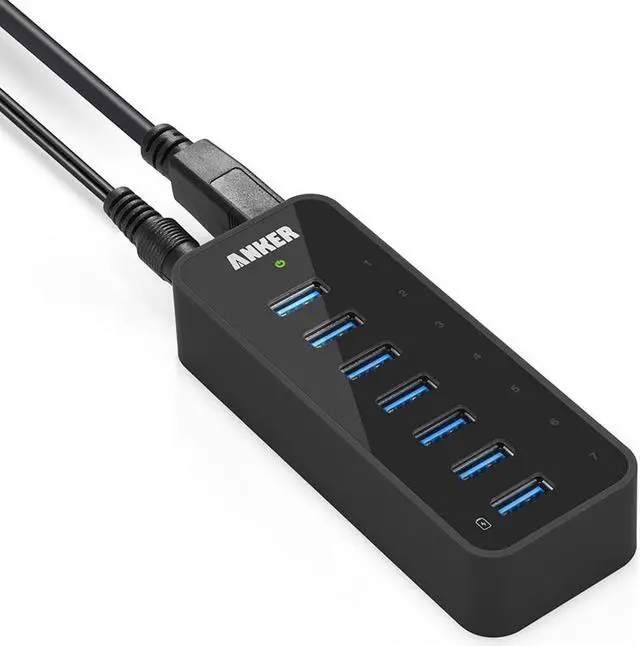
Anker
10-Port USB Hub
7× USB-A 3.0 + 3× USB-C, self-powered AC adapter. 5 Gbps per port. Handles a fully-equipped home office desk without power drops.
The Anker 10-Port hub earns the top slot because it solves the most common home office problem: too many USB-A devices, not enough ports, without the complexity of a full docking station. It ships with seven USB-A 3.0 ports and three USB-C ports, runs off its own AC power adapter, and handles all standard bus-powered peripherals without power-related drops. The self-powered design matters here, bus-powered hubs can struggle when four or five devices draw current simultaneously.
USB 3.0 across all ports means 5 Gbps transfer speeds per port. That's sufficient for external SSDs, flash drives, and any standard peripheral. It's not a Thunderbolt device, so external drives won't hit their absolute maximum speeds, but for the $35–50 price point, the tradeoff is fair.
The hub doesn't support Power Delivery passthrough, meaning it won't charge your laptop. If you need laptop charging while connected, step up to the Anker 655 or the 7-in-1 picks below.
Pros
- Seven USB-A 3.0 ports, enough for a fully-equipped home office desk
- Self-powered AC adapter eliminates power issues with multiple devices connected
- USB 3.0 on all ports, 5 Gbps per port for drives and fast peripherals
- Three USB-C ports cover modern devices without an adapter
- Compact footprint for a 10-port device, sits flat on a desk without taking over
Cons
- No Power Delivery passthrough, won't charge your laptop
- AC adapter adds a cable run to manage
- USB 3.0 (5 Gbps) only, not USB 3.1 Gen 2 or USB4
Key specs: 7× USB-A 3.0 + 3× USB-C, self-powered AC adapter, 5 Gbps per port, ~$35–50.
2. Sabrent 4-Port USB 3.0 Hub — Best Compact / Budget Pick
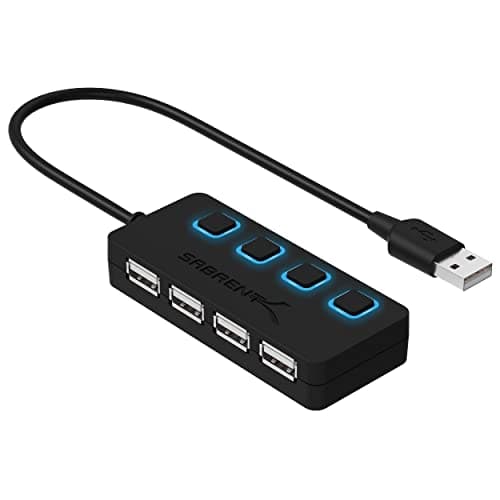
Sabrent
4-Port USB 3.0 Hub
Bus-powered, no AC adapter. Ultra-compact, fits in a laptop bag. USB 3.0 on all 4 ports for keyboards, mice, and flash drives.
At $10–15, the Sabrent 4-Port is the right answer for anyone who just needs a few more USB-A ports without spending more than a lunch. It's bus-powered, it draws power from your laptop's USB port, which means no extra cable and no AC adapter. It's genuinely pocket-sized.
Bus-powered is the key constraint to understand here. The hub works without friction for keyboards, mice, USB flash drives, and similar low-draw devices. It will struggle with power-hungry devices like external spinning hard drives or devices that require dedicated charging. If your use case is connecting a keyboard, mouse, and dongle receiver to a laptop with one free USB-A port, this hub handles that without issue.
The 4-Port Sabrent is the hub that lives in a laptop bag rather than on a desk. It's what you grab when you're working from a coffee shop or a conference room and need a quick port expansion. For a permanent desk setup with multiple devices, the Anker 10-Port is a better long-term choice.
Pros
- Under $15, lowest price for a reliable USB 3.0 hub
- Bus-powered, no AC adapter, no extra cable
- Ultra-compact, fits in a laptop bag without adding meaningful weight
- USB 3.0 on all four ports, 5 Gbps for flash drives and low-draw peripherals
Cons
- Bus-powered only, not reliable for external spinning hard drives
- Only four ports, not enough for a fully-equipped permanent desk
- No Power Delivery passthrough, won't charge your laptop
Key specs: 4× USB-A 3.0, bus-powered, USB 3.0 (5 Gbps), ultra-compact, ~$10–15.
3. Anker 655 USB-C Hub — Best for MacBook Users
Anker
655 USB-C Hub
85W USB-C Power Delivery passthrough. 2× USB-A + 2× USB-C + HDMI 2.0 (4K/60Hz) + SD + microSD. One cable charges your MacBook while expanding ports.
The Anker 655 is the pick for MacBook Air and MacBook Pro users who need port expansion and laptop charging through a single connection. It supports 85W USB-C Power Delivery passthrough, enough to charge a MacBook Air and MacBook Pro 13-inch at full speed, and sufficient for slow-charging a MacBook Pro 14-inch under load. That passthrough is the key feature that separates it from generic USB-C hubs.
The port mix covers a real MacBook workflow: two USB-A 3.0 ports for legacy peripherals, two USB-C ports for modern accessories, one HDMI 2.0 port (supports 4K at 60Hz), one SD card slot, and one microSD slot. That's seven ports from one USB-C connection. The hub connects via a built-in USB-C cable rather than a detachable one, which keeps the connection stable but means the cable isn't replaceable if it wears.
Citation capsule: MacBook Air models released since 2020 include only two Thunderbolt/USB-C ports and zero USB-A ports (Apple, 2024). USB-C Power Delivery hubs rated at 85W or higher, like the Anker 655, are the minimum spec needed to charge a MacBook Air at full speed while simultaneously powering connected peripherals.
Pros
- 85W USB-C Power Delivery passthrough, charges MacBook Air at full speed
- HDMI 2.0 supports 4K at 60Hz, adds a display output most hubs don't have
- SD and microSD card slots, useful for photographers and content creators
- Compact enough to sit beside a laptop without feeling like a docking station
- Bus-powered, no AC adapter required
Cons
- 85W PD may not fast-charge MacBook Pro 14-inch under heavy CPU load (needs 96W+)
- Built-in non-replaceable upstream cable, can't swap if it wears out
- Only two USB-A ports, may not be enough for users with many legacy peripherals
Key specs: 2× USB-A 3.0 + 2× USB-C + HDMI 2.0 (4K/60Hz) + SD + microSD, 85W PD passthrough, bus-powered, built-in USB-C cable, ~$40–55.
4. CalDigit TS4 Thunderbolt 4 Dock — Best Thunderbolt Dock
No affiliate link, CalDigit products are available through major retailers directly.
The CalDigit TS4 is the best Thunderbolt 4 dock available in 2026. It's not a hub, it's a full docking station, and the price ($250–300) reflects that. Including it here is deliberate: many home office buyers searching for "best USB hub" actually need what the TS4 delivers, one-cable connection for monitors, Ethernet, storage, and peripherals simultaneously.
The TS4 offers 18 ports total through a single Thunderbolt 4 cable to your laptop: three Thunderbolt 4 downstream ports (40 Gbps each), five USB-A 3.2 Gen 2 ports (10 Gbps), three USB-A 2.0 ports, one 2.5G Ethernet port, SD 4.0 and UHS-II card readers, 3.5mm audio in/out, and 98W Power Delivery charging. For a MacBook Pro 16-inch, 98W handles full-speed charging under load.
The Thunderbolt 4 bandwidth (40 Gbps) enables dual 4K monitor output simultaneously, something USB 3.0 hubs cannot do. If your home office includes a dual monitor setup, the TS4 is one of the few single-cable solutions that handles it without compromise.
Pros
- 18 ports from one Thunderbolt 4 cable, the most complete single-cable solution available
- 98W Power Delivery, charges MacBook Pro 16-inch at full speed under load
- Dual 4K monitor output via Thunderbolt 4 downstream ports
- 2.5G Ethernet, 2.5x the throughput of standard Gigabit Ethernet
- SD 4.0 / UHS-II card reader, fastest available for high-resolution media workflows
Cons
- ~$250–300, significantly more expensive than any USB hub on this list
- Requires a Thunderbolt 4 or USB4 laptop port, not compatible with standard USB-C
- Large desktop form factor, not compact, needs dedicated desk real estate
Key specs: 18 ports including 3× Thunderbolt 4 + 5× USB-A 3.2 Gen 2 + 2.5G Ethernet + SD 4.0 + 98W PD, requires Thunderbolt 4 host, ~$250–300. For a broader comparison of docking stations at every price point, including sub-$100 USB-C docks and full Thunderbolt 4 workstation options, our best docking station for home office 2026 covers the full range.
5. Anker 7-in-1 USB-C Hub — Best Mid-Range Versatile Pick
Anker
7-in-1 USB-C Hub
100W Power Delivery + HDMI (4K/30Hz) + 2× USB-A + USB-C + SD + microSD. Bus-powered. Best value for users who need charging passthrough and display output.
The Anker 7-in-1 is the right hub for users who want more than a simple port expander but don't want to spend on the Anker 655 or a full dock. At $25–35, it adds an HDMI port (supporting 4K at 30Hz), two USB-A 3.0 ports, one USB-C data port, one 100W Power Delivery passthrough port, SD card, and microSD card, all from a single USB-C connection.
The 100W Power Delivery is the standout spec at this price. It handles laptop charging for most MacBook and Windows ultrabook models without needing to keep the original charger plugged in separately. Note that 4K HDMI output here is 30Hz, not 60Hz, acceptable for a secondary display or document work, but you'll notice the motion smoothness difference on a primary display if you move windows quickly. For 4K at 60Hz, step up to the Anker 655.
Pros
- 100W Power Delivery passthrough, charges most MacBook and Windows ultrabook models
- 7 ports in a compact bus-powered form factor, no AC adapter
- HDMI output adds display connectivity most portable hubs omit
- SD and microSD card readers built in
- Under $35, strong value for the feature set
Cons
- HDMI output limited to 4K at 30Hz, not 60Hz; noticeable on primary displays
- Bus-powered, relies on laptop port for power; heavy simultaneous load may cause drops
- Only two USB-A ports, limited if you have many legacy peripherals
Key specs: 2× USB-A 3.0 + USB-C data + HDMI (4K/30Hz) + SD + microSD + 100W PD, bus-powered, USB-C connection, ~$25–35.
6. Sabrent USB-C Hub with SD Card Reader — Best for Photographers and Content Creators
Sabrent
USB-C Hub with SD Card Reader
SD + microSD at USB 3.0 speeds. 60W PD passthrough. 3× USB-A + USB-C data. Most affordable hub combining card reading with power delivery.
The Sabrent USB-C Hub with SD Card Reader is built for the specific workflow of photographers and video editors who regularly offload from cards while keeping peripherals connected. The SD and microSD card readers use USB 3.0 speeds, fast enough to offload a 64GB SD card in a few minutes rather than waiting through a USB 2.0 transfer.
The hub includes three USB-A 3.0 ports, one USB-C data port, one SD slot, one microSD slot, and 60W Power Delivery passthrough, covering the essentials without the premium of the Anker 655. The 60W PD charges a MacBook Air at full speed; MacBook Pro users will want to verify their charging requirements. At $20–30, it's the most affordable hub on this list that includes SD card reading and PD passthrough together.
Pros
- SD and microSD readers at USB 3.0 speeds, fast card offloads without a separate reader
- 60W Power Delivery passthrough, sufficient for MacBook Air at full speed
- Three USB-A 3.0 ports, enough for keyboard, mouse, and one additional peripheral
- Under $30, the most affordable hub with both SD reading and PD passthrough
Cons
- 60W PD, won't fast-charge MacBook Pro 14-inch or 16-inch under load
- No HDMI output, not a display hub
- Bus-powered, may struggle with power-hungry external drives alongside card transfers
Key specs: 3× USB-A 3.0 + USB-C data + SD + microSD + 60W PD, bus-powered, USB-C connection, ~$20–30.
What Should You Look for in a USB Hub?
Choosing a USB hub comes down to five practical questions. Most buyers get tripped up on USB standards because the naming is genuinely confusing, here's what actually matters.
USB Standard: 3.0 vs. 3.1 Gen 2 vs. USB4
USB 3.0 runs at 5 Gbps. That's fast enough for external SSDs, flash drives, and any peripheral. USB 3.1 Gen 2 doubles that to 10 Gbps, useful if you're doing simultaneous transfers to multiple fast drives. USB4 and Thunderbolt 4 both hit 40 Gbps and matter for NVMe external drives, 4K video editing workflows, or dual monitor output through a single cable.
For keyboards, mice, webcams, and standard USB flash drives, USB 3.0 is completely sufficient. You don't need USB4 speeds to connect a mouse. Don't pay for Thunderbolt bandwidth you won't use.
Port Count and Mix
Count your actual devices before buying. A standard home office workstation, keyboard, mouse, webcam, one external drive, USB-A receiver for a headset, needs five ports minimum. Add an SD card reader and a phone charging port and you're at seven. Don't buy a four-port hub for a seven-device desk.
The mix matters too. If all your devices are USB-A, a hub heavy on USB-A ports is more useful than one split evenly between USB-A and USB-C. Check what your actual peripherals use before reading spec sheets.
Power Delivery Passthrough
If you're connecting a hub to a MacBook or Windows ultrabook, look for a hub with USB-C Power Delivery (PD) passthrough rated at 60W or higher. MacBook Air charges at full speed at 60–65W. MacBook Pro 14-inch needs 96W for full-speed charging; 60W will charge it, but slowly under CPU load. MacBook Pro 16-inch needs 140W for full-speed, only Thunderbolt docks with dedicated power adapters reliably hit that.
Bus-Powered vs. Self-Powered
Bus-powered hubs draw electricity from your laptop's USB port. They work fine for keyboards, mice, and flash drives. They can struggle, causing disconnections or slow transfers, when multiple power-hungry devices are connected at once. External 3.5-inch spinning hard drives almost always need a self-powered hub.
Self-powered hubs have their own AC adapter. They're more reliable for mixed device loads but add a cable to manage. For a permanent desk setup with multiple devices, the minor cable overhead of a self-powered hub is worth the stability.
Compatibility
USB-C hubs work with any USB-C port. Thunderbolt 4 docks require a Thunderbolt 4 or USB4 host port, they won't deliver full bandwidth on a standard USB-C port. Check your laptop spec sheet for the port type before buying a Thunderbolt device. All MacBook Pro models with MagSafe (2021 and later) include Thunderbolt 4. MacBook Air M2 and M3 include Thunderbolt/USB 4. Older or budget Windows laptops may have only USB 3.0 or 3.1 USB-C ports, verify before spending $250 on a Thunderbolt dock.
One thing worth knowing that most hub guides don't address: USB hubs share bandwidth on the upstream connection. A USB 3.0 hub has 5 Gbps total to the host. If two USB 3.0 drives are both transferring simultaneously, each gets roughly half that bandwidth. For most home office use this doesn't matter, you're rarely transferring to multiple drives at once, but it's why Thunderbolt 4 docks command their price: 40 Gbps upstream means simultaneous high-bandwidth operations don't bottleneck each other.
Citation capsule: USB 3.0 hubs share a single 5 Gbps upstream connection to the host device across all ports. Thunderbolt 4 provides 40 Gbps bidirectional bandwidth, 8× more, enabling simultaneous dual 4K monitor output, NVMe storage transfers, and peripheral connections without bandwidth contention (USB Implementers Forum, 2024). For standard home office use, USB 3.0 is sufficient; for multi-stream professional workflows, Thunderbolt 4 is the threshold that removes the bottleneck.
A USB hub is one of the cheapest and most impactful upgrades for a modern laptop-based home office. It costs $10–50 for most users, takes two minutes to set up, and immediately resolves the port mismatch that's been requiring you to unplug one peripheral to use another.
The right pick depends on your actual use case. For most home offices with a mix of USB-A and USB-C devices, the Anker 10-Port handles everything reliably with its self-powered design. MacBook users who need laptop charging should prioritize the Anker 655 for its 85W PD. Photographers and video editors working with cards daily will get the most from the Sabrent with SD Card Reader. And if you're running dual monitors and want one-cable docking, the CalDigit TS4 is worth the price, but only if you actually need what it delivers.
Start with port count and Power Delivery requirement. Those two criteria narrow the field faster than anything else. Once your ports are sorted, your desk gets quieter, fewer cables crossing your workspace, fewer "which port is free?" decisions mid-call. For the full picture on keeping your desk organized around a hub, our cable management guide covers the hardware and routing strategies that make the difference.