Your laptop is quietly slowing itself down right now. When the CPU temperature hits 95–100°C — Intel's TJ Max thermal limit — the processor drops its clock speed to protect itself (How-To Geek, 2025). In practical terms: a CPU running at 4.0 GHz can drop to 2.9 GHz, a 27.5% performance cut, and frame rates in video exports can fall from 55–60 fps to 30–35 fps (MakeUseOf, Apr 2023). That's not a hardware failure. It's thermal throttling, and it happens silently, every day.
For home office workers, the symptoms show up as Zoom calls that stutter during screen share, spreadsheet recalculations that hang, and video exports that take twice as long as they should. A cooling pad addresses the root cause.
This guide covers the five best laptop cooling pads for home office use in 2026, ranked for the specific demands of Zoom calls, long spreadsheet sessions, and video exports, not gaming rigs. If you're still choosing a laptop for home office, that guide pairs well with this one.
TL;DR: Thermal throttling can cut CPU speed by 27.5% and slash video export frame rates nearly in half (MakeUseOf, 2023). Independent testing by CGDirector found 7–10°C CPU temperature improvements across multiple cooling pad models. Our top overall pick is the Kootek Laptop Cooling Pad (~$26) for its five-fan coverage and broad size compatibility. The Nulaxy C3 is the only completely silent option on this list, zero fans, zero noise, zero failure points.
Do Laptop Cooling Pads Actually Work?
Cooling pads do reduce temperatures, by meaningful amounts. Windows Central testing found a Razer cooling pad dropped GPU temperature from 87°C to 66°C, a 21°C reduction (Windows Central, Feb 2026). Independent benchmarks from CGDirector confirmed 7–10°C CPU temperature improvements across multiple pad models (CGDirector, Nov 2023). Those aren't marginal gains.
The honest caveat: if your laptop isn't throttling, you won't see performance gains. Benchmark improvements average less than 2% when a system is already operating below its thermal limits. The question isn't "does this pad work?" It's "is my laptop throttling?"
If you're running Zoom with screen share, exporting video, running long Excel calculations, or doing anything that pegs the CPU for more than a few minutes, the answer is almost certainly yes. Most laptops in thin and light form factors throttle under sustained load because the chassis simply can't exhaust heat fast enough.
There's a second benefit most articles skip: battery longevity. Lithium-ion cells at 45°C lose roughly 6.7% of their capacity after 200 charge cycles, versus 3.3% at 25°C, doubling the degradation rate (Chargie.org, 2023). Running your laptop hot isn't just a performance problem. It's quietly wearing out an $80–150 battery replacement you'll need sooner than necessary.

Laptop CPU Temperatures by Cooling Method
The chart below shows representative CPU temperatures under sustained load across the five cooling configurations in this guide. The 95°C TJ Max line is where Intel CPUs begin throttling; AMD Ryzen 5000 series throttle at 90°C (How-To Geek, 2025).
Citation capsule: Independent testing from CGDirector (Nov 2023) and Windows Central (Feb 2026) confirms that active cooling pads reduce CPU and GPU temperatures by 7–21°C under sustained load. A passive aluminum stand provides 2–3°C of improvement through convective airflow. The 95°C Intel TJ Max and 90°C AMD Ryzen 5000 throttle thresholds (How-To Geek, 2025) mean that only configurations dropping the CPU below those floors deliver measurable performance gains, roughly 3 of the 5 configurations shown do so reliably.
The 5 Best Laptop Cooling Pads for Home Office 2026
1. Kootek Laptop Cooling Pad — Best Overall
Best for
Home office workers with 15–17" laptops who want the broadest coverage, dual USB pass-through, and adjustable height, all for under $30.
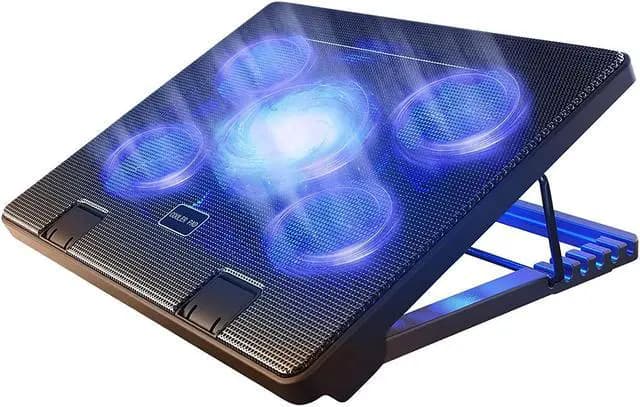
The Kootek is the best-selling laptop cooling pad on the market for a straightforward reason: its five-fan configuration (one 120mm center fan plus four 70mm corner fans) covers the entire underside of laptops up to 17 inches, ensuring airflow reaches every heat source rather than just the center. CGDirector's independent testing showed 7–10°C CPU improvements across comparable multi-fan designs (CGDirector, Nov 2023). At ~$26, it's hard to argue with the value.
The six height settings are genuinely useful for home office ergonomics. You're not just cooling the laptop, you're also tilting it to a more comfortable typing angle. Dual USB pass-through means you don't lose a port to the pad itself. The two independent fan switches let you run only the large center fan for quieter operation during video calls.
Pros
- 5-fan layout (1×120mm + 4×70mm) covers laptops up to 17 inches fully
- 6 height settings double as an ergonomic typing angle adjustment
- Dual USB pass-through, no port sacrifice
- Two independent fan switches allow quieter single-fan operation for calls
- Best-seller status means wide compatibility data across laptop models
- ~$26 is among the lowest prices for a 5-fan design
Cons
- Blue LED illumination can't be fully disabled on all fan modes
- Plastic construction feels light, not the most premium build
- No published dB noise rating, actual noise level is unlisted
Kootek
Laptop Cooling Pad
2. TopMate C302 — Best for MacBooks and Thin Laptops
Best for
MacBook Air and Pro users, and anyone with a slim laptop under 15.6" who wants a cooling pad that doesn't add bulk or weight to the desk.
The TopMate C302's 1-inch profile and 1.09 lb weight make it the obvious choice for thin laptops that don't tolerate bulk. Two 125mm fans at 1,400 RPM move roughly 70 CFM of air, more than adequate for MacBook Air and Pro thermals, while keeping noise at a level appropriate for open-plan home offices. MacBooks run warm under sustained loads: the M-series chips are efficient, but the fanless MacBook Air chassis accumulates heat during extended video exports or Xcode builds.
At ~$20, this is also the entry price for a purpose-built MacBook cooling solution. The single USB pass-through is a minor limitation, but most MacBook users are already working through a hub or docking station anyway.
Pros
- Ultra-slim 1-inch profile, doesn't add visible bulk under a thin laptop
- 1.09 lb weight, trivially light for desk repositioning
- Two 125mm fans provide broad airflow coverage at quiet 1,400 RPM
- Budget price (~$20) makes it an easy first cooling pad
- Low-profile design fits naturally under a laptop stand ergonomic setup
Cons
- Fits only up to 15.6-inch laptops, no 17-inch compatibility
- Only 2 height settings, limited ergonomic adjustment
- Single USB pass-through versus 2 on most competitors
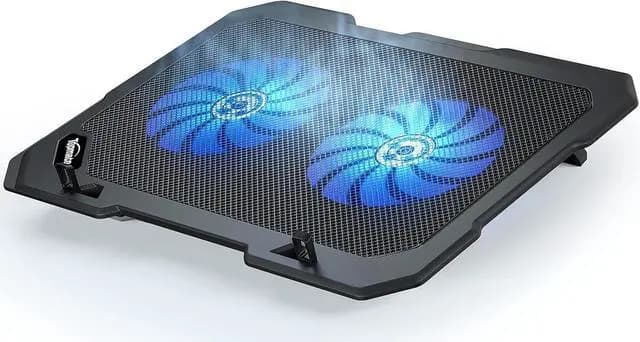
TopMate
C302 Laptop Cooling Pad
3. Havit HV-F2056 — Best Budget
Best for
Home office workers with 15.6–17" laptops who want a quiet, warranty-backed cooling pad under $35, with the bonus of built-in LED task lighting.
The Havit HV-F2056 stands out in the budget tier for two reasons: its 1,100 RPM fan speed is among the quietest in any active cooling pad at this price, and it ships with a 30-day return policy and 12-month warranty, coverage you don't typically see below $40. Three 110mm fans generate 65 CFM of total airflow. That's enough to achieve the 7–10°C temperature improvements CGDirector documented in independent testing (CGDirector, Nov 2023).
The built-in LED task lighting strip is an unusual bonus. It's not a feature most home office workers are looking for in a cooling pad, but it's genuinely useful in dimly lit desk setups. Two USB ports cover most peripheral needs without sacrificing any laptop ports.
Pros
- 1,100 RPM fan speed, one of the quietest active cooling pads at this price
- 30-day return + 12-month warranty, strong coverage for a sub-$35 product
- Dual USB ports for peripheral connection
- LED task lighting strip adds bonus desk illumination
- 3×110mm fan layout covers 15.6–17-inch laptops
Cons
- Only 2 height settings, less ergonomic flexibility than the Kootek
- 1.6 lb is heavier than competitors, noticeable if you reposition often
- No fan speed control, fixed 1,100 RPM only
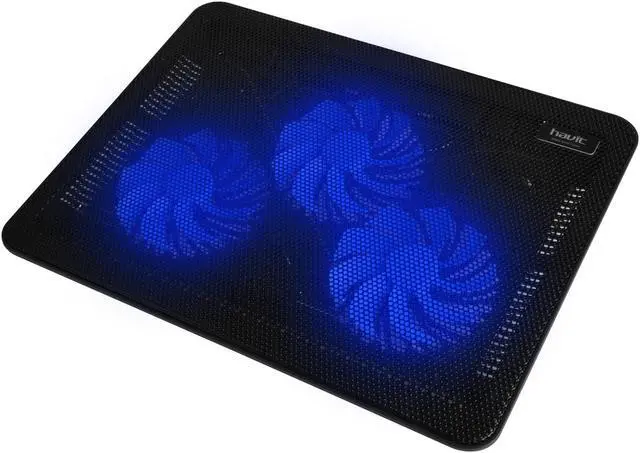
Havit
HV-F2056 Laptop Cooling Pad
4. KLIM Ultimate — Best Premium and Quietest Active Pad
Best for
Noise-sensitive home offices, open-plan setups, and frequent video callers who need active cooling without fan noise appearing on a microphone or disturbing calls.
The KLIM Ultimate's single 200mm fan running at 750 RPM is the defining feature. Physics explains why this matters: a larger fan moves the same volume of air at a lower rotational speed than a smaller fan, and lower RPM means less noise. For home office workers doing video calls, where fan noise bleeds into the microphone and audio track, this is a significant practical advantage. No published dB rating, but 750 RPM on a 200mm fan is audibly quieter than any 70–110mm fan spinning at 1,100–2,000 RPM.
The global laptop cooling pad market was valued at USD 405.2 million in 2023 and is projected to reach USD 712.1 million by 2033, with active cooling pads holding 56.3% market share (Market.us, Mar 2025). KLIM sits at the premium end of that active market. The 5-year warranty is the longest in this roundup. RGB lighting with 5 effects and 7 colors is either a draw or a distraction, depending on your setup aesthetic.
Citation capsule: Active cooling pads represent 56.3% of the global laptop cooling pad market, valued at USD 405.2 million in 2023 and projected to reach USD 712.1 million by 2033 at a 5.8% CAGR (Market.us, Mar 2025). The KLIM Ultimate addresses the primary active-pad complaint, noise, by using a single 200mm fan at 750 RPM rather than multiple small fans at 1,000–2,000 RPM. Lower RPM on a larger blade produces equivalent airflow at substantially reduced acoustic output.
Pros
- 200mm fan at 750 RPM delivers powerful airflow at the lowest RPM on this list
- Measurably quieter than small multi-fan designs, suitable for video calls
- 5-year warranty, longest coverage of any pad in this roundup
- 4 height levels with premium build quality
- Fits up to 17.3-inch laptops
Cons
- ~$42 is the highest price on this list
- No multi-port USB hub, single pass-through only
- RGB lighting is not everyone's preference in a home office aesthetic
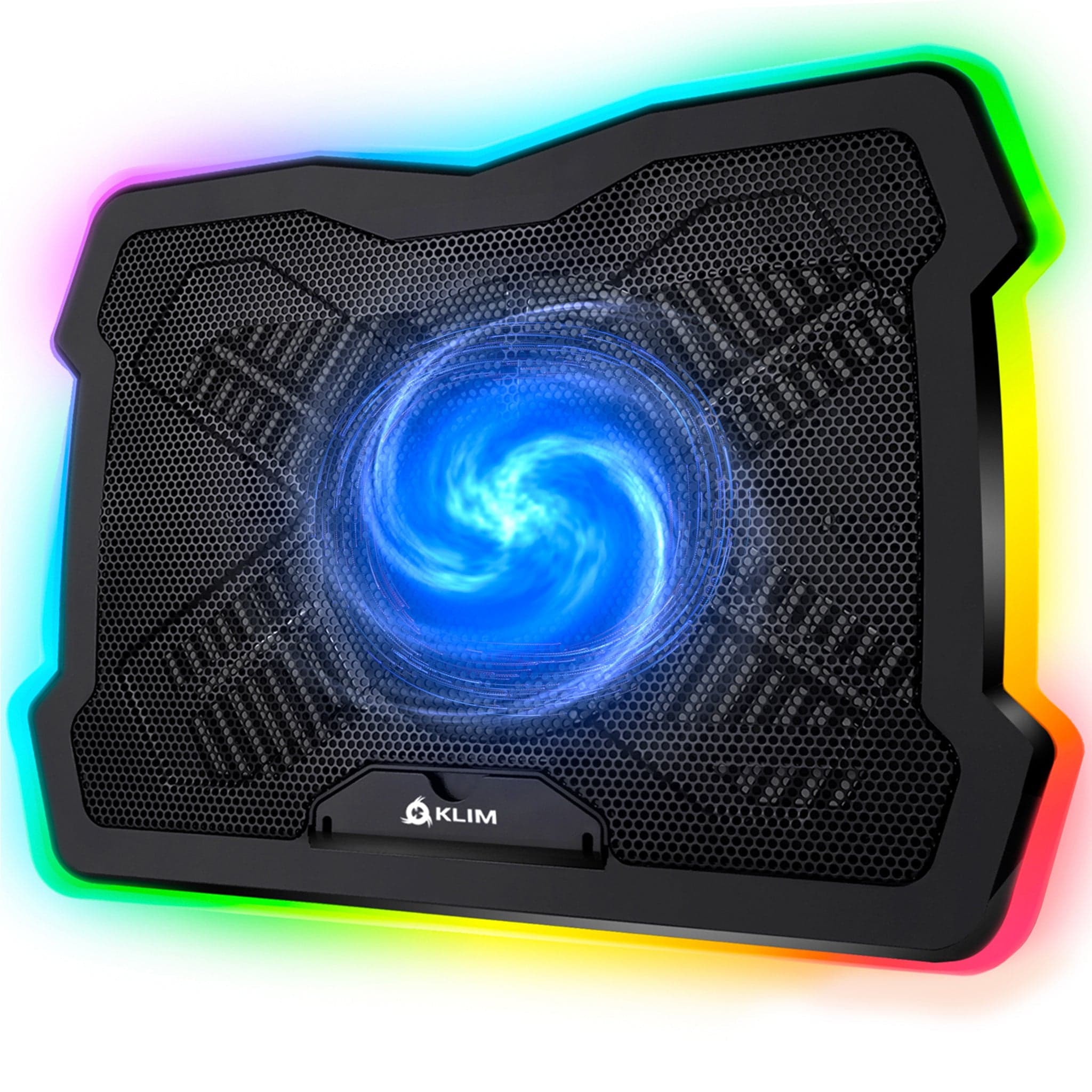
KLIM
Ultimate Laptop Cooling Pad
5. Nulaxy C3 Aluminum Laptop Stand — Best Passive and Completely Silent
Best for
Workers who prioritize silence above all else, no fans, no noise, no moving parts, and want the posture benefit of a raised screen alongside passive thermal improvement.
No competitor roundup includes a passive stand as a legitimate cooling alternative. They should. The Nulaxy C3 elevates the laptop 7 inches off the desk surface, allowing natural convective airflow beneath the chassis, the same heat dissipation mechanism your laptop's vents are designed to use, just with less obstruction. Windows Central's testing showed passive cooling solutions reduce temperatures by 3–7°C under moderate loads, which is enough to prevent throttling on many thin-and-light laptops running productivity workloads.
The CNC-cut aluminum construction conducts heat away from the chassis passively, a measurable advantage over plastic stands. Zero fans means zero noise, zero failure points, and zero RPM to worry about. The screen elevation also brings a 13–16 inch laptop to near-eye level, delivering the posture benefit that a laptop stand for home office provides, with the thermal benefit included. For workers on Zoom calls all day who need absolute silence and moderate cooling, this is the most complete solution.
Note the real limitation: sustained CPU-heavy workloads, 4K video exports, long compilation runs, sustained gaming, generate more heat than passive convection can manage. For those tasks, an active pad is the right tool.
Pros
- Zero fans, completely silent with no acoustic footprint on video calls
- CNC aluminum construction conducts heat away from chassis passively
- Elevates screen 7 inches, near-eye level posture benefit included
- No moving parts, no wear, no failure points, no maintenance
- Works with any 10–16 inch laptop across any OS or brand
Cons
- Passive cooling only, not sufficient for sustained CPU-heavy workloads
- No USB ports, no pass-through connectivity
- Fits up to 16 inches only, excludes 17-inch gaming laptops
- Requires external keyboard and mouse once screen is elevated
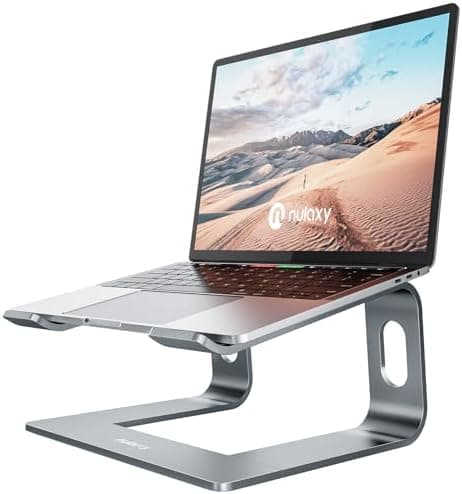
Nulaxy
C3 Aluminum Laptop Stand
How to Choose the Right Cooling Pad for Your Home Office

Picking the right cooling pad comes down to four decisions: how much heat your laptop actually generates, how sensitive your workspace is to fan noise, whether you need the cooling and ergonomics problem solved simultaneously, and your budget. The global cooling pad market is growing at 5.8% CAGR (Market.us, Mar 2025), which means more options, but also more noise to cut through.
Active vs. Passive: Which Do You Actually Need?
Active cooling pads (fans) hold 56.3% of the market for a reason, they work under sustained load (Market.us, Mar 2025). If you regularly run video exports, Zoom calls with screen share, large Excel models, or any task that pins the CPU above 80% for more than a few minutes, you need active cooling. Passive convection alone won't keep pace with sustained thermal output.
Passive stands are the right call for lighter workloads. Document editing, browser research, light spreadsheet work, and Zoom calls without heavy encoding rarely push a modern laptop into throttling territory. A passive aluminum stand solves the ergonomics problem simultaneously, at a lower price, in complete silence.
Fan Count and Size
More fans don't automatically mean more cooling. What matters is coverage area and CFM (cubic feet per minute) airflow. A single 200mm fan at 750 RPM moves substantial air quietly. Four 70mm fans at 2,000 RPM move similar air more noisily and cover less total surface area per fan.
For laptops 15 inches and larger, multi-fan designs that cover the full chassis underside are more effective than a single center fan. For MacBooks and slim laptops under 15 inches, one or two larger fans positioned to cover the primary heat vent area outperform five small fans spread across a larger pad frame.
Size Compatibility
Check the pad's stated laptop size range before buying. A pad built for up to 15.6 inches with perimeter ridges will physically grip a 17-inch laptop's chassis incorrectly, potentially restricting the vents it's meant to cool. Most pads state a maximum size; verify your laptop's diagonal measurement against that spec.
Noise and Video Calls
This matters more than most reviews acknowledge. Fan noise from a cooling pad sits in the 800–3,000 Hz range, exactly where microphones pick up background hum. During a Zoom call, a 70mm fan at 2,000 RPM is audible to other participants. The KLIM Ultimate at 750 RPM is not. If you're on calls for more than two hours a day, build noise level into the buying decision.
Battery and Long-Term Costs
Sustained heat accelerates battery wear. Lithium-ion cells at 45°C lose 6.7% of their capacity after 200 charge cycles, versus 3.3% at 25°C (Chargie.org, 2023). A $26 cooling pad that extends battery replacement from year three to year five pays for itself in avoided battery costs alone. Power draw during throttling drops to 23–30W versus 50W at full performance, a 40–60% reduction (MakeUseOf, Apr 2023). Keeping the CPU out of throttling also means faster task completion, which means less total time at peak power draw.
Frequently Asked Questions
Does a laptop cooling pad actually make a difference?
Yes, under load. Independent testing by CGDirector (Nov 2023) found 7–10°C CPU temperature improvements across multiple cooling pad models. Windows Central (Feb 2026) measured a 21°C GPU temperature drop with a Razer pad. If your laptop is throttling at 95–100°C, those gains directly restore lost performance.
Will a cooling pad help my MacBook?
It depends on the model. The fanless MacBook Air accumulates heat during sustained workloads, Xcode builds, Final Cut exports, long Pages documents with heavy media. A cooling pad or passive aluminum stand helps the chassis exhaust that heat. The MacBook Pro has its own fans and handles thermals more aggressively, but still benefits under sustained load.
Does running a laptop hot really damage the battery?
Yes. Lithium-ion batteries at 45°C lose approximately 6.7% of their capacity after 200 charge cycles, compared to 3.3% at 25°C (Chargie.org, 2023), doubling the degradation rate. A cooling pad that keeps average operating temperature near 35°C rather than 45°C meaningfully extends battery lifespan.
What is thermal throttling and how do I know if it's happening?
Thermal throttling is when a CPU automatically reduces its clock speed to lower heat output and protect hardware. Intel CPUs throttle at 95–100°C; AMD Ryzen 5000 throttles at 90°C (How-To Geek, 2025). Free tools like HWMonitor (Windows) or iStat Menus (Mac) show real-time CPU temperature and clock speed. If you see clock speed drop during demanding tasks, throttling is happening.
Can I use a cooling pad with a laptop docking station?
Yes, they're complementary tools. A docking station handles connectivity; a cooling pad handles thermals. Position the cooling pad under the laptop before connecting the docking station. If you use a laptop stand and a docking station together, consider the Nulaxy C3, which combines the stand and passive cooling in one piece.
The Bottom Line
A laptop cooling pad is a $20–42 fix for a problem that quietly costs you performance, battery life, and, eventually, an avoidable hardware replacement. If your laptop runs warm during Zoom calls, exports, or any sustained workload, the numbers are clear: 7–21°C temperature drops are achievable with the right pad, and staying below the throttle threshold restores full CPU performance.
For most home office workers, the Kootek is the right starting point, five fans, six height settings, dual USB pass-through, all for $26. Video callers and open-plan workers should look at the KLIM Ultimate instead, where the 200mm/750 RPM fan keeps acoustic footprint off the microphone. If you want complete silence and the posture benefit of a raised screen, the Nulaxy C3 is the only passive option in this guide, and the only one no competitor roundup bothers to mention.
The rest of your laptop setup pairs naturally with this choice. The guides on best laptop for home office, best docking station for home office, and best home office desk cover the decisions that sit around this one.