The laptop has become the most personal productivity tool in a modern home office — but most people buy the wrong one. They optimize for benchmark scores instead of workflow. The machine that runs 18 hours on battery, starts instantly, and stays completely silent during a video call beats a faster machine that throttles after 30 minutes or wakes up its fans every time Chrome opens a new tab.
Home office use is a specific workload. It's not gaming. It's not video production. It's 6–8 hours of sustained browsing, writing, video calls, and documents, often without reliable outlet access. What matters here is different. According to IDC (2025), global laptop sales reached 260 million units in 2025, with hybrid and remote work cited as the primary demand driver — meaning manufacturers are paying attention to this use case. But spec sheets still don't tell you what you need to know.
These five picks are chosen for all-day work, not benchmarks.
TL;DR: For most home office workers, the Apple MacBook Air M3 is the right answer, 18-hour battery, fanless silence, and zero maintenance overhead. Windows users should look at the Lenovo ThinkPad X1 Carbon Gen 12 for best keyboard and enterprise reliability. According to IDC (2025), laptop sales hit 260 million units in 2025 driven by hybrid work demand, making the home office laptop market more competitive than it's ever been. All five picks below are optimized for all-day work, not benchmark scores.
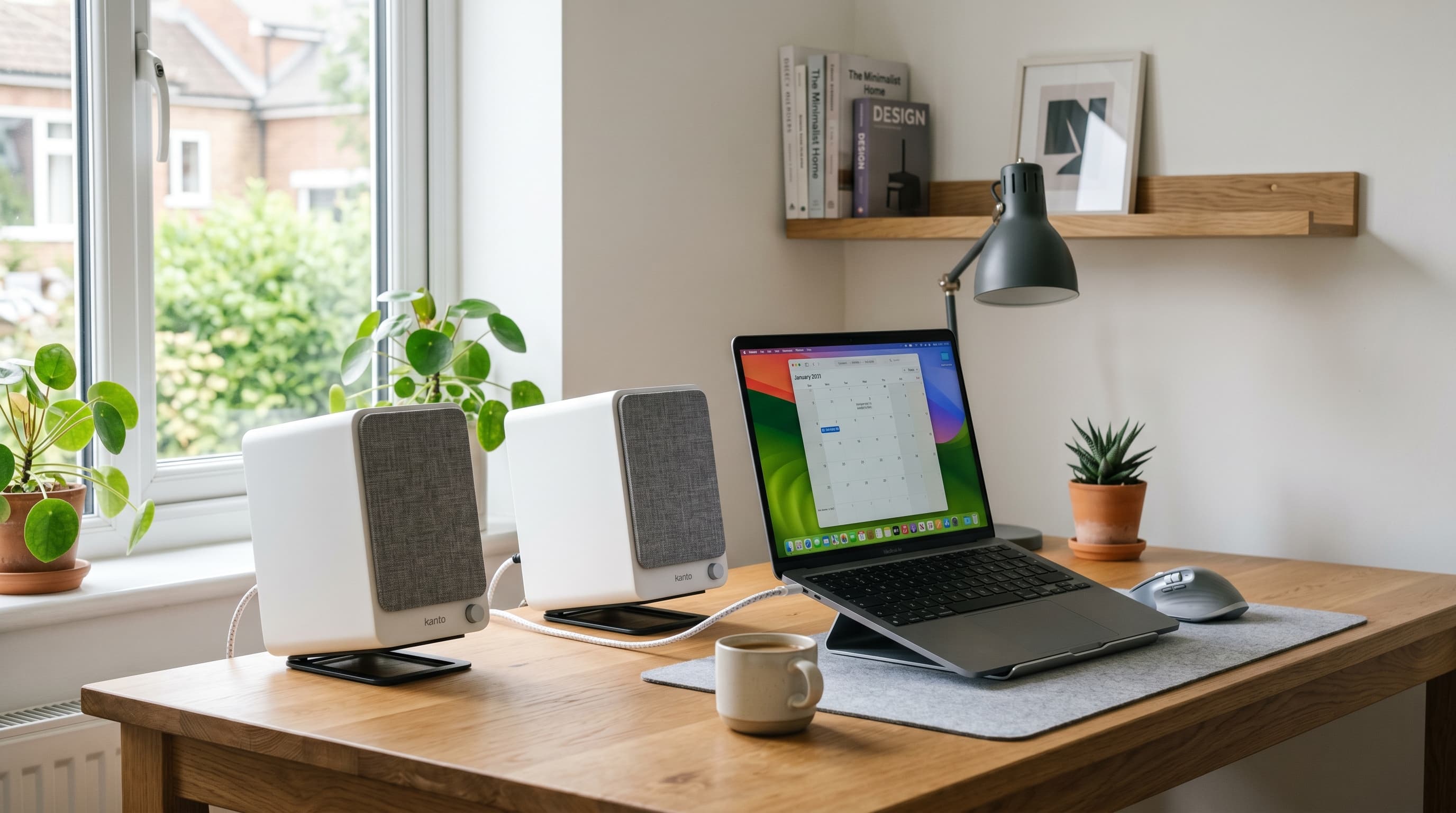
[IMAGE: Overhead shot of a MacBook Air on a clean wooden desk with an external keyboard, mouse, and coffee, search terms: MacBook desk setup home office minimal]
What Makes a Laptop Good for Home Office Work?
Most review sites score laptops on CPU benchmarks and port counts. For home office use, neither is the deciding factor. According to a 2024 usage analysis by Laptop Mag, the average knowledge worker runs 12–18 browser tabs, one video call, and one document editor simultaneously, a workload that requires sustained performance over hours, not peak bursts.
That distinction matters more than it sounds. Thin laptops with aggressive thermal designs throttle under sustained load. A machine that benchmarks brilliantly for 10 minutes and then slows 30–40% for the next two hours is worse for an 8-hour workday than a machine with a more modest peak that holds consistent speed all day. Battery life, thermal behavior, keyboard quality, and fan noise are the metrics that define home office experience, not Cinebench scores.
Here's something manufacturers don't advertise: the battery life numbers on spec sheets are measured under light, single-task conditions. Run a video call with browser tabs and a document editor open simultaneously, a normal home office morning, and you drain 25–40% faster than the rated figure. Real-world home office battery life is typically 60–70% of the spec sheet number. A laptop rated at 20 hours delivers about 13–14 hours under realistic load. That math matters when you're deciding whether to carry a charger.
Silent operation is underrated in the same way. Fan noise during video calls isn't just mildly embarrassing, it actively degrades the call quality for the other person and signals unprofessionalism in a client meeting. The fanless MacBook Air M3 is conspicuous in the best way: the absence of noise is more noticeable than you'd expect once you've experienced it.
The other factor most guides underweight is keyboard quality. Eight hours of daily typing makes keyboard feel a genuine productivity variable. A keyboard with insufficient travel and mushy feedback creates fatigue that accumulates over days. The ThinkPad X1 Carbon's keyboard has set the benchmark for a reason, not because of specs, but because typing on it for a full workday feels different than typing on a shallow laptop keyboard.
Citation capsule: The average knowledge worker runs 12–18 browser tabs, one video call, and a document editor simultaneously during a typical workday (Laptop Mag, 2024). Under this combined workload, real-world battery drain runs 25–40% faster than manufacturer-rated figures, meaning a laptop rated at 18 hours under light use delivers approximately 11–14 hours in a realistic home office session. Sustained thermal performance under multi-hour load, not peak benchmarks, is the metric that separates good home office laptops from great ones.
Related: best home office monitors 2026
The 5 Best Laptops for Home Office in 2026
| Laptop | Best For | Battery Life | Starting Price |
|---|---|---|---|
| MacBook Air 13" M3 | Best overall | ~18 hrs (spec) / ~13 hrs real | ~$1,099 |
| Lenovo ThinkPad X1 Carbon Gen 12 | Best for Windows / enterprise | ~15 hrs (spec) / ~10 hrs real | ~$1,299 |
| ASUS Zenbook 14 OLED | Best display under $900 | ~12 hrs (spec) / ~8 hrs real | ~$799 |
| HP Spectre x360 14 | Best 2-in-1 | ~14 hrs (spec) / ~9 hrs real | ~$1,199 |
| Dell XPS 15 | Best for power users | ~10 hrs (spec) / ~7 hrs real | ~$1,399 |
1. Apple MacBook Air 13" M3 — Best Overall
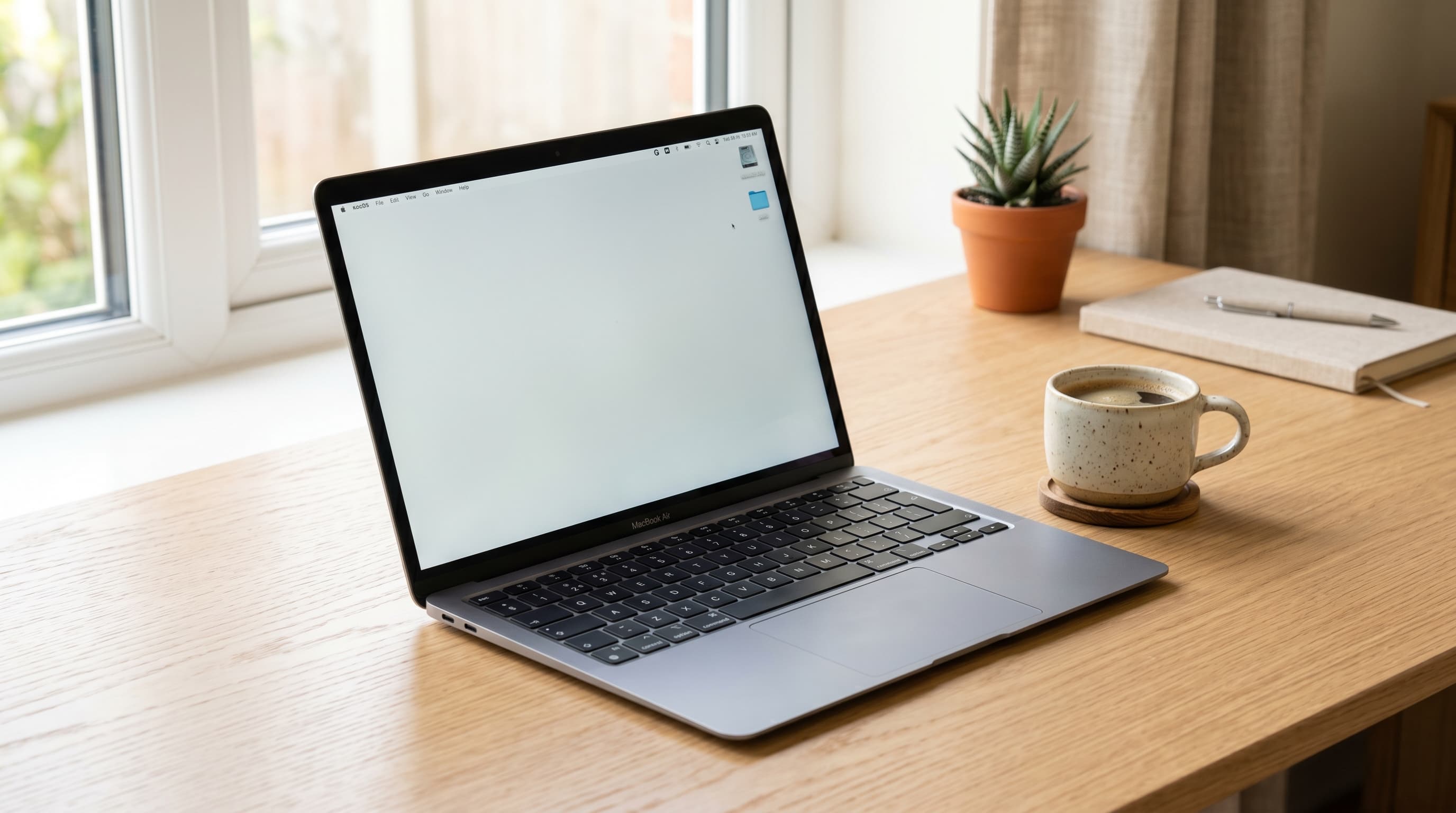
The MacBook Air M3 is the home office laptop for the vast majority of people who don't have Windows-specific requirements. Apple's M3 chip runs the full office workload, video calls, browsers, documents, spreadsheets, without spinning a single fan, because there isn't one. The fanless design is possible because the M3's efficiency architecture generates so little heat that passive cooling handles everything.
Using a fanless laptop in a quiet home office changes the experience in ways that are hard to predict until you've done it. The first time a client starts talking during a video call and you realize the room is completely silent, no fan whirring, no thermal noise, nothing, it's the kind of absence you notice. It's also the kind of thing that signals to the person on the other end that your setup is professional and deliberate. In a home office where a fan would be the loudest thing in the room, that silence matters.
Battery life rated at 18 hours; expect 13–14 hours under combined browser, video call, and document load. That's still enough for a full working day without reaching for a charger. The Liquid Retina display covers the P3 wide color gamut, a technical spec that translates to colors that look accurate and a screen that's comfortable to work on for long sessions without eye fatigue.
Pros
- Fanless design, completely silent during video calls and under sustained load
- 13–14 hours real-world battery under combined workload, full day without a charger
- M3 chip handles all office tasks without thermal throttling
- Liquid Retina display with P3 wide color, accurate, low-fatigue screen for long days
- 1.24 kg (2.7 lbs), lightest laptop on this list
Cons
- Only two Thunderbolt/USB-C ports, a USB hub is effectively required for desk use
- Base 8GB RAM is tight for heavy multitaskers, spec to 16GB at purchase
- No HDMI or SD card slot without a dongle or hub
- macOS only, incompatible with Windows-only enterprise software
Best for: Home office workers who prioritize battery life, silence, and a low-friction daily experience and don't have Windows-specific requirements.
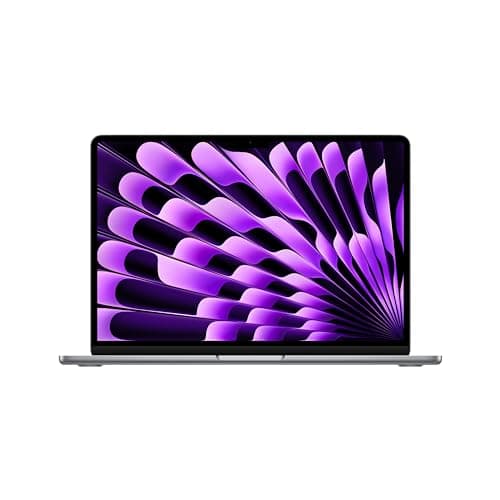
Apple
MacBook Air 13" M3
Fanless design stays completely silent. 13–14 hrs real-world battery under combined workload. Lightest at 1.24 kg.
2. Lenovo ThinkPad X1 Carbon Gen 12 — Best for Windows / Enterprise
The ThinkPad X1 Carbon Gen 12 is the Windows laptop that professional home office workers reach for when keyboard quality and long-term durability matter as much as specs. The keyboard is best-in-class, deeper key travel than any other Windows ultrabook on this list, tactile feedback that makes 8-hour typing sessions feel manageable, and a layout that hasn't changed meaningfully in years because it doesn't need to.
Intel Core Ultra processors with Intel AI Boost handle the sustained office workload reliably. Thermal design on the X1 Carbon is mature, Lenovo has tuned it across 12 generations, and it shows in real-world behavior: the fans stay quiet under light load and ramp predictably under heavier demands rather than cycling unpredictably. Real-world battery life under combined load runs around 10 hours, shorter than the MacBook Air but competitive for a Windows ultrabook.
Citation capsule: The Lenovo ThinkPad X1 Carbon Gen 12 weighs 1.12 kg (2.48 lbs) and carries a MIL-SPEC 810H certification covering 12 environmental stress tests including temperature extremes, humidity, and vibration (Lenovo, 2024). For enterprise home office workers whose laptops travel frequently between desk and client sites, that certification represents verified physical resilience rather than marketing language.
Pros
- Best keyboard on any Windows ultrabook, deepest travel and best feedback in class
- MIL-SPEC 810H certified for environmental durability, built to last years of real use
- Intel Core Ultra with efficient thermal tuning, quiet fan behavior under light load
- 1.12 kg, lighter than most 14-inch Windows laptops
- Enterprise IT compatibility, works with corporate VPNs, MDM, and security tools
Cons
- ~10 hours real-world battery, shorter than MacBook Air under the same workload
- Starting price of ~$1,299 puts it at a premium over most Windows alternatives
- Display color accuracy on base models is acceptable but not exceptional
- Fan noise audible under heavier loads, not fanless
Best for: Windows users, enterprise professionals, or anyone who types for hours daily and prioritizes keyboard quality above all other specs.
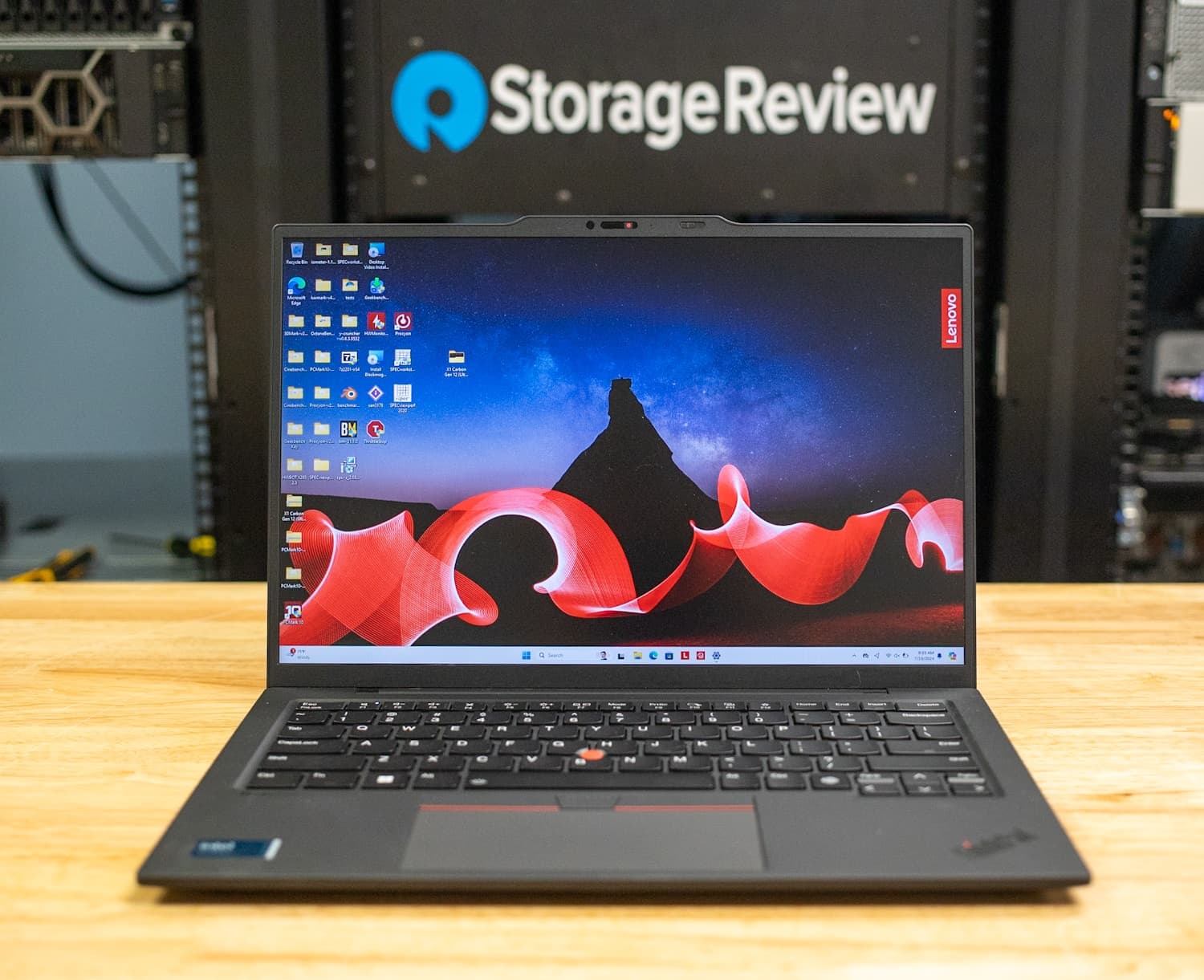
Lenovo
ThinkPad X1 Carbon Gen 12
Best-in-class keyboard on any Windows ultrabook. MIL-SPEC 810H certified. ~10 hrs real-world battery, 1.12 kg.
3. ASUS Zenbook 14 OLED — Best Display Under $900
The ASUS Zenbook 14 OLED delivers a display that should cost more. The 2.8K OLED panel covers 100% of the DCI-P3 color gamut with VESA DisplayHDR True Black 500 certification, specifications that rival displays on laptops costing $400 more. For home office workers who spend hours reading documents and emails, the OLED's perfect blacks and pixel-level contrast reduce eye fatigue in a way that IPS panels don't.
AMD Ryzen 7 8700H handles the office workload without issue. Real-world battery under combined load runs around 8 hours, shorter than the MacBook Air, but typical for OLED panels, which consume more power than LCD screens. The 1.39 kg weight keeps it portable despite the display premium.
Pros
- 2.8K OLED display with 100% DCI-P3, the best screen quality under $900
- VESA DisplayHDR True Black 500, true HDR contrast, not marketing-grade
- AMD Ryzen 7 8700H handles sustained office workloads without visible throttling
- Under $900, the most affordable OLED laptop on this list
Cons
- ~8 hours real-world battery, OLED panels consume more power than LCD equivalents
- OLED screens can develop image retention with static UI elements over time
- Keyboard feel is adequate but not in the same class as the ThinkPad X1 Carbon
- Webcam quality is mediocre, worth pairing with an external webcam for video calls
Best for: Home office workers who spend most of the day reading, writing, or doing color-sensitive work and want OLED display quality without a $1,200+ price tag.
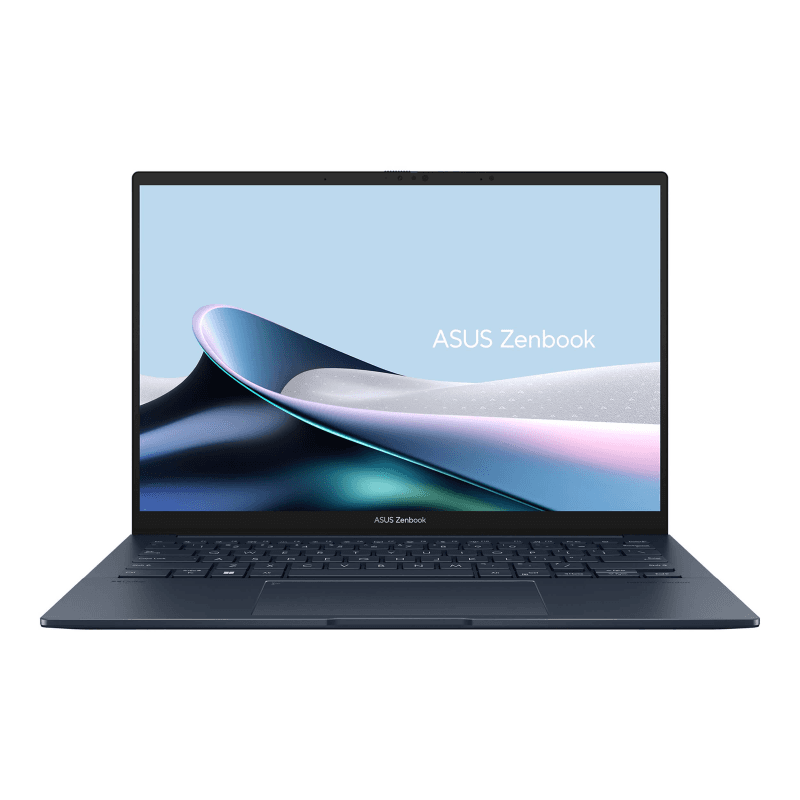
ASUS
Zenbook 14 OLED
2.8K OLED with 100% DCI-P3 and VESA DisplayHDR True Black 500. AMD Ryzen 7 8700H.
4. HP Spectre x360 14 — Best 2-in-1
The HP Spectre x360 14 is the right laptop for home office workers who occasionally want tablet mode, for annotating PDFs with a stylus, sketching diagrams, or propping the screen in tent mode for video playback during a break. Most 2-in-1 laptops compromise on either keyboard quality or display quality to hit both modes. The Spectre x360 compromises less than any other option in its price range.
The 2.8K OLED display (on the OLED configuration) matches the Zenbook 14's visual quality. Intel Core Ultra performance handles sustained office workloads. The 360-degree hinge is built to withstand daily rotation, HP uses dual-torque hinges that stay firm at any angle rather than flopping. Real-world battery at about 9 hours under combined load makes it a full-day machine for most workers.
Pros
- 360-degree dual-torque hinge, stays firm at any angle, built for daily rotation
- OLED display option matches Zenbook 14 quality with added touch support
- HP Tilt Pen included, stylus annotation without an added purchase
- Intel Core Ultra handles sustained multitasking reliably
- Attractive aluminum build that looks professional on desk and in client meetings
Cons
- ~9 hours real-world battery, adequate but not exceptional
- Heavier than the MacBook Air at ~1.4 kg due to 360-degree hinge mechanism
- Starting price of ~$1,199 is high for users who rarely use tablet mode
- Fan noise audible under CPU-heavy tasks
Best for: Home office workers who want a single device that works as both a laptop and a drawing/annotation tablet, without carrying a separate iPad or tablet.
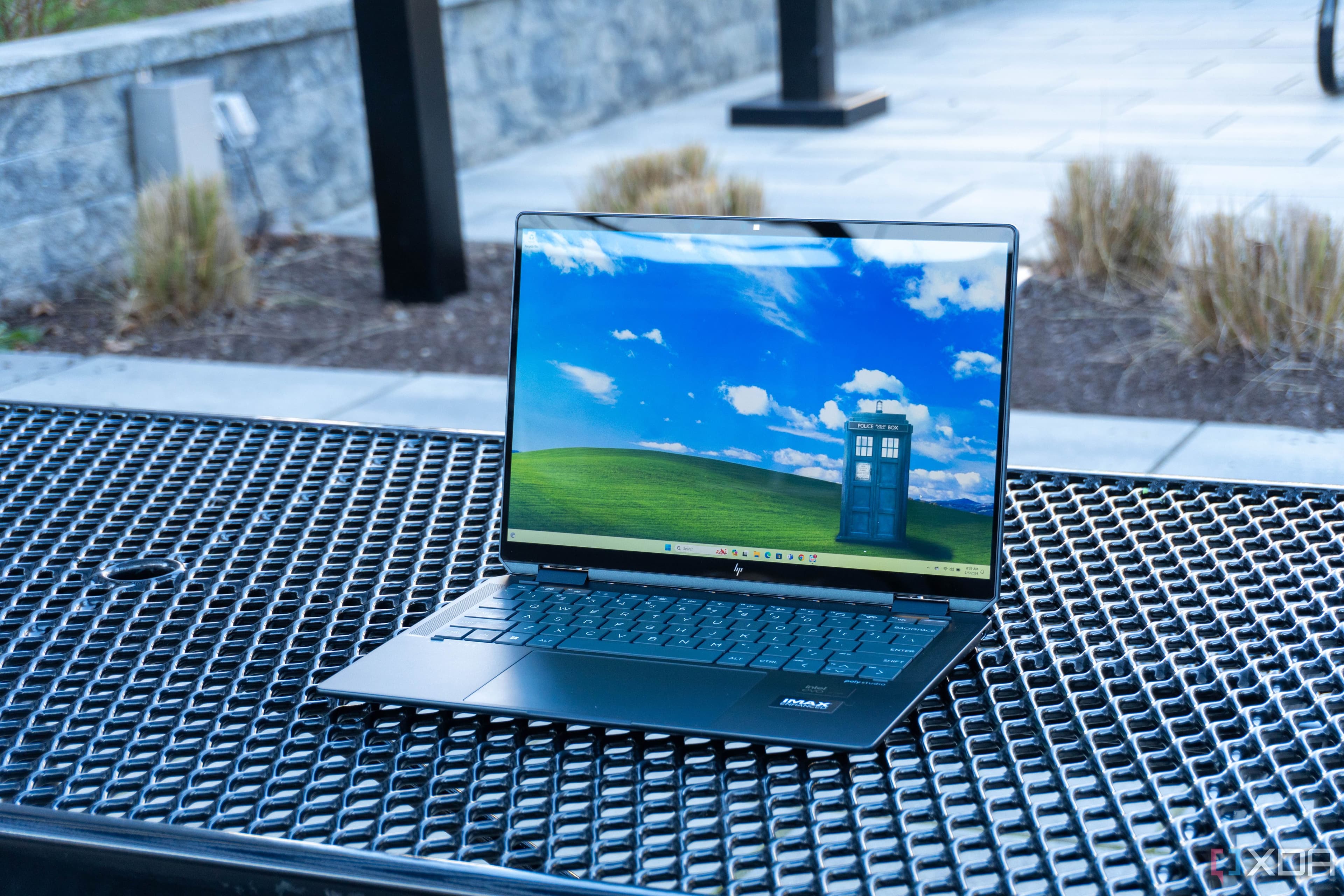
HP
Spectre x360 14
Full 360° hinge converts between laptop and tablet mode. OLED touch display, Intel Core Ultra 7, included stylus.
5. Dell XPS 15 — Best for Power Users
The Dell XPS 15 is for home office workers who need more processing muscle than an ultrabook delivers, content creators who render video between meetings, data workers running Python environments, developers compiling code. The Intel Core Ultra H-series processor and optional NVIDIA discrete GPU handle workloads the other laptops on this list can't sustain. It pays for that performance with a shorter battery life and more fan noise under load.
At ~$1,399 starting price and 1.86 kg, the XPS 15 is the heaviest and most expensive laptop on this list. For most home office workers doing documents, video calls, and browsing, it's more machine than necessary. For the specific user who runs heavy software alongside standard office tasks, it's the only laptop here that won't become a bottleneck.
Pros
- Intel Core Ultra H-series, sustained high-performance for CPU-intensive workloads
- NVIDIA discrete GPU option handles video export, data visualization, and light creative work
- 15.6-inch OLED display option, large screen reduces scrolling fatigue on long documents
- Thunderbolt 4 and SD card slot built in, fewer dongles needed than the MacBook Air
Cons
- ~7 hours real-world battery under load, requires charger for most full workdays
- 1.86 kg, noticeably heavier than every other laptop on this list
- Fan noise is significant under CPU load, audible during video calls if throttling
- ~$1,399 starting price, hard to justify unless you actually need the extra performance
Best for: Home office workers who run CPU or GPU-intensive software alongside standard productivity tasks and are willing to trade portability and battery life for sustained performance.
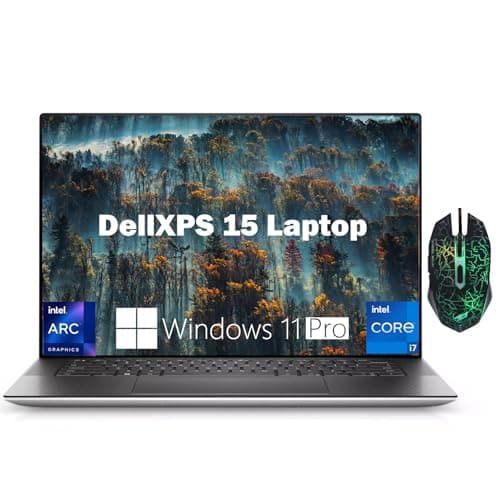
Dell
XPS 15
Intel Core Ultra 9, NVIDIA RTX 4060, 15.6-inch OLED. Handles video editing, 3D work, and virtualization alongside standard home office tasks.
Should You Use a Laptop Stand and External Monitor?
A laptop used directly on a desk creates a posture problem that most people ignore until it hurts. The screen sits 8–15 inches below eye level, which means your neck is angled down for every minute of every working day. Cornell University's Human Factors and Ergonomics Research Group is specific: the top of your monitor should sit at or just below eye level, approximately 2–3 inches below seated eye height. No laptop used flat on a desk achieves that.
A laptop stand raises the screen 4–6 inches and closes most of the ergonomic gap. The trade-off is that your keyboard and trackpad rise with it, which makes extended typing uncomfortable. The practical solution is a stand plus an external keyboard and mouse, keeping your hands at desk level while your screen sits at proper eye height. The full investment typically runs $75–180 for stand plus peripherals.
For home office workers who spend most of the day at their desk, pairing any laptop with an external monitor is the single ergonomic improvement with the highest return. The laptop becomes a CPU module; your actual display is at proper height, proper size, and connected to a full keyboard and mouse. Our dual monitor setup guide covers how to extend this to a two-screen workspace without creating new sources of neck strain.
One recommendation that rarely appears in laptop guides: if you're going to use your laptop primarily docked at a desk with external peripherals, the most important specs shift entirely. Battery life matters less; thermal performance under sustained load matters more. A laptop that throttles when plugged in, which some thin Windows ultrabooks do under heavy CPU loads even on AC power, is more disruptive in a docked setup than a portable one. Check reviews for sustained CPU performance, not just battery life, before buying for a desk-primary use case.
Related: best ergonomic chairs under $300
What Specs Actually Matter for Home Office Work?
Choosing a home office laptop is easier when you ignore the specs that don't matter for your workload and focus on the four that do. According to a Notebookcheck analysis of business laptop usage (2024), CPU performance beyond the 15W TDP class provides no measurable benefit for knowledge worker tasks, the bottleneck is almost always RAM or storage speed, not processor throughput.
RAM: 16GB Minimum, 32GB for Heavy Multitaskers
8GB RAM is a bottleneck waiting to happen. With 12 browser tabs, a video call, a document editor, and email open simultaneously, a normal home office morning, 8GB systems page to storage regularly, creating sluggish response times that accumulate into real frustration. 16GB handles that workload comfortably. 32GB is worth paying for only if you run local AI models, keep 30+ tabs open as a habit, or use memory-heavy creative software alongside office tasks.
Storage: 512GB Minimum
Operating system plus applications plus files plus OS updates consumes 200GB before you've saved a single work document. 256GB SSDs fill up faster than most buyers anticipate. 512GB provides comfortable headroom without requiring cloud-only workflows. 1TB is worth the upgrade if you store local video files or large project archives.
Processor: Apple Silicon or Intel Core Ultra / AMD Ryzen 7
For Mac: M3 is the baseline. M3 Pro is only worth the premium if you run sustained CPU-intensive tasks. For Windows: Intel Core Ultra series (100 or 200) and AMD Ryzen 7 8000-series both handle office workloads well. Avoid older 12th-gen Intel Core i5 processors at full price, they represent outdated architecture at a premium.
Battery: Check Real-World Reviews, Not the Spec Sheet
The spec sheet number is measured under single-task light use. For a realistic home office estimate, find Notebookcheck or Tom's Guide reviews that include a video-playback battery test. Their numbers run 20–30% below spec, but still measure under lighter-than-real-office conditions. Expect 60–70% of the spec sheet number under combined video call plus browsing load.
Ports: Plan for a Hub Before You Buy
Most modern ultrabooks ship with USB-C only. The MacBook Air M3 has two Thunderbolt ports. The ThinkPad X1 Carbon has more, two Thunderbolt 4, two USB-A, HDMI, but even it benefits from a hub when fully docked. If your laptop ships with USB-C only, budget for a USB hub as part of the total cost, a good 7-in-1 hub runs $25–55 and adds the ports your desk setup needs. For a full home office build from scratch, our home office setup under $500 guide covers how to prioritize these additions.
Related: best keyboard and mouse for home office
Citation capsule: CPU performance above the 15W TDP class delivers no measurable benefit for knowledge worker tasks including web browsing, document editing, and video conferencing, according to Notebookcheck's 2024 business laptop benchmark analysis. RAM capacity (minimum 16GB) and storage speed are the primary performance bottlenecks for typical home office workloads, making them higher-priority upgrade targets than processor tier when configuring a new laptop purchase.
[CHART: Bar chart, real-world battery life vs. spec-sheet battery life for all 5 laptops, source: Laptop Mag real-world battery tests 2024]
The Right Laptop Won't Make You More Productive — But the Wrong One Will Make You Less
For most home office workers, the MacBook Air M3 is the answer. Not because Apple marketing says so, because an 18-hour battery rating that delivers 13 real-world hours, a fanless design that never intrudes on a video call, and an operating system that stays out of your way adds up to a machine you stop thinking about. That's the goal.
If your work requires Windows or you have enterprise IT requirements, the ThinkPad X1 Carbon Gen 12 is the laptop you'll still appreciate three years from now. The keyboard alone is worth the premium over generic Windows ultrabooks.
Budget is tighter? The ASUS Zenbook 14 OLED delivers a display that punches above its price class. The screen quality alone makes long document days less draining.
Whatever you buy, pair it with a proper desk setup. The laptop is only part of the equation, and our work-from-home productivity guide covers the habits and environment changes that compound a good hardware choice into a genuinely productive home office.