Your keyboard and mouse are the only two pieces of equipment your hands contact for eight straight hours. That's not a peripheral decision — it's a health decision. A 2025 study published in Scientific Reports found that 80.81% of office workers experience work-related musculoskeletal disorders, with neck, lower back, and wrist pain leading the list (Mohammadian et al., Scientific Reports / Nature, 2025). Choosing the right input devices matters more than most buyers expect.
The case for a matched combo rather than two individual picks comes down to three things: one USB receiver, one ecosystem for multi-device switching, and pricing that rewards the bundle. This guide covers the five best wireless keyboard and mouse combos for home office in 2026, plus a practical breakdown of 2.4GHz versus Bluetooth that most reviews skip entirely.
If you'd rather build your own pairing from individual picks, our best keyboard and mouse for home office guide covers the best standalone options separately.
TL;DR: The Logitech MX Keys S Combo (
$170) is the best wireless keyboard and mouse combo for most home offices — one Logi Bolt receiver, USB-C rechargeable, and three-device multi-switching. The wireless keyboard/mouse market hit $3.77B in 2025 (Market Report Analytics, 2025), and matched combos represent the fastest-growing segment. Budget pick: Logitech MK295 Silent ($40).
Why Buy a Matched Combo Instead of Individual Picks?
With 36.2 million Americans projected to work remotely by end of 2025 (GlobalWorkplaceAnalytics via Future Market Insights, 2025), the home office peripheral market has matured fast. Yet most reviews still treat keyboard and mouse as separate decisions. The combo argument is stronger than it looks, and the trade-offs are real.
A matched combo means one USB receiver handles both devices. That's one port occupied on your laptop or dock instead of two, and one less dongle to lose. If you're running a docking station, our best docking station for home office guide covers how USB-A dongle placement fits into a full port plan.
The second advantage is coordinated multi-device switching. Premium combos like the MX Keys S let you tap a button to jump keyboard and mouse simultaneously to a second or third device, your laptop, desktop, and tablet all stay synced without re-pairing. Individual picks from different ecosystems won't coordinate that switch automatically.
Bundle pricing is the third factor. The Logitech MX Keys S Combo saves roughly $30 versus buying the MX Keys S keyboard and MX Anywhere 3S mouse separately. That pattern holds across the lineup.
Where individual picks win: if you want a mechanical keyboard or a large ergonomic mouse like the MX Master 3S that isn't available in a combo, mixing and matching is the right call. For everyone else, the convenience of a matched combo is hard to argue against.
Quick Comparison
| Combo | Price | Connection | Battery | Best For |
|---|---|---|---|---|
| Logitech MX Keys S Combo | ~$170 | Logi Bolt + BT | USB-C rechargeable | Best overall |
| Logitech MK850 Performance | ~$100 | Bolt + BT | USB-C / AA | Best mid-range |
| Microsoft Sculpt Ergonomic Desktop | ~$130 | 2.4GHz USB | AA | Best ergonomic |
| Logitech MK710 | ~$60 | Unifying USB | AA (3 yr / 2 yr) | Best battery life |
| Logitech MK295 Silent | ~$40 | Unifying USB | AA | Best budget |
The 5 Best Wireless Keyboard and Mouse Combos for Home Office 2026
1. Logitech MX Keys S Combo — Best Overall
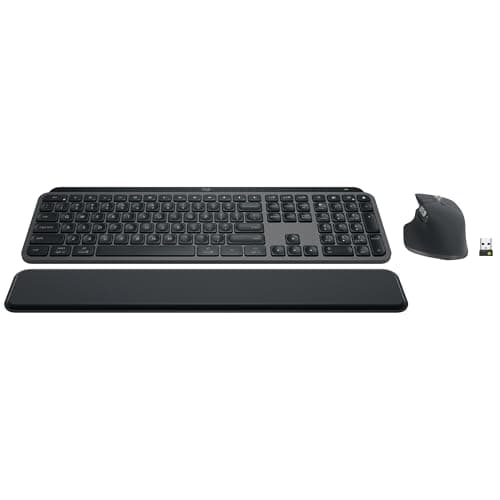
The MX Keys S Combo pairs Logitech's most refined productivity keyboard with the compact MX Anywhere 3S mouse. Both devices connect through a single Logi Bolt receiver and both charge via USB-C, no AA batteries, no mismatched charging habits. Multi-device pairing supports three devices, and switching between them is a single keypress on either device.
The MX Keys S keyboard uses spherically-dished key caps that cup your fingertips, reducing finger travel and missed keystrokes on long writing days. Backlight is smart: it activates when your hands approach and dims after they leave. The MX Anywhere 3S mouse is compact enough to travel but tracks on any surface, including glass.
Our finding: The single-receiver setup genuinely changes how a multi-device desk feels. Jumping the entire input setup, keyboard and mouse together, from a work laptop to a personal machine with one keypress removes a friction point that adds up over dozens of daily switches.
Pros
- Single Logi Bolt receiver handles keyboard and mouse together
- Both devices USB-C rechargeable, no disposable batteries
- Three-device multi-pairing with coordinated one-key switching
- MX Keys S spherical keycaps reduce typing fatigue on long sessions
- MX Anywhere 3S tracks on glass and any surface
Cons
- Premium price, not the right call if budget is tight
- MX Anywhere 3S is compact; heavy mouse users may prefer MX Master 3S (sold separately)
- Smart backlight requires charging more frequently with backlight on
Citation capsule: The Logitech MX Keys S Combo connects both keyboard and mouse through a single Logi Bolt 2.4GHz USB receiver, supports three-device multi-pairing with coordinated switching, and charges both devices via USB-C, eliminating the separate-receiver and battery-management overhead of mixing individual picks.
Logitech
Logitech MX Keys S Combo
2. Logitech MK850 Performance — Best Mid-Range Combo
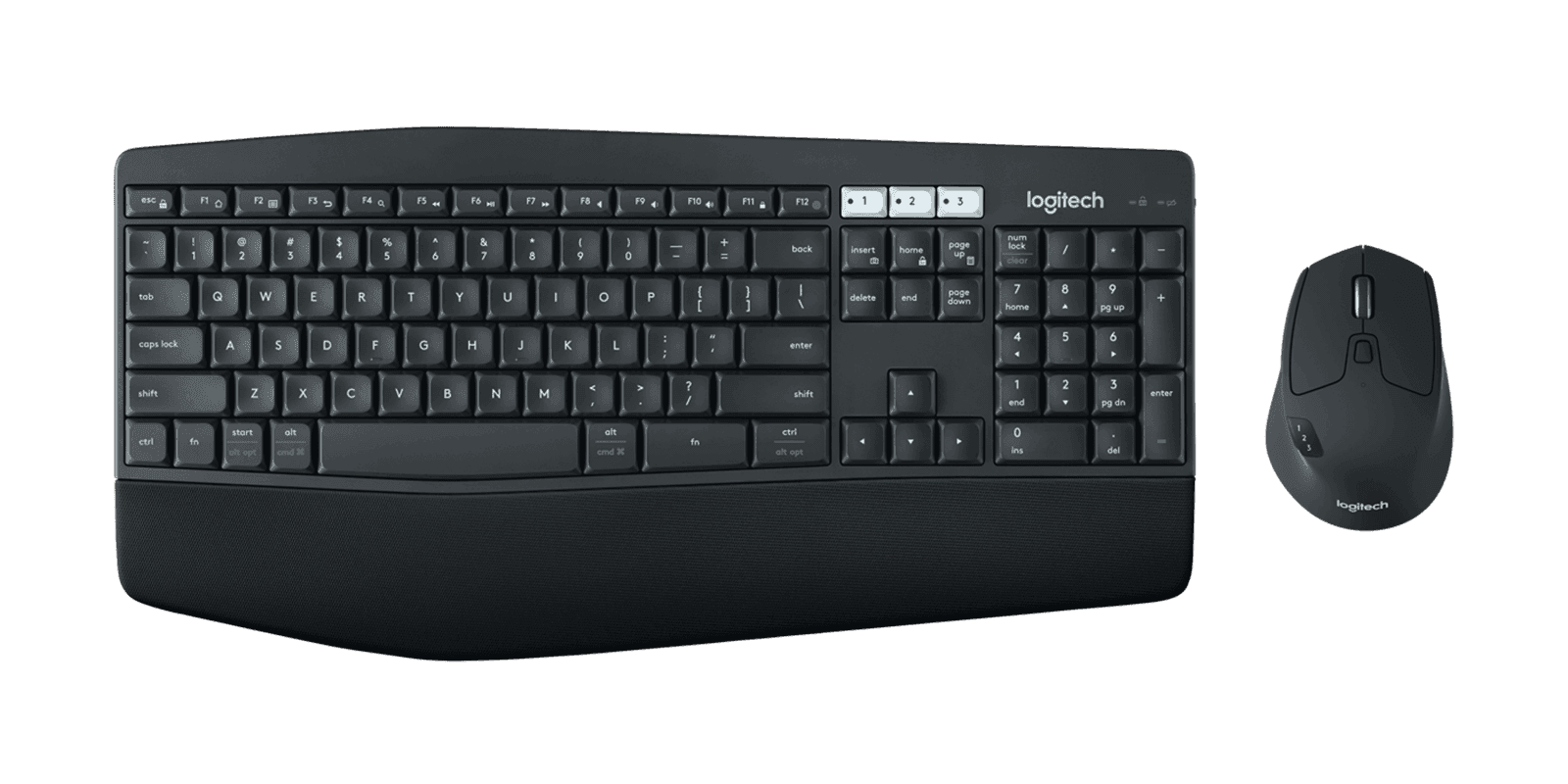
The MK850 brings most of what makes the MX Keys S compelling at $70 less. The keyboard uses curved, concave keycaps similar in feel to the MX Keys, a noticeably better typing experience than flat membrane boards at this price. The bundled M750 mouse is a capable mid-size option that handles palm and claw grip well.
Both devices connect via a single Unifying receiver or Bluetooth, and the keyboard supports three-device pairing with dedicated channel buttons. Battery life is solid: the keyboard runs on USB-C charge, the mouse on AA cells.
Pros
- Curved keycaps feel premium for a $100 combo
- Single receiver covers both devices
- Three-device Bluetooth pairing on keyboard
- M750 mouse suits palm and claw grip users
- Strong mid-range value, most of MX Keys S at 60% of the price
Cons
- M750 mouse is mid-size only, not ideal for large hands
- No backlight on keyboard
- Mouse uses AA batteries rather than USB-C
Citation capsule: The Logitech MK850 Performance Combo includes a curved-keycap keyboard with three-device multi-pairing and the M750 mid-size mouse, both connected through a single Logi Bolt receiver, delivering multi-device switching at roughly $100, about $70 below the MX Keys S Combo.
Logitech
Logitech MK850 Performance
3. Microsoft Sculpt Ergonomic Desktop — Best Ergonomic Combo
A 2025 survey by Truly Ergonomic found that employees with ongoing wrist pain lose approximately 15% of typing productivity (Truly Ergonomic, 2025). The Microsoft Sculpt is one of the few combos built specifically to reduce that pain rather than just manage it. Its split, tented keyboard layout separates the key zones and raises the center to reduce wrist pronation, the inward rotation that puts sustained strain on the median nerve.
The Sculpt ships as a true three-device set: ergonomic split keyboard, dedicated number pad, and the compact Arc Mouse, all connecting through a single USB receiver. Windows-optimized layout with dedicated media keys. The Arc Mouse curves to fit the hand when opened and flattens to pack flat, a clever travel form factor that's equally functional on a desk.
Pros
- Split ergonomic layout reduces wrist pronation and median nerve strain
- Three devices (keyboard + numpad + mouse) on one USB receiver
- Numpad is separate, move it left or right, or remove it entirely
- Arc Mouse has a comfortable natural curve for palm grip
- Best combo option for users managing early-stage RSI symptoms
Cons
- Windows-optimized, Mac users lose some function key labels
- Arc Mouse is compact; not ideal for users needing a large mouse
- No backlight
- Learning curve on the split layout, plan a 1–2 week adjustment period
Citation capsule: The Microsoft Sculpt Ergonomic Desktop's split tented keyboard layout reduces wrist pronation, the inward rotation biomechanics identify as a primary driver of median nerve compression, and ships with a dedicated numpad and Arc Mouse, all connected through a single 2.4GHz USB receiver.
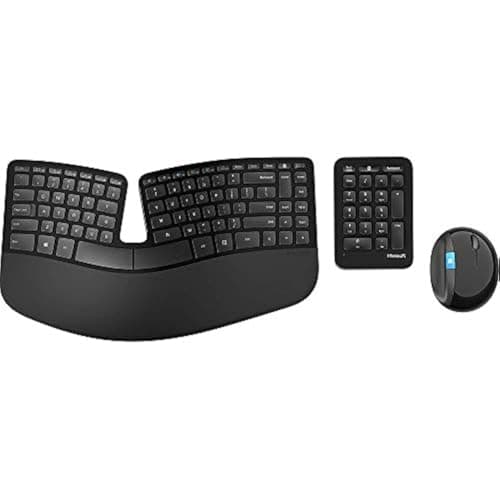
Microsoft
Microsoft Sculpt Ergonomic Desktop
4. Logitech MK710 — Best for Battery Life
The MK710 is the combo to buy if you never want to think about power. The keyboard runs for up to three years on standard AA batteries. The mouse runs for two years on a single AA cell. No USB-C cable to remember, no charging cycles to track, just consistent input devices that are ready whenever you sit down.
22.6% of US employees worked remotely at least partially as of March 2026 (Robert Half, 2026). For hybrid workers who move between home and office frequently, the MK710's all-AA, no-charging setup removes one category of daily logistics entirely.
The keyboard's full-size layout includes a number pad, which knowledge workers who do regular data entry will appreciate. Typing feel is comfortable membrane, not mechanical, but better than most budget keyboards. The single Logitech Unifying receiver handles both devices.
Pros
- 3-year keyboard battery, 2-year mouse battery, genuinely set-and-forget
- Full-size layout with dedicated number pad
- Single Unifying receiver covers both devices
- AA batteries, easy to replace anywhere, no proprietary charger
- Solid, comfortable typing feel for membrane
Cons
- Membrane keys, not mechanical, tactile feedback is moderate
- Older design, no USB-C charging option
- Mouse is full-size only; no compact option in this combo
Citation capsule: The Logitech MK710 combo delivers up to three years of keyboard battery life and two years of mouse battery life on standard AA cells, connected through a single Logitech Unifying receiver, the longest combined battery life of any combo in this roundup without requiring USB-C charging.
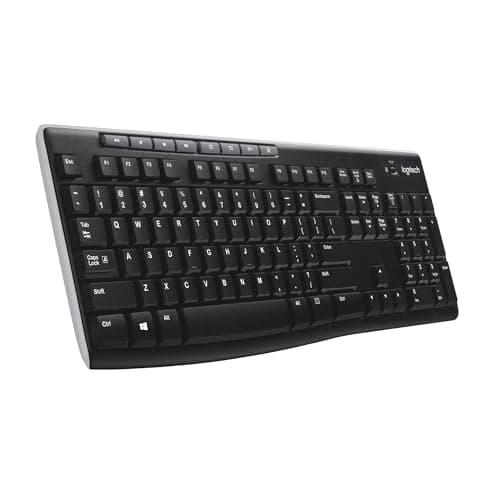
Logitech
Logitech MK710
5. Logitech MK295 Silent — Best Budget Combo
The MK295 is the right first wireless combo for most buyers. At ~$40, it cuts 90% of click noise compared to a standard keyboard and mouse, Logitech's own testing benchmark, which makes it the practical choice for shared apartments, open-plan homes, or anyone on calls where keyboard noise bleeds into the mic.
Full-size layout means a number pad is included, which budget combos sometimes omit. A single Logitech Unifying receiver handles both devices. AA batteries power the keyboard and mouse, with solid standby life. This isn't a premium combo, but for $40 it does its job cleanly.
Pros
- 90% quieter clicks than standard, genuinely good for shared spaces
- Full-size layout with number pad at a $40 price point
- Single Unifying receiver for both devices
- Easy first wireless setup, plug receiver, done
- Good value for shared offices or first-time wireless buyers
Cons
- Basic membrane feel, no curve or ergonomic features
- Mouse is entry-level; upgrade path leads to MK850 or MX Keys S
- No multi-device pairing, single computer only
Citation capsule: The Logitech MK295 Silent Combo reduces click noise by 90% compared to standard keyboards and mice using Logitech's SilentTouch technology, while maintaining a full-size layout with a number pad, making it the most practical option for shared home spaces at approximately $40.
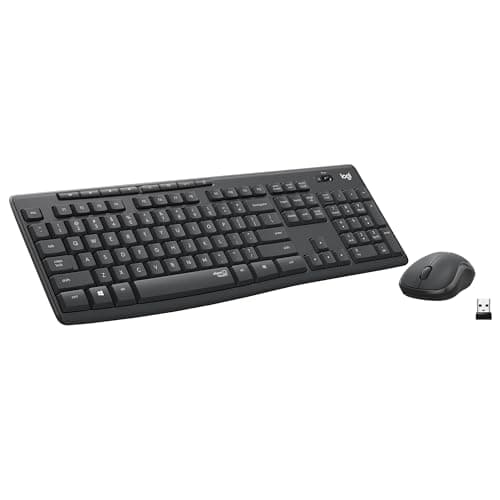
Logitech
Logitech MK295 Silent
2.4GHz vs. Bluetooth: Which Connection Type Is Better for Home Office?
Nearly every wireless combo review lists "Bluetooth or USB receiver" in the specs without explaining what that actually means for your daily setup. This is the technical gap that matters most, and most competitors skip it entirely.
Latency is the first difference. A 2.4GHz USB receiver (Logitech Bolt, Unifying, or Microsoft's proprietary 2.4GHz) operates at approximately 1ms latency under typical conditions. Bluetooth 5.0 runs at 8–15ms. For typing and pointing, that difference is imperceptible in isolation. What you do notice is Bluetooth's occasional micro-stutter, a dropped packet from a congested 2.4GHz band (yes, Bluetooth operates in the same 2.4GHz spectrum as Wi-Fi) that causes a brief freeze before recovery.
Congestion is the second issue. A modern apartment building has dozens of Bluetooth devices competing in the same space: phones, headphones, speakers, smartwatches, smart home devices. USB receivers use proprietary frequency-hopping protocols (Logitech Bolt uses AES-128 encryption and adaptive hopping) that avoid this congestion. Bluetooth combos work fine in low-density environments. In a heavily congested building, a USB receiver is noticeably more reliable.
For video calls specifically, the USB receiver wins. A Bluetooth keyboard that micro-stutters mid-sentence on a call is a friction point that a USB receiver eliminates entirely. If you run two or more video calls per day, the 2.4GHz option is worth the one port.
Where Bluetooth makes sense: portability. If you move between a standing desk and a couch, or between home and a coffee shop, Bluetooth removes the need to carry or plug in a dongle. Premium combos like the MX Keys S and MK850 support both protocols, 2.4GHz at your desk, Bluetooth on the road. That dual-mode flexibility is one of the better arguments for buying premium.
One USB Receiver, One Port, Make It Count
If you're using a USB-C hub or docking station, plug the combo receiver into the dock rather than the laptop directly. That keeps the dongle permanent and out of the way. See our best cable management for desks guide for routing the receiver cable cleanly.
Does the Body Region Data Change What Combo You Should Buy?
The Scientific Reports 2025 study didn't just show that 80.81% of office workers develop musculoskeletal disorders, it showed which body regions are affected most, and the distribution matters for peripheral choice.
Neck pain (58.6%) is the most prevalent. That's driven by monitor height and head position, not directly a keyboard-and-mouse problem. But wrist and shoulder symptoms (37.4% and ~30% respectively) map directly to input device ergonomics. If your wrists are in the at-risk group, the Microsoft Sculpt Ergonomic Desktop's split tented layout specifically addresses wrist pronation. If your shoulders are the concern, raising your keyboard height and using a mouse positioned closer to center reduces reach distance and shoulder rotation.
The takeaway: don't pick an ergonomic combo because it looks ergonomic. Match the combo's design to the body region giving you trouble.
Frequently Asked Questions
What is the best wireless keyboard and mouse combo for home office?
The Logitech MX Keys S Combo (~$170) is the best overall choice for most home offices. It pairs the MX Keys S keyboard with the MX Anywhere 3S mouse, both rechargeable via USB-C, connected through a single Logi Bolt receiver, and supports up to three devices with seamless multi-device switching.
Is it better to buy a keyboard and mouse combo or pick them separately?
Combos make more sense for most people. You get one USB receiver for both devices, matched aesthetics, coordinated multi-device switching, and bundle pricing that usually saves $20–40 versus buying individually. Separate picks only make sense if you have strong preferences for a specific mouse shape or a mechanical keyboard that isn't available in a combo.
What is the difference between 2.4GHz and Bluetooth for a wireless keyboard and mouse?
2.4GHz USB receivers (like Logitech Bolt or Unifying) provide ~1ms latency and stay stable in congested wireless environments. Bluetooth 5.0 runs at 8–15ms latency and lets you connect without a dongle, but can drop in apartment buildings or offices with many Bluetooth devices. For a fixed home office desk, a 2.4GHz receiver is more reliable.
How long do wireless keyboard and mouse combo batteries last?
It varies widely by design. The Logitech MK710 uses AA batteries that last up to 3 years in the keyboard and 2 years in the mouse, you never think about power. Rechargeable combos like the MX Keys S last 5–10 days per charge with backlight on, or up to 10 weeks with it off. Budget for charging if you go the rechargeable route.
Are wireless keyboard and mouse combos good for video calls?
Yes, especially 2.4GHz models. A single USB receiver means fewer ports occupied and no Bluetooth competition with your webcam or headset. For video call–heavy work, avoid Bluetooth-only combos in shared apartment buildings where Bluetooth congestion can cause momentary lag or dropped keystrokes during calls.
Which Combo Should You Actually Buy?
The wireless keyboard and mouse market hit $3.77B in 2025 with a 5.3% CAGR (Market Report Analytics, 2025), which means there's no shortage of options at every price point. The decision tree is shorter than it looks.
Start with budget. Under $50: Logitech MK295 Silent, full stop. $50–$80: MK710 if battery life matters, MK295 if quiet is the priority. $80–$130: MK850 Performance for a noticeable typing upgrade. Have wrist or shoulder pain: Microsoft Sculpt Ergonomic Desktop regardless of price position. Want the best overall: MX Keys S Combo.
The 2.4GHz vs. Bluetooth question resolves itself: every combo here uses a USB receiver as the primary connection. Premium options (MX Keys S, MK850) add Bluetooth as a secondary option for device flexibility. For a fixed home office desk, the receiver is almost always the better daily driver.
If you're building out the full desk at the same time, our work from home productivity tips guide covers how peripheral choice fits into the broader setup, and our home office setup under $500 guide shows where a combo fits in the budget priority order.