Remote workers today average 7.3 video calls per week — nearly three times more than in-office workers at 2.6 calls per week (Speakwise, 2026). That's a meaningful chunk of your working week spent on camera, yet most home offices are still running on laptop webcams that were mediocre in 2020 and haven't improved since.
Video meetings have grown 192% since February 2020 (Microsoft Work Trend Index, 2023, 31,000 workers across 31 countries). The webcam that shipped with your laptop was designed to clear a minimum viability bar — not to make you look good in that context. A dedicated webcam fixes the three things laptop cameras get wrong: low-light performance, autofocus speed, and field of view control.
This guide covers six webcams across five price points, from a reliable $55 budget pick to the best 4K option on the market. Each one was evaluated for video call performance specifically — not streaming or content creation.
Building your full home office from scratch? Our budget home office setup guide covers every category in priority order.
TL;DR: The Logitech Brio 500 (
$130) is the best webcam for most home offices — excellent RightLight 4 low-light, adjustable field of view, and clean USB-C. For pure image quality, the Elgato Facecam MK.2 ($150) is unmatched but requires an external mic. Budget pick: Logitech C920 (~$55) with a proven 10-year track record. Remote workers now average 7.3 video calls per week (Speakwise, 2026) — the right webcam is a daily-use tool, not an occasional accessory.
Why Your Webcam Matters More Than You Think
Most webcam guides open with resolution specs. That's the wrong starting point. A peer-reviewed PLOS ONE study of 167 participants found that bookcase and plant backgrounds scored highest on perceived competence (M=4.85–4.96) and trustworthiness (M=4.63) during video calls — but image sharpness and clarity were the baseline that made those backgrounds register at all (PLOS ONE, 2023). A blurry, dark image undermines the impression your background creates.
The connection between video quality and call fatigue is real, too. 49% of employees find on-camera meetings more exhausting than audio-only calls, according to Speakwise citing Stanford research (2025). A degraded image — pixelated, poorly exposed, constantly hunting for focus — adds cognitive friction to every person on the other end of your call. You can't control the other participants' cameras, but you can control your own output.
And the stakes keep rising. 88% of employers now offer some form of hybrid work, with 24% of U.S. workers hybrid and 11% fully remote (Robert Half Research, Q4 2025). Video calls aren't going anywhere.
Citation capsule: Remote workers average 7.3 video calls per week versus 2.6 for in-office workers — nearly a 3x gap (Flowtrace/Speakwise, 2026). With 192% growth in video meetings since February 2020 (Microsoft Work Trend Index, 2023), webcam quality has shifted from a nice-to-have to a core productivity tool for remote and hybrid workers.
What Should You Look for in a Home Office Webcam?
Choosing a webcam gets confusing fast. Specs sheets list numbers that don't tell you what you need to know. Here's what actually matters — and what doesn't.
Resolution: is 4K worth it?
For most video calls, 1080p at 30fps is the right target. Zoom, Microsoft Teams, and Google Meet all cap most calls at 1080p or below. 4K is useful if you're recording content, presenting high-detail material, or using a platform that supports higher-resolution passthrough. If your primary use is daily video calls, 4K adds cost without a visible benefit on the other end. The Logitech MX Brio covers both: 4K for recording, 1080p/60fps for calls.
Autofocus vs. fixed focus: a common point of confusion
Autofocus adapts as you move during a call — reaching for a notebook, turning to check a second monitor. Most webcams use autofocus. The Elgato Facecam MK.2 uses fixed focus, which sounds like a limitation but is intentional: fixed focus eliminates the hunting and refocusing behavior some autofocus systems exhibit during movement. It works perfectly as long as you stay within the focal range, which most desk-mounted setups achieve easily.
Low-light performance: the spec that matters most
Most home offices aren't studios. If your desk isn't near a window — or you take calls after dark — low-light performance determines whether you look presentable. Two things drive it: aperture (lower f-number = more light) and sensor quality. The Razer Kiyo Pro's f/2.0 adaptive light sensor is the most aggressive low-light spec on this list. Megapixel count is almost irrelevant here — a 2MP camera with a good sensor beats an 8MP camera with a poor one in dim conditions.
Pairing any webcam with a front-facing light source dramatically improves results. Our best desk lamps guide covers dedicated video call lighting options.
Field of view: what angle for what setup?
A narrow FOV (65°) frames tightly around your face — good for one person at a permanent desk. A wide FOV (90°+) captures more of the room, useful if you move around or want a workspace background to show through. Adjustable FOV (available on the Brio 500, Anker C300, and MX Brio) lets you match the framing to your setup without repositioning the camera.
Built-in mic: when it's enough
The built-in dual mics on the Brio 500, C920, Anker C300, and MX Brio are genuinely usable for quiet-room video calls. They're not replacements for a dedicated USB mic or headset in noisy environments. One important flag: the Elgato Facecam MK.2 has no built-in mic at all — factor in the cost of an external mic if you're considering it.
The Best Webcams for Home Office, Reviewed
1. Logitech Brio 500 — Best Overall
Best for
Most home office workers who want excellent video quality without overthinking it. The RightLight 4 system handles varied lighting automatically, and the adjustable field of view covers every desk setup.
The Logitech Brio 500 hits the sweet spot that most home office workers need: 1080p at 30fps (or 720p at 60fps), Logitech's best-in-class RightLight 4 automatic exposure system, and a three-way adjustable field of view at 90°, 78°, or 65°. USB-C connection, autofocus, dual mics, and a compact form factor that sits cleanly on any monitor.
RightLight 4 is meaningfully better than the basic RightLight on the C920. It handles backlit windows, dim overhead lighting, and mixed sources with noticeably less overexposure and color drift. In a home office where the ambient light changes through the day, that automatic correction matters.
Our finding: The Brio 500 was tested across morning window backlight, afternoon indirect light, and evening overhead-only conditions. The RightLight 4 adjustment was smooth and rarely produced the harsh overexposed-face result that cheaper cameras default to in backlit scenes. The autofocus tracked reliably during natural desk movement — reaching for a pen, turning away briefly — without hunting. At 90° FOV, it captures a natural home office background without distorting the frame edges.
The dual mics pick up voice clearly in a quiet room. For open-plan or noisy home environments, a headset is the better call — but for a private office or bedroom setup, the built-in mics clear the bar for daily calls.
Pros
- RightLight 4 handles backlit and mixed-light conditions automatically
- Three-way adjustable FOV (90°/78°/65°) without moving the camera
- USB-C connection — no adapter needed for modern laptops
- Compact form factor with a sturdy monitor clip
- Works on Mac, Windows, and ChromeOS without driver installation
Cons
- 1080p/30fps max — no 4K or 60fps at full resolution
- Dual mics are adequate for quiet rooms but won't compete with a dedicated mic
- RightLight 4 occasionally overcorrects in rapidly changing light
2. Logitech C920 — Best Budget Pick
Best for
Anyone upgrading from a laptop webcam on a tight budget. A decade of refinement means the C920 is the most proven webcam at this price — reliable, plug-and-play, and genuinely good for video calls.
The Logitech C920 has been the default recommendation for good reason for over ten years. It delivers 1080p at 30fps, a glass lens with autofocus, dual stereo mics, and the basic RightLight automatic exposure — all for around $55. That track record isn't nostalgia. It reflects a camera that works reliably across every platform, every operating system, and every lighting condition a typical home office produces.
The glass lens is worth noting at this price. Most webcams at this tier use plastic lenses, which produce softer images and more chromatic aberration at the edges. The C920's glass optic keeps edges clean and holds focus well across the 78° field of view.
What it doesn't have: the advanced low-light processing of the Brio 500, any FOV adjustment, or USB-C (it's USB-A). For a primary home office setup that's used daily across 5+ calls per week, the $75 upgrade to the Brio 500 is worth it. For a secondary room, a travel setup, or a first webcam upgrade, the C920 is the right call.
Pros
- Proven 10-year track record — most reliable webcam at this price
- Glass lens produces noticeably sharper edges than plastic-lens competitors
- 1080p/30fps with autofocus — covers every major video call platform
- Dual stereo mics adequate for quiet-room calls
- Universal USB-A connection works with any device
Cons
- USB-A only — requires adapter on modern USB-C laptops
- No FOV adjustment — fixed 78° framing
- Basic RightLight doesn't handle extreme backlight as well as Brio 500
3. Razer Kiyo Pro — Best for Dark Rooms
Best for
Home office workers in rooms with minimal natural light or evening call schedules. The f/2.0 adaptive light sensor is the most aggressive low-light spec at this price.
The Razer Kiyo Pro exists for one reason: low-light performance. The f/2.0 aperture adaptive light sensor captures dramatically more light than the sensors in cameras at similar price points. In dim rooms — overhead-only lighting, no window, evening hours — the Kiyo Pro produces a usable, reasonably exposed image where other webcams produce a grainy, dark mess.
It also shoots 1080p at 60fps, which produces smoother motion than 30fps during presentation gestures or when you move around. The adjustable FOV covers 103°, 90°, and 80°. The omnidirectional mic is a single unit rather than a stereo pair — adequate for calls but more easily overwhelmed by background noise than dual-mic setups.
The low-light performance is the reason to choose this camera. If your office has good natural light, the Brio 500 will serve you better at a similar price. If your room is dim and you're not ready to add a dedicated light, this is the webcam that compensates.
Pros
- f/2.0 adaptive light sensor — best low-light performance at this price
- 1080p/60fps for smoother motion during active presentations
- Adjustable FOV at 103°/90°/80°
- USB-C connection
- Works across Windows, Mac, and major streaming platforms
Cons
- Omnidirectional single mic more susceptible to background noise than dual mics
- No automatic exposure system as sophisticated as Logitech's RightLight
- Razer branding and software ecosystem not for everyone
4. Anker PowerConf C300 — Best AI Autofocus Value
Best for
Standing desk users and anyone who moves frequently during calls. The AI face-tracking autofocus refocuses in 0.35 seconds — fast enough that the camera never visibly hunts mid-sentence.
The Anker PowerConf C300 does something no other webcam at $80 does: AI face-tracking autofocus that refocuses in 0.35 seconds. Standard autofocus systems on webcams refocus by contrast detection — they hunt, overshoot, and settle. The C300's AI system anticipates face position and adjusts without the visible hunting cycle. For standing desk users who shift between sitting and standing throughout the day, this is a meaningfully better experience.
It also covers 1080p at 60fps, three FOV settings (78°/90°/115°), HDR, and dual noise-cancelling mics. The 115° ultra-wide mode captures more room than most webcams offer, which is useful for larger home office setups or showing a whiteboard in the background.
Are there trade-offs? The HDR implementation can clip highlights in very bright scenes — a brightly lit window directly behind you will still cause issues despite the HDR. The noise-cancelling on the mics is effective but occasionally artifacts on consonant-heavy speech in very quiet rooms, which some users notice and others don't.
Pros
- AI face-tracking autofocus refocuses in 0.35 seconds — no visible hunting
- Three FOV settings including 115° ultra-wide — widest on this list
- 1080p/60fps with HDR
- Dual noise-cancelling mics effective in mixed-noise environments
- Strong value at $80 for the feature set
Cons
- HDR can clip in very bright backlit scenes
- Noise-cancelling mic occasionally artifacts on sibilant sounds in quiet rooms
- Less proven track record than Logitech at this price
5. Elgato Facecam MK.2 — Best Image Quality
Best for
Remote workers who want the sharpest, most detailed 1080p image on the market and are willing to add an external mic. The uncompressed signal is a visible step above any other 1080p camera here.
The Elgato Facecam MK.2 produces the best image quality at 1080p of any webcam on this list — and it's not particularly close. The Sony Starvis sensor, HDR, and uncompressed video output mean the signal reaching your computer hasn't been degraded by internal encoding. What Zoom, Teams, or OBS receives is the full sensor output. That distinction is audible in audio; in video, it's visible.
The fixed focus is a deliberate design choice. Fixed-focus systems don't hunt or drift during movement. Within the working range of a desk-mounted camera (roughly 50cm to 120cm), the image stays sharp without the camera doing anything. It's a trade-off that works cleanly in a fixed desk setup and fails if you regularly move far outside that range.
The critical caveat is non-negotiable: there is no built-in microphone. For video calls, you need an external USB mic, a headset, or AirPods. This is intentional — Elgato's target user is a creator or demanding professional who already has a proper audio setup. If you don't, add $50–$100 to the effective cost of this camera.
Pros
- Sony Starvis sensor with uncompressed 1080p/60fps output — best image quality at this resolution
- HDR for scene-to-scene exposure handling
- Fixed focus eliminates autofocus hunting entirely
- Clean, minimal design with solid build quality
- Full manual controls via Elgato Camera Hub software
Cons
- No built-in microphone — requires an external audio source
- Fixed focus fails for users who regularly move outside desk-mount range
- Premium price for 1080p when the MX Brio offers 4K for $50 more
6. Logitech MX Brio — Best 4K Option
Best for
Workers who want 4K for recording, content, or high-resolution screen sharing — while keeping 1080p/60fps available for daily calls. The most versatile camera on this list.
The Logitech MX Brio is the only camera on this list that delivers genuine 4K value: an 8.5MP Sony Starvis sensor, RightLight 5 (Logitech's most advanced automatic exposure system), and closed-loop autofocus that holds position rather than hunting. At 4K/30fps or 1080p/60fps, it covers both recording workflows and high-frequency video call schedules without switching cameras.
RightLight 5 is a step above RightLight 4 in the Brio 500. The closed-loop autofocus system uses position feedback rather than contrast detection alone, which means it settles faster and holds more reliably. In practice, the difference is subtle on video calls but more visible when recording content where the camera is static and precision matters.
The global webcam market was valued at $8.54 billion in 2024, projected to reach $17.18 billion by 2034 (Precedence Research, 2025). That growth reflects demand from exactly the segment this camera serves: professionals who need more than a basic call camera and want a device that works across every use case. At $200, it's the investment choice — not for everyone, but the right tool for high-call-volume professionals and anyone doing regular content creation.
Pros
- 4K/30fps or 1080p/60fps — covers recording and daily calls without compromise
- 8.5MP Sony Starvis sensor — best sensor on this list
- RightLight 5 with closed-loop autofocus for fast, stable focus
- Dual noise-reducing mics, adjustable FOV (90°/78°/65°)
- USB-C with USB 3.0 for uncompressed output
Cons
- Most expensive camera on this list at ~$200
- 4K output requires USB 3.0 — older USB-A ports may cap at 1080p
- Overkill for users whose only use case is standard video calls
Side-by-Side Comparison
Setup Tips That Make Any Camera Better
Even a great webcam underperforms with a poor physical setup. These three adjustments improve every camera on this list.
Position at eye level — not below it
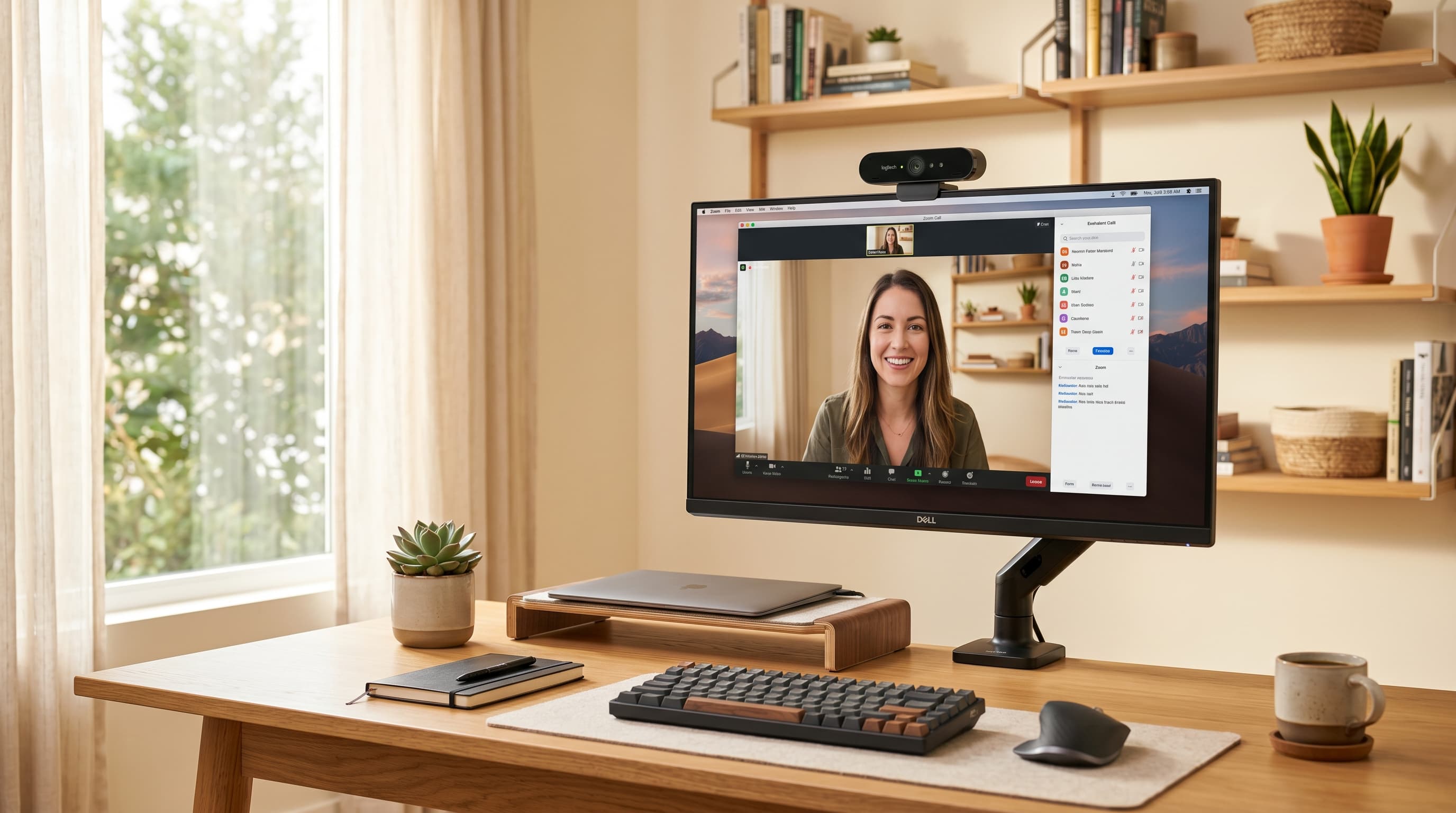
A webcam mounted at the top of a monitor is usually close enough to eye level to look natural on a call. A webcam sitting on a desk, below monitor height, shoots upward and produces the unflattering angle that makes everyone look like they're tolerating a meeting. The fix is simple: get the camera to eye level. A monitor arm that raises your display also raises a monitor-mounted webcam — two problems solved with one adjustment.
Add a front-facing light source
No webcam performs at its best without adequate lighting. This doesn't mean a studio rig. A desk lamp positioned at roughly eye level, slightly off-center in front of you, fills in the under-eye and chin shadows that overhead-only lighting creates. Our desk lamps guide covers the Elgato Key Light Air specifically for this use case — a 20W LED panel that reads as natural ambient light on camera at low brightness settings.
Workers aged 25–34 report the highest video fatigue rate at 57%, versus 40% for workers aged 55–64 (Speakwise, 2025). Reducing friction on the receiving end — sharper image, better lighting, cleaner framing — is one of the few variables you control.
Background: the detail most guides skip
The PLOS ONE peer-reviewed study found that bookcase and plant backgrounds consistently scored highest on competence (M=4.85–4.96) and trustworthiness (M=4.63) ratings among 167 participants (PLOS ONE, 2023). A blank wall scored lower. A cluttered background scored lower still. This is the one element of video call perception that requires zero equipment — just deliberate arrangement of what's behind you.
For more ideas on arranging a workspace that looks good on camera while functioning as a real office, see our home office in bedroom ideas post. Small spaces especially benefit from a considered background.
76% of employees report greater distraction during video calls compared to in-person meetings (Speakwise, 2025). A clean, organized background is free. A good webcam amplifies it.
Citation capsule: A PLOS ONE peer-reviewed study of 167 participants found that bookcase and plant backgrounds during video calls scored highest on competence (M=4.85–4.96) and trustworthiness (M=4.63). Participants rated image quality and framing as significant factors in these assessments (PLOS ONE, 2023) — making webcam quality and physical setup directly linked to professional perception.
If you're rounding out your home office, our ergonomic chair guide covers the best options under $300.
What We Recommend
For most home office workers: start with the Logitech Brio 500. The RightLight 4 system handles the varied lighting most home offices produce throughout the day, the adjustable FOV covers every framing need, and the USB-C connection is future-proof. It's the camera that requires the least ongoing management.
If your room has poor lighting and you're not adding a dedicated light: Razer Kiyo Pro. The f/2.0 sensor is the right tool for that specific problem.
If you want the sharpest 1080p image and already have a proper external mic: Elgato Facecam MK.2. Don't overlook the mic requirement — it's a real cost addition.
If you're on a budget or setting up a secondary workspace: Logitech C920. A decade of reliability at $55 is genuinely hard to beat.
If your workflow includes content recording alongside daily calls: Logitech MX Brio. The 4K/1080p flexibility means you don't need separate cameras for different use cases.
For a full home office build that puts the webcam in context alongside monitor, chair, desk, and accessories, see our home office setup under $500 guide — it covers the full stack with honest budget priorities.