Video calls have become a professional environment. How you appear on camera and how clearly your voice comes through now shapes how colleagues and clients perceive your competence — whether that's fair or not. The Microsoft Work Trend Index found that 43% of remote workers feel overlooked or less connected during video meetings compared to in-person interactions, with audio and video quality identified as primary contributing factors (Microsoft Work Trend Index, 2023). The good news is that fixing both problems costs less than $200 total, and the highest-impact change costs under $50. This guide covers the four variables that control your video call quality — lighting, camera, microphone, and background, in order of impact.
TL;DR: Fix lighting first (BenQ ScreenBar at $45 or Elgato Ring Light at ~$60). Then camera position, eye level, always. Then microphone if you're on calls daily (HyperX SoloCast, $49). The Microsoft Work Trend Index found 43% of remote workers feel overlooked on calls due to poor AV quality (Microsoft Work Trend Index, 2023), the fix costs less than one month of coffee.
Why Does Lighting Have More Impact Than Any Camera Upgrade?
Lighting is the highest-ROI fix in video call quality because your camera captures whatever light is available, nothing more. A $200 webcam in poor lighting looks worse than a $30 laptop webcam with a good front-facing light source. Research from Stanford's Virtual Human Interaction Lab found that lighting quality directly affects perceived attentiveness and trustworthiness during video calls, before any other visual variable registers.
Most home offices make the same three lighting mistakes. First: a window directly behind you creates backlighting. Your camera exposes for the bright background and your face becomes a dark silhouette. Second: overhead-only lighting casts harsh shadows under your eyes and nose, the exact look that makes people appear tired or untrustworthy on camera. Third: no light facing forward means your face is simply underexposed and flat.
The fix is straightforward: one light source in front of and slightly above your face. You don't need a studio. You need one well-positioned light.
Options in order of cost:
A bright window to your side costs nothing. It's the best free option, soft, diffused, and flattering. The key word is "side," not behind you.
The BenQ ScreenBar ($45) sits on top of your monitor and faces you directly. No desk footprint, no repositioning required. It's not marketed as a video call light, but it works better for this use case than most products that are, because it's already aimed at your face every time you sit down.
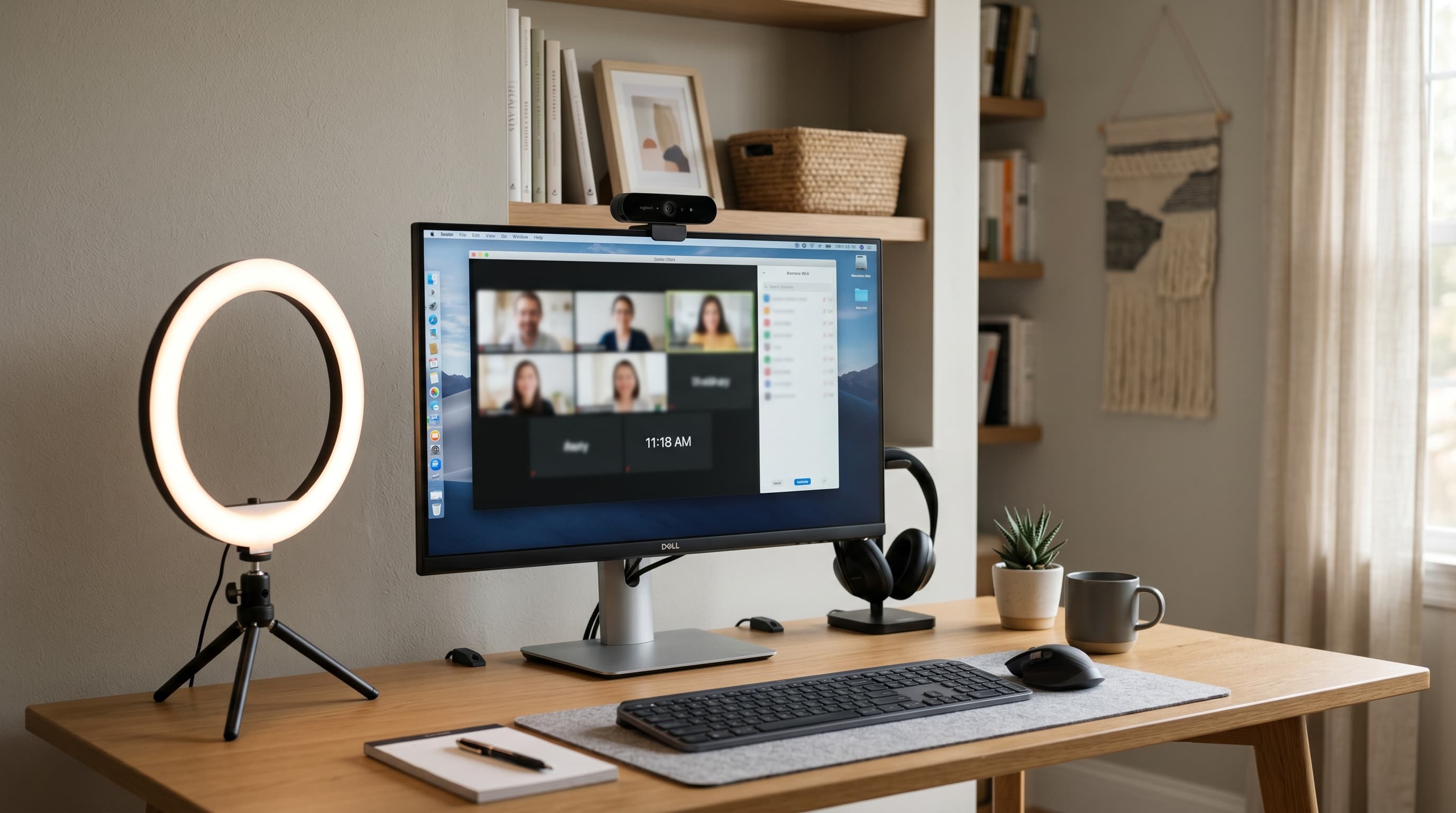
A ring light ($30–$80) is dedicated, movable, and dimmable. It works well. The common mistake is placing it too far away.
Most people who say "ring lights don't make a difference" are using them at the wrong distance. A ring light works best at 18–24 inches from your face. At arm's length or further, light intensity drops dramatically, this is the inverse square law: double the distance, quarter the light. At 36 inches, you're getting roughly one-quarter of the light output compared to 18 inches. Move it in.
The Elgato Key Light panel ($199) gives professional directional control and app-controlled brightness and color temperature. It doesn't create the circular "ring light catchlight" in the eyes that immediately identifies ring light users to anyone paying attention. For high-frequency calls and anyone who wants the cleanest result, it's the step up that's worth it.
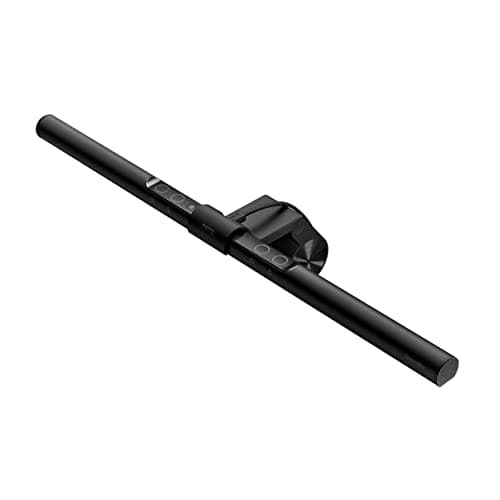
BenQ
ScreenBar
Mounts on top of your monitor and faces you directly, no desk footprint, aimed at your face every time you sit down, more effective than most dedicated call lights.
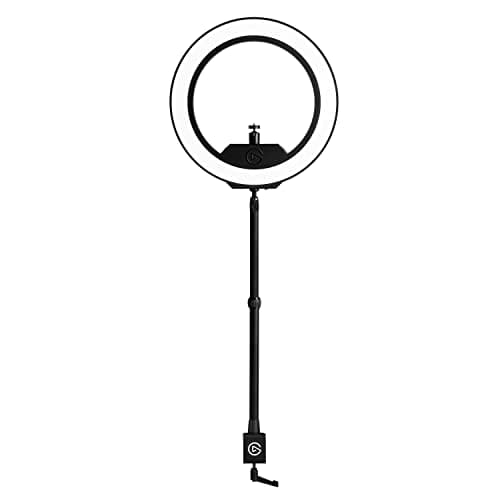
Elgato
Ring Light
Dedicated dimmable ring light for video calls, app-controlled brightness and color temperature, works best at 18–24 inches from your face.
For the full breakdown on ambient, task, and accent lighting, including color temperature and bias lighting for monitors, the home office lighting ideas guide covers every layer.
Citation capsule: The Microsoft Work Trend Index surveyed 31,000 workers across 31 countries and found that 43% of remote workers feel overlooked or less connected during video meetings compared to in-person interactions, with audio and video quality cited as primary contributing factors (Microsoft Work Trend Index, 2023). Stanford's Virtual Human Interaction Lab research links lighting quality specifically to perceived attentiveness and trustworthiness in video communication.
Does Camera Position Matter More Than Camera Quality?
Camera position matters more than camera model, and most home offices get it wrong. A MacBook webcam at eye level looks more professional than a Logitech Brio pointing upward from desk level. The upward angle is unflattering on anyone and signals an inattentive setup before you've said a word. A peer-reviewed PLOS ONE study of 167 participants found that image quality and framing significantly affected perceived competence and trustworthiness during video calls (PLOS ONE, 2023).
Fix camera position first. For laptop users, a laptop stand or monitor riser that brings the screen to eye level also brings the built-in camera to eye level, two problems solved. For external monitor users, clip the camera to the top of the monitor at eye level. That's the right mount point. A camera below monitor height, sitting on the desk, shoots upward. A camera above monitor height shoots downward. Neither works.
When does it make sense to upgrade the camera?
Upgrade when the position fix is done and the image is still genuinely poor: 720p or lower resolution, bad low-light performance at your desk, or a built-in camera on a desktop machine that has none. If you're on video calls five or more times per week, the difference between a laptop webcam and an external camera is visible enough to matter.
Related: best webcams for home office
Logitech MX Brio, best overall external webcam. 4K sensor with Sony Starvis low-light performance, RightLight 5 automatic exposure, and closed-loop autofocus that holds without hunting. 1080p/60fps for calls, 4K/30fps for recording. The camera for people who want one device that covers every use case.
Pros
- 4K/30fps or 1080p/60fps, no compromise between calls and recording
- Sony Starvis sensor with RightLight 5 handles poor lighting automatically
- Closed-loop autofocus holds focus without visible hunting during movement
- Adjustable FOV (65°/78°/90°) covers every desk layout
- USB-C with USB 3.0 for uncompressed output
Cons
- Most expensive option at ~$200
- 4K requires USB 3.0, older ports cap at 1080p
- Overkill for users whose only use is standard calls
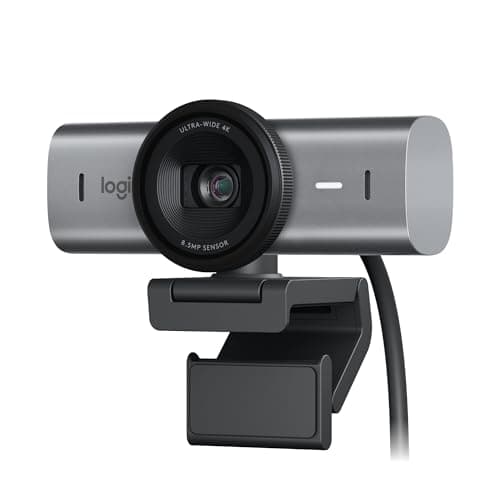
Logitech
MX Brio
4K Sony Starvis sensor with RightLight 5 automatic exposure and closed-loop autofocus, adjustable FOV (65°/78°/90°), USB-C with USB 3.0 for uncompressed output.
Logitech Brio 500, best mid-range pick. 1080p at 30fps with RightLight 4 automatic exposure and a three-way adjustable field of view. USB-C, autofocus, dual mics. The camera that handles varied home-office lighting throughout the day without ongoing adjustment.
Pros
- RightLight 4 handles backlit windows and mixed light sources automatically
- Three-way adjustable FOV (65°/78°/90°) without moving the camera
- USB-C connection, plug-and-play across Mac, Windows, ChromeOS
- Compact monitor clip with a solid, stable build
Cons
- 1080p/30fps max, no 4K or 60fps at full resolution
- Dual mics adequate for quiet rooms; noisy environments need a headset
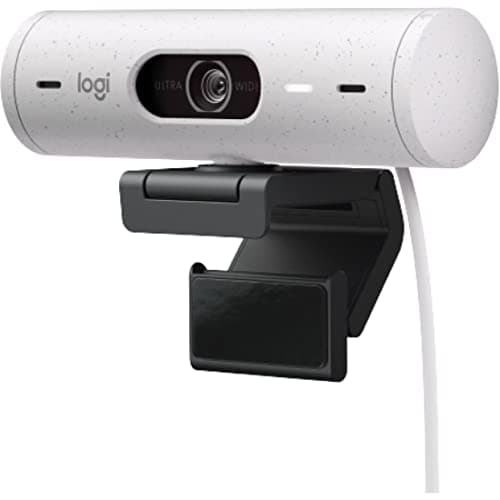
Logitech
Brio 500
1080p with RightLight 4 automatic exposure and three-way adjustable FOV, handles backlit windows and mixed light sources throughout the day without manual adjustment.
Logitech StreamCam, best for people who also create content. 1080p/60fps, vertical video support, and autofocus that tracks face position. The only mainstream webcam with native vertical framing, useful for anyone recording social content alongside daily calls.
Pros
- Vertical video mode native, no cropping required for portrait-format content
- 1080p/60fps for smooth motion during presentations
- USB-C, face-tracking autofocus, directional mic
- Works well as both a call camera and a content recording camera
Cons
- No adjustable FOV, fixed framing
- Lower low-light performance than the Brio 500 or MX Brio
- Overkill for call-only users who don't create video content
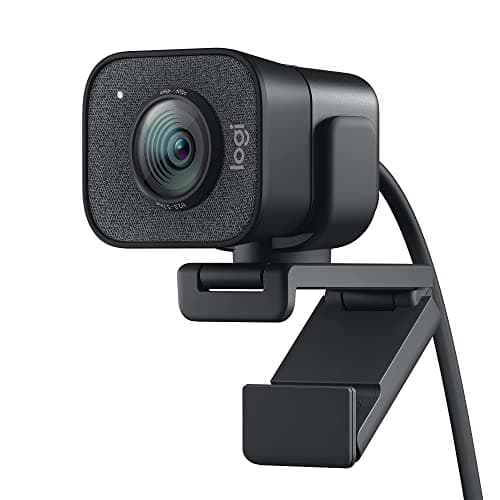
Logitech
StreamCam
1080p/60fps with native vertical video support and face-tracking autofocus, the only mainstream webcam with portrait-format recording built in.
If you're running a dual monitor setup, camera placement changes, the dual monitor setup guide covers positioning for that configuration specifically.
When Does a Microphone Upgrade Actually Matter?
Laptop microphones fail in three specific ways that a dedicated USB mic fixes. They're omnidirectional, they pick up the entire room, not just your voice. They have no presence boost, so your voice sounds flat and distant. And they're close to your keyboard, so every keystroke registers on the other end. Remote workers average 7.3 video calls per week (Speakwise, 2026), at that frequency, your microphone quality is a daily professional signal.
Upgrade if you're on three or more calls per week, work in a room with hard surfaces that create echo, or have ever had a colleague ask you to repeat yourself or move closer to your mic. Those are the symptoms. The cause is almost always a laptop microphone in an untreated room.
Our best USB microphone for home office guide covers the full range from budget to broadcast-quality options. The difference between a laptop mic and a dedicated USB condenser is immediate and obvious on the other end of the call. The most noticeable change isn't volume, it's background noise. A cardioid condenser picks up a tight cone in front of the capsule. Keyboard clatter, HVAC hum, and ambient room sounds that the laptop mic captured continuously simply disappear. Colleagues stop looking distracted and start responding directly, a subtle but consistent change that happens within the first few calls after switching.
HyperX SoloCast, best budget USB mic for video calls. Cardioid polar pattern, plug-and-play USB connection, tap-to-mute button. No drivers, no software, no configuration. You plug it in and it works. The cardioid pattern picks up your voice and rejects ambient sound from the sides and rear. At $49, it's the clearest upgrade path from a laptop mic.
Pros
- Cardioid polar pattern focuses on your voice and rejects ambient room noise
- Tap-to-mute button with LED status indicator, no software needed
- Plug-and-play USB, works on Mac, Windows, PS4/5 without drivers
- Compact desktop stand included, also compatible with boom arm mounts
- Best-in-class value at $49 for daily video call use
Cons
- Cardioid only, no pattern switching for content creators who need omnidirectional
- No headphone monitoring jack for zero-latency mic monitoring
- Desktop stand is functional but compact, boom arm recommended for permanent setups
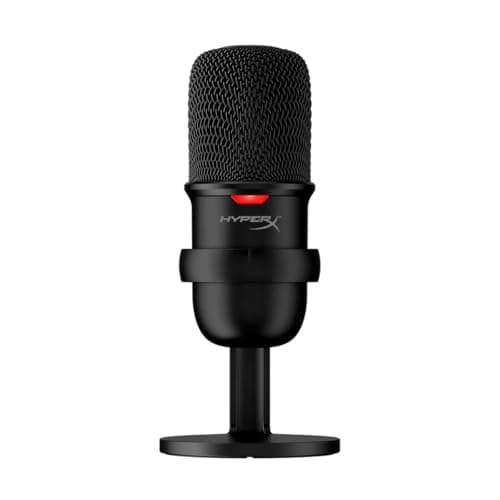
HyperX
SoloCast
Cardioid polar pattern with tap-to-mute LED button and plug-and-play USB, fixes the laptop microphone problem completely for $49, no drivers required.
Blue Yeti, best for people who also record content. Four selectable polar patterns (cardioid, bidirectional, omnidirectional, stereo), a built-in headphone jack for monitoring, and gain control. It's more microphone than most call-only users need, but it covers every recording scenario alongside calls.
Pros
- Four polar patterns cover calls (cardioid), interviews (bidirectional), and podcasting (stereo)
- Built-in headphone jack for zero-latency monitoring
- Gain control and mute button on the mic body itself
- Established track record, the most widely used USB condenser in its price range
Cons
- Large footprint, takes meaningful desk space
- Sensitive pickup captures keyboard noise if not used on a boom arm
- More expensive and complex than call-only users require
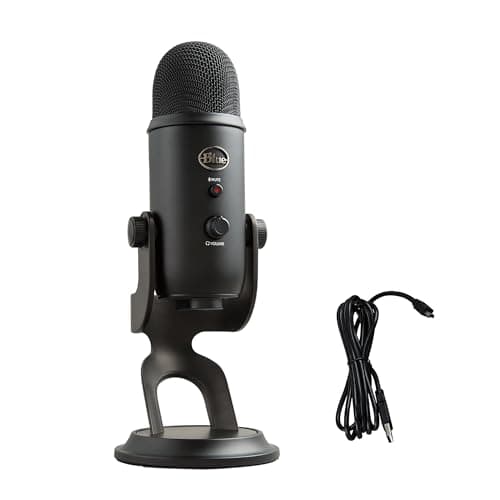
Blue
Yeti
Four selectable polar patterns, built-in headphone monitoring jack, and gain control, more microphone than call-only users need, ideal when recording alongside calls.
Jabra Speak 750, best speakerphone for group calls or shared desk spaces. Omnidirectional mic array designed to pick up voices from around a table, USB and Bluetooth connectivity, and Microsoft Teams/Zoom certification. Not the choice for a solo home office, but the right tool for small conference rooms or two-person home offices where both people need to be picked up.
Pros
- 360° mic array picks up multiple speakers around a table evenly
- Teams and Zoom certified, one-touch meeting join
- USB + Bluetooth dual connectivity, speakerphone output included
- Portable, doubles as a travel conferencing device
Cons
- Omnidirectional pattern picks up room noise, wrong choice for noisy home environments
- Speakerphone output is functional but not matched to audiophile headphone setups
- Overkill and wrong pattern type for solo call use
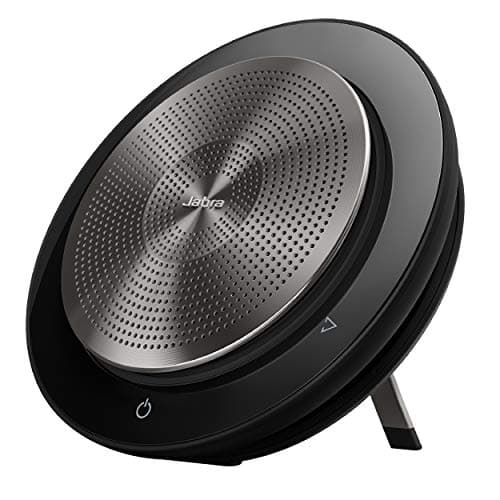
Jabra
Speak 750
360° mic array picks up multiple speakers around a table, Teams and Zoom certified, USB and Bluetooth dual connectivity, portable for travel conferencing.
Prefer a headset over a standalone mic? The noise-cancelling headphones for work guide covers options with excellent call microphones built in, including the Jabra Evolve2 55 for call-heavy workdays.
What Does Your Background and Frame Say Before You Speak?
Background and framing aren't afterthoughts, they're the first impression before you say a word. A PLOS ONE study of 167 participants found that bookcase and plant backgrounds scored highest on perceived competence (M=4.85–4.96) and trustworthiness (M=4.63), while cluttered or bare backgrounds scored meaningfully lower (PLOS ONE, 2023). A real background beats a virtual one every time, virtual backgrounds have visible edge artifacts, lag on hair and glasses, and signal avoidance rather than a clean space.
Background basics: A clean wall, a bookshelf with minimal clutter, or a simple room corner works. Remove visual noise, piles of clothes or boxes signal disorganization. A window behind you creates backlighting that turns your face dark. If your space only offers a window behind you, a front-facing light source (see section one) compensates. For small spaces where the background is hard to control, a solid-color wall directly behind you is the cleanest option.
Framing: Your face should fill roughly one-third of the frame vertically. Leave headroom, don't crop the top of your head. Shoulders in frame read as more complete body language than a floating face. Most laptop cameras default to a framing that works for this if the screen is at eye level. The correction is usually just screen height, not camera zoom.
Room acoustics: Hard surfaces, bare walls, hardwood floors, bare windows, create echo that makes voices sound hollow and distant on the other end. A rug, a bookshelf full of books, curtains, and a closed door each reduce reflections. None of these cost anything if you already have them. A closed door alone makes a measurable difference in how background noise sounds on a call.
One underrated tool: a pop filter or foam windscreen ($8–$15) eliminates plosive sounds, the burst of air from "p" and "b" sounds that makes USB mics sound harsh on video calls. It's a $10 fix that solves a $10 problem. Slip a foam windscreen over the HyperX SoloCast capsule and plosives disappear entirely.
[IMAGE: Clean home office setup showing a bookshelf background, monitor-mounted webcam at eye level, and a desk lamp angled toward the camera position, search terms: home office video call background bookshelf desk setup]
The Complete Setup, Prioritized
The full setup, BenQ ScreenBar + HyperX SoloCast + Logitech Brio 500, costs under $325 and improves every video call for years. These are one-time purchases, not subscriptions.
Start with lighting. The improvement is immediate and visible to every person on your next call. Most people stop there, because the gain is that significant. Add a mic if you're on calls daily, the HyperX SoloCast at $49 is the clearest cost-per-impact ratio on this list. Camera last, and only if you're still unhappy after the first two fixes. Camera position (eye level) costs nothing and has more impact than any model upgrade.
Remote workers now average 7.3 video calls per week (Speakwise, 2026). A setup that makes those calls better isn't a productivity accessory, it's infrastructure for how professional perception works today.
For the next step in building a complete home office, the work from home productivity tips guide covers the environment and workflow habits that compound on top of a good AV setup. For the full lighting picture, ambient layers, color temperature, and bias lighting, the home office lighting ideas guide goes deeper on every layer.