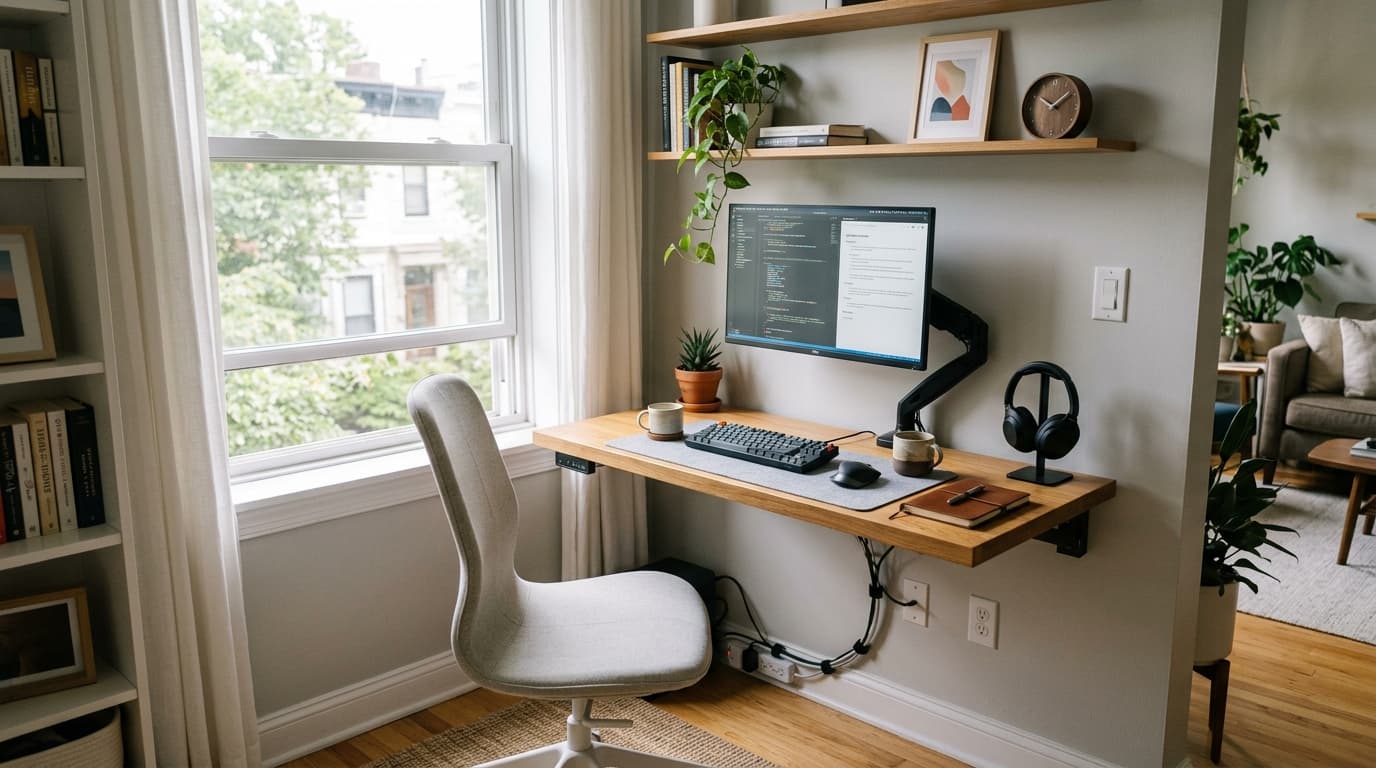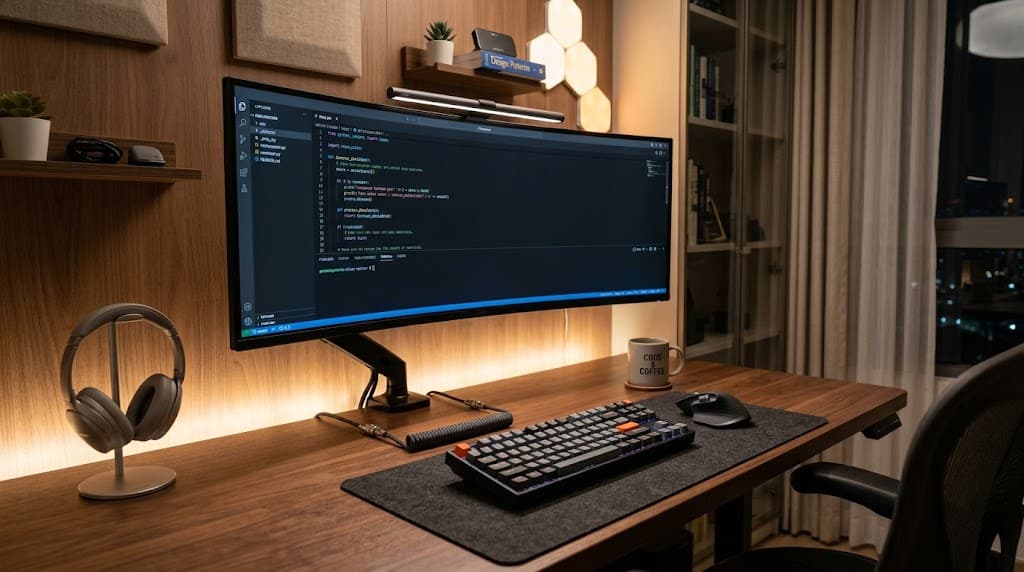

45% of US developers work remotely full-time according to the Stack Overflow Developer Survey (2025, n=49,000+). A developer's setup needs differ from a generic remote worker's: pixel density over color accuracy for monitors, programmable keyboards for macros, low-latency networking for SSH and VPNs. Physical health is also a real concern: 61.4% of programmers in a ResearchGate study (2025) report neck pain. This developer home office setup guide covers each category with specific picks and the reasoning behind them.
TL;DR: 45% of US developers work remotely (Stack Overflow, 2025). The developer-specific priorities are pixel density for sharp code text, QMK-programmable keyboards for macro automation, wired Ethernet for low-latency SSH and VPN, and proactive RSI habits since 61.4% of programmers already report neck pain. This guide covers every category with picks by use case, not a single overall winner.
Monitors: Pixel Density Is What Matters
78.8% of multi-monitor users believe switching to a single monitor would harm their productivity, according to a 2021 arXiv study. Developers need sharpness for reading code, not color accuracy for design work. That changes every buying decision in this category.
PPI is the number that matters. 1080p at 27 inches gives you 81 PPI. 1440p at 27 inches jumps to 108 PPI. 4K at 27 inches reaches 163 PPI. Every step up makes character edges crisper and reduces the eye strain that comes from squinting at slightly blurry glyphs across an 8-hour session.
Aspect ratio matters too. A 16:9 panel is optimized for video. A 3:2 panel (like the BenQ RD280UG) shows 25% more vertical content than an equivalent 16:9 screen, which means fewer scrolls per file, fewer context switches and less time hunting for the line you were just reading.
Engineers in a Jon Peddie Research survey self-reported a 42% expected productivity gain from multiple displays. That is self-reported expected gain, not measured output, though it tracks with the arXiv finding that three-quarters of multi-monitor users feel meaningfully constrained by a single screen.
Citation capsule: A 2021 arXiv study found 78.8% of multi-monitor users believe switching to a single monitor would harm their productivity (arXiv, 2021). Separately, engineers surveyed by Jon Peddie Research self-reported a 42% expected productivity gain from multiple displays, a self-reported figure but consistent with the behavioral data on multi-monitor adoption rates among developers.
For the Single-Monitor Primary: Dell UltraSharp U2724DE (~$499)
The Dell UltraSharp U2724DE is a 27-inch 1440p IPS Black panel running at 120 Hz with Thunderbolt 4 and a built-in KVM switch. One USB-C cable from your laptop handles power delivery, video and data simultaneously. The KVM means you can switch between a work laptop and a personal machine without unplugging anything.
IPS Black delivers deeper blacks than standard IPS, around 2,000:1 contrast ratio versus the typical 1,000:1. That contrast makes dark-mode editors look noticeably better. At $499, it's the most practical single-cable docking solution in the 1440p tier.
For the Developer Specialist: BenQ RD280UG (~$760)
The BenQ RD280UG is a 28.2-inch panel with a 3840x2560 resolution at a 3:2 aspect ratio, running 120 Hz with 90W USB-C delivery. The taller canvas shows 25% more vertical content than a 16:9 panel of comparable width. BenQ ships it with dedicated coding and paper display modes that reduce blue channel intensity for long reading sessions.
It's a specialist choice at $760, but the vertical real estate is genuinely different from anything in the 16:9 category. Developers who work primarily in editors and terminals rather than browsers get the most from it.
Keyboard: Why Mechanical and Programmable
Tactile mechanical switches confirm each keypress without requiring you to bottom out the key, which reduces cumulative finger fatigue across an 8-hour session. That alone makes mechanical keyboards worth considering for full-time developers. QMK/VIA programmability is the second reason.
QMK is open-source keyboard firmware. VIA is a GUI layer on top of it. Together, they let you assign any key to any function, create macros for git push, npm run build or any repetitive CLI command and remap layers per application. That's not a novelty feature. It's the kind of automation that compounds over months.
Assigning a single key to your most-used git workflow (add, commit with message template and push) removes 4 to 6 keystrokes per commit. Across 50 commits per day that's 200 to 300 fewer keystrokes. The effect on wrist load is small per commit but real over a full year.
Best Overall: Keychron Q5 Max (~$219)
The Keychron Q5 Max is a 96% layout keyboard built from CNC-machined aluminum with QMK/VIA support, wireless connectivity and hot-swappable switch sockets. The gasket mount absorbs keystroke impact rather than transmitting it directly to the plate, which matters for all-day typing feel.
The 96% layout keeps the numpad without the full-size footprint, which keeps the mouse closer to the home row. It ships with Gateron G Pro switches in linear or tactile variants, and the hot-swap sockets mean you can change switches without soldering.
Budget and Compact: Keychron V1 (~$99)
The Keychron V1 is a 75% layout keyboard with full QMK/VIA support and hot-swappable switches at half the price of the Q5 Max. The smaller footprint reduces the reach distance to your mouse by several centimeters, which is a meaningful RSI variable across an 8-hour session. It's the entry point for programmable mechanical keyboards without meaningful compromise on the software side.
Mouse: Standard vs. Trackball for Long Sessions
Standard ergonomic mice require sustained wrist pronation (palm facing down) for the full working day. For most developers that's fine. For developers who already have wrist or forearm tightness, it compounds the problem. The two picks below address both situations.
Best Ergonomic Standard: Logitech MX Master 3S (~$99)
The Logitech MX Master 3S has a MagSpeed electromagnetic scroll wheel that can cover long files in a single flick, app-specific gesture customization via Logi Options+ and near-silent clicks that won't disturb calls. It works natively across macOS, Windows and Linux, and supports multi-device pairing with fast switching. At $99, it's the practical default for developers who don't have existing wrist problems.
For RSI Prevention: Kensington Expert Wireless Trackball (~$119)
The Kensington Expert Wireless Trackball uses a 55mm ball controlled by the fingers, which eliminates wrist movement entirely. Your hand rests stationary on the device while the fingers do all the work. It's the right choice when wrist or forearm pain is already present, not as a primary choice for everyone, but as a specific solution to a specific problem.
Headphones: Focus Blocks and Standups
Developers need headphones to do 2 distinct things: block ambient noise during deep focus work and deliver clear voice in standups and code reviews. Most headphones optimize for one at the expense of the other. The picks below address each separately.
Best Overall: Sony WH-1000XM6 (~$449)
The Sony WH-1000XM6 (released May 2025) uses a 12-microphone array and Sony's QN3 ANC chip to deliver the strongest noise cancellation in the consumer over-ear category. Battery runs 30 hours with ANC active. Call quality is also best-in-class for this form factor. The multi-mic beamforming separates voice from background noise in a way that earlier generations couldn't.
At $449 these are not a casual purchase. They're the right call for developers who spend 2 or more hours per day in calls and need reliable focus blocking for the rest.
Budget Option: Bose QuietComfort 45 (~$229)
The Bose QuietComfort 45 delivers strong ANC with 24-hour battery life and all-day wearing comfort that's hard to match at this price. The feature set is simpler than the Sony (no multipoint device switching, no LDAC), but the core use case of blocking noise during focus sessions is well covered. It's the right pick if $449 is not justified for your call volume.
For the full over-ear roundup, see our best noise-cancelling headphones for work guide.
Webcam: Standups and Pair Programming
Built-in laptop cameras average 720p resolution with poor low-light handling. In a standup or pair programming session, a blurry or dim face is a communication problem. It signals lower engagement even when the connection is solid.
The Logitech C920S records at 1080p/30fps with dual stereo mics, automatic low-light correction and a physical privacy shutter. It works across Zoom, Google Meet and Teams without driver installation, which matters for developer machines that run multiple OS configurations. At $69 to $79 it's the practical default at this price tier, not the sharpest camera available but the most proven for this specific use case.
For a full breakdown of options including 4K picks, see our best webcams for home office guide.

Desk and Chair: Brief Notes with Full Guides
L-shaped desks suit most developers better than straight desks. The corner creates a dedicated zone for a second machine, a reference monitor or a drawing tablet without overlapping the primary work surface. The return arm can also function as a standing-height secondary surface if your main desk is fixed height.
Standing intervals matter more than chair quality. No chair fully eliminates the harm of 8 hours of static sitting. The research consistently supports alternating between sitting and standing, not finding the perfect sitting position.
For full coverage of each: best L-shaped desks for home office, best standing desks, best ergonomic chairs under $300 and best office chairs.
Lighting: Two Separate Problems
Lighting for video calls and lighting for eye health are different problems that require different solutions. Treating them as one leads to setups that solve neither well.
A key light for video calls positions the light source in front of you at 30 to 45 degrees off center. The Elgato Key Light Neo (~$149) outputs 2,800 lumens across a 2,900 to 7,000K range and is app-controlled so you can adjust color temperature to match your room without getting up. It makes your face legible in low-ambient-light rooms and on bright outdoor-background setups.
Bias lighting behind the monitor reduces perceived contrast between the screen surface and the wall, which reduces eye strain during long sessions. A warm LED strip running at roughly 10% of your screen's peak brightness and tuned to 3,000 to 4,000K is sufficient. A ring light does not substitute for bias lighting. They solve unrelated problems.
Networking: The Upgrade Most Developers Skip
Ethernet is the highest-impact low-cost upgrade in a developer's home office, and it's almost never covered in developer setup guides. The latency difference is not theoretical. It's perceptible in interactive SSH sessions, VPN tunnels and video calls.
Ethernet delivers 1 to 4 ms local latency. Wi-Fi 6 runs 15 to 40 ms. Wi-Fi 5 runs 20 to 80 ms (Lightyear.ai, 2024). For a browser or a file download, that gap is invisible. For an interactive SSH session where every keypress travels to a remote server before appearing on screen, 30 ms of extra local latency is perceptible as input lag.
Citation capsule: Wired Ethernet delivers local network latency of 1 to 4 ms. Wi-Fi 6 runs 15 to 40 ms and Wi-Fi 5 runs 20 to 80 ms (Lightyear.ai, 2024). For developers doing interactive SSH, pair programming over a VPN or frequent video calls, the latency reduction from a $20 to $35 USB-C Ethernet adapter is the cheapest measurable upgrade in a home office.
A USB-C to Ethernet adapter ($20 to $35) plus a CAT 6 cable is the cheapest performance upgrade in this guide. The Anker USB-C to 2.5G Ethernet adapter (~$30) is the practical default. It runs at 2.5 Gbps over CAT 6 and works without drivers on macOS and most Linux distributions.
RSI Prevention for Developers
61.4% of programmers in a study of 378 reported neck pain (ResearchGate, 2025). Nearly 2 in 3 occupational illnesses involve repeated upper-body trauma, and carpal tunnel syndrome carries a median of 25 days away from work (Bureau of Labor Statistics via Ergonomic Trends, 2024). These are not edge-case outcomes. They're common across developers who type 6 to 8 hours per day for years.
The good news is that the prevention habits are free. Five of them account for most of the risk reduction.
- Keep wrists flat (neutral) when typing. Flip keyboard feet flat if they raise the back edge. The raised-angle default on most keyboards increases wrist extension and compresses the carpal tunnel.
- Take a 2-minute hand and wrist stretch break every 30 minutes. Set a timer. The break matters more than what you do during it.
- Alternate sitting and standing every 20 to 30 minutes if you have a height-adjustable desk. Posture change, not standing itself, is the mechanism.
- Switch to a trackball or vertical mouse if you feel wrist or forearm tightness. Don't wait for the tightness to become pain.
- Do a 5-minute dedicated hand stretch routine at the start and end of your workday. Finger extensions, wrist circles and forearm pronation-supination take 5 minutes and address the tendons most stressed by keyboard use.
For the full framework including monitor height, chair adjustment and desk height, see our home office ergonomics guide.
Frequently Asked Questions
How many monitors do developers need?
Most developers get the biggest productivity gain from 2 monitors rather than 1. A 2021 arXiv study found 78.8% of multi-monitor users believe switching to a single monitor would harm their productivity. A third monitor adds diminishing returns for most workflows. The exception is embedded developers who run a serial monitor, IDE and browser simultaneously that use case genuinely benefits from 3 screens.
Is a mechanical keyboard worth it for coding?
Yes, for 2 practical reasons. Tactile switches confirm each keypress without bottoming out, reducing finger fatigue across an 8-hour session. QMK/VIA programmability lets you assign macros to repetitive commands like git push, build scripts and IDE shortcuts. The Keychron lineup gives you both starting at $99.
Does wired Ethernet make a difference for remote developers?
Yes, measurably. Ethernet delivers 1 to 4 ms local latency versus Wi-Fi 6 at 15 to 40 ms (Lightyear.ai, 2024). For interactive SSH sessions and VPN tunnels, that gap is perceptible as keypress echo delay. A USB-C to Ethernet adapter costs $20 to $35 and is the cheapest performance upgrade in a developer's home office.
What chair is best for long coding sessions?
The Steelcase Series 2 ($588 to $900) covers about 80% of the ergonomic benefit of premium chairs at a lower price. The Herman Miller Aeron ($1,400 to $1,700) is the long-haul standard for 8-plus-hour sessions. For budget setups, any chair with adjustable lumbar, armrests and seat height pairs well with regular standing breaks. See the best ergonomic chairs under $300 guide for budget options.
How do I prevent RSI as a developer?
Five habits matter most: keep wrists flat when typing, use a vertical mouse or trackball if you have existing wrist pain, take a 2-minute movement break every 30 minutes, do a 5-minute hand and wrist stretch routine at the start and end of each day, and alternate sitting and standing with a height-adjustable desk. The home office ergonomics guide covers each in full detail.
Continue Reading
Monitors
- Best home office monitors for 2026
- 4K vs 1440p monitor for work
- Best ultrawide monitors for home office
- Dual monitor setup guide
Keyboards and Mice
- Best mechanical keyboards for home office
- Best ergonomic mouse for home office
- Best keyboard and mouse for home office
Audio and Video
- Best noise-cancelling headphones for work
- Best webcams for home office
- Best USB microphones for home office
Desk and Chair
- Best L-shaped desks for home office
- Best standing desks for 2026
- Best ergonomic chairs under $300
- Best office chairs for 2026
Ergonomics
- Home office ergonomics guide 2026
- Best ergonomic accessories for home office
- Best footrests for home office 2026